Navigate the AI Incident Assistant and AI Incident Prevention Web App
The web app allows you to easily configure AI Incident Assistant and Prevention features and view deep reporting insights. Admins can use this page to customize workflows and find ways to improve existing configurations.
AI Incident Assistant, also known as Biggy, delivers AI-powered incident management by uncovering hidden data, transforming it into insights, and delivering them in natural language. Accelerate incident investigation as AI Incident Assistant combs through infrastructure data and knowledge to surface highly relevant insights that help the team collaborate, investigate incidents, and create post-incident analyses.
AI Incident Prevention helps you assess and analyze the risk associated with proposed changes in your IT environment. It calculates a risk score based on specific change fields and compares the current planned change details with data from your change integrations to identify potential risks.
Access the Web App
You can access the web app at https://app.biggy.io.
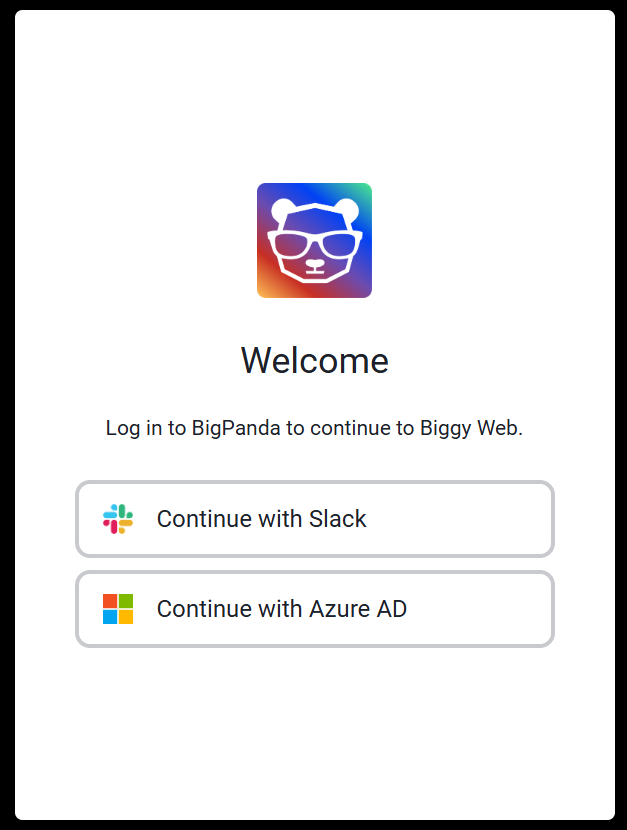
You'll be prompted to choose how to sign in.
Single sign-on (SSO)
If you'd like to enable SSO, contact BigPanda Support.
If your organization uses Slack without SSO, select Sign in with Slack.
If your organization uses MS Teams without SSO, select Sign in with Azure AD. Follow the instructions to sign in to your account.
If your organization uses single sign-on (SSO), select the Sign in with BigPanda SSO option.
AI Detection and Response account required for SSO
To sign in to the web app using SSO, each user must also have an account in the AI Detection and Response console. See User Management for more information on creating accounts.
Login methods
If your organization has disabled a login method, it will not appear on the screen. See the Login Methods documentation for more information.
Web App Home Page
After signing in to the web app, you are directed to the Home page.
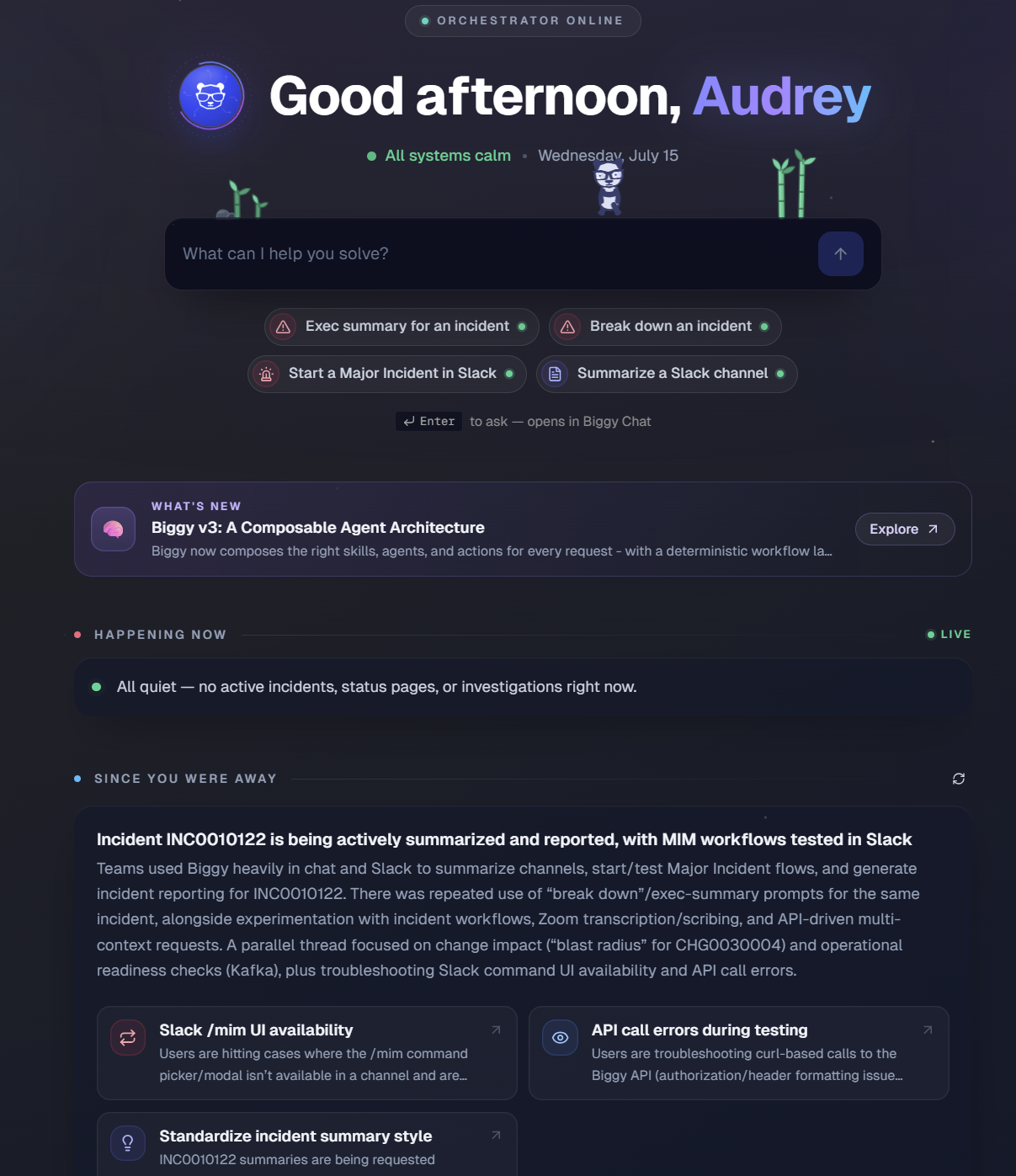
The Home page gives you a single place to check the health of your environment, start a request, and catch up on recent activity. You can always return to the Home page by clicking the Biggy icon in the top-left corner of the screen.
The Home page includes the following areas:
Status banner: At the top of the page, a status indicator shows whether the orchestrator is online. Below it, a personalized greeting, an overall system status line, and the current date give you a quick read on the state of your environment.
Prompt box: Enter a question or request in the What can I help you solve? box and click the send button, or press Enter, to open your request in Biggy Chat.
Quick-action prompts: Below the prompt box, select a suggested prompt to start a common task without typing.
What's New: A card highlights the latest product announcement. Click Explore to read more.
Happening Now: A live panel lists any active incidents, status pages, and investigations. When there is no active work, the panel confirms that everything is calm.
Since you were away: An AI-generated recap summarizes what happened while you were out. Click the refresh icon to regenerate it. The recap includes:
A headline and summary of recent activity.
Highlight cards that call out notable trends or issues to review.
A Where the activity went breakdown that groups recent activity by category, such as Reports, Major incidents, Incident response, and Automation.
An Emerging themes list of recurring topics.
A caught-up indicator that shows when the recap was last updated.
At the bottom of the page, quick links let you open What's new, Release notes, and Docs, or add Biggy to Slack or Microsoft Teams.
Navigation
The web app is organized into areas that appear in the left navigation: Operate and Manage. Each area contains sections that expand to reveal individual pages. To start a conversation with Biggy at any time, select Biggy Chat at the top of the navigation.
Section access
The areas, sections, and pages that appear may vary depending on your user role and the products your organization has purchased.
Click any section to expand it and view the pages it contains.
Overwrite prevention
The web app prevents users from overwriting changes made by others. When more than one user is editing the same page at the same time, a notification appears when you try to save if someone else has already saved. You can either overwrite the other user's changes, keep editing, or reload the page to view them.
Chat
The Chat module allows you to have a conversation with the Biggy right within the web app.
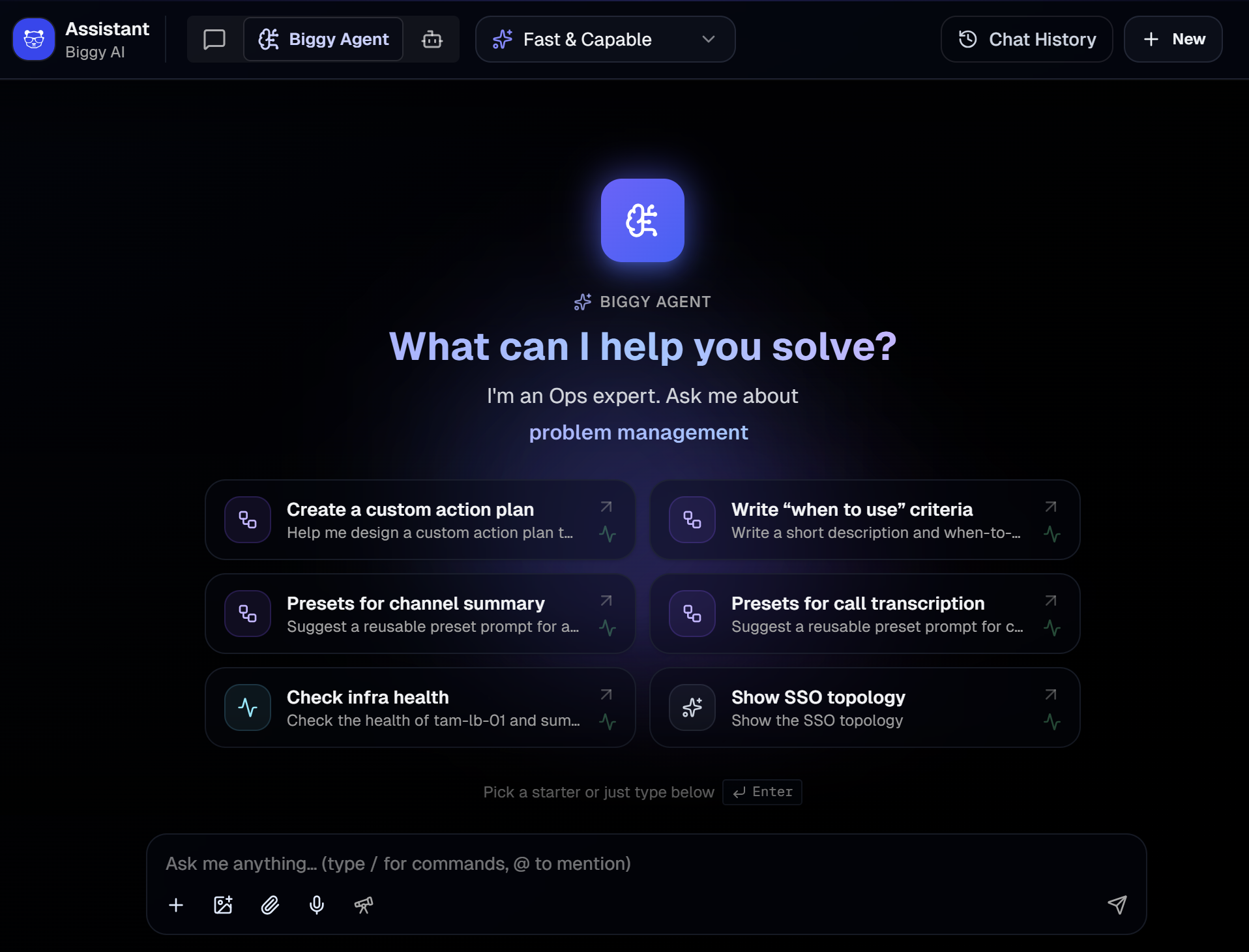
Within the Chat page, you can ask Biggy a question, ask it to generate a diagram, or upload images, CSVs, or Word documents for Biggy to analyze in real time.
See the Web Chat documentation for more information.
Operate
Use the Operate area to respond to incidents, assess change risk, work with meeting content, and review reporting and usage insights.
Incidents
Use the Incidents section to manage incident swarms, major incidents, incident status pages, and post-mortems.
Page | Description | Availability |
|---|---|---|
View and manage autonomous incident investigations. | AI Incident Assistant | |
Execute a new major incident, or view active and past major incident executions. | AI Incident Assistant | |
Create and manage status pages that keep stakeholders informed during an incident. | AI Incident Assistant | |
View all incident reports that were generated by AI Incident Assistant using the Generate Incident Report or Managed Incident Channel actions. | AI Incident Assistant |
Change & Risk
Page | Description | Availability |
|---|---|---|
View all change requests and their associated risk, predicted by AI Incident Prevention. | AI Incident Prevention | |
View a high-level analysis of changes in your IT environment for a specific time period. | AI Incident Prevention | |
Configure risk evaluation criteria for your organization, adjust the weightings of each risk category, configure the Change Risk Dashboard settings, and determine if risk assessments will be passed to your ITSM system. | AI Incident Prevention |
Meetings
Page | Description | Availability |
|---|---|---|
View and manage transcripts from calls that were recorded using AI Incident Assistant's Transcribe a Call feature. | AI Incident Assistant | |
Add Biggy to a live call so it can transcribe and scribe the meeting. | AI Incident Assistant |
Reports
Page | Description | Availability |
|---|---|---|
Run in-depth research across your incident and operational data. | AI Incident Assistant | |
Conduct comprehensive incident and data analysis, problem discovery, and trend identification with AI Incident Prevention's specialized deep research pipeline. | AI Incident Prevention | |
Combine call transcripts, ITSM records, and chat messages into a single, high-quality artifact. | AI Incident Assistant | |
View and manage reports that have been published for your organization. | AI Incident Assistant |
Insights
Page | Description | Availability |
|---|---|---|
View detailed information on how often users interact with AI Incident Assistant, which users utilize AI Incident Assistant the most, and which action plans AI Incident Assistant uses to answer user queries. | AI Incident Assistant | |
Track how specific groups within your organization are using Biggy with Biggy Teams. | AI Incident Assistant | |
Find details about the feedback users provided on AI Incident Assistant's responses. | AI Incident Assistant | |
Track your organization's usage of the Biggy API. | AI Incident Assistant | |
Track major incident response performance and automation effectiveness. | AI Incident Assistant | |
Track how your workflows are performing. | AI Incident Assistant | |
Monitor queries blocked by Guardrails and assess the effectiveness of the content filter. | AI Incident Assistant |
Manage
Use the Manage area to configure Biggy's AI capabilities, build workflows, manage knowledge and data, set up integrations, and administer your organization.
AI Capabilities
Page | Description | Availability |
|---|---|---|
What Biggy Can Do | Explore an overview of Biggy's capabilities and example use cases. | AI Incident Assistant |
Actions are purpose-built AI workflows that augment or automate specific operational tasks. Customize standard actions or create custom ones. | AI Incident Assistant | |
Manage the composable skills Biggy uses to complete requests. | AI Incident Assistant | |
Create and manage custom agents for your organization's workflows. | AI Incident Assistant | |
Configure settings for SWARM investigations. | AI Incident Assistant | |
Configure how calls and meetings are transcribed. | AI Incident Assistant |
Workflows
Page | Description | Availability |
|---|---|---|
Build multi-step agentic workflows for your organization. | AI Incident Assistant | |
Define the conditions, schedules, or phrases that start a workflow. | AI Incident Assistant | |
Automate and accelerate major incident management with preset actions. | AI Incident Assistant | |
ITSM Automation | Automate actions in your ITSM system as part of a workflow. | AI Incident Assistant |
Create reusable templates for status pages. | AI Incident Assistant | |
Review the history and status of workflow runs. | AI Incident Assistant |
Knowledge & Data
Page | Description | Availability |
|---|---|---|
View and explore your indexed and graph data. | AI Incident Assistant AI Incident Prevention | |
View a diagram displaying the various information nodes that feed into Biggy, and the number of documents your organization has indexed. | AI Incident Assistant AI Incident Prevention | |
Give AI Incident Assistant additional information and context by uploading documents from ServiceNow or general file types such as runbooks, knowledge base articles, SOPs, and wikis. | AI Incident Assistant | |
Control which content is automatically indexed and searchable by users. | AI Incident Assistant | |
Connect your organization's commonly used acronyms to their full name and definition. This gives AI Incident Assistant context and improves retrieval accuracy. | AI Incident Assistant | |
Review and manage the knowledge Biggy learns and adapts over time. | AI Incident Assistant |
Integrations
Page | Description | Availability |
|---|---|---|
Set up integrations so that AI Incident Assistant and Prevention can access information from your tools in real time. Integrations enable you to retrieve on-call schedules, create Jira artifacts or Zoom rooms, and more. | AI Incident Assistant AI Incident Prevention | |
Review how requests and alerts are routed across your integrations. | AI Incident Assistant | |
Identify and troubleshoot errors reported by your integrations. | AI Incident Assistant | |
Establish a secure connection from your private network to BigPanda using a relay client. This allows AI agents to access private observability tools, databases, and internal APIs without exposing inbound ports. | AI Incident Assistant | |
Integrate AI Incident Assistant with the BigPanda platform so it can access BigPanda data in real time. | AI Incident Assistant |
Administration
Page | Description | Availability |
|---|---|---|
Configure settings related to Usage, AI Incident Assistant Teams, Incident Priority Values, Login Methods, and the LLM. | AI Incident Assistant AI Incident Prevention | |
Manage the roles associated with users, and add new users to the system. | AI Incident Assistant AI Incident Prevention | |
Configure roles to control permissions for your organization. Roles allow you to restrict what source data users can access, which parts of the web app they can use, and what action plans they can execute. | AI Incident Assistant AI Incident Prevention | |
Configure filters and security protections that ensure only safe and appropriate queries are sent to AI Incident Assistant. Guardrails block queries containing content such as prompt injection, hacking attempts, credential exposure, offensive language, and other sensitive topics. | AI Incident Assistant | |
Track configuration changes across your organization. | AI Incident Assistant AI Incident Prevention | |
Create and manage API keys and find information on using the Biggy API. | AI Incident Assistant AI Incident Prevention | |
Configure a broadcast message to be sent to AI Incident Assistant users via a chat tool or email. | AI Incident Assistant | |
View and manage billing information for your organization. | AI Incident Assistant AI Incident Prevention |
Resources
The Resources area provides helpful information and tips for using Biggy, details about your ingested data, and information about the latest updates to the app.
Page | Description | Availability |
|---|---|---|
View an introduction to Biggy, including best practices and example queries. | AI Incident Assistant AI Incident Prevention | |
Personalize your experience and view a guided introduction to how to use the app. | AI Incident Assistant AI Incident Prevention | |
Access the Biggy API documentation. | AI Incident Assistant AI Incident Prevention | |
What's New | View the latest product announcements and updates. | AI Incident Assistant AI Incident Prevention |
View all of the most recent product releases. | AI Incident Assistant AI Incident Prevention | |
Incident Assistant Docs | Open the AI Incident Assistant documentation in a new tab. | AI Incident Assistant |
Incident Prevention Docs | Open the AI Incident Prevention documentation in a new tab. | AI Incident Prevention |
Personal Settings
Adjust your web app experience using the personal settings.
To access personal settings, navigate to the bottom right corner of the screen and click your name.

The following sections are available in the menu:
Section | Description | Availability |
|---|---|---|
Change the default theme of the web app to dark mode or light mode. | AI Incident Assistant AI Incident Prevention | |
Manage personal information, view your usage, and adjust your AI experience preferences. | AI Incident Assistant | |
Report Issue | Report an issue to BigPanda support. | AI Incident Assistant AI Incident Prevention |
Next Steps
Biggy Chat: Have a conversation with Biggy directly in the web app, ask it to generate a diagram, or upload files for it to analyze.
Get Started with BigPanda: Explore best practices, example queries, and guided onboarding.
Release Notes: Review the latest product releases and updates.