Manage Incidents with AI Incident Assistant
AI Incident Assistant, also known as Biggy, accelerates incident investigation by combing through your institutional knowledge, observability data, and service history to surface highly relevant insights. This helps you make smarter decisions quickly and improve team productivity. Biggy reduces missed SLAs, escalations, and knowledge gaps so you can focus on preventing future issues and innovating to scale incident management.
You can engage with Biggy in Slack or Microsoft Teams using everyday language to ask questions and manage incidents. Biggy provides answers in easy-to-understand language and constantly evolves based on new information.
Add the AI Incident Assistant App
Before you begin troubleshooting with Biggy, you'll need to add it to your chat tool. You can use Biggy in either Slack or Microsoft Teams.
App installation
Your administrator must install Biggy before you can add it to Slack or Teams. For more information, see the Install Biggy documentation.
Add AI Incident Assistant to Slack
To add the Biggy app to Slack:
In Slack, scroll to the Apps section and click + Add apps.
In the search bar, search for Biggy and select it from the list.
Add AI Incident Assistant to Microsoft Teams
To add Biggy to Microsoft Teams:
In the left menu, select + Apps.
Using the search box, search for Biggy.
Click Add to add Biggy to your Teams client. This may require admin approval.
Manage AI Incident Assistant Channels
Once the app is added to your workspace, it can be used in any public or private channel.
To add Biggy to a channel, type @Biggy and press Enter. Click Invite Them to add Biggy to the channel.
You can ask Biggy to leave a channel if you no longer want it there.
If you use Slack, type the command /biggy leave to ask Biggy to leave the channel.
If you use Microsoft Teams, navigate to your team, click the three dots icon, and select Manage Channel. In the new window, select the Apps column and find Biggy in the list. Click the three dots icon, and select Remove.
Summon Biggy in a Channel or Team
Once Biggy is added to a channel or team, there are differences in how you summon Biggy when using Slack versus Microsoft Teams.
If you use Slack, use the command /biggy [query].
If you Microsoft Teams, use the command @biggy [query].
Direct Message Biggy
In addition to adding Biggy to channels or teams, you can also chat with it via direct message.
To direct message Biggy in Slack, go to your Direct Messages section and click +. Search for Biggy and select it from the list. Or, you can use the search bar at the top of your Slack workplace to find Biggy.
To direct message Biggy in Teams, open the Chat tab and select New Chat. Search for Biggy and select it from the list. Or, you can use the search bar at the top of your Teams app to find Biggy.
Manage Incidents with Biggy
You can use Biggy to handle an incident from start to finish. Biggy can find the answers to questions, create incident records and response channels, generate summaries and artifacts, and retrieve on-call schedules.
Action and skills
Biggy automatically determines how to handle queries using the Actions and Skills configured for your organization. If your administrator has not enabled an AI capability, Biggy will not be able to perform the tasks associated with that plan.
Contact your administrator for assistance in enabling actions and skills.
Best Practices
Asking Biggy questions is quick and easy. Here are a few tips for getting the most out of your interactions:
Be specific - Provide as much relevant information as possible in your query.
Use natural language - Biggy understands conversational language, so ask questions as you would to a colleague.
Provide context - If referring to a specific incident, include relevant IDs or descriptions.
Ask for clarification - If Biggy's response is unclear, ask for more details or explanations.
Leverage Biggy's knowledge - Biggy can access your organization's ITOps history, so take advantage of this when asking questions.
Ask follow-up questions -To continue a conversation, leverage the Reply functionality. Biggy understands the context of the message being replied to.
Send Responses - You can Send Biggy Responses to an email address or a ServiceNow work note.
Leave feedback - Use the Thumbs Up or Thumbs Down buttons to provide feedback on Biggy’s responses. This is useful for helping Biggy understand if there is a gap in the history or context, or if there is a preference for how the output is structured or displayed.
What Biggy can do
Biggy determines how to automatically handle queries using the AI capabilities and workflows your organization has configured in the Web App.
If you'd like to see all of the capabilities that Biggy has available, you can access the What Biggy Can Do module. Look for a specific capability that you'd like to use, or see all of the things that Biggy is configured to do.
To see What Biggy Can Do, use the command /biggy and press enter. A drop-down list showing actionss grouped by category will appear.
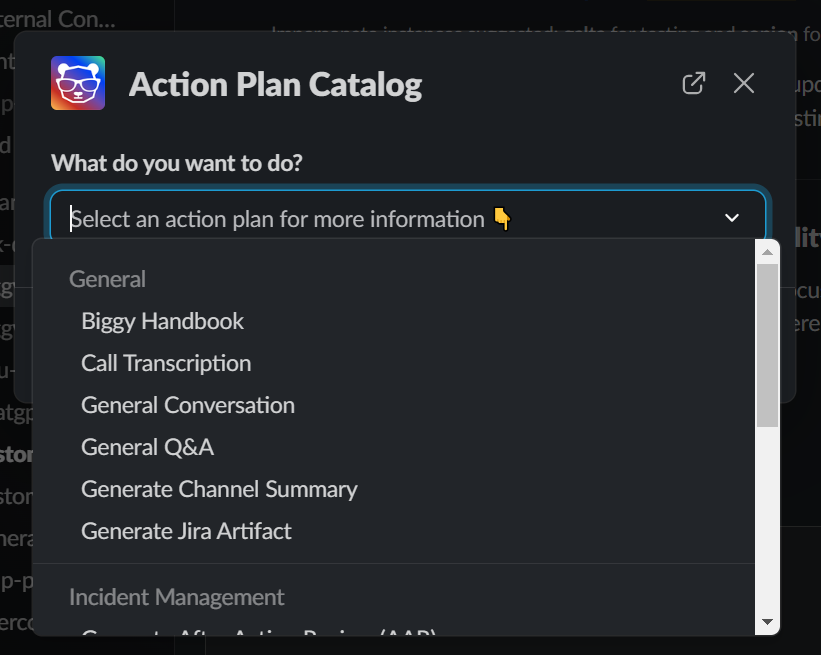
What Biggy Can Do Selection
To use or view more information about a specific capability, select it from the list. The action will open in a window with a description and usage examples.
If the action requires a command, you can enter it in this window. Click Run to use the action plan. If additional steps are required for the selected action plan, they will open in a new window.
Troubleshoot Using Biggy
You can ask Biggy questions using natural language in any channel where it is configured. Biggy will automatically analyze your input to determine the most appropriate response. Biggy's response will include a link to the source where it found the answer.
To ask Biggy a question, go to a channel where it is configured and type /biggy [query] if you are using Slack, or @biggy [query] if you are using Microsoft Teams.
Some examples of questions you can ask Biggy:
Help me troubleshoot ATT link timeouts
How do I fix LDAP connection issues?
Need help with CPU Throttling on k8s pods
List the steps to cycle APIGW
What is the Customer360 service? Who supports it?
How do I configure source IP address-based persistence on an F5 load balancer?
Example queries
To see a list of example queries in the chat window, type /biggy help , and a list of examples will appear on the screen.
Summoning Biggy in Slack threads
To summon Biggy in a threaded message within Slack, use the @biggy command rather than /biggy.
Troubleshoot a Specific Incident
Biggy can provide historical analysis and troubleshooting steps for current incidents.
The following commands are examples of how to ask Biggy to troubleshoot a specific incident:
troubleshoot INC100000
troubleshoot tam sso login failures
Biggy will provide an analysis containing an explanation of the current incident, the teams or individuals involved in previous similar incidents, the priority of previous similar incidents, links to related incidents, and suggested remediation steps.
External Observability
Biggy can check for external events that may impact your operations or cause an outage.
Ask Biggy to check for issues with:
Cloud platforms
SaaS products
Power outages
Severe weather events
Natural disasters
Space weather
Social media reported outages
See the External Observability Sources documentation for a full list of sources that Biggy checks.
The following commands are examples of how to ask Biggy to check external sources:
Can you check External Observability to see if there are any ongoing outages for Google Cloud?
Can you check for any power outages in southern Nevada right now?
Does External Observability show any issues with Salesforce right now?
Can you check External Observability to see if there are any planned maintenance activities active for on AWS us-east-2?
Biggy will show you all third-party and environment-related issues, a summary of the findings, and recommended next steps.
Create an Incident Channel
You can use Biggy to create a new incident channel containing all the relevant people needed for troubleshooting.
To initiate an incident:
Navigate to a channel where Biggy has been enabled.
In Slack, enter the command
/Biggy create incident.In Microsoft Teams, enter the command
@Biggy create incident.In the New Incident Channel window, populate the following fields:
Managed Incident Channel Configuration
Some fields may or may not appear depending on what your organization has configured in the Managed Incident Channel action.
Field
Description
Incident Title
Enter a short, descriptive title for the incident.
Incident Channel Name
The name of the new channel that will be created for the incident.
Priority
From the drop-down menu, select the priority for the incident.
Incident Description
Provide a brief description of the incident. Include what is happening, what is impacted, and other relevant information.
Suggest Teams
Click the button to have Biggy choose which teams to page based on the context of the Incident Title and Description.
Teams to Page
Select the appropriate teams to page.
The teams available to select from are based on services registered in your integrated tools.
Users to Add
Select the users who should be part of the incident channel.
User Groups to Add
Select the user groups that should be part of the incident channel.
Additional Options
The following additional options are available:
- Create a Bridge Call - Starts a new bridge call in your configured conferencing tool.
- Transcribe Bridge Call - If selected, Biggy will transcribe the bridge call you created.
- Create Private Channel - Creates a private incident channel.
Bridge Line (Optional)
Choose from one of your organization's Static Bridge Lines.
Ticket
Choose whether you would like to Create a new ticket, Use an existing ticket, or create No Ticket.
If you create a new ticket, the ITSM Ticket Configuration options appears. You can click Suggest Field Values to allow Biggy to predict the most appropriate fields based on the incident details. Or, you can manually populate these fields.
If you use an existing ticket, enter the pre-existing Ticket Number.
Click Submit to create the new incident channel.
Once the channel is created, a pinned message containing the incident summary, impact, root cause, related links, and action items will appear in the channel. As the incident progresses, the pinned message will automatically update based on information within the channel.
Biggy will actively listen to the channel, and when an intent to perform an action is detected, it will identify potential risks and recommend proper execution steps in a threaded message.
Images
Biggy automatically analyzes and provides summaries of images posted in the channel.
If Create ITSM Ticket or Create a Bridge Call were selected, the link to the ticket or bridge call will appear pinned at the top of the new incident channel.
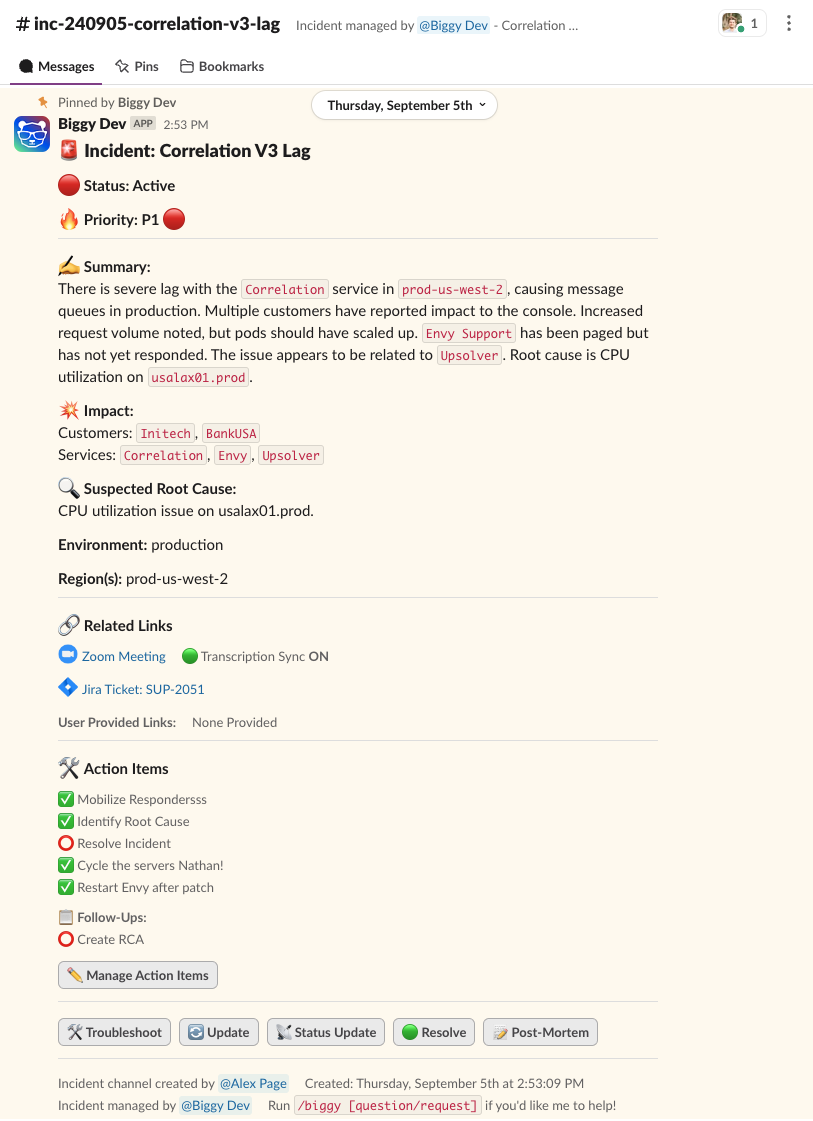
Incident Channel
Incident reports
You can view detailed incident post-mortem reports in the AI Incident Assistant web app. See the Incident Reports documentation for more information.
Generate Summaries
You can use Biggy to generate incident summaries, executive summaries, after action reviews (AAR), or channel summaries. Summaries provide all incident details and any associated change or problem information.
Generate Incident Summary
Incident summaries give you a comprehensive summary or post-mortem of a specific incident.
The generated report includes a high-level incident summary, event timeline, action items, individual contributions, and a detailed incident event log. You can access reports in the Incident Reports page in the web app.
To generate an incident summary, you can use the following command:
[Incident number] summary
Generate Executive Summary
Executive summaries provide leadership teams with a brief, high-level report about the incident including why it happened, what was affected, and how it can be prevented in the future.
The summary compiles key facts, major impacts, top contributing factors, and the current status into a clear, business-friendly format geared towards leadership teams. This makes it easy to keep stakeholders informed without the need to manually sift through detailed reports.
To generate an executive summary, use the following command:
[Incident number] Exec Summary
Generate After Action Review (AAR)
After Action Reviews (AAR) are clear, actionable reports for a specific incident, detailing what happened, why, and how the issue can be prevented in the future. The report compiles lessons learned, successful responses, areas for improvement, and recommended next steps.
This helps you capture important takeaways, drive continuous improvement, and support effective post-incident reviews without manual effort.
To generate an AAR, use the following command:
[Incident number] AAR
Generate Channel Summary
You can also ask Biggy to summarize a channel in Slack or Teams. Biggy reviews messages, highlights key discussions, summarizes important actions, and calls out unresolved items or updates, making it easy to catch up on what’s happened, identify next steps, and ensure everyone stays aligned.
To generate a channel summary, use one of the following commands:
summarize channel
channel summary
The Channel Summary window opens where you can select from the following options to customize your summary:
Option | Description |
|---|---|
Channel | From the drop-down menu, select the channel to summarize. |
Specific Time Range/Entire Channel | Select an option for what you would like to summarize. Specific Time Range summarizes the channel activity between a defined start and end date. Entire Channel summarizes all channel activity. |
Summary Visibility | Select whether the summary will be visible to everyone in the channel or just you. |
Massage Inclusion | Select whether you would like to include all messages, or exclude messages from Biggy. |
Model Selection | Choose the AI model to use for the summary. Select from the following:
|
Summary Goal (Optional) | Provide a brief goal for Biggy to focus the summary on. For example, you could ask Biggy to highlight all action items in the conversation, or provide a list of all links in the conversation. If your administrator configured goal templates in the action plan, they will appear as options below the text box. |
Preview | Use the Preview button to review or edit the summary before posting it. The preview may take 10-30 seconds to generate, depending on the number of messages in the channel. After it has generated, you can use the Edit Instructions (Optional) box to give Biggy additional instructions or context for what information should be included in the summary, or how it should be presented. |
Generate a Root Cause Analysis (RCA)
You can ask Biggy to generate a client-facing root cause analysis (RCA) based on ITSM records, incident details, historical data, changes, and/or user-supplied notes.
To generate the analysis, use one of the following example commands:
RCA [record number]
root cause analysis [record number]
gen RCA [record number]
Transcribe a Call
When you invite Biggy to a MS Teams, Zoom, Webex, or Google Meet meeting, it can transcribe the call in real time and provide a summary, transcription insights, and artifacts based on information from the call.
You can also provide specific instructions to Biggy during the transcription generation, such as “Identify all action items suggested during the call.” Biggy will then process the audio and deliver a targeted, high-quality transcript aligned with your request.
The following example queries will prompt Biggy to transcribe a call:
scribe
transcribe this call
transcribe
Join a call
join meeting
This prompts the AI Call Transcription window to open, where you can enter the Call/Meeting URL and choose when you want Biggy to join the call. Biggy can join the call Now or At a specific time. If you selected At a specific time, choose the date and time. Click Submit to add Biggy to the call.
You will then see Biggy as an attendee of your call. Biggy will request to record the meeting and add a note in the chat letting your attendees know that it is transcribing.
As the call progresses, Biggy will post transcription updates in a thread within your chat tool.
Leaving calls
Biggy will leave a call if it remains silent for an extended period. If a call is silent for 5.5 hours, Biggy will exit the call.
If all members exit a bridge call that is being transcribed, Biggy will end the transcription 10 minutes after the last call member leaves.
To receive updates or request artifacts on demand from Biggy, click the Transcript Generation button within the thread with Biggy. This opens the Transcript Generation window where you can select the following options:
Field | Description |
|---|---|
Transcript Generation Goal/Instructions (Optional) | Enter instructions for what Biggy should focus on in the transcription summary. |
Global Goal Presets | Global goal presets are common goals useful for most organizations. You can select from the following presets:
|
Custom Goal Presets | Custom goal presets are goals specific to your organization. Custom goal presets can be defined in the action plan configuration. Contact your administrator for assistance. |
Model Selection | Choose the AI model to use for the summary. Select from the following:
|
Word/Phrase Corrections (Optional) | If there are words or phrases that are commonly misunderstood, you can enter them here to improve transcription accuracy. The following format should be used:
For example:
|
Analyze an Image
You can use Biggy to analyze images. This is helpful when you need to troubleshoot platform errors, pull text from an image, or analyze infographics. Biggy can automatically detect error messages, highlight key patterns, and extract meaningful information that speeds up diagnosis.
Summoning Biggy
To summon Biggy to analyze an image, you must use the command @biggy.
To ask Biggy to analyze an image, upload or paste it into the chat message and ask it a question. Biggy also offers automatic image analysis when you paste an image into a direct message with it. You can also ask specific questions about an image to receive targeted answers.
The following are example queries:
@biggy analyze this image and provide recommendations of next steps
@biggy analyze the image, find trends in the data
@biggy analyze the screenshot and give me reasons why this error could be occurring
Create a Jira Artifact
You can use Biggy to create content that you can add to a Jira artifact
This process uses a pre-defined, configurable template to structure the response according to your organization's standards for what should be included in Jira artifacts.
The following commands are examples of how to ask Biggy to create content for a Jira artifact:
create a jira epic for [incident number].
create a user story based on [text].
Retrieve an On-Call Schedule
You can use Biggy to find the current on-call IT support or incident response schedules. Ask who’s on call for a service or issue, and Biggy provides current contact details, helping you escalate incidents and reach the right team members without searching external lists.
Example queries you can use to find an on-call schedule include:
who's on call right now
who's on call for friday
show me all the on call schedules
who's on call for windows
Send Biggy Responses
You can share Biggy responses via email or to a ServiceNow work note or comment.
To share a response:
At the bottom of a Biggy response, select the Outbox icon.
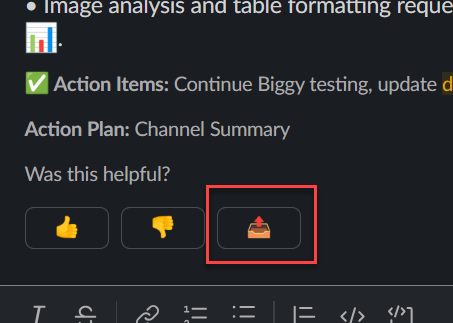
Outbox Icon
In the Send Response window, select a Forwarding Method. You can choose from Email or ServiceNow.
If you selected Email, populate the Recipient Email address.
If you selected ServiceNow, type in the ServiceNow Ticket number, select the Note Type (Work Note or Comment), and edit the Work Note, if desired. This information, along with the name of the user who sent the response, will appear in the ticket.
Click Send.
Provide Feedback on AI Incident Assistant
To help Biggy, you can provide feedback on the response it provides you. Feedback is used to improve future responses.
If Biggy's response was helpful, click the Thumbs Up icon. You can then optionally provide feedback and let Biggy know how much time it saved you.
If the response was not helpful or inaccurate, click the Thumbs Down icon. You can then provide feedback on the response, and let Biggy know if context was wrong, missing, or irrelevant.
Next Steps
Find a high-level overview of the AI Incident Assistant in the AI Incident Assistant documentation.
Learn how to Use the AI Incident Assistant Web App.