Biggy Chat (IA)
The Biggy Chat module lets you chat with Biggy directly in the web app.
Within the Biggy Chat page, you can ask Biggy a question, ask it to generate a diagram, or upload images, CSVs, or Word documents for Biggy to analyze in real time.
Type your query into the Biggy web chat, or select the Microphone icon to use the voice-to-text option. See Write Effective Prompts for guidance on interacting with the Biggy chat.
The Chat module works well for searching and asking questions, with advanced chat and response types to choose from.
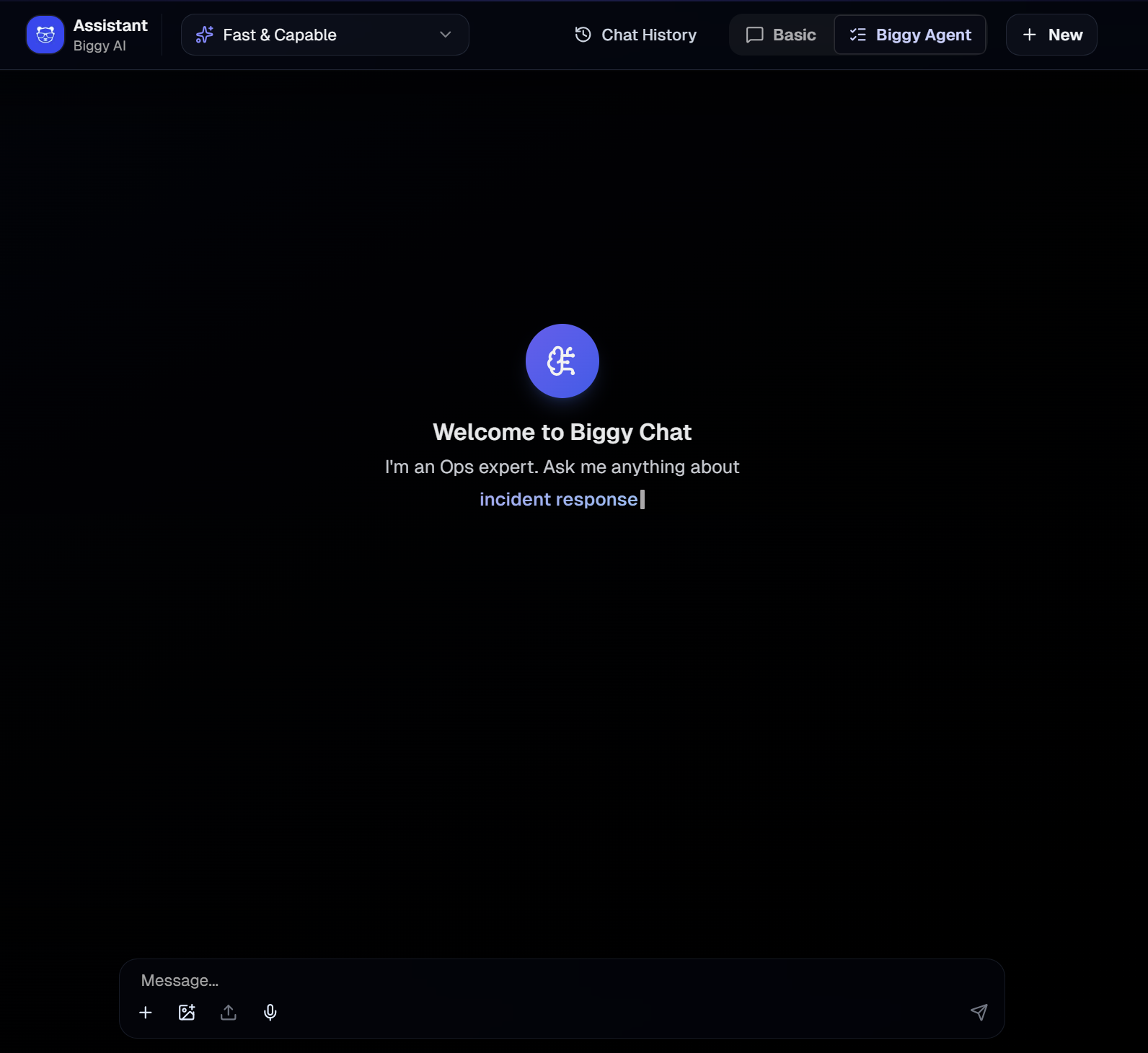
Biggy Chat
Biggy Chat is grounded in your organization's own data rather than a generic large language model, so it answers using your environment. Depending on the integrations you have enabled, this can include ServiceNow incidents, problems, changes, knowledge base articles, and configuration management database (CMDB) data; chat history from tools like Slack or Teams where it has been ingested; and live observability data from integrations such as Datadog, alongside your BigPanda incident data.
There are two web chat types available. At the top right of the Chat screen, select one of the following chat types:
Basic - A standard chat experience with an ITOps-oriented model. Use this option to ask general questions and analyze documents.
Biggy Agent - Can use integrations, full organizational context, and action plans to answer queries. This chat type can access multiple action plans within the same query.
Response styles inform how Biggy answers your query. At the top left of the Chat screen, select one of the following response types from the drop-down menu:
Fast & Capable - Generates a fast, in-depth summary.
Extra Reasoning - Uses more reasoning than Fast & Capable. Takes a little longer to generate.
Max Reasoning - Uses the highest amount of reasoning and takes the longest amount of time to generate.
Long Context - Uses a high amount of reasoning to analyze large documents. This response type is only available when selecting the Basic chat type.
Chat Presets
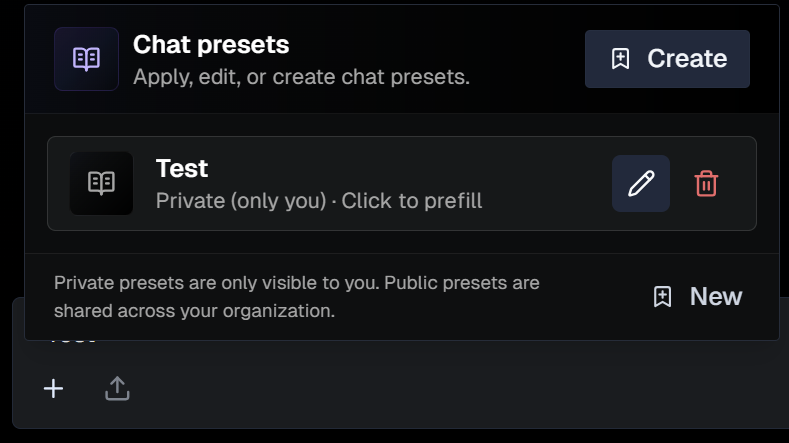
Create chat presets for queries that you frequently use with the Biggy web chat. Use private presets for personal workflows, or public to share with your organization.
For example, if you ask for a report on a weekly basis, you can create a preset for that query so that you don't need to retype it each time.

When interacting with the Biggy web chat, go to the bottom left corner and click the + button to select a preset from the list. The preset text will appear in the Biggy web chat text box.
Edit a preset
After you select a preset, you will have a chance to edit the content before you send the query.
For example, if you create a preset with placeholder names, you can edit those before sending the query to the Biggy web chat.
Create a Preset
To create a new preset:
In the Biggy web chat, go to the bottom left corner and click the + icon.
In the Chat Presets window, click Create or New.
In the Create Chat Presets window, populate the following:
Field
Description
Preset name
Descriptive name for the chat preset.
Visibility
Select who can see the preset. The following options are available:
Private - only visible to you.
Public - visible to everyone in your organization.
Preset Instructions
The query used in the preset.
Use the Generation Mode button to allow Biggy to generate a prompt based on your input.
Click Save Preset.
Manage Presets
To edit a preset, hover over it and click the Pencil icon. Adjust fields in the Edit Chat Preset screen, and click Save Changes.
To permanently delete a preset, hover over it and click the Trash can icon.
Share a Chat Message
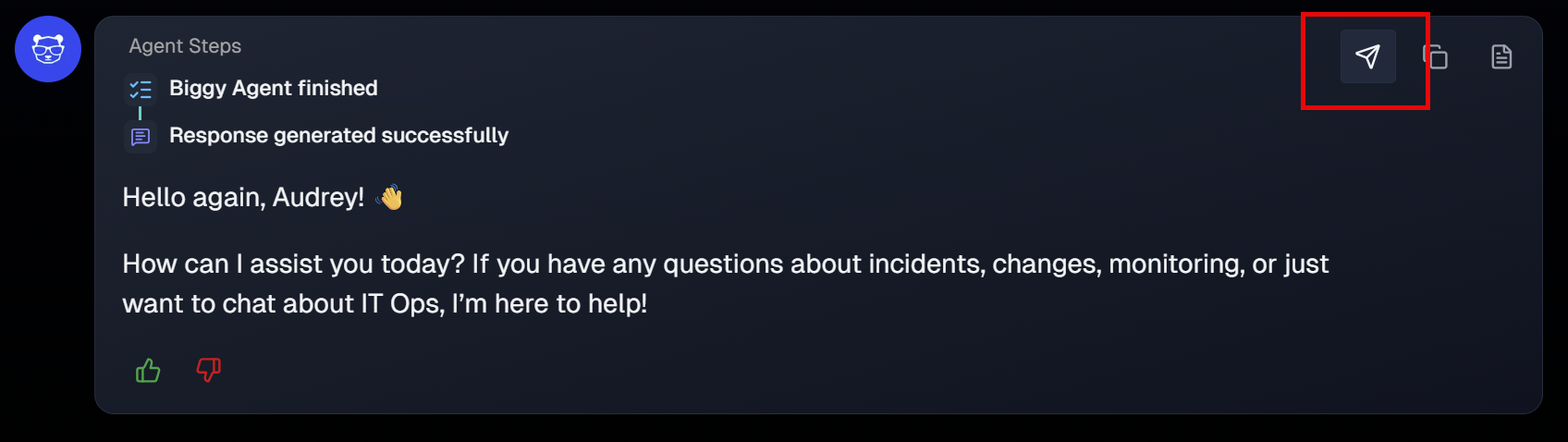
You can send Biggy Chat messages to systems outside of the web app. Messages can be sent to:
Slack, Teams, and ServiceNow must be integrated with AI Incident Assistant to appear as a sharing option. See the Manage AI Incident Assistant Integrations documentation for more information.
Copy or Download Messages
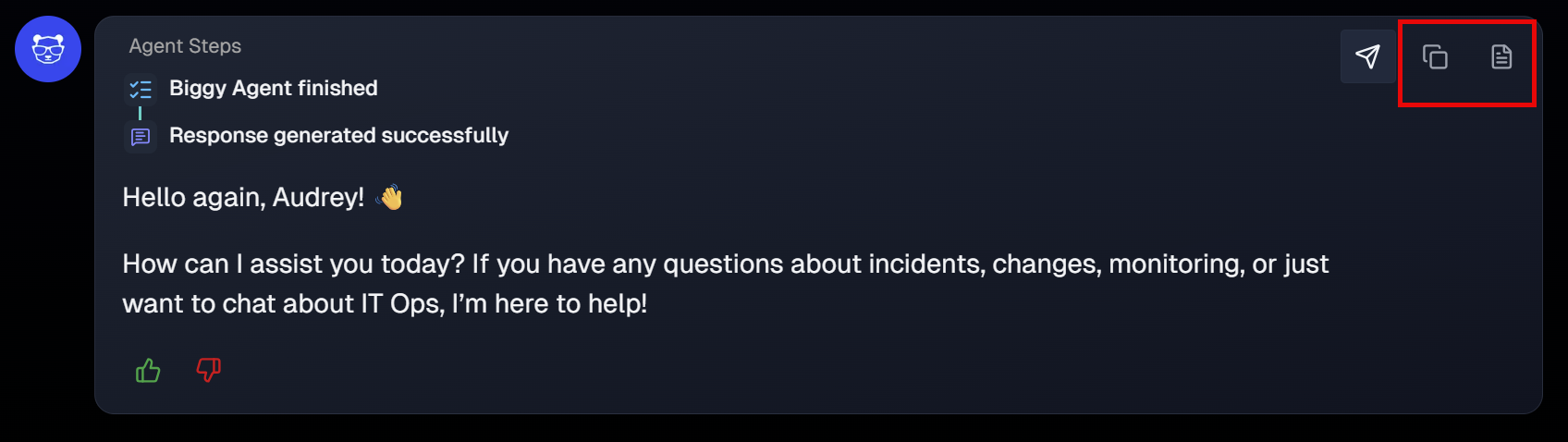
You can copy or download a Word document of any message in the web chat conversation. Hover over a message and click the Copy icon or the Download icon.
Tables
If Biggy generates a table as part of the response, you can select Download as CSV to export the table.
Chat History
To view recent Biggy Agent web chat conversations, select Chat History.
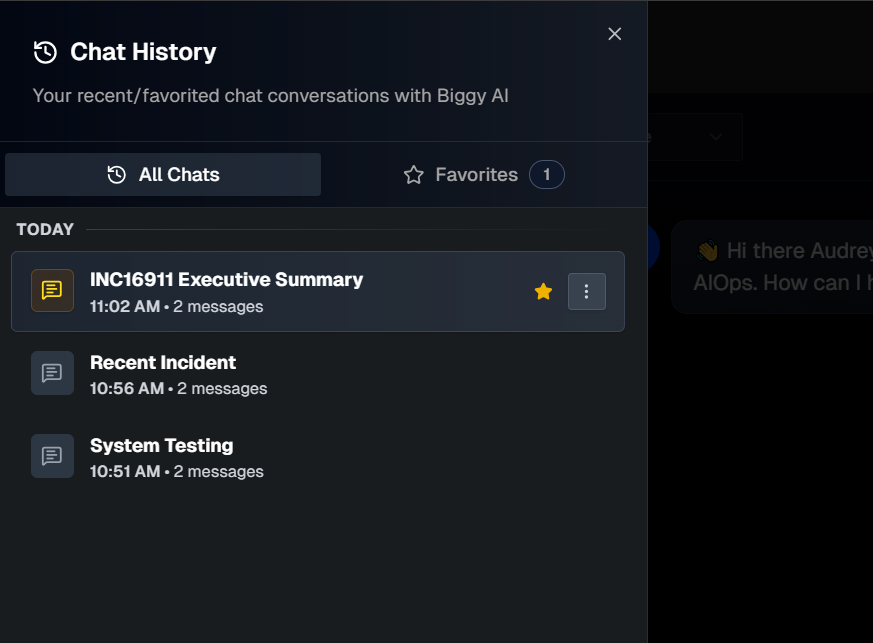
The All Chats tab automatically opens. Click any chat to open the full conversation.
If there's a conversation you'd like to save for easy access, click the Star icon to add it to the Favorites tab.
Biggy automatically generates a title for each conversation. To change the title, click the three dots icon and select Rename. Enter a new title and click the green check mark to save.
To permanently delete a conversation, click the three dots icon and select Delete.
Write effective prompts
Biggy Chat is a workspace for investigation, research, and generating polished artifacts that you can paste into other tools. Whether you're a responder building situational awareness, an engineer doing deeper triage, or a manager preparing a review, the quality of what you get back depends on how you ask.
Biggy is most useful when you give it three things: context (which incident, change, or system, and what timeframe), an explicit action (what you want done), and a format (what you want back). Vague prompts get vague answers. Specific prompts get useful responses and artifacts you can paste directly into your tools.
The pattern is context, action, format. The following table shows the difference:
Weak prompt | Strong prompt (context + action + format) |
|---|---|
|
|
|
|
|
|
|
|
Prompting do's and don'ts
Follow these practices to get consistent, pasteable results:
Anchor every prompt to a service. Reference a specific incident ID, change ID, or named service. Once you give Biggy the service context, it can pull all the related information.
Ask for the format you want. For example,
as a table,as five bullets,as a status update under 120 words, oras a pre-CAB brief.Tell Biggy where the output is going. For example,
I'll paste this into Slack,this is for a leadership deck, orthis is for ServiceNow work notes. Tone and length adjust accordingly.Iterate in the same chat. Biggy keeps context within a single chat. Refine with follow-ups like
make it shorter,more technical,add the change ID, orredraft for an executive audience.Don't ask Biggy to invent data. If a source is missing, tell Biggy where to look, or accept "unknown" as an answer.
Don't skip the action.
Tell me about <incident_ID>is open-ended.Summarize <incident_ID> for leadershipis actionable.Don't paste sensitive data in chat. Don't paste sensitive or regulated data, such as personally identifiable information (PII), into the chat. Reference incidents by their ID and let Biggy resolve details from the source system without surfacing them back to you.
Prompt library
Use the following prompts as starting points. Copy a prompt, substitute the placeholder values in <angle brackets>, and iterate in the same chat to refine the result.
Prompts by purpose
Purpose | Try this prompt |
|---|---|
Quick situational awareness |
|
Severity guidance |
|
Change-incident correlation |
|
Similar past incidents |
|
On-call lookup |
|
Status update draft |
|
Vendor escalation packet |
|
Pre-CAB change brief |
|
After-action review draft |
|
RCA draft |
|
Executive summary |
|
Problem theme analysis |
|
Knowledge base or runbook lookup |
|
Challenge the hypothesis |
|
Investigation scenarios
Each scenario starts with a deep-context seed prompt to set up the chat, followed by prompts to refine the result. Substitute the placeholder values for your own.
Vendor-suspected service outage
Seed prompt: I'm investigating a service outage with a suspected vendor cause. Incident: <incident_ID>. Affected components: <list>. Start time: <HH:MM>. Summarize what BigPanda knows about it, list any related vendor signals or external status events from the last hour, and any related changes in the last 24 to 72 hours.
Follow-ups:
Generate the vendor escalation packet I should send for this. Plain text, copy/paste ready.Find prior outages of this type from the last 12 months that were resolved by rerouting. Give me the runbook reference and the typical time to mitigate.Draft a status update for leadership, under 120 words, that I can paste into Slack.
Suspected change-induced incident
Seed prompt: Cross-reference <incident_ID> against ServiceNow changes in the last 72 hours that touched the same CIs, sites, or technology. Rank them by likelihood of root cause. For the top candidate, show me the AI Incident Prevention risk score and any mitigations it flagged.
Follow-ups:
For <change_ID>, what mitigations did AI Incident Prevention propose, and which were actually performed per the change record?Find historical incidents from similar-scope changes. Did they cause incidents? What was the typical mitigation?Draft a rollback decision brief for the bridge: current state, what a rollback restores, blast radius, and the go or no-go criteria.
Multi-site outage analysis
Seed prompt: I'm looking at <incident_ID>. Identify which sites are impacted, what infrastructure they share, and the timeline of the first event per site from BigPanda. Are the failures simultaneous or staggered?
Follow-ups:
Assess business impact: which sites have critical operations running right now, and what is the risk if this lasts another 30 or 60 minutes?Find similar multi-site outages from the last 12 months and the mitigation step that worked.Draft an impact statement I can hand to the affected site owners.
Capacity or saturation investigation
Seed prompt: Show me everything you have on the capacity problem theme for <system>: the BigPanda problem report, recent saturation events from the last 30 days, a root cause summary, and the proposed solutions with effort estimates.
Follow-ups:
What downstream applications are likely impacted by this saturation per CMDB?Draft an executive summary explaining why this is recurring and what is different about the proposed fix this time. One page.Generate a project brief I can hand to engineering: problem, evidence, the proposed solutions, and recommended sequencing.
Pre-CAB change risk research
Seed prompt: I'm reviewing <change_ID> before CAB. Pull the AI Incident Prevention risk score, the top risk factors, prioritized mitigation steps, and any prior changes of similar scope that caused incidents. Format it as a one-page pre-CAB brief.
Follow-ups:
What questions should I make the change owner answer before approval?If this change does cause an incident, what is the most likely failure mode based on similar history?Draft proposed rollback criteria and the validation steps the change record is missing.
Post-incident artifact generation
Seed prompt: For <incident_ID>: generate the after-action review (timeline, what went well, what didn't, action items with owners), the RCA (root cause, contributing factors, detection gap, preventive actions), and a one-page executive summary for leadership. Mark anything inferred versus cited.
Follow-ups:
Make the executive summary 50% shorter and lead with the business outcome.From the action items, identify which are detection gaps, process gaps, or capability gaps, and group them.Find prior incidents that produced similar action items but were never closed. Are we about to repeat ourselves?
Tips for getting the most out of Biggy Chat
Treat each chat like a workspace. Use one chat per incident or per investigation. Biggy keeps context within it, and switching chats resets that context.
Generate artifacts here, and act elsewhere. Biggy Chat is strongest for drafting comms, packets, and briefs. Use the sharing options to send them to Slack, Teams, ServiceNow, or email, where you can act on them. See the Share a Chat Message section for details.
Ask Biggy to challenge itself. Before committing to a hypothesis, try a prompt like
What's the strongest argument that the change isn't related?Always say where the output is going. A status update for Slack, a work note for ServiceNow, and a brief for leadership each call for a different tone, length, and level of detail.
Give feedback when Biggy gets it right or wrong. Reactions and thumbs feedback feed the model. The accuracy you see in a few months depends on the feedback you give it now.