Change Risk (IP)
In the AI Incident Prevention Change Risk settings, configure risk evaluation criteria for your organization, adjust the weightings of each risk category, configure the Change Risk Dashboard settings, and determine if risk assessments will be passed to your ITSM system.
Change Risk Settings
In the Change Risk Settings section, you can configure:
Change Risk Profiles
Assistance required
To create a new change risk profile, reach out to your BigPanda account team.
Use change risk profiles to create multiple, separate change risk configurations. Change risk profiles can be used to filter the Change Risk Dashboard. This is helpful for organizations that have teams that use different risk evaluation criteria.
Best practice
Most organizations configure between 1-6 change risk profiles. We recommend configuring no more than 10 change risk profiles per organization.
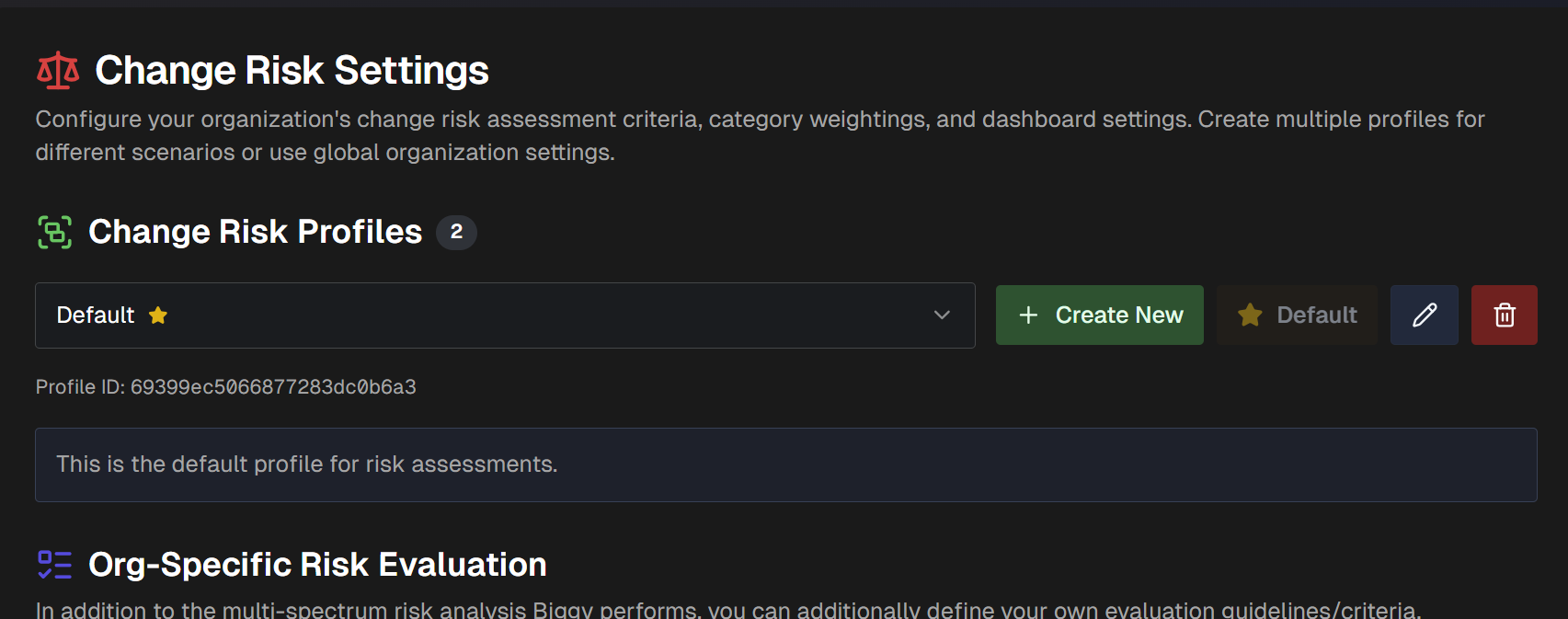
In Change Risk Settings, select a change risk profile to view or edit from the drop-down menu.
Best practice
When editing any of the change risk settings, always verify that you have the correct profile selected before saving any changes.
The default change risk profile has a star next to the name. The default change risk profile always opens first when you go to the change risk configuration page.
Create a New Change Risk Profile
To create a new change risk profile:
Click Create New.
In the Create New Profile window, populate the following information:
Profile Name - a unique, descriptive name for the change risk profile. (Limit 100 characters)
Description (Optional) - information about the profile's use or goals.
Copy from current single-mode settings - click the box to copy the current settings as a template for creating the new profile.
Click Create Profile.
(Optional) If you would like this profile to be the default that appears when you enter the configuration page, click Set as Default.
Manage Change Risk Profiles
To edit a change risk profile, click the Pencil icon, update the Profile Name or Description and click Update Profile.
To change the default change risk profile, go to the profile you'd like to set as default and click the Set as Default button.
To delete a change risk profile, click the Trash Can icon and select Confirm.
Org-Specific Risk Evaluation
In addition to the risk analysis AI Incident Prevention performs, you can also define your own evaluation criteria. The criteria defined in this section apply to the change risk profile you are configuring. You can set up different evaluation criteria for each change risk profile.
Under Evaluation Instructions, define additional evaluation guidelines for the LLM to follow.
Writing custom risk evaluation instructions
Write evaluation instructions the same way you would explain to a coworker what makes a change risky or not.
You can write these instructions in a free-form way or use if/else decision logic format.
Change Eligibility / Retrieval
In the Change Eligibility / Retrieval section, view which changes from ServiceNow are eligible for risk assessment for the selected change risk profile.
Read-only settings
Change Eligibility / Retrieval settings can only be updated by BigPanda. If you need to edit these settings, contact your BigPanda account team.
Change Eligibility/ Retrieval Control
Change Eligibility / Retrieval settings control which changes are retrieved from ServiceNow via a polling mechanism and then evaluated by the Change Risk Prediction engine. This retrieval is separate from Unified Data Connector filters.
The ServiceNow Query Filter field uses a query string to filter which changes from ServiceNow are indexed.
The Scheduled Start Field determines when changes are scheduled.
The Last Indexed Value displays the last sys_updated_on value that was successfully processed by the indexing service.
Risk Category Weightings
Under Risk Category Weightings, adjust the weight of risk categories. These weightings determine how the final risk score is calculated.
Adjust the weightings using the sliding bar or by typing a number into the box on the right side of each category.
Total weightings
The total of all risk category weightings must equal 100.
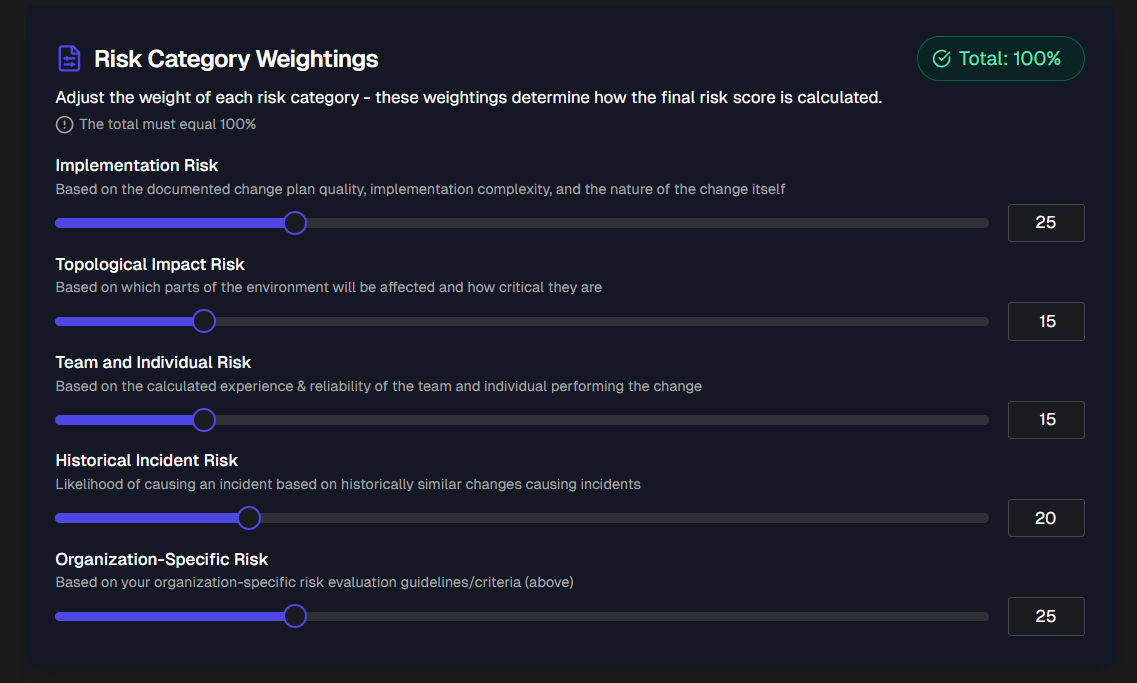
The following risk categories are available:
Risk Category | Description |
|---|---|
Implementation Risk | Documented change plan quality, implementation complexity, and the nature of the change. |
Topological Impact Risk | Which parts of the environment will be affected and how critical they are. |
Team and Individual Risk | The calculated experience level and reliability of the team or individual performing the change. |
Historical Incident Risk | Likelihood of causing an incident based on historically similar changes that caused incidents. |
Organization-Specific Risk | Your organization-specific risk evaluation guidelines or criteria, defined in Evaluation Instructions. |
Field Visibility Settings
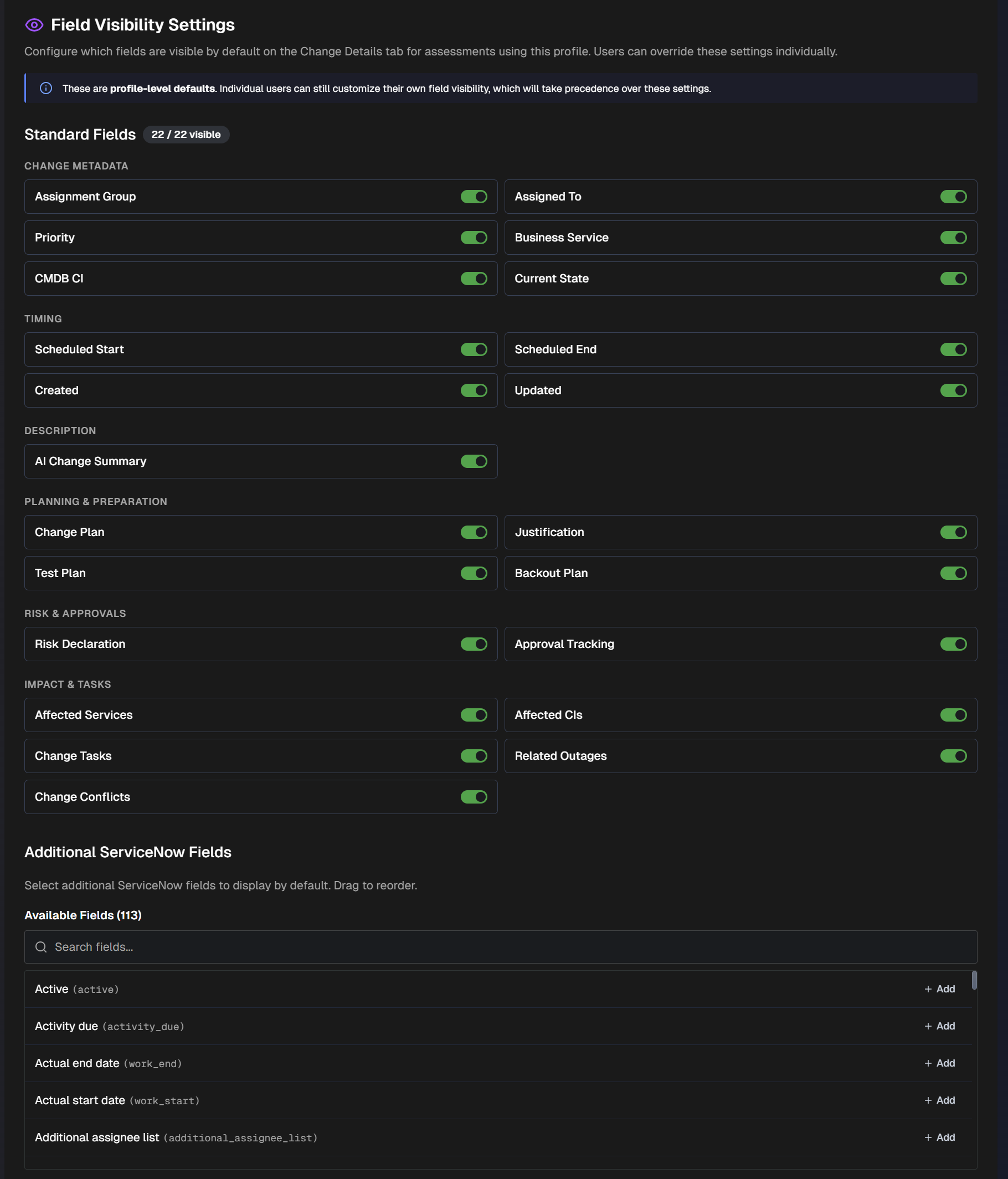
In the Field Visibility Settings, determine which fields will appear by default in the Change Risk Dashboard Change Details tab.
User default settings
Individual users can select their own default fields in the Change Details tab. User defaults are user-specific and take precedence over field visibility settings.
Use the toggles to enable or disable Standard Fields, or search for Additional ServiceNow Fields to display.
Incident Priority Filter
Use the Incident Priority Filter section to control which incident priority levels are considered in risk analysis.
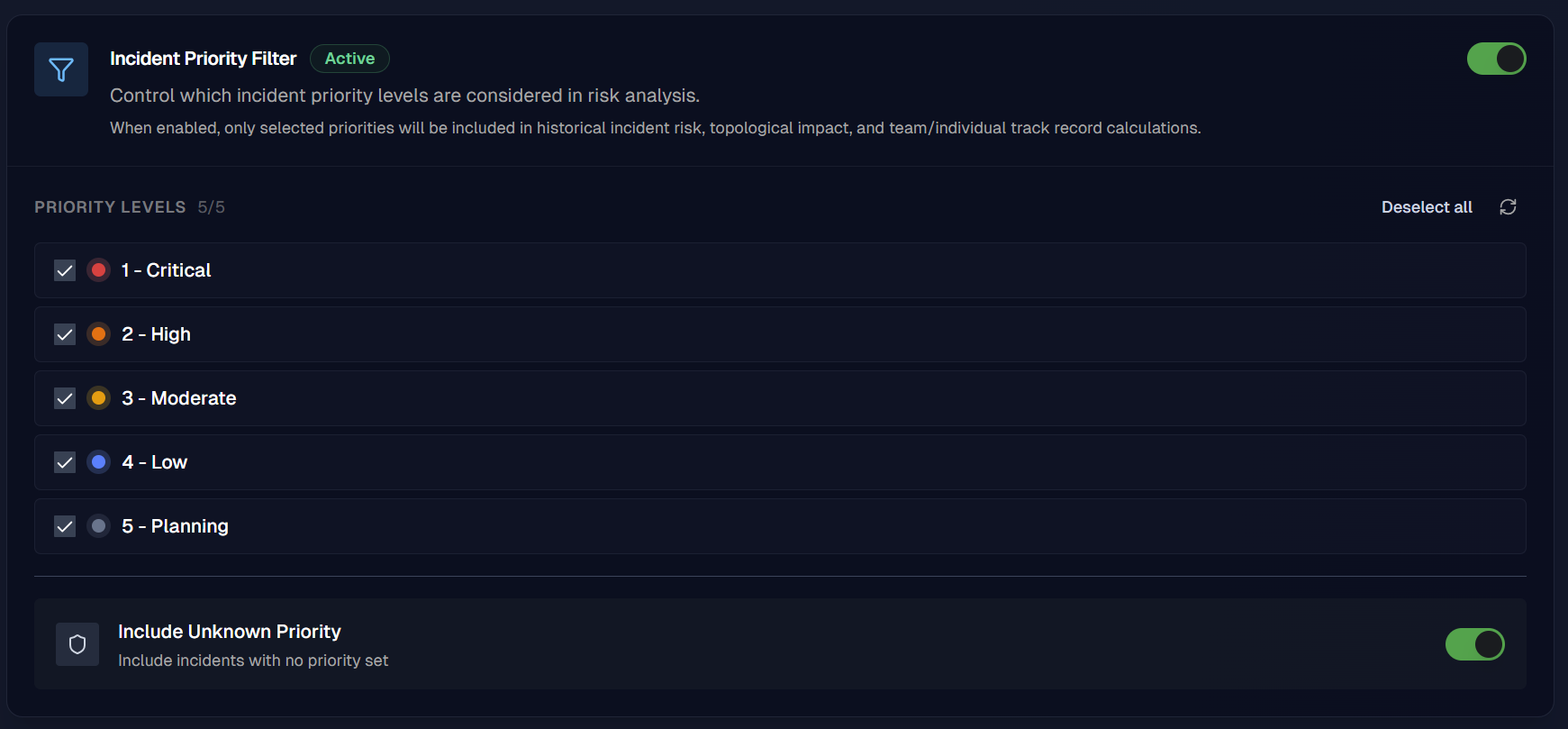
When enabled, only the selected priorities are included in historical incident risk, topological impact, and team/individual track record calculations. When disabled, all priorities are considered.
Use the checkboxes to select or deselect specific priority levels.
Toggle on Include Unknown Priority to include incidents without a priority set.
Custom Data Sources
Experimental feature
This functionality is in active development and considered experimental. We're continuously improving it based on user feedback and real-world usage patterns.
Use the Custom Data Sources section to select external data sources to include when using this profile to evaluate changes.
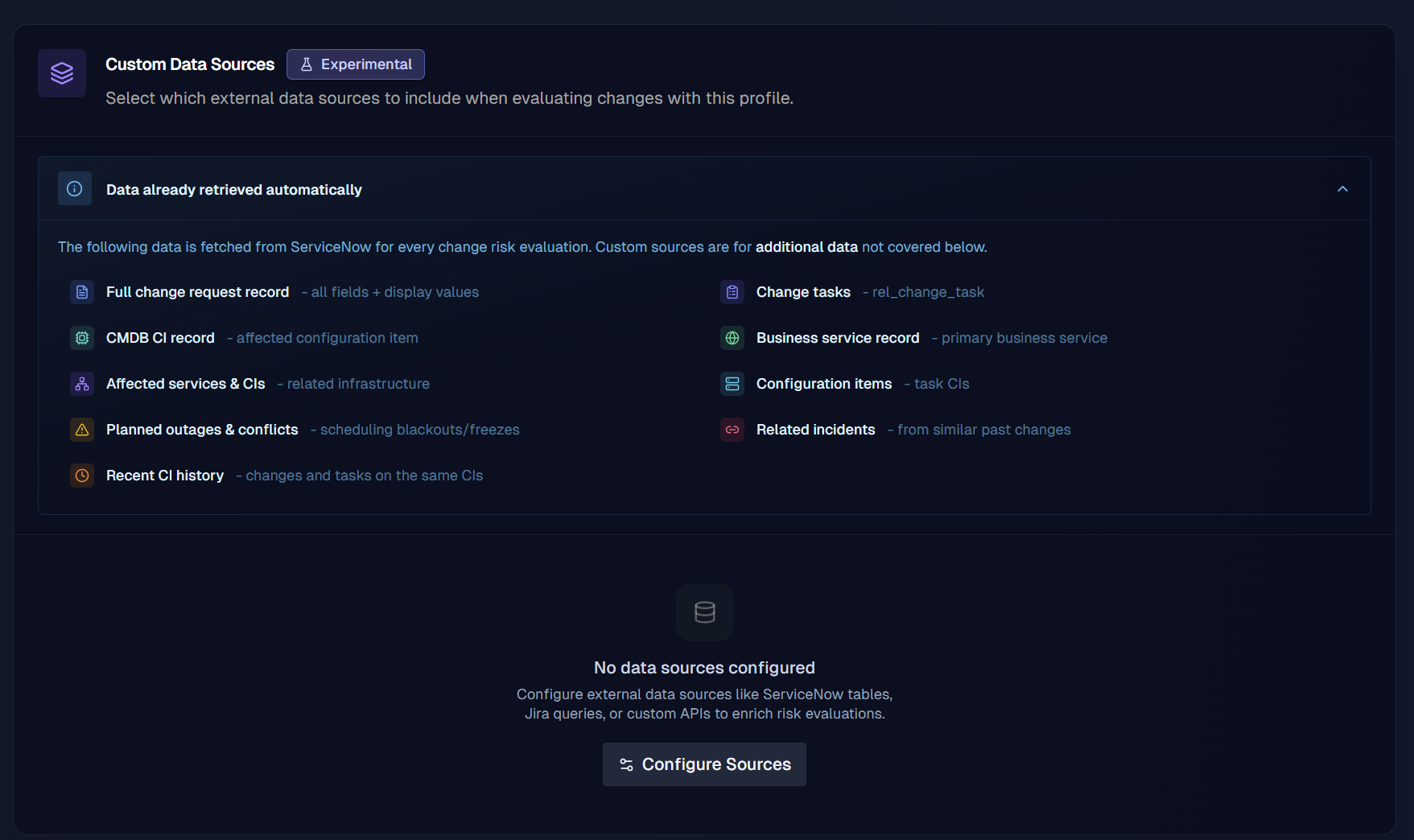
Existing data sources automatically appear at the top of this section. To add a source, click Configure Sources.
In the Custom Data Sources page, click + Add Source.
In the top section of the configuration page, populate the Source Name, Source Type (ServiceNow, Integration, or Custom HTTP), and Description.
Configure the following sections:
Request Configuration
Define the API call to be made for each change risk evaluation.
Depending on which source type you selected, populate the following information:
Source Type | Request Configuration Fields |
|---|---|
ServiceNow | Populate the following fields:
Enable Return Display Values to return a display value. |
Integration | Select an Integration from the drop-down menu. The integration's authentication, base URL, and relay routing will be used for the requests. Specify the HTTP Method, Path, Headers, and Query Parameters. Use |
Custom HTTP | Used for custom data sources. Enter a Base URL and select the Auth Type. You can select from Basic, Bearer, API Key, or Custom Headers. For on-prem APIs, enable the Route via relay client toggle. |
Parameters
Define dynamic values that change per change request.
For example, a parameter cmdbCiSysId mapped to change.cmdb_ci.value lets you query CMDB using the current change's CI. Reference them as {{cmdbCiSysId}} in your request configuration.
To add a parameter, click + Add Parameter. Populate the Parameter Name, Description, and select a Type (Static, Template, or AI) from the drop-down menu.
For Static, enter a fixed value that will be used every time.
For Template, enter a field to map to on the change record (For example, change.number, change.cmdb_ci.value).
For AI (LLM), enter a prompt that describes how the LLM should extract or derive the value from the change description.
Execution Condition (Optional)
Control when the source executes. By default, it runs for every change. Select from the following options:
Always execute - The source executes for every change.
Only when field conditions are met - The source executes when specific properties match. If you select this option, enter a Condition below.
Only when AI determines it is relevant - The source executes when the AI determines the conditions are met, based on a prompt. If you select this option, enter the conditions the LLM should use to evaluate in the prompt.
Response Handling
Configure how the API response is processed before being included in the risk evaluation. Populate the following fields:
Context Label - Short, descriptive name for this data shown to the AI during risk evaluation. (For example,
Jira Related Issues)JSON Path (Optional) - Extract a specific subtree from the JSON response before processing. (For example,
$.resultextracts just theresultarray from a ServiceNow Table API response, reducing noise.)Description for AI - Explanation of what this data represents and how it should be used during risk evaluation. This helps the AI interpret the data correctly.
Large Response Strategy - Choose how to handle large responses.
Select Summarize with AI to allow the AI to summarize the response. You can optionally include Custom Summarization Instructions.
Select Truncate at Character Limit to truncate the response once it has reached the maximum number of characters.
Caching and Options
Toggle on Enable Caching to use caching for requests. Caching avoids repeated API calls when the same parameters resolve to the same values. (For example, multiple changes on the same CI share cached CMDB data)
If you choose to enable caching, set a Timeout in milliseconds. Timeout controls how long to wait for the API response.
Select if you'd like to Continue on failure. Toggle this option on so that a failed source will not block the entire risk evaluation.
Dashboard Settings
Under Dashboard Settings, configure how the Change Risk Dashboard appears for users in your organization.
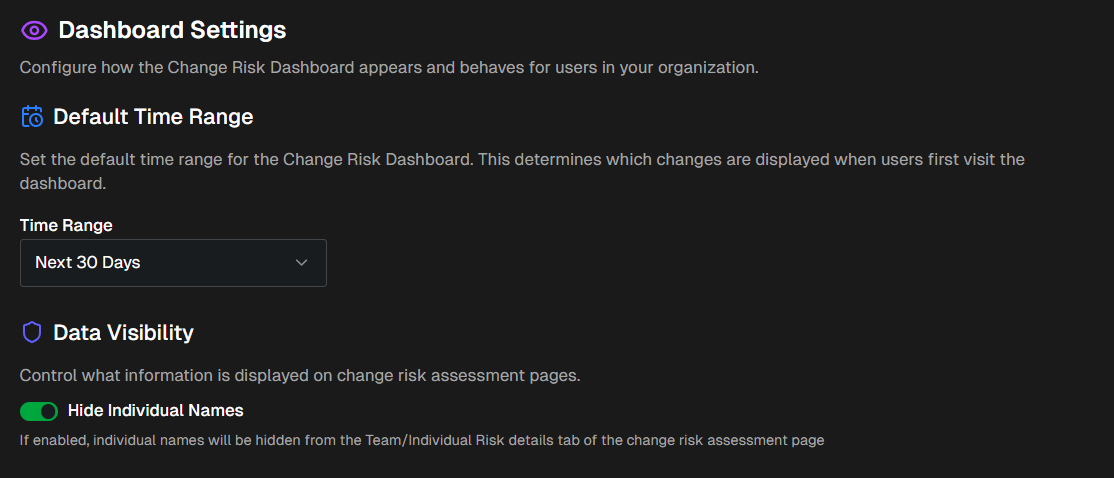
In the Default Time Range section, set the default time range for the Change Risk Dashboard. This determines which changes are displayed when users first visit the dashboard.
In the Data Visibility section, determine what information is displayed on change risk assessment pages. Use the Hide Individual Names toggle to determine whether names will appear in the Team or Individual Risk details tab.
Notification Settings
Under Notification Settings, configure notifications for high-risk changes.
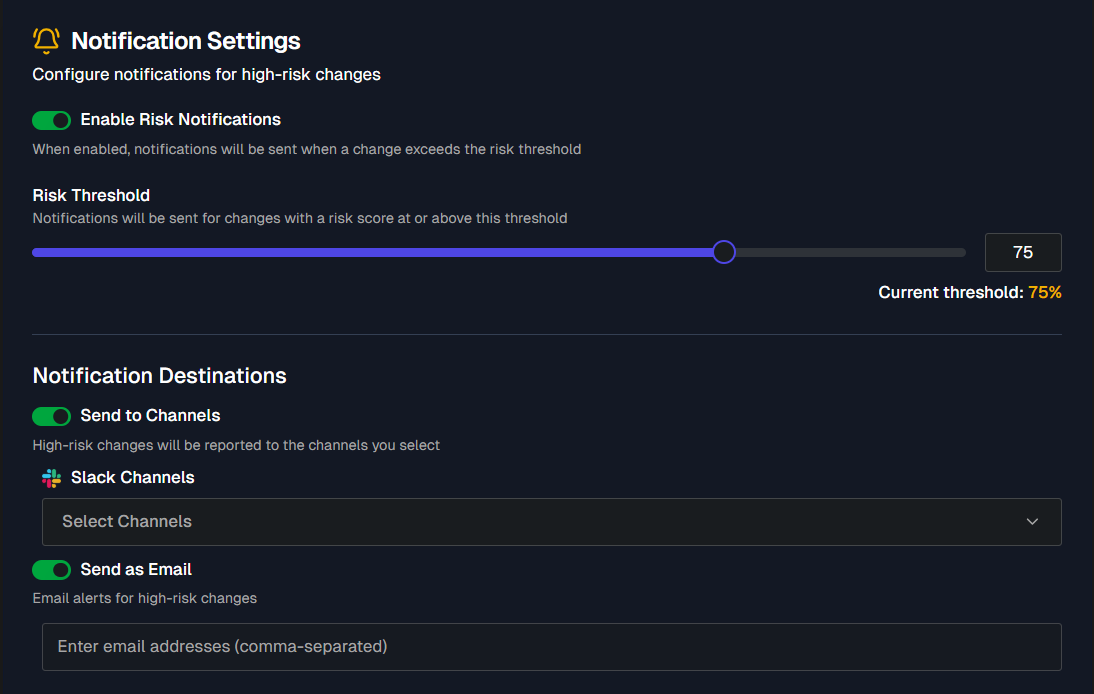
Use the Enable Risk Notifications toggle to determine if notifications will be sent when a change exceeds the risk threshold.
When risk notifications are enabled, you can set the Risk Threshold for when notifications will be sent. Changes with a risk score at or above the threshold will trigger a notification.
Notification Destinations
The Notification Destinations section appears if you've enabled risk notifications.
Toggle Send to Channels on to send high-risk changes to Slack or Teams channels. Use the drop-down menu to select one or more channels to send changes to.
Toggle Send as Email on to send changes to specific email addresses. Enter a comma-separated list of email addresses to receive notifications in the text box.
Category Score Notification Thresholds
You can choose to receive notifications when a risk category score exceeds a specific threshold.
To enable notifications for a specific risk category, click the toggle next to the category name and select the Score Threshold.
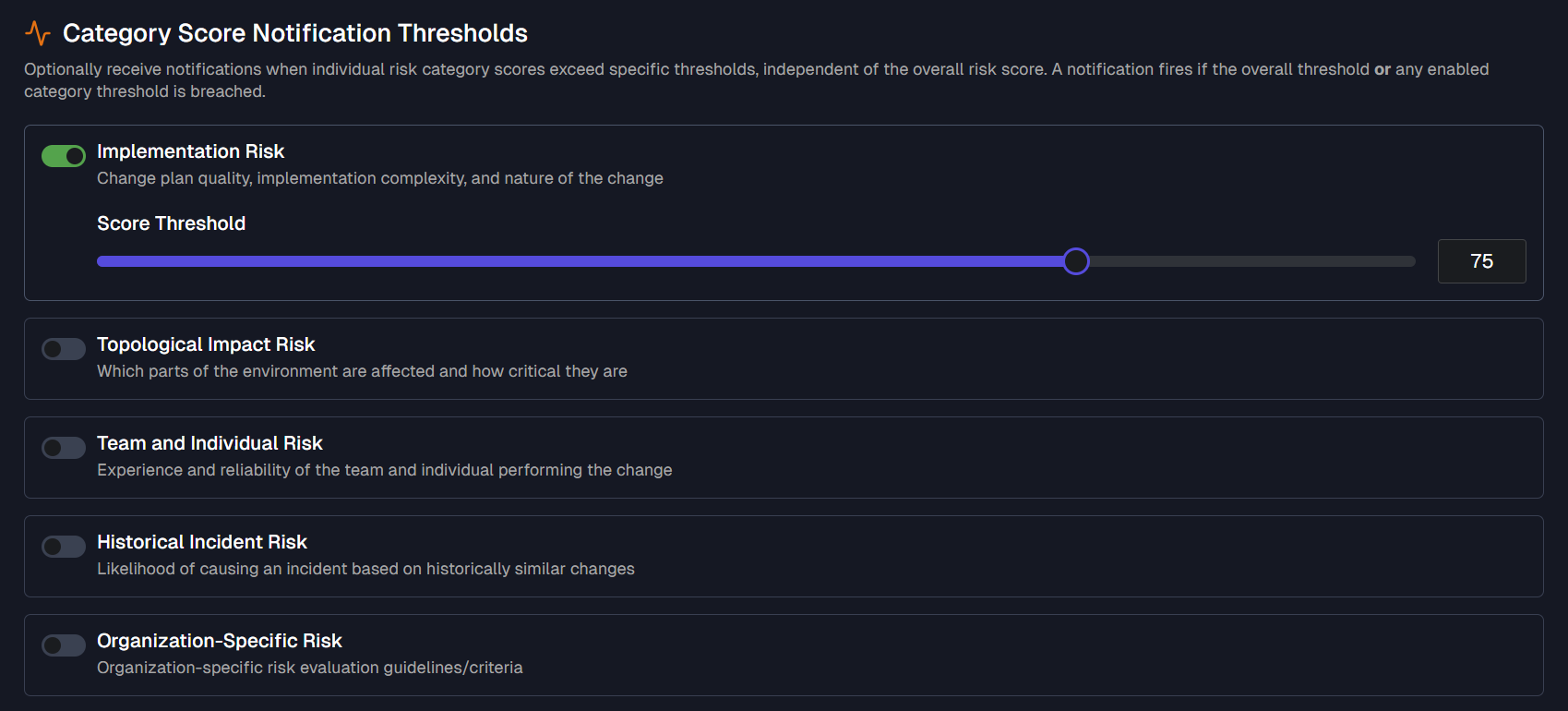
Whenever a category receives a risk score above the threshold, a notification will be sent to the configured notification destination(s).
Post Results to ITSM Record
If ServiceNow is your change tool, you can define where and how analysis outputs are written into change records.
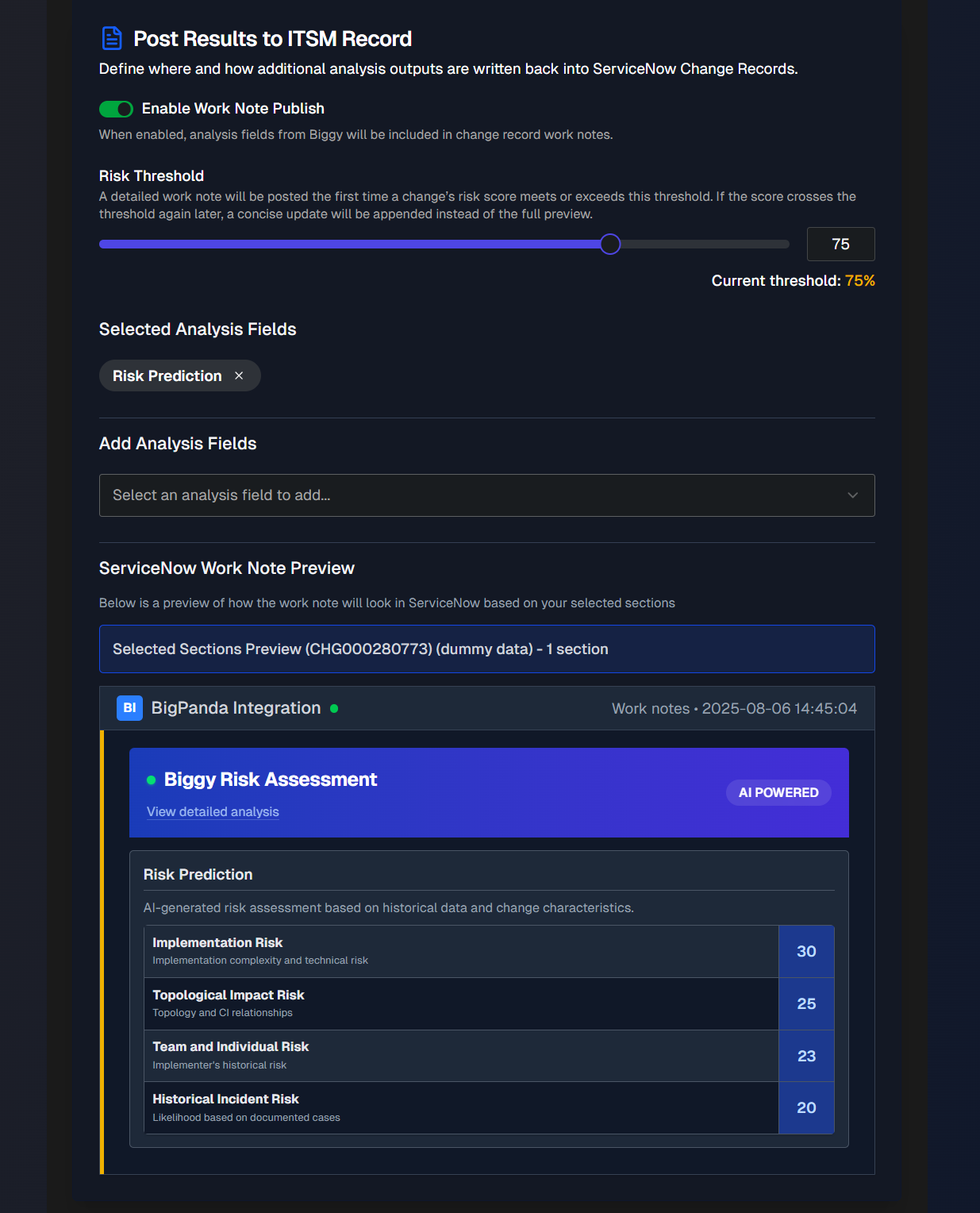
Toggle Enable Work Note Publish on to include analysis fields from Biggy in ServiceNow change record work notes.
In the Risk Threshold section, define the risk score that a change must meet or exceed to be posted to a work note. If the score crosses the threshold again later, a concise update will be appended instead of the full preview.
Click the Add Analysis Fields drop-down to select the fields to be included. The following options are available:
Field | Description |
|---|---|
Overall Risk | Overall risk score and rating for the change. |
Risk Prediction | Analysis of potential risks and outcomes. |
Risk Reasoning | AI-generated reasoning explaining the risk assessment rationale. |
Suggested Mitigations | Recommended actions to reduce identified risks. |
After selecting analysis fields, the ServiceNow Work Note Preview appears.