Billing (IA)
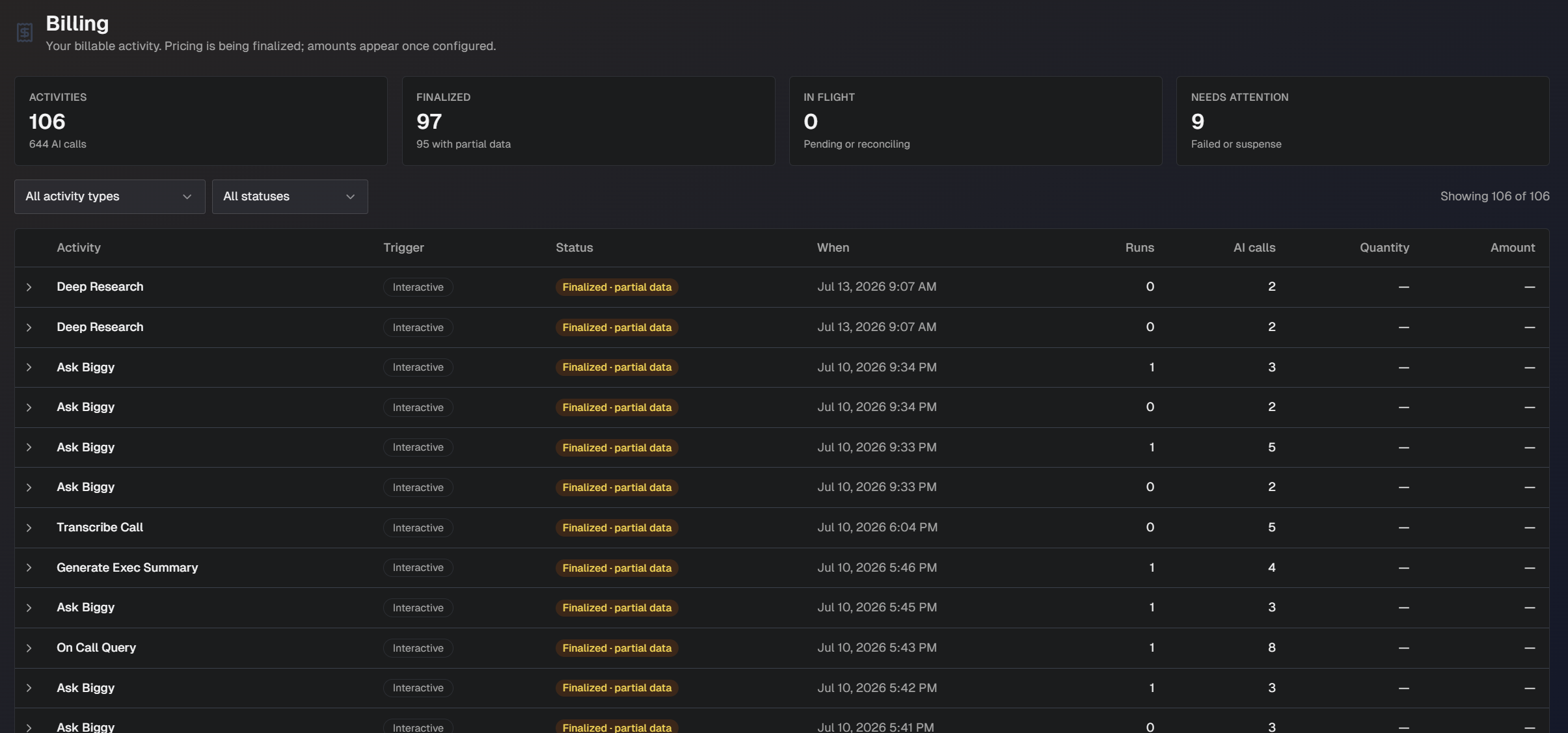
The Billing page gives you a consolidated view of your organization's billable activity in Biggy. Each row represents a single billable activity, along with the trigger that started it, its processing status, the number of runs and AI calls it consumed, and the billable quantity and amount.
Use the Billing page to confirm which activities have been measured for billing, track activities that are still being processed, and identify activities that need attention before they can be finalized.
Access Billing in the web app at Manage > Administration > Billing.
Activity summary
Four summary cards at the top of the page show a summary of your billable activity. Each card shows a total, with a secondary line providing additional context.
Card | Description |
|---|---|
Billable activities | The total number of billable activities in the current view. The secondary line shows the total number of AI calls across those activities. |
Finalized | The number of activities that have completed metering. The secondary line shows how many of those finalized activities contain partial data. |
Needs attention | The number of activities that could not be finalized. This includes activities in the Failed and Suspense states. |
Activity over time | Billable activities by billing lifecycle. |
By Biggy Team | A donut chart displaying which teams drive usage the most. |
By activity type | Displays what activities you're being billed for, ranked by volume. |
Activity table
Below the summary cards, the activity table lists each billable activity. The table includes the following columns:
Column | Description |
|---|---|
Activity | The name of the billable activity, for example, Ask Biggy. Activities that could not be identified appear as Unknown. |
Team | The team that the user who initiated the activity is part of. |
Trigger | The event that initiated the activity. |
Status | The current processing state of the activity. Possible statuses include:
|
When | The date and time the activity occurred. |
Runs | The number of runs the activity consumed. |
AI calls | The number of AI calls the activity consumed. |
Quantity | The billable quantity for the activity. |
Amount | The billable amount for the activity. |
View activity details
To see the full details of an activity, click the arrow to the left of the activity name. The row expands to show the following fields:
Activity ID: The unique identifier for the activity. Click the copy icon to copy the ID to your clipboard.
Source: The system that generated the activity, for example, Orchestrator, followed by the source identifier.
AI usage: A summary of the AI resources the activity consumed, for example, the number of AI calls, the number of runs, and the AI cost.
Occurred: The date and time the activity took place.
Last updated: The date and time the activity's billing record was last updated.
Filter the activity list
Two drop-down menus above the table let you narrow the list of activities:
Activity type: Filter the list to a single activity type.
Status: Filter the list to a single status.
The count on the right-hand side of the filter row updates to reflect how many activities match the current filters.