General Settings (IA)
In the Manage > Administration > General Settings section, configure settings related to onboarding, teams, incident priority levels, login methods, the large language model (LLM), and more.
Usage Settings
Under Usage Settings, configure behavior related to user onboarding. The following can be configured:
Require Onboarding for New Users: When enabled, all new users must complete Guided Onboarding before they can execute any queries.
Send Onboarding Email to New Users: When enabled, each new user receives a one-time email that links to guided onboarding and your installed chat apps. Respects the Email Sharing policy.
Require Team Selection During Onboarding: When enabled, users must select a Team during the onboarding process.
Show Individual Names in Team Analytics: When disabled, the Team Analytics dashboard will display pseudonyms instead of real names. This only affects the Team Analytics page.
Teams Management
Under Teams, create and manage teams to organize users.
Teams allow you to better track how specific groups within your organization are using Biggy. Team usage information is available in the Team Analytics page.
You can create one team at a time or multiple teams at once.
To create multiple teams:
Click Bulk Import.
In the Team Names field, enter team names separated by commas or new lines. Duplicate names will be skipped.
Team descriptions
If you need to add descriptions to the teams added in bulk, you can edit them after they have been imported.
Click Import Teams.
To create a single team:
Click + Add Team.
Populate the following information:
Team Name - descriptive name for the team.
Team Grouping (Optional) - add your team to a Team Group for analytics purposes.
Description (Optional) - brief description of the team to help users understand the team's purpose.
Click Create Team.
After a team is created, users can select their team as part of the Guided Onboarding process. Or, users can be manually assigned to a team on the Users page.
Team membership
A user can only be a member of one team at a time. If a user moves from one team to another, all of their usage metrics will be attributed to their new team.
To edit a team, click the Pencil icon.
To permanently delete a team, click the Trash can icon.
Team Groupings
Under Team Groupings, create and manage team groups to organize your teams into groups.
For example, if your NOC, SRE, and Support teams are all part of the Customer division at your organization, you can create a team grouping to organize those teams together for analytics purposes.
To create a team grouping:
Click + Add Grouping.
In the Create Team Grouping window, populate the following information:
Grouping Name - descriptive name for the team grouping.
Description (Optional) - brief description of the team grouping to help users understand its purpose.
Assign Teams - select one or more teams to add to the group.
Click Create Grouping to save.
To edit a team grouping, click the Pencil icon.
To permanently delete a team grouping, click the Trash can icon.
Incident Priority Values
On the Configuration > General Settings page under Incident Priority Values, define the incident priority ordering used for mapping incident notifications from BigPanda Event Management and for Biggy Managed Incident Channels.
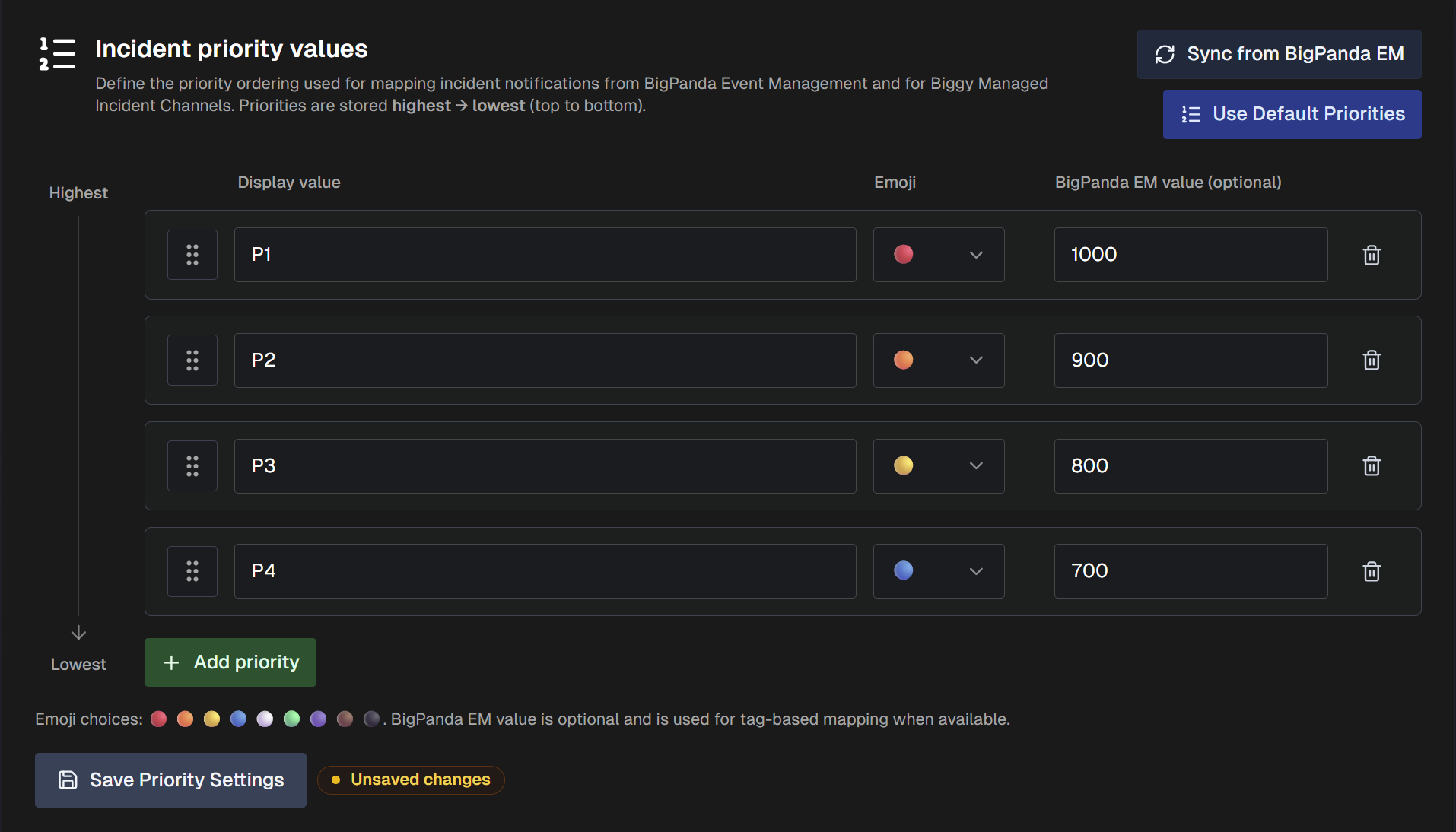
Import your priorities from BigPanda Event Management by selecting Sync from BigPanda EM. To use the Biggy default priorities, select Use Default Priorities.
Priorities should be arranged in the list with the highest at the top and the lowest at the bottom. To add a new priority to the list, select + Add Priority and populate the Display Value, Emoji color, and the BigPanda EM Value (Optional).
BigPanda EM Value
The BigPanda EM Value field corresponds with the Order ID of the Priority Tag in BigPanda Event Management.
Home page settings
Use the Home page settings to control what the Happening now section of the Biggy Home page shows for everyone in your organization.
The Happening now section's content pulls from eight categories. When the Home page loads, the section opens on the first source in the list that has activity.
Manage the sources directly in the source list:
Reorder sources: Drag a source by the handle on the left side of its row.
Switch a source on or off: On the right side of the source row, click the toggle. Biggy stops reading a source that is switched off.
View or tune a source: On the right side of the source row, click the arrow to expand it. Expanded sources describe what they count, and link to the related Biggy page. The BigPanda incidents and ServiceNow incidents sources also contain rule settings.
Changes apply immediately
Switches and orders are saved immediately for the whole organization. You don't need to click Save changes after reordering sources or turning them on or off.
Viewer permissions apply to every source. If a viewer can't open a source, the source shows as locked for them: counts still appear, but links don't. If a viewer isn't entitled to a module, its source is skipped for them even when the source is switched on.
Source | What it shows |
|---|---|
Pages | Unanswered Biggy On-Call pages sent to the viewer that they haven't acknowledged, declined, or resolved. A page always takes the Home page headline and rose highlight, ahead of every other source. |
BigPanda incidents | Active BigPanda incidents that match the source rule. See Configure the BigPanda incidents source. |
ServiceNow incidents | ServiceNow records that match the saved query, highlighted by priority. See Configure the ServiceNow incidents source. |
Active MIMs | Every major incident management (MIM) execution in an active state. The three newest are listed with their priority. Each listed major incident also becomes a Catch up chip in the Home page composer. |
Status pages | Every live status page; those that are published and not yet resolved. Draft, resolved, and archived pages are never included. A status page linked to an active major incident keeps its own row on the Home page. |
Live calls | Meetings Biggy is currently transcribing. Each viewer sees only the calls their transcript permissions cover. A call whose title reads like an incident bridge, or that is linked to a major incident, is flagged as a potential bridge and highlighted amber. |
Investigations | Swarm investigations that are currently running. The newest are listed with their status. |
Deep research | The viewer's own deep research runs that are still in progress, with subtask progress. The browser reads runs while the Home page is open. A finished run leaves the list automatically. |
Configure the BigPanda incidents source
The BigPanda incidents source shows active BigPanda incidents that match a rule you define with environments, priorities, and conditions.
Until you save a rule, the Home page uses the recommended default: active incidents at the highest configured priority across the org-wide All environment. Biggy compiles every rule into one BigPanda query.
To configure the BigPanda incidents source:
In the source list, expand BigPanda incidents.
Under Environments, select which BigPanda environments the Home page reads:
Org-wide (the built-in All environment): The Home page reads the All environment.
Only these environments: The Home page reads only the environments you select from the Choose environments drop-down. Below the drop-down, a counter shows how many environments you selected.
Under Priorities that count, select the BigPanda priorities to include. Priority levels come from the General Settings Incident Priority Values section, and a level needs a BigPanda EM value before you can select it.
(Optional) Under Conditions (optional), click Add condition to narrow the count with rules on BigPanda incident tags or the alert's source system. You can add up to eight conditions. Biggy offers only operators that BigPanda queries support.
(Optional) Under Row details (optional), from the Choose incident tags drop-down, select up to three incident tags to show under each row on the Home page. Tags appear in the order you select them.
Review the Rule summary, which describes the current rule in plain language.
To test the rule, click Preview.
At the bottom of the source, click Save changes.
Incident across multiple environments
When you select several environments, the Home page counts an incident once for each selected environment it appears in.
If no incident priorities are configured, the Home page counts BigPanda's default top priority (P1). If an incident doesn't include a selected row detail tag, Biggy omits that tag from the incident's row.
Configure the ServiceNow incidents source
The ServiceNow incidents source shows records from one ServiceNow table that match a query you save. Biggy reads nothing from ServiceNow until you save a query, and the source shows a No query yet badge until then. The saved query is what Preview runs and what the Home page shows.
To configure the ServiceNow incidents source:
In the source list, expand ServiceNow incidents.
From the Table drop-down, select the ServiceNow table that the Home page should read. Incident is the usual choice. Changing the table clears any conditions you set.
Under Conditions, define which records qualify. Build the conditions visually, or paste the encoded query copied from a ServiceNow list filter.
(Optional) Under Row details (optional), select up to five more fields to show on each row, in the order they should appear. The short description is always the row title, and the record number always appears.
(Optional) In the Scope label (optional) field, enter a short name for what the rule covers, for example,
MTOC P1-P3. The Home page uses this label in the headline and the count chip.Review the Rule summary, which describes the current query in plain language.
To test the query, click Preview.
At the bottom of the source, click Save changes.
The Home page never shows closed records. Biggy always adds active=true to the query, so records that are resolved but not closed still count. Records are sorted by priority, then newest first, and each row is highlighted by its priority.
The Row details (optional) field list loads after Biggy reads the fields of the selected table. If you haven't added any conditions, the rule summary shows No conditions yet: add at least one or paste an encoded query.
Slack Channel Auto-Archive
Under Slack Channel Auto-Archive, automatically archive Slack channels that Biggy created for major incidents once the incident is closed and the channel has gone quiet. Static war rooms, shared (Slack Connect) channels, and channels Biggy did not create are never archived. Current installations need no new Slack permissions. Older installations may need to reauthorize the Slack app if Slack reports a missing scope.
When Auto-archive Slack channels is enabled, select the amount of time that should pass before a channel is archived in the Auto-archive channels after setting.
Incident Channel Replies
When someone @mentions Biggy at the top level of a Slack incident channel, Biggy answers in that message's thread. Choose whether the answer stays only in the thread or is also shown in the channel. Applies to Slack incident channels; Microsoft Teams is unaffected.
Choose one of the following options:
Thread only: Replies stay in the thread of the request; the channel is not interrupted.
Thread and channel: The reply stays in the thread and is also shown in the channel.
Bridge Auto-Reattach
When responders move a bridge call to a different meeting, such as Teams to Webex, Biggy can follow it so the transcript and swarm keep hearing the incident. Choose whether Biggy ignores the new link, asks a responder to confirm, or moves the bridge on its own. Bridges fixed by their template are never moved.
Choose one of the following options:
Off: Biggy ignores new meeting links. The bridge stays on the meeting it joined.
Confirm: Biggy posts a card asking a responder to approve moving the bridge to the new meeting.
Auto: Biggy moves the bridge and its transcription to the new meeting without asking.
Workflow Failure Notifications
When an automation starts failing, and again when it recovers, Biggy emails the automation's owner. Add addresses that should receive every one of those emails.
Under Additional recipients, add up to 10 email addresses. Leave this field empty to notify only the owner of the failing automation.
Organization Branding
Under Organization Branding, define the Organization Logo, Display Name, and Accent Color used by Biggy-generated presentations.
Name Format
Under Name Format, configure how Biggy interprets directory display names when greeting people and when generating summaries, decisions, owners, and action items. This setting does not modify Microsoft 365 or stored participant labels. Transcripts, attendee lists, and audit records always keep the exact provider value. Changes apply to new requests immediately.
The following name formats are available:
First, Last
Last, First
As provided / Unknown
Output Time
Under Output Time, define the timezone and format Biggy uses for timestamps in generated answers and other generated output across Slack, Teams, web chat, and the API.
Daylight-saving changes follow the selected zone automatically, and rendered times include the zone abbreviation. This does not change each user's personal display timezone in the web app.
Access Requests
Under Access Requests, control who can request additional access from the My Access page.
When Limit Access Requests to Curated Roles is enabled, users with only the built-in Standard User role can no longer browse or submit access requests.
The My Access page explains that access is managed by their administrator, and everything they can already do continues to work. Users who have been admitted to at least one curated role are unaffected.
Email Sharing
Under Email Sharing, control whether Biggy can send generated emails, and restrict which recipient domains are allowed. Applies to all generated emails sent by Biggy.
When Allow Email Sharing is enabled, Biggy can send emails, subject to the domain restrictions configured in the Allowed Recipient Domains section.
Email Sender Name
Add your organization's name in front of Biggy AI on every email Biggy sends. The address does not change.
Under Prefix, type your organization's name (Limit 40 characters). The name always ends in Biggy AI.
Login Methods
Under Login Methods, select which web app login methods will appear to users in your organization.
If a method is disabled, it will not appear as an option on the web app login screen for any of your users. At least one login method must be enabled.
Single sign-on (SSO)
If you'd like to enable SSO, contact BigPanda Support.
The following methods can be enabled or disabled:
Slack
Microsoft Azure AD
BigPanda SSO
Linked Chat Platform Installations
On the Configuration > General Settings page under Linked Chat Platform Installations, view all chat platforms installed for your organization.
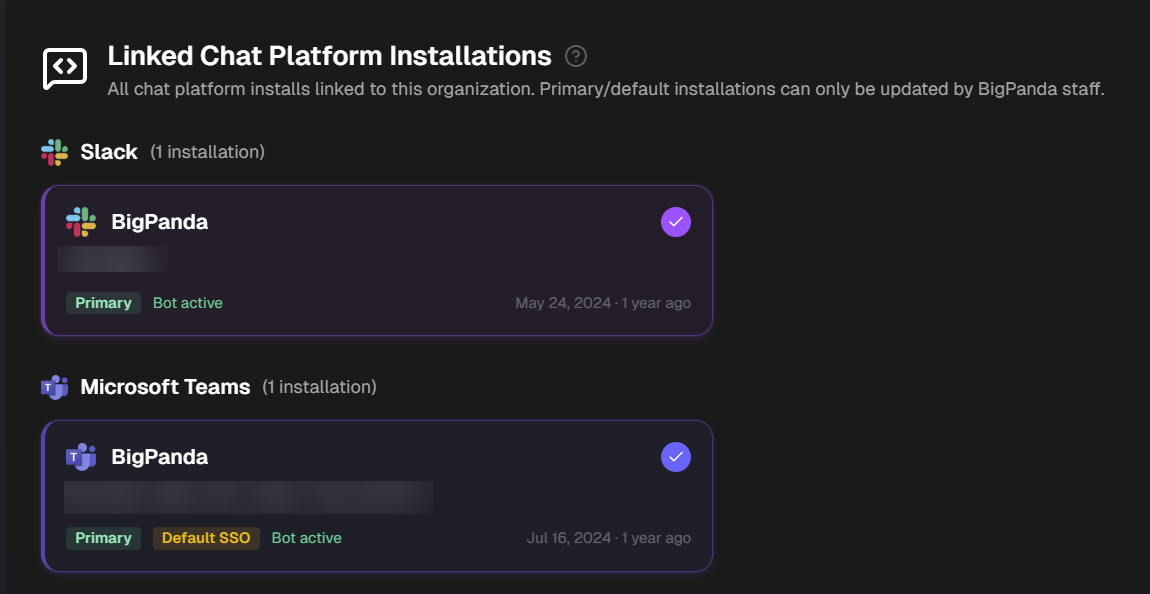
Primary installations determine which Slack workspace or Teams tenant is used for multi-platform-aware features such as MIM actions. The Default SSO installation determines which chat platform context is used for SSO logins.
Updating installations
Primary and default installations can only be updated by BigPanda staff. Contact your account team for assistance.
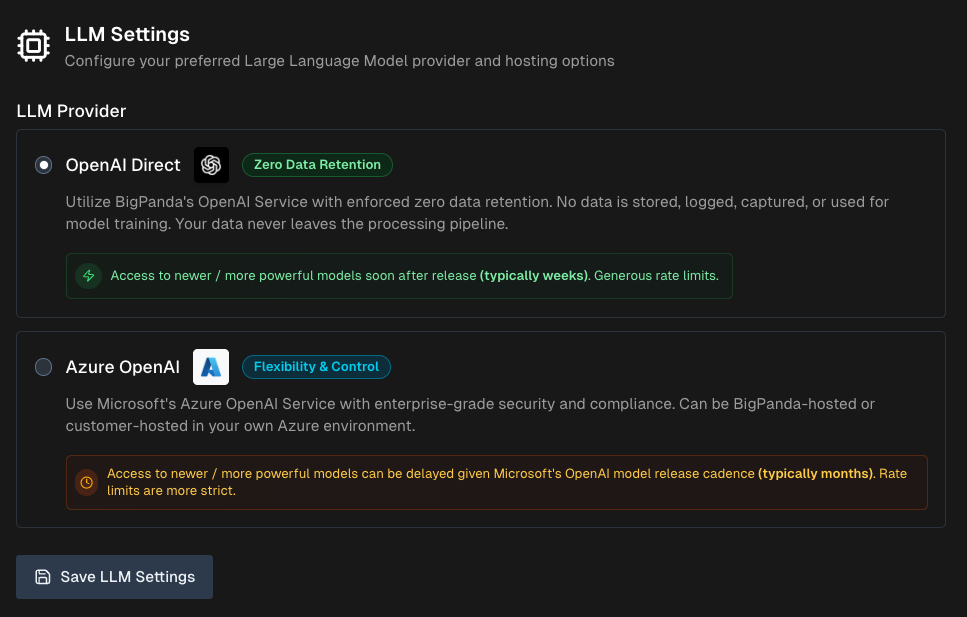
LLM Settings
On the Configuration > General Settings page under LLM Settings, configure settings related to your large language model provider.
Approval required
Updating this section requires approval from BigPanda.
Options include:
OpenAI Direct (Default) - BigPanda's OpenAI Service with enforced zero data retention. No data is stored, logged, captured, or used for model training. Your data never leaves the processing pipeline.
Azure OpenAI - Microsoft's Azure OpenAI Service with enterprise-grade security and compliance. Can be BigPanda-hosted or customer-hosted.
Azure OpenAI Configuration
If you select Azure OpenAI as your LLM provider, configure the following:
Azure OpenAI Hosting
Choose where your Azure OpenAI instance is hosted. Select from the following options:
BigPanda-Hosted - BigPanda-managed instance with guardrails. No setup required.
Customer-Hosted - Your own Azure instance.
Model Deployment Naming
If your Azure OpenAI instance is customer-hosted, select how BigPanda should resolve your Azure model deployment names.
Model deployment name format
All model deployment names must follow a specific format. BigPanda will not be able to reach models with different names.
See Required Model Deployment Names for more information.
The following options are available:
BigPanda default - Standard bp- prefix for all model deployments. (For example,
bp-gpt-5.4)Custom prefix - Use your own prefix for all model deployments. (For example,
acme-gpt-5.4) If you select this option, enter your Custom Prefix below. A trailing dash is added automatically.No prefix - Use the model family name as the deployment name. (For example,
gpt-5.4)
Required Model Deployment Names
Deploy each model in your Azure instance with the exact model deployment name shown:
Model | Model Deployment Name | Used For |
|---|---|---|
gpt-6.1-sol | bp-gpt-6.1-sol | Default model for investigations, chat, and reports |
gpt-6-sol | bp-gpt-6-sol | Pinnable per-automation model |
gpt-6-luna | bp-gpt-6-luna | Routine steps (summaries, titles, distillation) and long-context recovery |
gpt-5.6-sol | bp-gpt-5.6-sol | Pinnable per-automation model |
gpt-5.6-terra | bp-gpt-5.6-terra | Legacy model: only when a user or automation picks it, or as a fallback when a GPT-6 deployment is missing |
gpt-5.4-nano | bp-gpt-5.4-nano | Tool-result analysis and classification |
gpt-4.1 | bp-gpt-4.1 | Large-context analysis and outbound drafts |
text-embedding-3-small | bp-text-embedding-3-small | Knowledge and memory embeddings |
gpt-transcribe | bp-gpt-transcribe | Mobile voice-note transcription |
gpt-audio-1.5 | bp-gpt-audio-1.5 | Spoken MIM updates on the bridge (text-to-speech) |
Tokens per minute (TPM) limits
Set appropriate TPM limits for each model deployment based on expected usage volume.
Connection Credentials
If your Azure OpenAI instance is customer-hosted, enter the API URL and API Key from your instance.