Actions (IA)
Actions are specific tasks that Biggy can do on your behalf, such as fetching ITSM records, paging an on-call responder, summarizing a channel, or creating an incident. Each action does one well-defined job consistently.
The Orchestrator combines actions with skills and agents to respond to requests. Actions can run in chat, during a major incident, as part of a workflow, or when a skill calls for them.
Actions are available in the web app at Manage > AI Capabilities > Actions.
Action plan replacement
Actions were previously bundled inside action plans. They are now separate components that the Orchestrator can use wherever they are needed. The capabilities your action plans provided continue to work, and the same action that ran inside a major incident, such as creating an ITSM record, can now also run in chat or as part of a skill.
Key features
A catalog of actions that work out of the box, with no setup required.
Human-in-the-loop approval for write actions, so Biggy confirms before it changes anything.
Configurable actions for organization-specific settings.
View and manage actions
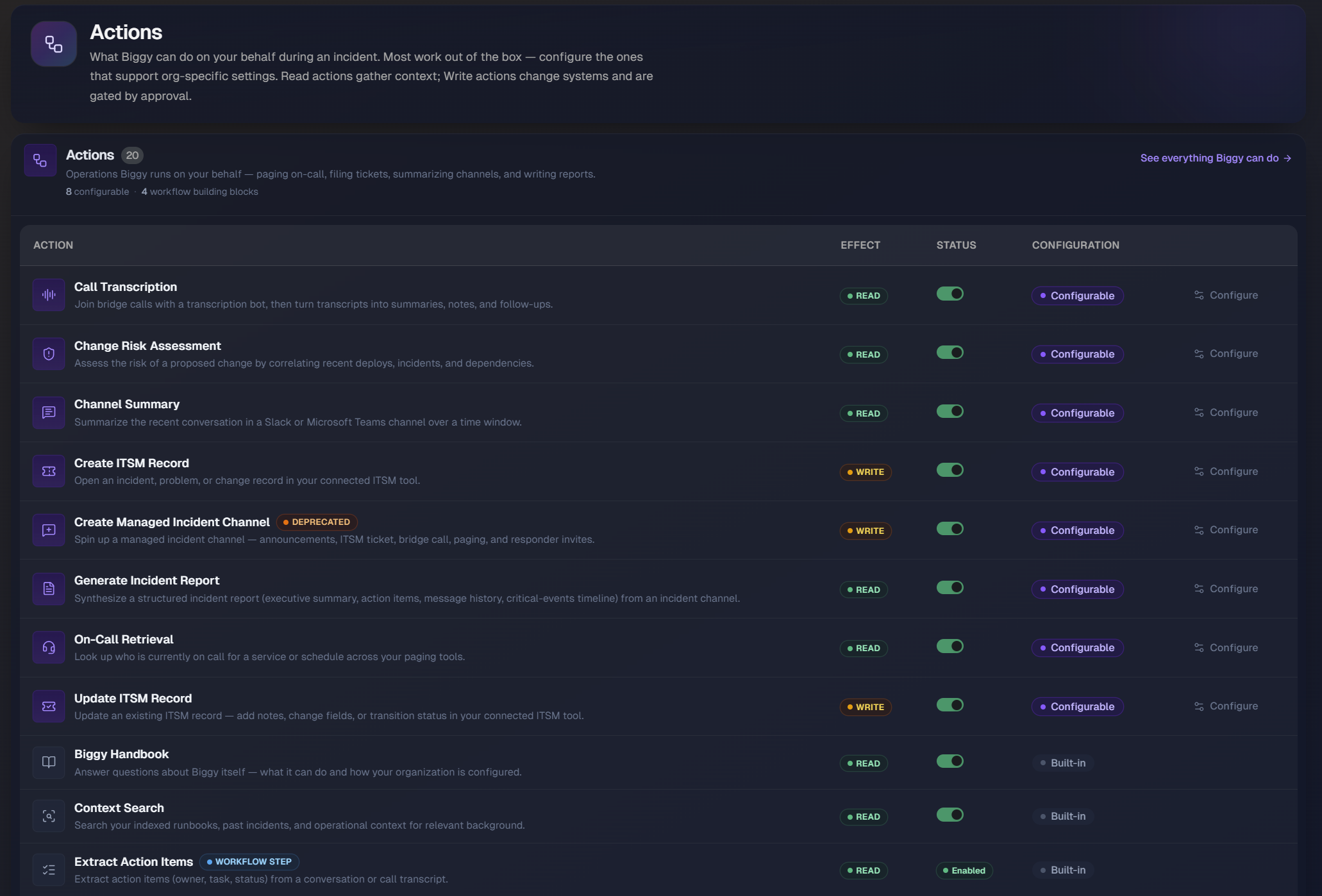
In the web app, go to Manage > AI Capabilities > Actions to open the action catalog. The page shows the total number of available actions, configurable actions, and workflow building blocks.
Each action is listed with the following columns:
Action: The name and a short description of what the action does.
Effect: Whether the action reads or writes. Read actions gather context without changing anything. Write actions can make changes, with human-in-the-loop approval.
Status: Whether the action is enabled. Use the toggle to turn an action on or off.
Configuration: Whether the action is built-in or configurable. For a configurable action, click Configure to open its settings.
Actions as workflow building blocks
Some actions are marked as workflow steps, allowing you to use them as building blocks in the workflow builder. This lets you add a repeatable action to a workflow when a process must follow the same steps every time. Examples include Extract Action Items, Extract Record IDs, Extract Timeline, and Fetch Channel Messages can be used this way.
Configure an action
Configurable actions support organization-specific settings. In the action catalog, find the action and click Configure.
Configuration options depend on the action. For example, an action that works with ITSM tools may let you enable or disable it, select connected tools such as ServiceNow or Jira, and specify which tables it can update.
Available actions
Actions are separated into two tables:
Actions - Primary actions that Biggy performs for your organization.
Utility Actions - Supporting actions that Biggy uses to complete tasks, such as recalling memory, running code, and expanding acronyms. Most utility actions are always enabled.
Actions
Action Name | Description | Effect | Configuration |
|---|---|---|---|
Call Transcription | Configure how the Biggy transcription bot joins, records, and leaves meetings. You can also configure the organization dictionary, prompt guidance, and reusable goals used to create transcript summaries. | Read | Configurable |
Change Risk Assessment | Configure your organization's change risk assessment criteria, category weightings, and dashboard settings. Create multiple profiles for different lines of business (LOBs) or change groups within your organization. | Read | Configurable |
Channel Summary | Configure how Biggy summarizes Slack and Microsoft Teams channels, including availability, the default model and lens, prompt guidance, reusable goals, and triggering commands. | Read | Configurable |
Create ITSM Record | Choose which connected ITSM tools Biggy may use to create records, and restrict the tables or projects where records can be created. Leave the tool selection empty to allow Biggy to use any connected ITSM tool. | Write | Configurable |
Create Knowledge Page | Create a new page in your connected knowledge source (Confluence or Notion) from a chat, such as a runbooks, postmortem write-up, or KB article. Add guidance so Biggy picks the right space automatically. Biggy only ever creates pages in the spaces you list here. | Write | Configurable |
Create Managed Incident Channel (deprecated) | Configure how Biggy creates and manages incident channels, including broadcast announcements, ITSM tickets, bridge calls, paging, service catalog options, and automatic invitations. Superseded by Major Incident Management (MIM) templates, but fully supported for existing setups. | Write | Configurable |
Generate Incident Report | Generate a structured incident report that includes executive summary, timeline, action items, and message history. | Read | Configurable |
On-Call Retrieval | Choose which connected on-call providers Biggy queries when answering “Who is on call” | Read | Configurable |
Update ITSM Record | Choose which connected ITSM tools Biggy may update records in. Leave the tool selection empty to allow Biggy to use any connected ITSM tool. | Write | Configurable |
Biggy Handbook | Answer questions about Biggy, including its capabilities and your organization's configuration. | Read | Built-in |
Context Search | Search your indexed runbooks, past incidents, and operational context for relevant background. | Read | Built-in |
Extract Action Items (Workflow Step) | Extract action items (owner, task, status) from a conversation or call transcript. | Read | Built-in |
Extract Record IDs (Workflow Step) | Extract ITSM record IDs such as. INC0012345 and CHG0007 from a request for use in a later step. | Read | Built-in |
Extract Timeline (Workflow Step) | Extract a critical-events timeline from a conversation or call transcript. | Read | Built-in |
Fetch Channel Messages (Workflow Step) | Fetch messages from a Slack or Microsoft Teams channel for a specified time period, such as when building an incident report. | Read | Built-in |
Fetch ITSM Records | Fetch full ITSM record details (ServiceNow or Jira) for a set of record IDs. | Read | Built-in |
Find Related Changes | Find recent ServiceNow change requests that may have contributed to an incident. The action scans change records that uses configuration item and dependency data to identify related changes. | Read | Built-in |
Page On-Call | Page the on-call responder for a service through your escalation provider. | Write | Built-in |
Send Comms | Draft and post stakeholder communications to the configured channels. | Write | Built-in |
Start Conference Bridge | Start a conference bridge or major incident call and share the join link. | Write | Built-in |
Start Swarm Investigation | Start a Swarm investigation that gathers signals across your observability stack. | Write | Built-in |
Utility actions
Action Name | Description | Effect | Configuration |
|---|---|---|---|
Adaptive Memory | Recall and store your organization's durable facts, learned procedures, and past incident experiences across conversations. | Read | Built-in |
Analyze Image | Analyze an attached image or screenshot, such as a dashboard, graph, or error message dialog, and identify relevant operational information to extract the operational signal. | Read | Built-in |
Code Interpreter | Run Python in an isolated environment without internet access to perform calculations, parse files, and transform data gathered by other tools. | Read | Built-in |
Expand Acronyms | Expand your organization's acronyms to improve retrieval and understanding. | Read | Built-in |
Generate Chart | Generate a chart, such as a pie, bar, line, or area chart, from quantitative data and display it with the written answer. | Read | Built-in |
Open Canvas | Open a side-by-side workspace where Biggy can create structured documents like RCAs and incident reports, instead of displaying them in chat. | Read | Built-in |
Read Attached File | Read files attached in chat (logs, CSV, JSON, PDF, Word, Excel, email) and use their contents to answer a request. | Read | Built-in |
Skill Loader | Load the full instructions and output templates for a relevant skill before responding to a matching request. | Read | Built-in |
Start Command | Launch a guided selection window for commands that require parameters, such as channel summaries and incident declarations, so you can review the settings before running the command. | Read | Built-in |
Configurable actions
The following actions can be customized to fit your organization's needs:
Call Transcription
Configure how the Biggy transcription bot joins, records, and leaves meetings and how transcripts become summaries: org dictionary, prompt guidance, and reusable transcript goals.
Clicking the Call Transcription action configuration opens the Transcription Settings web app page.
Change Risk Assessment
Configure your organization's change risk assessment criteria, category weightings, and dashboard settings. Create multiple profiles for different LOBs or change groups within your organization with different evaluation criteria, weightings, and notification settings.
Clicking the Change Risk Assessment action configuration opens the Change Risk Settings web app page.
Channel Summary
Determine how Biggy summarizes Slack and Microsoft Teams channels: availability, default model and lens, prompt guidance, reusable goals, and the commands that trigger it.
When this action is enabled, the following settings can be configured:
Setting | Description |
|---|---|
Defaults | The model and summary lens applied by default. Users can still pick a different lens per request where the surface offers it. In the Default Model drop-down menu, select the model that should be used to generate the summary. The following options are available:
In the Default summary lens drop-down menu, choose what the summary should focus on. The following options are available:
|
Prompt Guidance | Enter a prompt to use for every channel summary. Use it for org-specific tone, terminology, or must-follow rules. |
Goal Presets | Reusable summary goals users can pick in the Slack modal, Teams card, or web picker instead of typing one. |
Command Keywords | Enter phrases that will open a Channel Summary directly from a Slack/Teams command. |
Create ITSM Record
Choose which connected ITSM tools Biggy may open records in, restrict the tables or projects it can create in, and add guidance so Biggy picks the right destination automatically. Leave the tool selection empty to allow every connected ITSM tool.
When this action is enabled, the following settings can be configured:
Setting | Description |
|---|---|
Eligible ITSM Tools | Select the connected ITSM tools Biggy may create records in. Leave the selection empty to allow every connected tool, or pick a subset to restrict it. Tools you haven't connected appear disabled. Connect them on the Integrations page first. |
ServiceNow Tables | Restrict which ServiceNow tables Biggy may write to, and add guidance so Biggy knows when to pick each one automatically. |
Create Knowledge Page
Choose which connected knowledge sources Biggy may create pages in, list the spaces it is allowed to create in, and add guidance so Biggy picks the right space automatically. Biggy only ever creates pages in the spaces you select.
When off, Biggy stops creating new knowledge pages (runbooks, postmortem write-ups, KB articles in Confluence) across Slack, Teams, and chat, and the create-page action becomes unavailable.
Creating pages is opt-in: this capability is disabled by default, and a user must be granted the Create Knowledge Page permission before Biggy will run it on their behalf. Every page creation is proposed for human approval first.
To configure the action, select Eligible knowledge sources. Leave the selection empty to include all connected sources, or pick a subset to restrict the selection. Sources you haven't connected appear disabled. connect them on the Integrations page first.
Create Managed Incident Channel
Configure how Biggy creates and manages incident channels — broadcast announcements, ITSM tickets, bridge calls, paging, service catalog, and auto-invitations. Superseded by Major Incident Management (MIM) templates, but fully supported for existing setups.
When this action is enabled, the following settings can be configured:
Broadcast Channels
In the Broadcast section, you can select up to 5 channels to notify when an incident has been created.
ITSM Ticket
Enable this section to allow Biggy to create an ITSM ticket when an incident channel is created.
The following settings are available in the ITSM Ticket section:
Field | Description |
|---|---|
Create ITSM Ticket | Click the toggle to enable this section and allow Biggy to automatically create an ITSM ticket in your selected tool. |
ITSM Tool | Select an ITSM platform to create a ticket in. The platforms you have enabled in the Integrations configuration appear here. |
Project ID (Optional) | Enter the project ID from your ITSM platform. |
Issue Type ID (Optional) | Enter the issue type ID from your ITSM platform. |
Incident Bridge Calls
Enable this section to let Biggy assist with automated bridge call creation and live in-call transcription.
The following settings are available in the Bridge Call section:
Field | Description |
|---|---|
Create Bridge Call | Click the toggle to automatically create a new bridge call in your configured conferencing tool. |
Enable Transcription | Click the toggle to automatically transcribe the bridge call. |
Enable Transcription-based Banner Message Updates | Click the toggle to allow Biggy to update the incident channel banner message based on updates from the transcription. |
Conferencing Tool | Select the conferencing tool to create a bridge call in. The platforms you have enabled in the Integrations configuration appear here. |
Static Bridge Lines | Toggle this on if you have a fixed set of permanent bridge call meeting links that are always available. Biggy will use this list as the predefined bridge options shown to users when starting incidents instead of creating new meetings. When enabled, enter the name of the bridge line (optional) and enter the meeting URL. Click Add Line to add additional bridge lines, or the Trash Can icon to delete a bridge line. |
Incident Channel Paging
Enable this section to allow Biggy to automatically page the necessary teams when an Incident Channel is created.
The following settings are available in the Paging section:
Field | Description |
|---|---|
Enable Paging | Click the toggle to automatically page responders in your configured paging tool. |
Paging Tool | Select the paging platform used to page responders. The platforms you have enabled in the Integrations configuration appear here. |
Service Catalog
Enable this section to provide Biggy with additional knowledge of your service ownership and configurations. This gives Biggy additional context when determining which teams should be paged.
The following settings are available in the Service Catalog section:
Field | Description |
|---|---|
Enable Service Mapping | Check the box to automatically page responders in your configured service catalog tool. |
Service catalog Tool | Select the service catalog platform. The platforms you have enabled in the Integrations configuration appear here. |
Incident Channel Invitations
In the Incident Channel Invitations section, you can select groups that will be invited to the newly created channel by default. You can select groups for each of the following channel types:
Default (all channels)
P1 incidents
P2 incidents
P3 incidents
P4 incidents
P5 incidents
Generate Incident Report
Configure how Biggy builds incident post-mortem reports — availability, which executive summary fields are generated, per-field prompt guidance, and org-specific custom fields.
When this action is enabled, the following settings can be configured:
Setting | Description |
|---|---|
Executive Summary Fields | Choose which fields Biggy generates in the executive summary and tune the prompt guidance for each. Changes apply to newly generated reports. |
Custom Fields | Add org-specific fields to the executive summary — free-text entries or colored badges — each populated by its own prompt at generation time. |
On-Call Retrieval
Choose which connected on-call providers Biggy queries when answering "who is on call?".
When this action is enabled, select the On-Call Providers. Leave the selection empty to use every connected provider.
Update BigPanda Incident
Biggy integrates with BigPanda's Core Event Management platform for seamless incident management.
Clicking the Update BigPanda Incident action configuration opens the BigPanda EM Integration web app page.
Update ITSM Record
Choose which connected ITSM tools Biggy may update records in. Leave the tool selection empty to allow every connected ITSM tool. By default updates can target any record in those tools; opt in below to also restrict updates to specific tables or projects.
When this action is enabled, configure the following settings:
Setting | Description |
|---|---|
Eligible ITSM Tools | The connected ITSM tools Biggy may update records in. Leave the selection empty to allow every connected tool, or pick a subset to restrict it. Tools you haven't connected appear disabled — connect them on the Integrations page first. |
Also restrict update targets | By default Biggy may update any existing record in an eligible tool (an update always names a specific record). Turn this on to also limit updates to the eligible ServiceNow tables / Jira projects below. An empty list still allows all. |