New Roles page
Limited release
The new Roles page is currently available in a limited release.
Roles define what people can see and do in BigPanda. Each role is a named set of permissions that you assign to users to control which features, actions, and environments they can access.
You manage all of your organization's roles from the Roles page, where you can review existing roles, create custom roles scoped to a product or resource, and assign users to them. Access the Roles page by clicking your Profile and navigating to Administration > Roles.
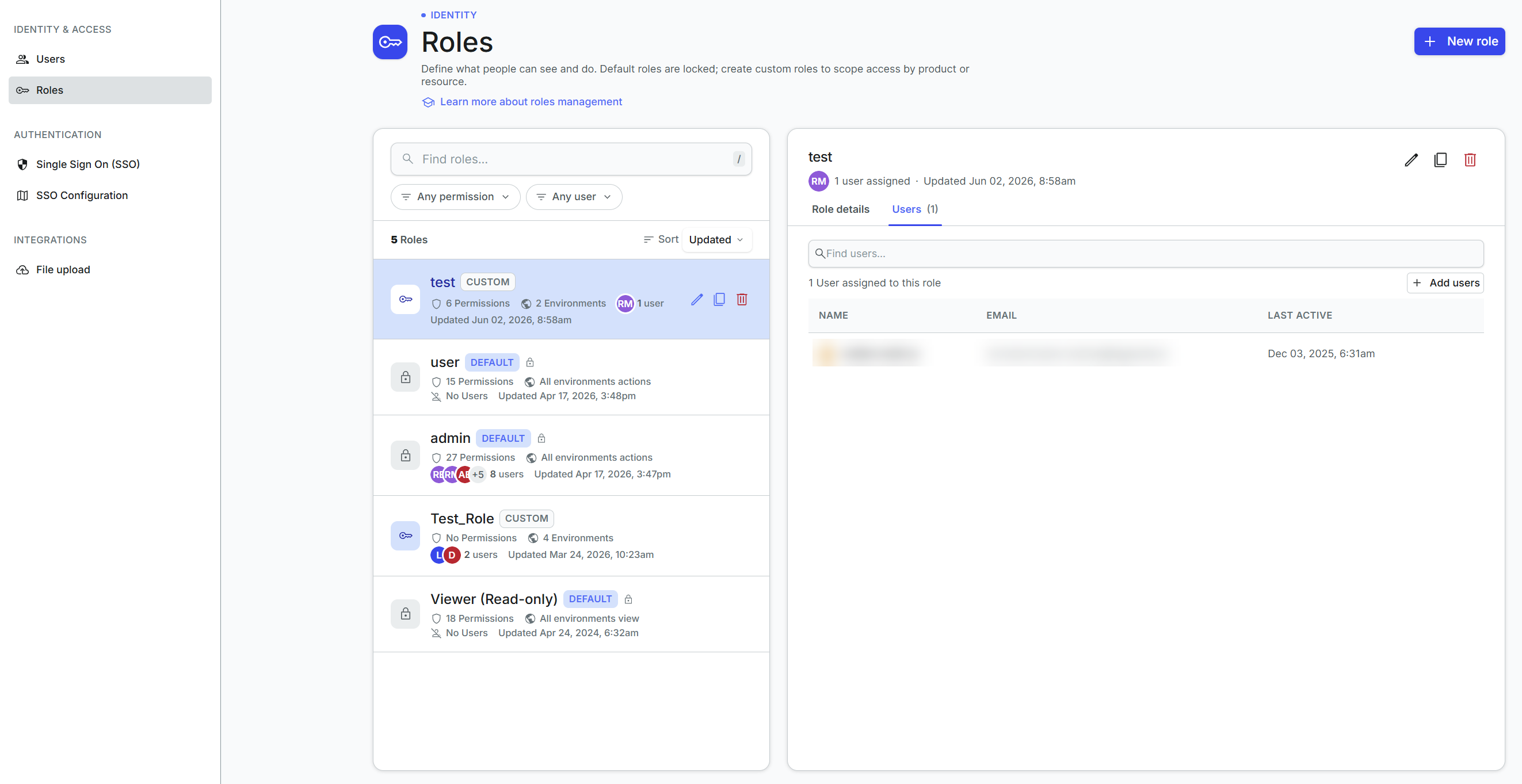
BigPanda provides a set of default roles to cover common access patterns, and lets you build your own custom roles when you need finer control. Default roles are locked, so you can assign them but not change them. Custom roles are fully editable, so you can tailor permissions and environment scope to match how your team works.
Key Features
Review every role in your organization, along with its permission count, environment scope, and assigned users, in a single list.
Create custom roles that grant access by product, permission, and environment.
Set each permission to view-only or full access, so people see what they need without gaining edit rights they don't.
Scope a role to specific environments to ensure teams see and act only on the incidents relevant to them.
Assign users to a role and review who currently holds it.
Filter and sort roles by permission, assigned user, or last updated date.
Relevant Permissions
Only users with Full access can grant role permissions for a newly created resource. Add Roles Management with Full Access for access to these permissions.
Permission Name | Description |
|---|---|
Roles Management | View, add, edit, and delete BigPanda Roles. |
Understand the Roles list
The left side of the Roles page lists every role in your organization. The header shows the total count. Each role in the list displays:
Name: The name of the role, with a Default or Custom badge. Default roles show a lock icon because they can't be edited.
Permissions: The number of permissions the role grants. A role with no permissions shows No Permissions.
Environment scope: How the role's access maps to environments, shown as a specific count such as 2 Environments, or as All environments actions or All environments view.
Members: The users assigned to the role, shown as avatars with a count such as 8 users. A role with no members shows No Users.
Last updated: The date and time the role was last changed.
To find a role, enter its name in the Find roles search box at the top of the list. To narrow the list, use the Any permission filter to show only roles that include a specific permission, or the Any user filter to show only roles assigned to a specific user. To reorder the list, use the Sort control and choose an option such as Updated.
Default and custom roles
BigPanda distinguishes between two types of role:
Default: Built-in roles provided by BigPanda, marked with a Default badge and a lock icon. You can assign default roles to users and review their permissions, but you can't edit or delete them.
Custom: Roles created by your organization, marked with a Custom badge. You can edit, duplicate, and delete custom roles at any time.
Note
Start from a default role
To build a custom role that's similar to a built-in one, duplicate a default role and adjust the copy. This gives you a working starting point and keeps the original default role intact.
View role details
Click any role in the list to open its details in the panel on the right. The panel header shows the role name, the number of users assigned, and the date it was last updated. It has two tabs.
Role details
The Role details tab summarizes what the role can access:
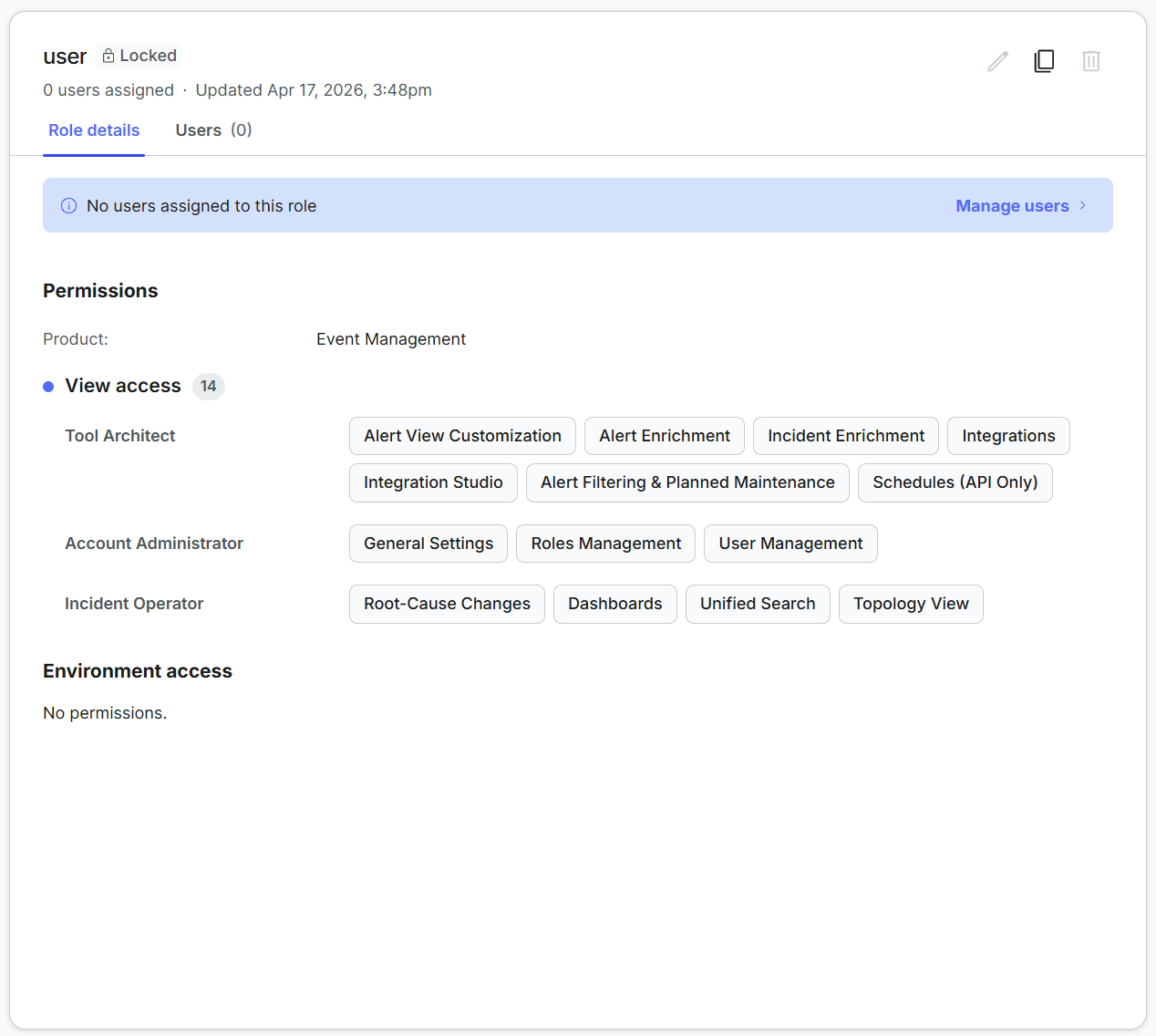
Product: The BigPanda product the permissions apply to, for example Event Management.
Full access: The permissions granted at full access, listed as individual chips. Full access lets a user view and change the related feature.
View access: The permissions granted as view-only, listed as individual chips. View access lets a user see the related feature without changing it.
Environment access: How the role's permissions map to environments, including which environments the role can edit and which incident actions it can take.
Users
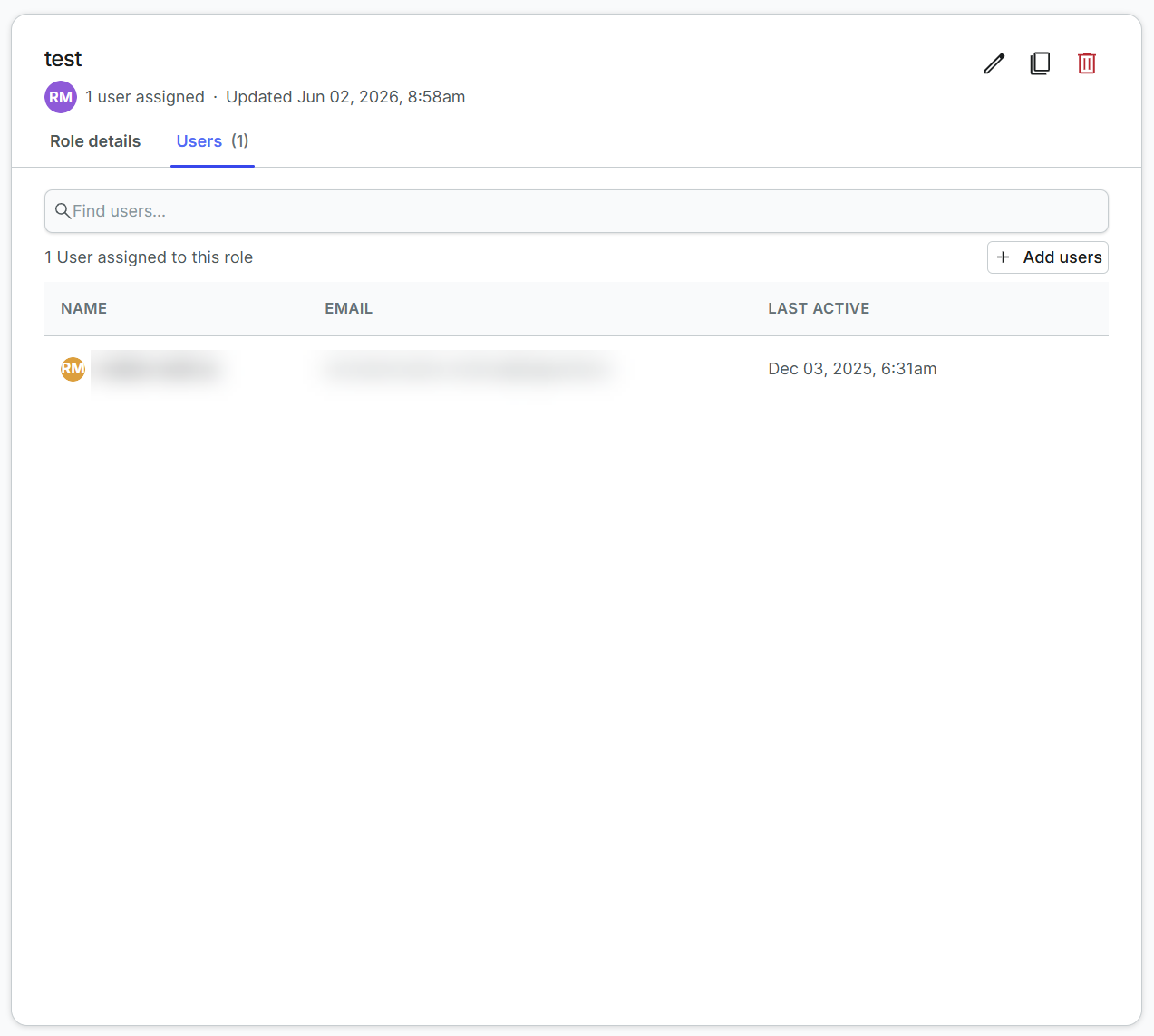
The Users tab lists everyone assigned to the role, with each person's name, email address, and last active date. Use the Find users search box to locate a specific person, and click Add users to assign more people to the role.
To remove a user from a role, click the Trash Can icon.
Create a role
The Roles page allows you to create custom roles that have access to specific sections and actions within BigPanda.
Build roles within your organization using the permissions specific to each individual BigPanda resource.
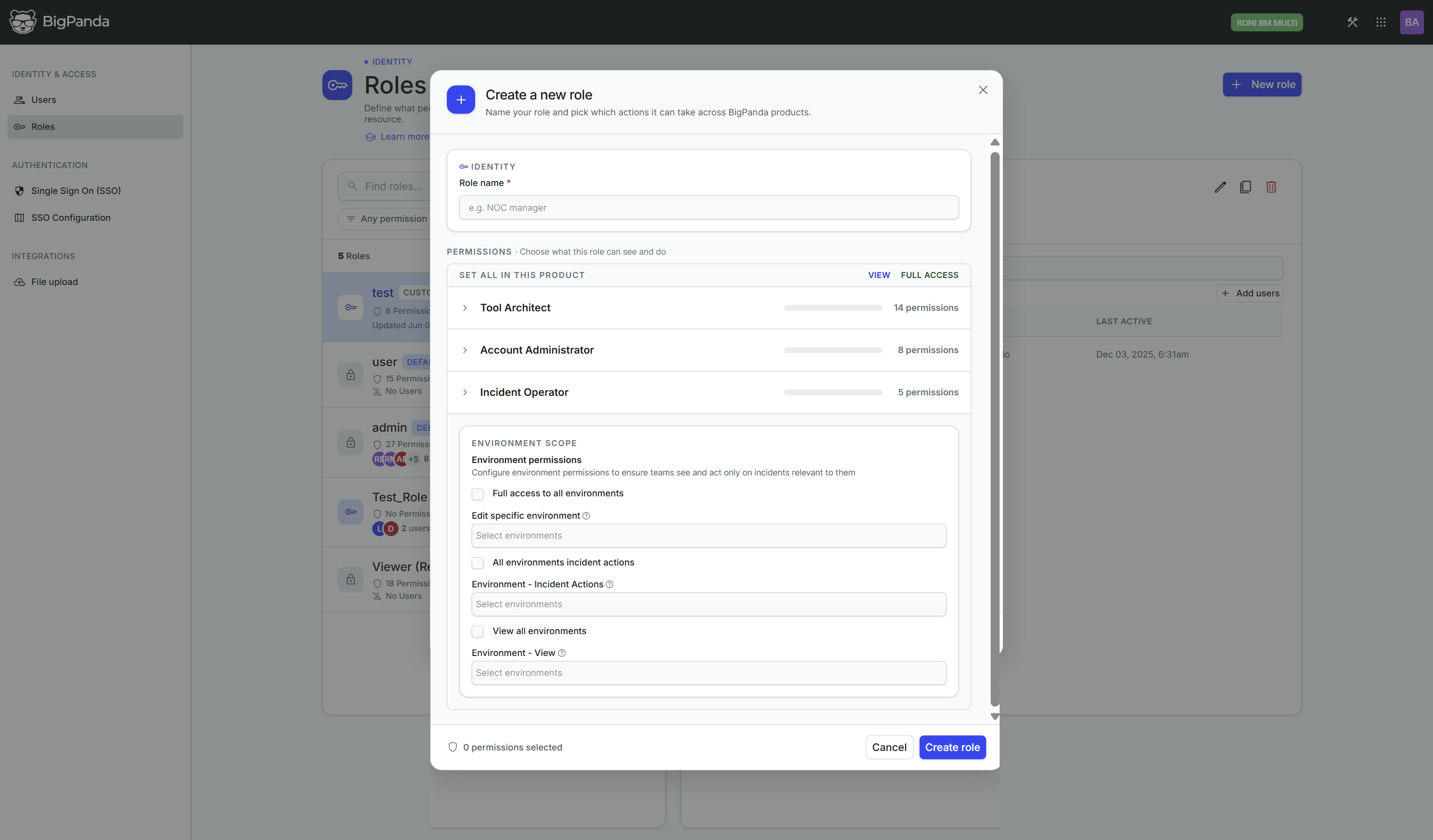
On the Roles page, click New role in the top-right corner. The Create a new role page opens.
In the Role name field, enter a name with at least two characters that describes what the role is for, for example
NOC manager.Add permissions to the role using the checkboxes. Permissions are divided by functional area in BigPanda. You can select the View or Full Access option for each permission. See Roles and Resource Permissions for more information about each role.
In the Environment Permissions section, select which environments the role has access to from the Edit environment settings, Incident actions, and/or View incidents permission drop-down. Each role must have access to at least one environment to use BigPanda. See Environment Permissions for more information.
Click Create role. The new role appears in the Roles list and can be assigned to users.
To discard the role without saving, click Cancel.
Assign users to a role
You can assign users to a role from the role's details panel, or when you invite a new user.
To assign existing users to a role:
On the Roles page, click the role in the list to open its details.
Select the Users tab.
Click Add users.
Select the people you want to assign, then confirm.
To assign a role while inviting someone, open the Invite user page from the Users page, enter the person's details, and select one or more roles in the Roles field before sending the invitation.
Edit, duplicate, or delete a role
Open a custom role's details panel to manage it using the icons in the top-right corner of the panel:
Edit: Change the role's name, permissions, or environment scope.
Duplicate: Create a copy of the role that you can modify and save as a new custom role.
Delete: Remove the role from your organization.
Default roles
Default roles are locked. The edit and delete actions are only available for custom roles.
Roles and Resource Permissions
Access to resources can be limited or expanded using the View and Full Access permission access levels. See Access Levels for more information.
Permissions in BigPanda are sorted into three categories based on common BigPanda user types:
Account Administrator
Permission Name | resource_type | Access Level |
|---|---|---|
API Keys | apikeys | View, edit, and create API Keys in Settings. |
Audit Logs | audit_logs | View the Audit Log in both Settings and API. |
General Settings | general_settings | View and edit General Settings. |
Roles Management | roles | View, add, edit, and delete Roles in both the UI and Roles API. |
Sharing Quotas | quotas | View and edit Sharing Quota rate limitations in Settings. |
Single Sign-On | sso | View, select, and configure a Single Sign-On provider in Settings. |
Troubleshooting | troubleshooting | View event logs for specific Integrations. |
User Management | users | View, add, edit and delete Users in Settings and the SCIM Users API. |
Tool Architect
Permission Name | resource_type | Access Level |
|---|---|---|
AI Module Configuration | aia_configuration | View and edit AI module features for your organization. |
Alert Correlation | correlations | View, edit, and create new Correlation Patterns in Settings and API. |
Alert Enrichment | enrichments | View and use the Alert Enrichment UI and API. |
Alert Filtering & Planned Maintenance | plans | View, create, edit, and delete Maintenance Plans and Alert Filters in Settings, and use the Plans V1 API. |
Alert View Customization | alert_view | View, create, and edit Alert Views in Settings. |
AutoShare | notifications | View, add, edit, and delete AutoShare Rules in Settings. |
Incident Enrichment | incident-tags-definitions | View, create, and edit Incident Tags in Settings. |
Incident Feed View | incident_view | View, create, edit, or delete Incident Feed Views in Settings. |
Integrations | integrations | View, install, and edit integrations in the Integrations Tab. |
Manage Environments | environments | View, create, edit, and delete Environments in the UI and API, and view the incidents environments contain. See Environment Permissions for more information. |
Mapping Enrichment (API Only) | enrichments-jobs | Use the Mapping Enrichment API. |
Schedules (API Only) | schedules | View and use the Schedules API to define the specific start and end times of Plans configured with the Plans V1 API. |
Unified Analytics | analytics | View, edit, and create new dashboards in the Analytics Tab and assign the Dashboard Designer role. |
Incident Operator
Permission Name | resource_type | Access Level |
|---|---|---|
Dashboards | dashboards | View, customize, and interact with Dashboards. |
Root-Cause Changes | changes | View change details within an incident's Changes Tab and mark changes as Suspect or Match. |
Service Health Dashboard | service_health_dashboard | View and configure the Service Health Dashboard. |
Topology View | topology | View, upload, or edit topology maps via API, and view the Topology Tab in incident details. |
Unified Search | search | Access Unified Search. |
Incident Assistant Chat | incident_assistant | View and interact with the Biggy Agent chat in the Incident Feed and new Incident Assistant console tab. |
Environment Permissions
Environment permissions in BigPanda allow you to manage access to specific environments. To provide access to manage (create, delete, edit) all environments, assign the Environments permission with the Full Access level.
Environment permissions can be assigned during the role creation process. To add specific environment permissions, follow the steps to Create or Edit a role, and scroll to the Environment Permissions section.
Full access permissions
If you assigned the full access Environments permission to a role, a message will appear that says This Role has a permission to manage (create, delete, edit) all environments.
The following permission types are available for environments:
Edit specific environment - Ability to edit the specified environment(s) or environment filters. Cannot create, duplicate, or delete environments.
Incident actions - Full access ability to perform actions on all enrichment tags and incidents (assign, snooze, share, comment), minus environment configuration in the specified environment(s).
View incidents - Read-only access to all enrichment tags and incidents in the specified environment(s) without the ability to change or perform any incident action.
Select environment(s) that you would like to assign access to from the drop down menus.
View only access
Users must have at least view-only access to at least one environment in order to log in and use the BigPanda UI.