Manage AI Incident Assistant Workflows
The AI Incident Assistant Workflows module within the web app allows you to create channel hawks, scheduled workflows, and major incident management (MIM) templates. Use these pages to set up workflows that invoke action plans or prompts based on specific scenarios that you configure.
Prompt addendums and prompt templates
Prompt addendums provide additional instructions to the LLM for how AI Incident Assistant should handle user queries.
Prompt templates allow you to create a standard format for how AI Incident Assistant should present query responses.
See the Prompt Addendums and Prompt Templates documentation for more information.
Key Features
Configure workflows that trigger based on new messages in your chat channels.
Invoke action plans or prompts during specific scenarios.
Schedule workflows that occur at specific intervals.
Channel Hawks
Channel hawks allow AI Incident Assistant to watch a channel for specific messages that trigger an agentic workflow. Workflows can invoke one or more Action Plans or follow specific prompts that you create.
Channel hawk example
You could set up a channel hawk in an on-call channel that watches for messages asking who the current on-call point of contact is. When AI Incident Assistant detects messages containing these phrases, it then runs the On-Call Retrieval action plan and posts a message in the channel.
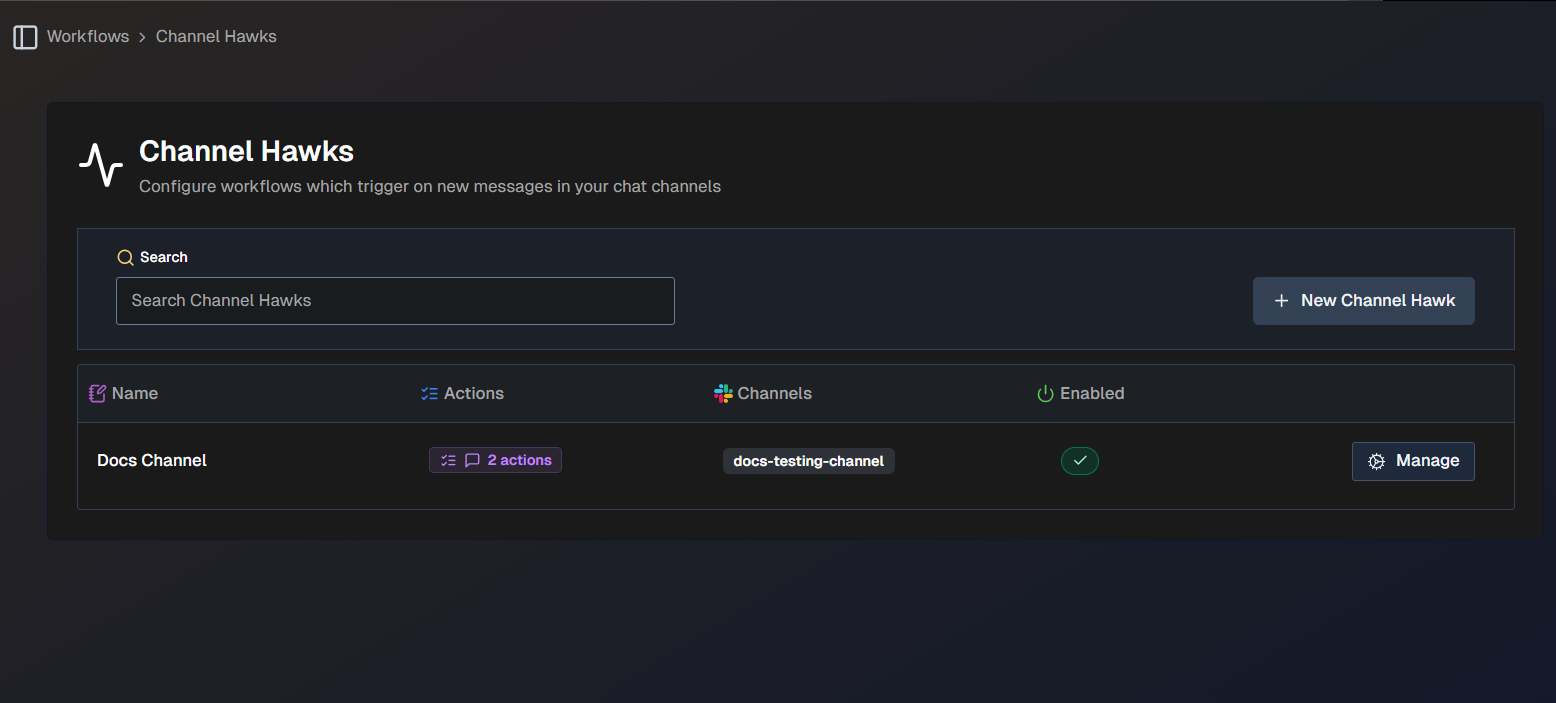
The following information about each channel hawk is displayed in the list:
Name - the name of the channel hawk.
Actions - the number of actions configured for the channel hawk. Hover over the number to view the types of actions.
Channels - the channel(s) where the channel hawk is configured.
Enabled - whether or not the channel hawk is enabled.
Click the Manage button next to any channel hawk in the list to view, edit, or delete it.
Use the Search bar at the top of the page to find a specific channel hawk.
Generate a New Channel Hawk
AI Incident Assistant can automatically generate channel hawks based on a short description of a workflow.
Example description
Below is an example of a workflow description prompt:
Generate a detailed troubleshooting workflow which includes observability data, ITSM data, and provides a detailed summary of the findings.
To generate a new channel hawk:
On the Channel Hawks page, click + New Channel Hawk.
In the upper right corner of the page, select Generate Workflow.
In the Workflow Generator window, enter a Description of the workflow you'd like to create. Be sure to include clear, detailed instructions in plain language.
Click Generate Workflow.
The Channel Hawks configuration page is populated based on your description. Review each field to ensure that the workflow meets your needs.
Detailed descriptions of each field are available in the Manually Create a New Channel Hawk instructions.
If you want to start over, click Rollback to erase the content from all fields. To add information to the prompt, click Refine and enter additional instructions. If the content looks good, click Accept.
Once you are satisfied with the content, scroll to the bottom of the page and click Save.
Manually Create a New Channel Hawk
You can create a new channel hawk from scratch without using AI Incident Assistant's generation feature.
To create a new channel hawk:
On the Channel Hawks page, click + New Channel Hawk.
In the Create Channel Hawk section of the screen, configure the following fields:
Field
Description
Enabled
Use the Enabled toggle to choose whether the channel hawk will be enabled or disabled upon creation.
Name
Enter a descriptive name for the channel hawk.
Slack/Teams Channels
Select one or more channels where the channel hawk will watch for triggers.
Always Respond
When enabled, AI Incident Assistant will always post a workflow result message, even if it does not find any useful information.
In the Trigger Condition section, specify when AI Incident Assistant should execute the workflow. You can enter a specific prompt, or select Always Execute to always run the workflow.
Generation Mode
Use the Generation Mode button to allow AI Incident Assistant to generate a prompt based on your input.
(Optional) In the Result Message Prompt section, customize how AI Incident Assistant combines and formats the outputs from all workflow actions into a single message. Enter a specific prompt, or use the Generation Mode button to allow AI Incident Assistant to generate a prompt based on your input.
Behavior without a custom prompt
Without a custom prompt, AI Incident Assistant will generally default to displaying each action's output separately in sequence.
In the Actions section, you can add actions that AI Incident Assistant will take when the channel hawk is triggered. Click + Add Action to create an action.
In the Create Workflow Action screen, configure the following fields:
Field
Description
Action Type
Select whether you would like the workflow to be based on a System Prompt or Action Plan.
System Prompt
This field only appears if you select System Prompt in the Action Type menu.
Enter a system prompt with instructions for what AI Incident Assistant should do when this workflow action is executed. Use the AI Generation button to allow AI Incident Assistant to generate a prompt based on your input.
Action Plan
This field only appears if you select Action Plan in the Action Type menu.
Select an action plan that will be performed when the workflow action is executed.
Prompt Addendum (Optional)
This field only appears if you select Action Plan in the Action Type menu.
Enter a prompt addendum containing additional instructions for the action plan.
(Optional) Repeat steps 5-6 to add additional actions.
Click Save.
Scheduled Workflows
Scheduled workflows allow you to create multi-action agentic functions that automatically occur at specific times or intervals. You can schedule any workflow to fully automate your prompts, action plans, and decision points. Monitor scheduled agentic results by configuring the workflow to post the results to a channel or email address.
Scheduled workflow example
You can configure a scheduled workflow to invoke the Generate Channel Summary action plan during an on-call handoff, so that the next shift can quickly get caught up on what has occurred.
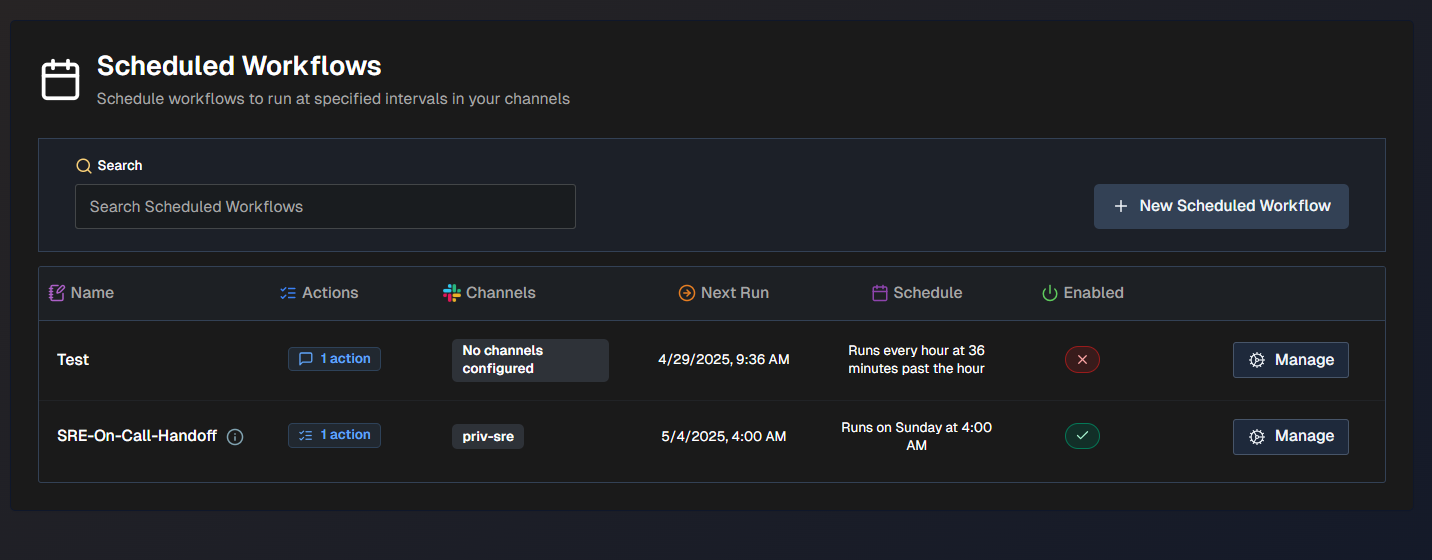
The following information about each scheduled workflow is displayed in the list:
Name - the name of the workflow.
Actions - the number of actions configured. Hover over the number to view the types of actions.
Channels - the channel(s) where the workflow is configured.
Next Run - the date and time when the workflow will run next.
Schedule - the scheduled interval for when the workflow will run.
Enabled - whether the workflow will run at the next scheduled interval.
Click the Manage button next to any workflow in the list to view, edit, or delete it.
Use the Search bar at the top of the page to find a specific workflow.
Generate a New Scheduled Workflow
AI Incident Assistant can automatically generate scheduled workflows based on a short description of a workflow.
Example description
Below is an example of a workflow description prompt:
Generate a shift change workflow that summarizes reported incidents from the past 12 hours in a chat channel, lists any P1/P2 incidents created within the past 12 hours, and includes pending action items for the new shift to action.
To generate a new scheduled workflow:
On the Scheduled Workflows page, click + New Scheduled Workflow.
In the upper right corner of the page, select Generate Workflow.
In the Workflow Generator window, enter a Description of the workflow you'd like to create. Be sure to include clear, detailed instructions in plain language.
Click Generate Workflow.
The Scheduled Workflows configuration page is populated based on your description. Review each field to ensure that the workflow meets your needs. Click Apply to apply the generated configuration.
Detailed descriptions of each field are available in the Manually Create a Scheduled Workflow documentation.
If you want to start over, click Rollback to erase the content from all fields. To add information to the prompt, click Refine and enter additional instructions. If the content looks good, click Accept.
Once you are satisfied with the content, scroll to the bottom of the page and click Save.
Manually Create a New Scheduled Workflow
You can create a new scheduled workflow from scratch without using AI Incident Assistant's generation feature.
To create a new scheduled workflow:
On the Scheduled Workflows screen, select + New Scheduled Workflow.
In the Create Scheduled Workflows section, configure the following:
Field
Description
Name
Enter a name for the scheduled workflow.
Description (Optional)
Enter a description of the scheduled workflow.
Enabled
Choose whether you would like the scheduled workflow to be enabled upon creation.
In the Schedule section, define the intervals for when AI Incident Assistant should execute the workflow:
Field
Description
Repeat every
Choose how often you would like the scheduled workflow to repeat. All workflows take place in your local time zone.
Enter an interval number and select a time format. You can choose from:
Minutes (maximum 59, minimum 15)
Hours (maximum 24)
Days (maximum 31)
Weeks (maximum 1)
Months (maximum 12)
Repeat on
This field appears only if you selected the time format of Weeks or Months.
Select the day of the week or month that you would like the workflow to repeat on.
At
This field appears only if you selected the time format of Hours, Days, Weeks, or Months.
Select the minute or time of day that you would like the workflow to repeat on.
In the Actions section, configure your workflow steps. To add an action to the list, click + Add Action.
In the Create Workflow Action screen, configure actions. Choose from System Prompt, Action Plan, or Decision action types, then configure the following fields:
Field
Description
System Prompt
This field only appears if you selected the System Prompt action type.
Enter a system prompt that defines what AI Incident Assistant should do when this step is executed. Use the AI Generation button to have AI Incident Assistant generate a complete, detailed prompt based on your input.
Action Plan
This menu only appears if you selected the Action Plan action type.
Select one of your configured action plans to use when this workflow is triggered.
Action Instructions (Optional)
This field only appears if you selected the Action Plan action type.
Provide any instructions to help AI Incident Assistant successfully execute the action plan. These instructions tell AI Incident Assistant:
the goal of the action in the context of the larger workflow
how to transform the previous action's output into useful input for this action
Decision Prompt
This field only appears if you selected the Decision action type.
Enter a conditional logic prompt to determine whether the workflow continues based on the results of the previous action.
Click Add to complete the step and add it to the scheduled workflow.
(Optional) Repeat steps 5-6 to add additional actions.
(Optional) Adjust the order of actions by dragging and dropping them into place.
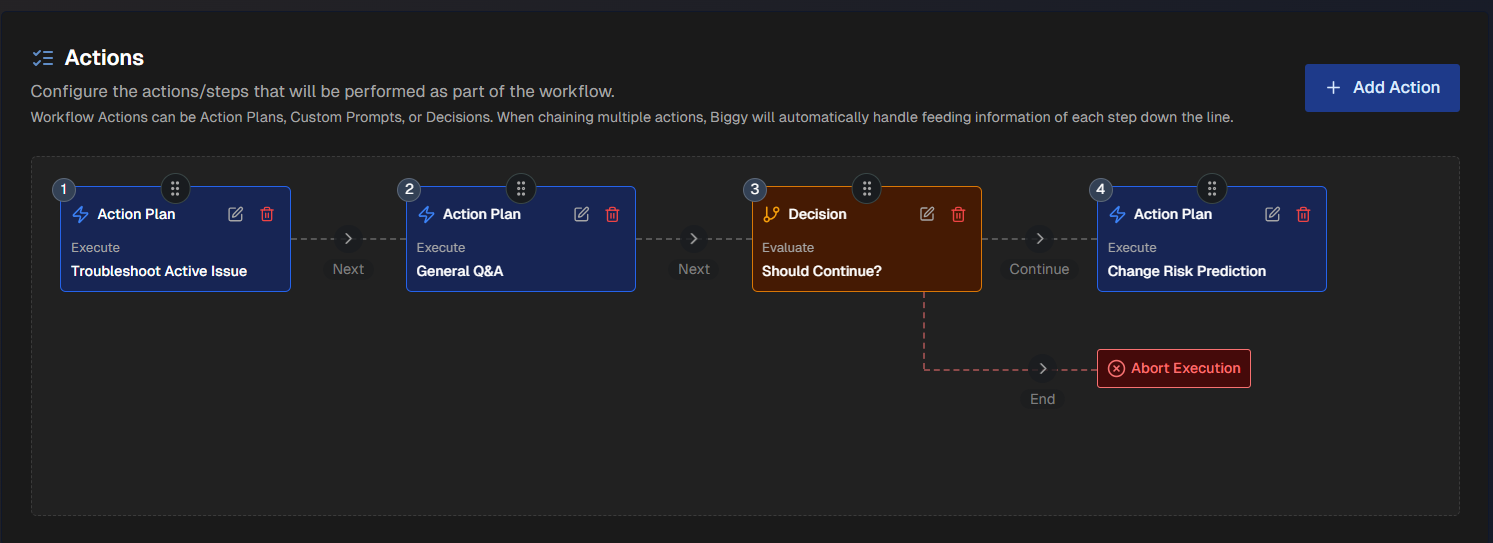
In the Response Behavior section, determine when AI Incident Assistant posts workflow results. You can choose to always post results, or specify conditions for when AI Incident Assistant shares results. Use the Always Respond toggle to choose between these options.
(Optional) If Always Respond is toggled off, you can enter a Condition Prompt for when AI Incident Assistant posts the workflow results. If a condition prompt is not provided, AI Incident Assistant will use its best judgment to determine when to post workflow results.
(Optional) In the Result Message Formatting section, enter a Formatting Prompt to customize how AI Incident Assistant combines and formats the outputs from all workflow actions into a single result message.
In the Output Results section, configure the following fields to let AI Incident Assistant know where workflow responses should be sent:
Field
Description
Send Results to Channels
Enable this field to send the results of the scheduled workflow to the channel(s) you select.
Channels
Select one or more channels to send the results of the workflow.
Send as Email
Enable this field to deliver workflow responses to one or more email addresses.
If you enable this field, enter email addresses in the box below separated by commas.
Click Save.
Major Incident Management (MIM) Templates
Major Incident Management (MIM) workflows automate and accelerate major incident management with preset actions.
When starting a major incident, AI Incident Assistant will prompt you to select a MIM template. For more information about handling major incidents, see the Manage Major Incidents documentation.
As major incident management processes vary across services and scenarios, you can configure multiple templates.
Configure MIM templates in the web app at Workflows > MIM Templates.
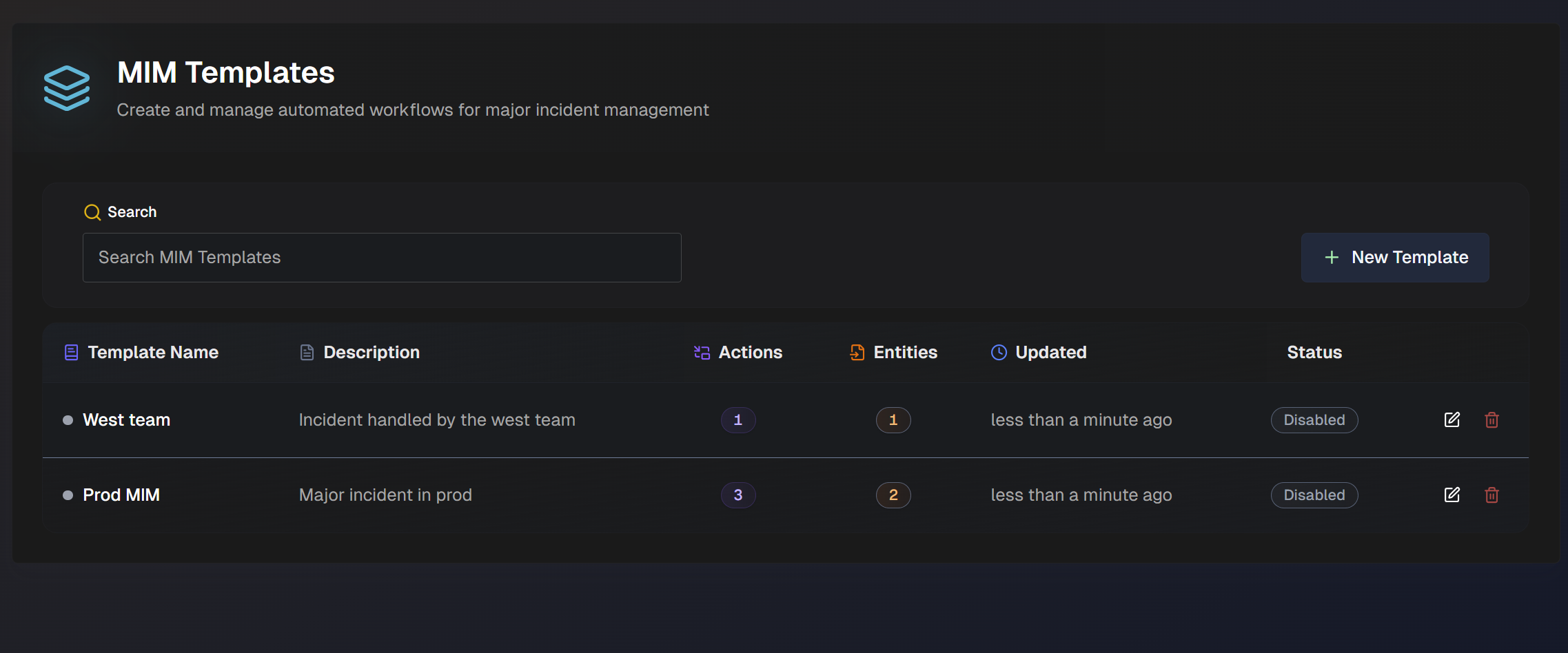
In the MIM Templates list, you can see information about each existing template:
Template Name
Description
Number of actions
Number of entities
Last updated time
Status (Enabled or Disabled)
To make a template the default, click the Star icon. Default templates appear first in the selection list when initiating a MIM.
To edit an existing template, click the Pencil icon.
To create a new MIM template from an existing one, click the Clone icon.
To delete a template, click the Trash Can icon.
Use the Search bar at the top of the page to find a specific template.
Create or Update a MIM Template
To create a new MIM template, click New Template.
Choose between the Guided Setup, Quick Start, or Start from Scratch.
Clone a template
If your organization has already created one or more MIM templates, you can create a new template using an existing one.
Use the Clone button to copy an existing template. Choose a unique name for the new template. You can then edit or add fields to the new cloned template.
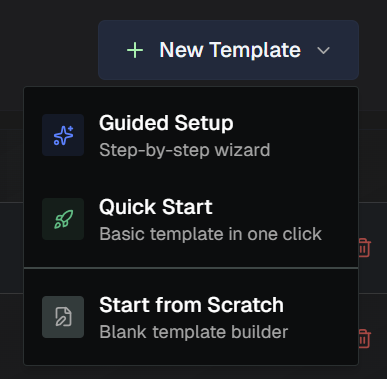
The Guided Setup walks you through each step of creating the template in a step-by-step wizard. This option is especially helpful if it's your first time creating a MIM template.
Quick Start creates a basic preset template containing an incident announcement, recurring status updates, and a resolution summary.
After finishing the guided setup or quick start, you can edit any fields as needed in the full template builder.
To open the full, blank template builder, select Start from Scratch.
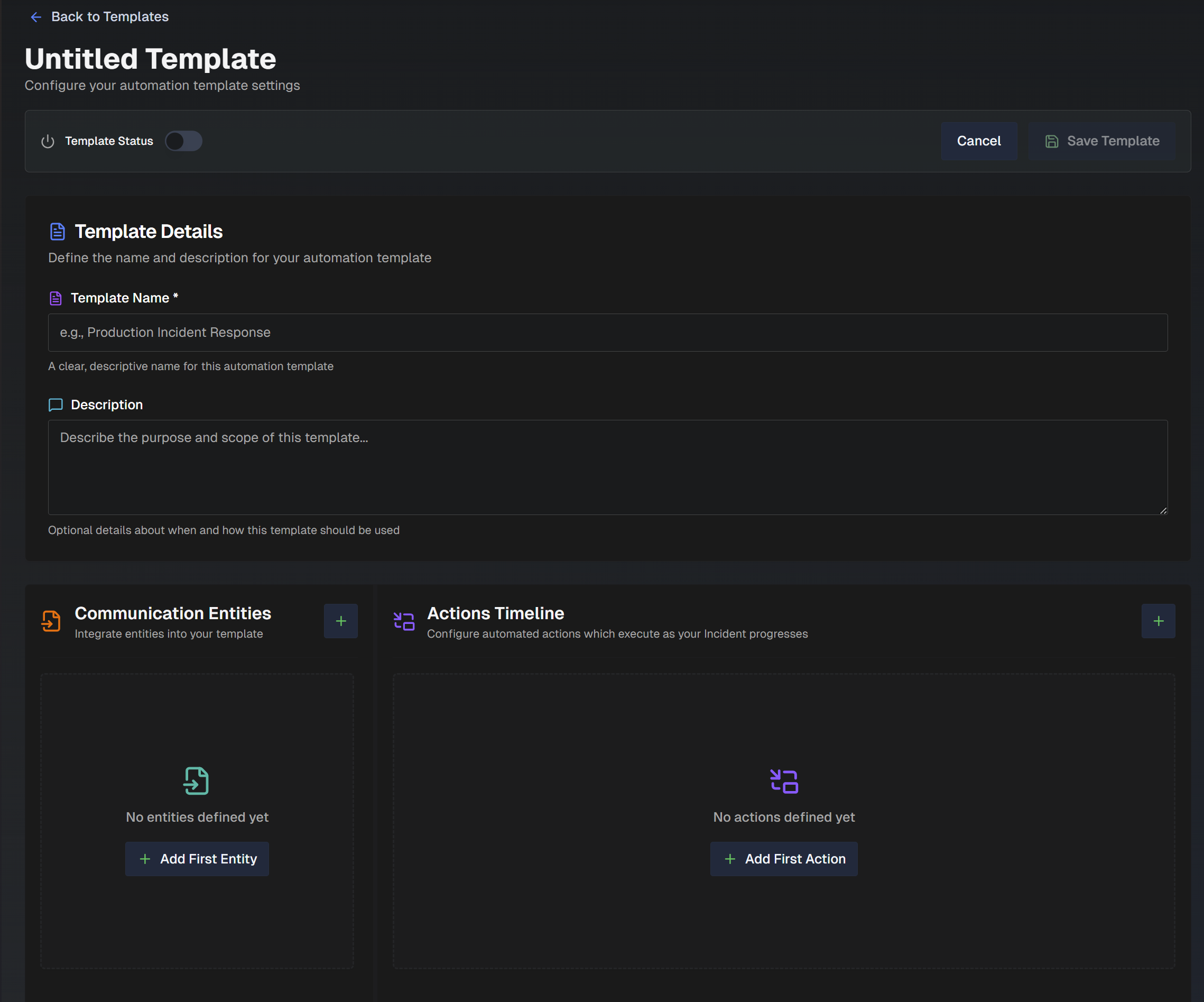
At the top left of the page, use the Template Status toggle to determine whether the template is active or inactive. Only active templates can be selected when initiating a major incident.
Populate the Template Details, Communication Entities, and Actions Timeline sections to create a new template:
Template Details
In the Template Details section, provide basic information to help other users understand the template's purpose.
Field | Description |
|---|---|
Template Name (Required) | A clear, descriptive name for the template. |
Description | Details about how and when this template should be used. |
Incident Priority | Select whether the incident priority is predetermined in this template, or if it should be chosen at MIM creation. Select one of the following options:
|
Communication Entities
In the Communication Entities section, configure which channels or communication sources (such as chat channels, ServiceNow tickets, or emails) will be monitored for updates, used to post automated actions, or used for on-call paging. Multiple communication entities can be added to a single MIM template.
If your template has existing communication entities, basic information about each entity will be displayed in the Communication Entities section of the template.
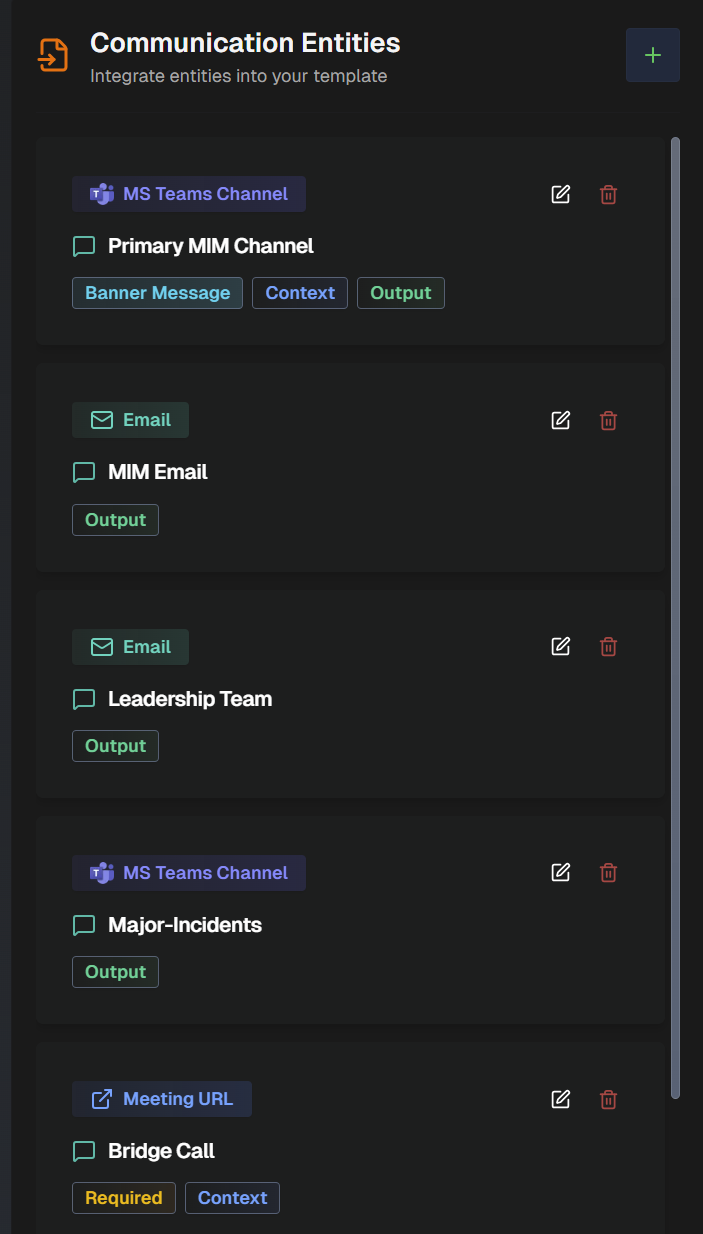
You can edit or delete any existing communication entity. In the list of communication entities, click the Pencil icon to edit a communication entity, or click the Trash Can icon to delete an entity.
To add a new communication entity, click the + button on the right side of the Communication Entity section, or + Add First Entity to open the Add Communication Entity page.
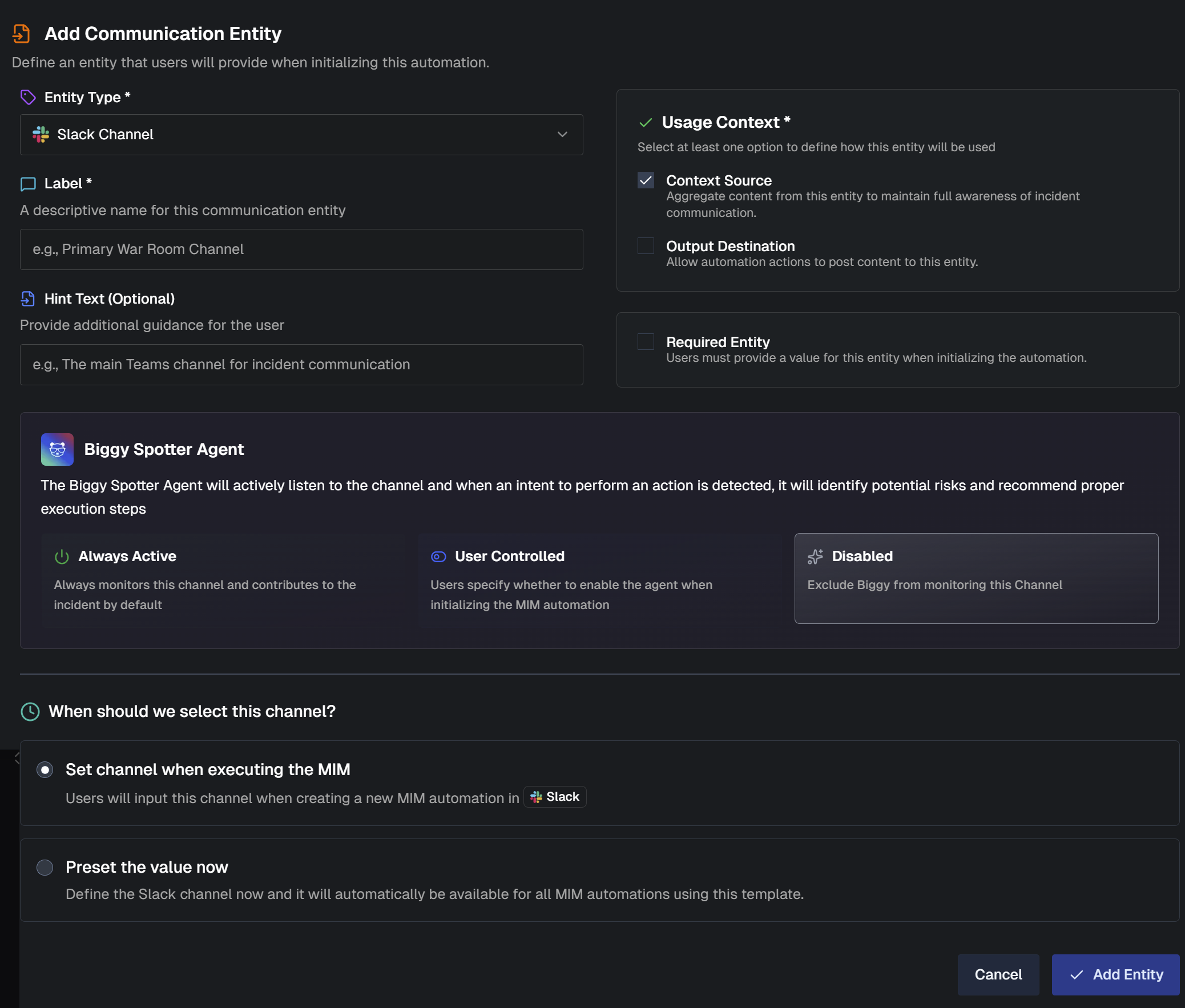
Populate the following information for all entity types:
Field | Description |
|---|---|
Entity Type | Select the communication channel used for this entity. This channel can gather context, push updates, or be used for paging, depending on the selected entity type or usage context. The following entity types are available:
|
Label (Required) | A descriptive name for the communication entity. |
Hint Text | Additional information to help users understand the purpose of the communication entity. |
Different information needs to be populated depending on the type of communication entity you create. Follow the instructions for the entity type you selected:
Create a Meeting URL Communication Entity
To create a communication entity that uses a meeting URL, populate the following information:
Field | Description |
|---|---|
Usage Context | How the communication entity will be used. Meeting URLs can only be used as a Context Source. |
Required Entity | When enabled, AI Incident Assistant will post and continuously update the incident banner message with the title, status, impact, and key findings. Note: Automatically created entities are always available and cannot be marked as required. |
How should this meeting be determined/created? | Choose how AI Incident Assistant should create a meeting, or determine which meeting to use. The following options are available:
|
Create a Slack Channel, MS Teams Channel, or MS Teams Chat/Meeting Communication Entity
To create a communication entity that uses a Slack or MS Teams channel, populate the following information:
Field | Description |
|---|---|
Usage Context | How the communication entity will be used. Select one or both of the following:
|
Biggy Spotter Agent | The Biggy Spotter Agent actively listens to the channel, and when an intent to perform an action is detected, it identifies potential risks and suggests steps to complete the action. Select the Biggy Spotter Agent behavior:
|
Required Entity | When enabled, AI Incident Assistant will post and continuously update the incident banner message with the title, status, impact, and key findings. Note: Automatically created entities are always available and cannot be marked as required. |
How should this channel be determined/created? | Choose when this channel should be selected. Select from the following options:
|
Optional Channel Lookback | This option only appears if you choose the Select an existing channel when executing the MIM, or Preset this channel now channel creation option. Enable this option to allow incident creators to include messages prior to MIM start as context for this entity. When the MIM starts, creators will see a lookback prompt for this entity. Select one or both of the following input modes:
|
Enable Teams Channel Meeting Creation | This option only appears if you selected MS Teams Channel as the entity type. Automatically create a Teams meeting inside this channel with transcription included. The meeting will appear as a Meet Now card in the channel, and responders can join directly from it. |
Create an Email Communication Entity
To create a communication entity that uses email, populate the following information:
Field | Description |
|---|---|
Usage Context | How the communication entity will be used. Emails can only be used as an Output Destination. |
Required Entity | When enabled, AI Incident Assistant will post and continuously update the incident banner message with the title, status, impact, and key findings. Note: Automatically created entities are always available and cannot be marked as required. |
How should these email addresses be determined/created? | Choose how AI Incident Assistant should determine which email addresses to use. The following options are available:
|
Create a ServiceNow Ticket Communication Entity
To create a communication entity that uses a ServiceNow ticket, populate the following information:
Field | Description |
|---|---|
Usage Context | How the communication entity will be used. Select one or both of the following:
|
Required Entity | When enabled, AI Incident Assistant will post and continuously update the incident banner message with the title, status, impact, and key findings. Note: Automatically created entities are always available and cannot be marked as required. |
ServiceNow Tables | Add one or more ServiceNow table names. Users will input record numbers from the tables entered here when creating the incident. |
How should this ServiceNow ticket be determined/created? | Choose how AI Incident Assistant should create a ticket, or determine which ticket to use. The following options are available:
|
Create an On-Call Paging Communication Entity
To create a communication entity that uses a paging service, populate the following information:
Field | Description |
|---|---|
Paging Service | Select the on-call service used to page responders. Only tools you have integrated are selectable. |
Paging Mode | Select how users will pick the paging targets during a major incident. The following options are available:
|
Custom Message Template (Optional) | Optionally enter a custom description used when paging. Default is blank. |
Default Paging Targets | This option only appears if you selected Paging Directory or Static as the Paging Mode. Select the targets that will be selected by default when creating the major incident. Paging targets will only appear as a selectable option if they have been configured in the integration. See the On-Call Integrations documentation for more information. |
Actions Timeline
In the Actions Timeline section, define automated actions. Use automated actions to automatically update stakeholders, or invoke action plans or custom prompts.
If actions have already been configured for this template, a timeline of when each configured action occurs during a major incident is provided. For each action, basic information about what occurs during execution is displayed.
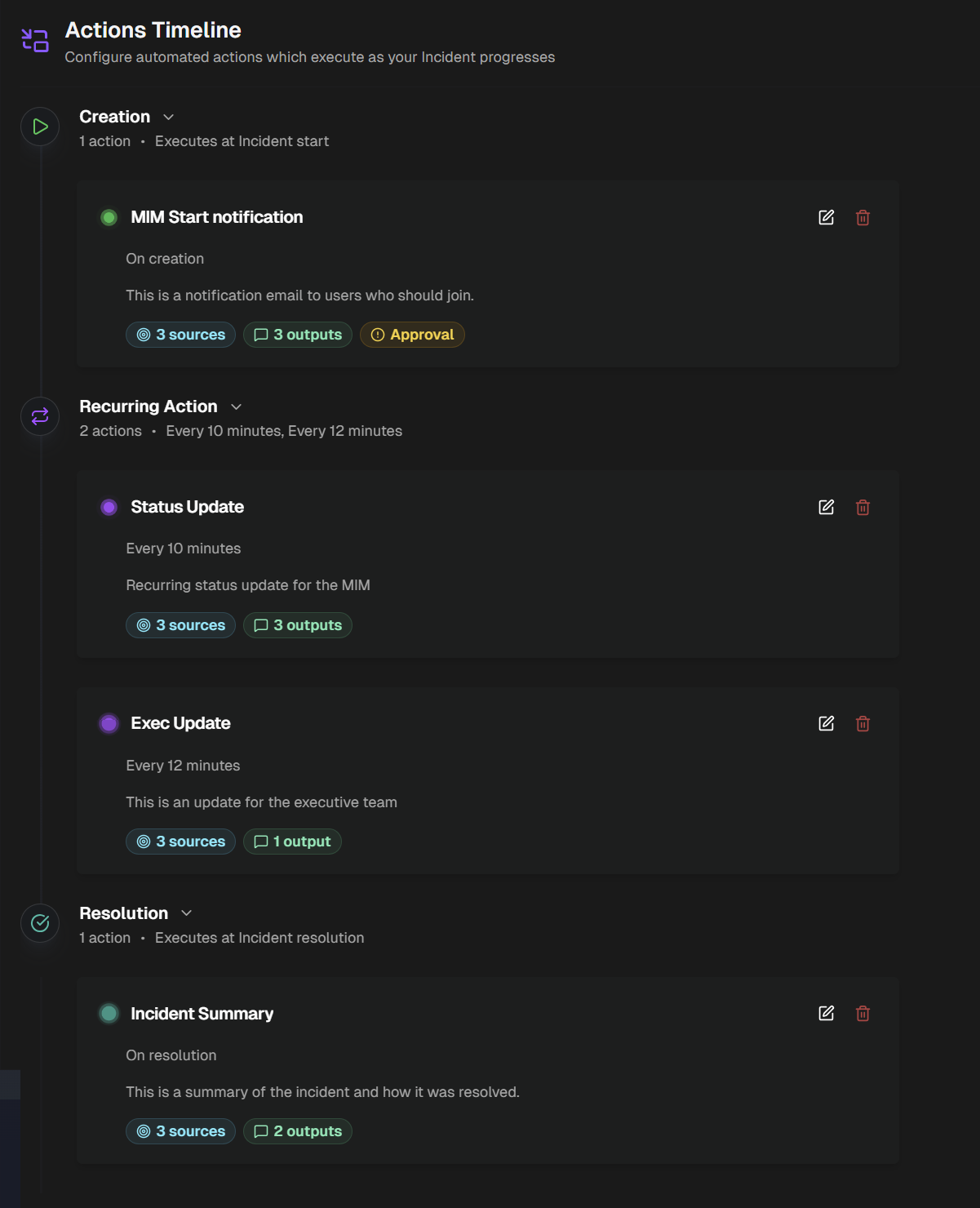
Output destination
There must be at least one communication entity configured as an output destination to add an action.
Click the + button to open the Add Action page.
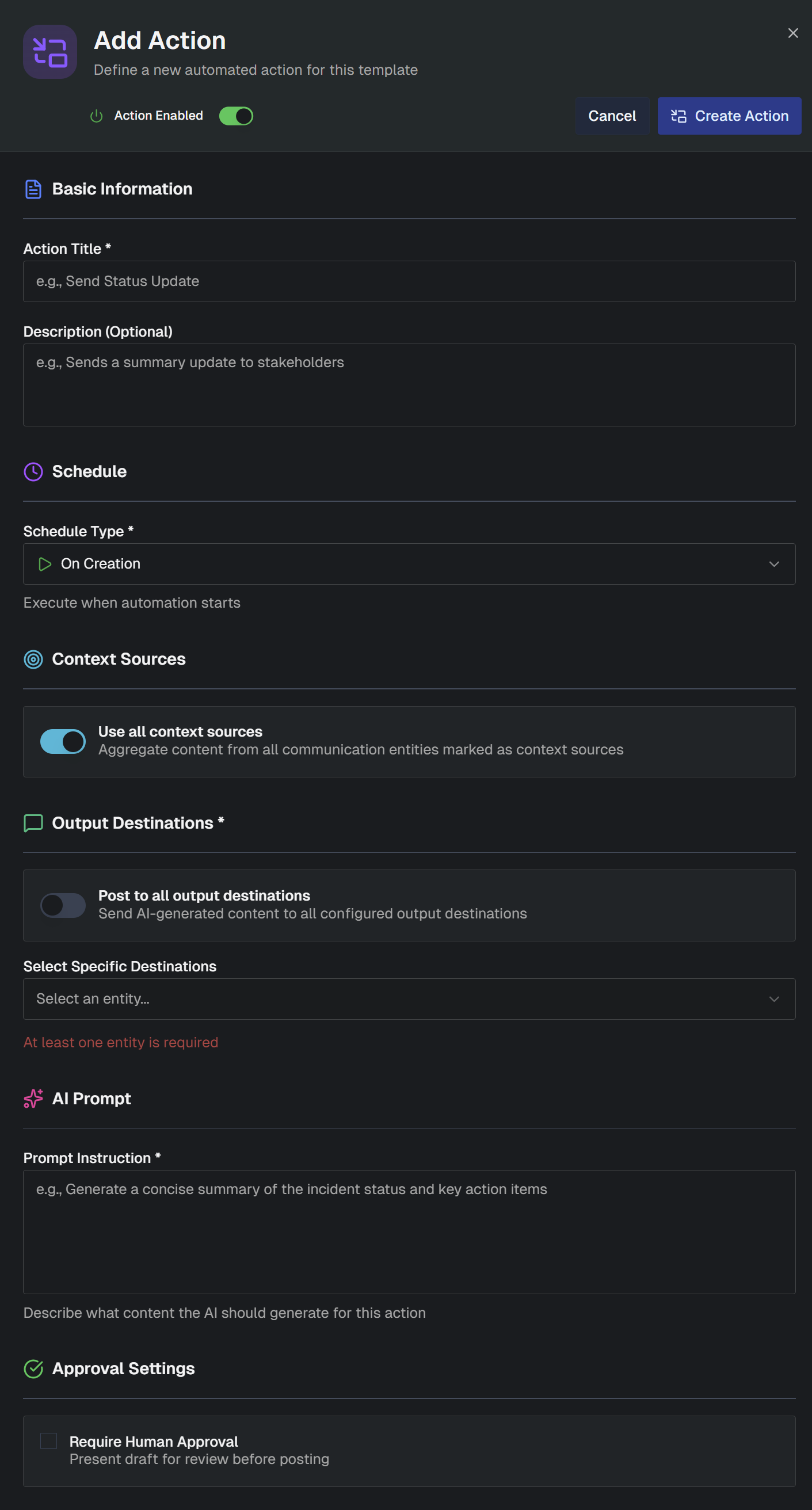
Populate information in the following sections:
Section | Description |
|---|---|
Basic Information | Contains descriptive information about the action that helps other users understand its purpose. Populate the following fields:
|
Schedule | Determine what type of schedule the action should follow. In the Schedule Type field, select from the following options:
|
Context Sources | Determine whether all context sources defined in the Communication Entities should be used to aggregate information and content. In the Use All Context Sources field, toggle on to aggregate content from all communication entities marked as context sources. Toggle off and the Select Specific Sources field will appear, where you can choose one or more specific communication entities. |
Context Lookback Period | Choose whether AI Incident Assistant will evaluate context from the start of the incident or only since the last action occurred. Select From Incident Start to always analyze the full context from incident creation to now. Select From Last Execution to only analyze the new context available since the last action occurred. |
Skip when no meaningful updates | This option only appears if you selected One-Time, Recurring, or On Resolution as the Schedule Type. When this option is enabled, actions will not be posted if nothing substantive has happened in the context sources since the last action. A record of the action will still be logged in the timeline. |
Output Destinations | Choose where the content generated by AI Incident Assistant will be posted. In the Post to all output destinations field, toggle on to send the content to all configured output destinations. Toggle off and the Select Specific Destinations field will appear, where you can choose a communication entity. |
Execution & Action Instructions | In the Execution section, choose what type of execution you'd like to take place when this action occurs. You can choose from the follow execution types:
|
Approval Settings | Choose whether you would like to require approval prior to posting the AI-generated content. Click the Require Human Approval box to require a review of the draft before posting. If this option is selected, the user who starts the major incident will receive a direct message from AI Incident Assistant requesting approval prior to posting actions. |
Click Create Action to save the action.
You can edit or delete any existing action. In the actions timeline, click the Pencil icon to edit an action, or the Trash Can icon to delete it.
Trigger Actions
Trigger Actions monitor ServiceNow for records that match specific rules and automatically run an AI analysis when matching records are detected. AI analysis results are delivered to destinations you choose, keeping the right people in the loop at all times.
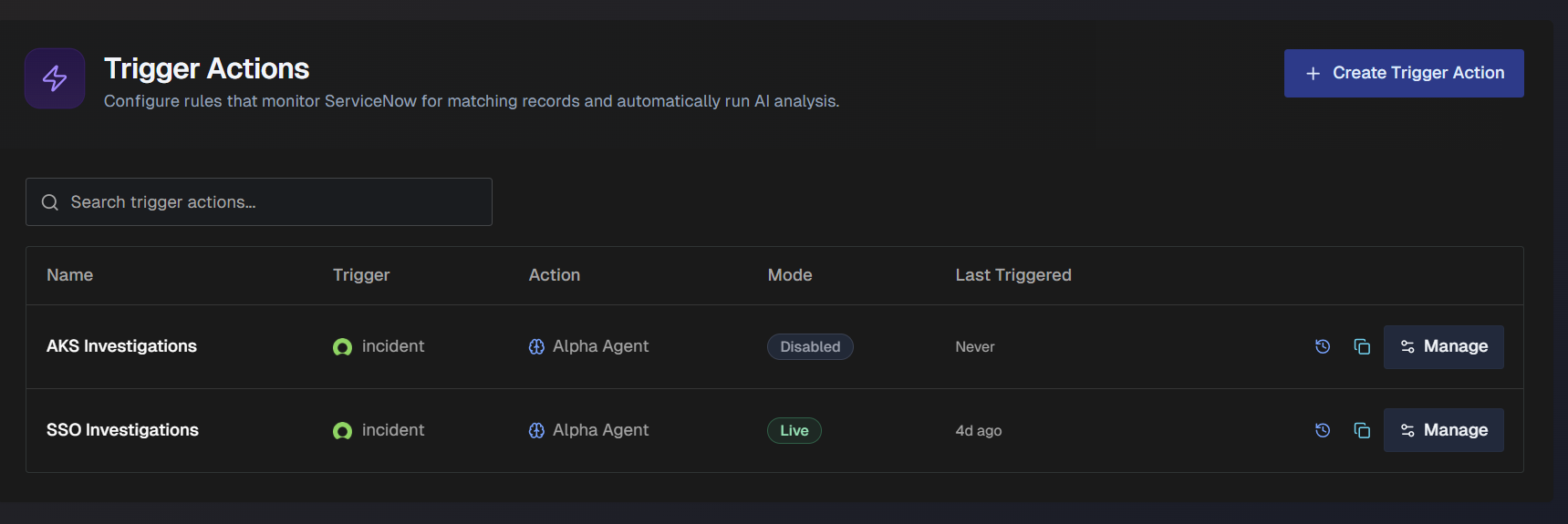
The following information about each trigger action appears in the list:
Trigger name
ServiceNow table queried
Action type
Mode
Last time AI was triggered.
Use the Search bar to find a specific trigger action in the list.
Select the Clone icon to create a copy of a trigger.
Select Manage to edit a trigger.
Create a Trigger Action
To create a trigger action:
In the upper right corner, click + Create Trigger Action.
On the trigger action editor page, enter the trigger information and criteria. In the Create Trigger Action section, populate the following information:
Name - descriptive name for the trigger action.
Description - optional description of what the trigger action does.
In the Mode section, select the mode the trigger action should be in after creation. Choose from the following options:
Live - actively monitoring and delivering analysis results.
Dry Run - actively monitoring, but does not post results.
Disabled - action does not monitor or post results.
In the ServiceNow Trigger section, determine which records trigger the automation. Configure the following fields:
Field
Description
Table
Select a ServiceNow table to query. Scroll through the list for a table or use the search bar to find a specific table.
Filter Conditions
Add a filter for which records should be selected.
Select + Add Condition to add a condtion. Choose the Field, Operator, and Value to create the condition. You can create multiple conditions.
Select Add Group to add a group of conditions. You can adjust the root-level operator between conditions or groups to AND or OR.
The Generated Query appears below the conditions.
(Optional) Click Validate to test the condition.
Polling Interval
Select the polling interval. Choose 5 minutes, 10 minutes, 15 minutes, or 30 minutes.
(Optional) In the Conditional Prompt section, use AI to filter records before running the full analysis. Toggle on Use Conditional Prompt and enter the evaluation AI should perform before running the analysis.
The triggering record will be evaluated against this prompt. If it does not match, the analysis will be skipped.
In the Loop Prevention section, choose how often the same record can be reanalyzed. Select from the following options:
Once per record - each record is analyzed once.
Re-process after interval - reanalyze records after a cooldown period.
If you select this option, choose the Cooldown Interval. Select between 30 minutes, 1 hour, 4 hours, 12 hours, or 24 hours.
In the Action section, configure the instructions for analyzing triggered records.
In the System Prompt field, describe how the agent should analyze the records. Manually enter a prompt, or click Use Template to select from preconfigured prompts. The following options are available:
Incident Triage - Analyze the incident, assess severity, identify the likely cause, and suggest next steps.
Root Cause Analysis - Analyze the incident, correlate with recent changes and alerts, and identify root cause.
Priority Assessment - Evaluate the incident against business impact criteria and recommend a priority level.
Knowledge Search - Search the knowledge base for relevant articles and past resolutions.
Escalation Recommendation - Analyze the incident and recommend whether escalation is needed and to which team.
User-Facing Response - Generate a clear, structured response for internal business and technical stakeholders.
In the Output Gate section, choose when analysis results should be delivered. Select from the following options:
Always post - Deliver outputs for every analysis.
Skip if not actionable - Check for actionable content before posting.
Custom criteria – Define your own posting criteria in the Posting Criteria field. The analysis will be evaluated against these criteria. If it does not match, outputs will not be delivered.
In the Outputs section, choose where and how to deliver the analysis results. Configure the following information:
Field
Description
Output Preamble
Prefix added to ServiceNow outputs to identify AI-generated content.
Formatting Instructions
Optional instructions that guide how the analysis is formatted for all output destinations.
Work Note
Enable this option to post an internal work note to the ticket.
Optionally, you can configure Advanced formatting options to update the Banner Title, Include header, Include footer, or override the global formatting instructions.
Comment
Enable this option to post customer-visible comment to the ticket.
Optionally, you can configure Advanced formatting options to update the Badge Text, Include header, Include footer, or override the global formatting instructions.
Email
Enable this option to send results via email. If you enable this option, enter one or more email addresses, comma separated.
Optionally, you can configure Advanced formatting options to Include header, Include footer, or override the global formatting instructions.
Slack Channel
Enable this option to post the analysis to a Slack channel. If you enable this option, select one or more channels from the drop-down menu.
Optionally, you can configure Advanced formatting options to Include header, Include footer, or override the global formatting instructions.
Slack DM
Enable this option to send a direct message of the analysis to the person who created the rule.
(Optional) Click Test Now to test the execution.
Click Save Changes to save the trigger action.