Major Incident Management (MIM)
A major incident is an urgent, high-impact issue that may directly affect business outcomes. Major incidents require a fast, coordinated response to minimize the impact on your business.
AI Incident Assistant helps speed up the major incident management (MIM) process with automated workflows that keep your entire team up to speed. Use customized templates for specific scenarios or services such as health checks, escalations, and updates. Orchestrate incident SMEs, and seamlessly sync updates across channels in both triggered and scheduled workflows
How MIM Works
MIM templates define what actions need to occur during major incident management. In a MIM template, you can create custom automations to execute actions on a schedule, ensure the right teams stay notified, and provide all stakeholders with full context during a major incident.
Using MIM templates, you can:
Automatically send communications
Set up action plans or prompts to execute at specific times
Enable a spotter agent to provide advice to team members
Automatically update ServiceNow tickets, MS Teams or Slack channels, and emails
Automatically add AI Incident Assistant to bridge calls for transcription
Generate post-incident analyses and post-mortems.
In MIM templates, communication entities are configured to check incident context sources, to communicate incident updates to stakeholders, or both. Updates can be sent to email addresses, MS Teams or Slack channels, or ServiceNow tickets. You can also set the communication entity to update the incident banner in MS Teams or Slack to keep everyone updated as incidents progress.
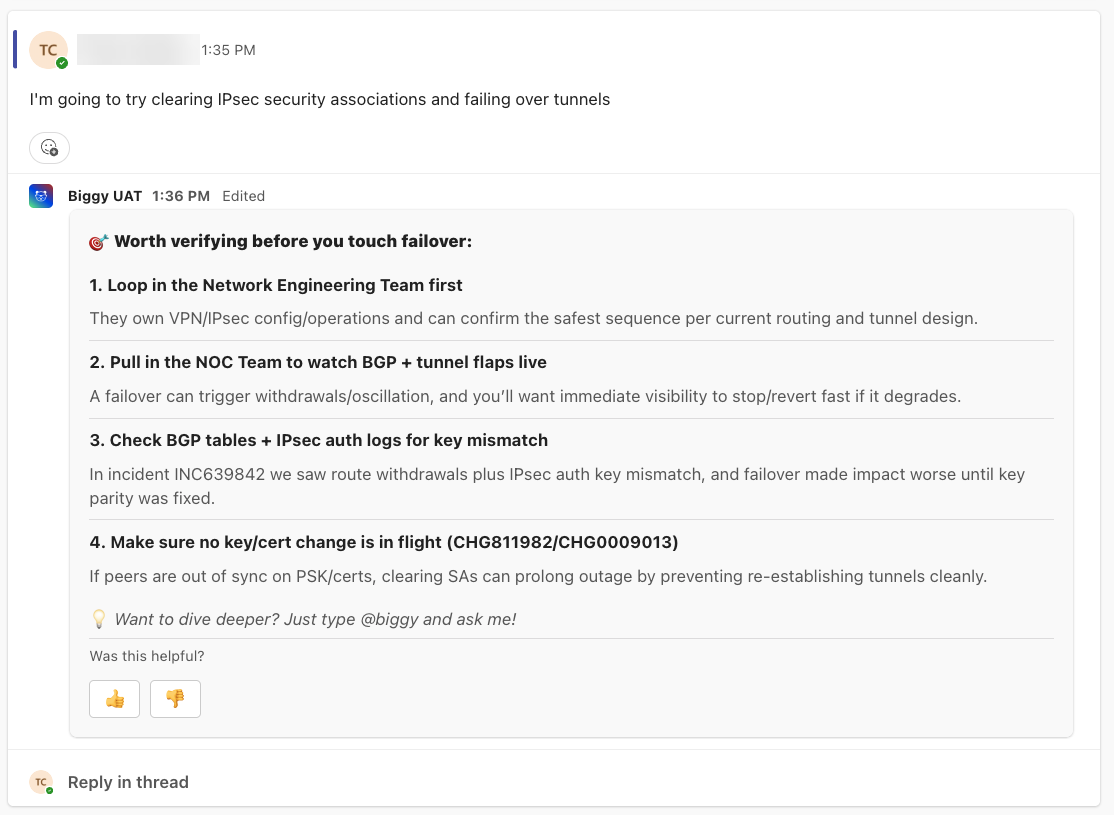
Communication entities can be configured as a spotter agent. The spotter agent actively listens to a channel, and when an intent to perform an action is detected, it identifies potential risks and suggests steps to complete the action.
MIM actions are automations that occur either at the start of an incident, on a one-time or recurring basis, or at incident closure. Actions are used to send updates to stakeholders or to invoke specific Action Plans or custom prompts.
For example, you can create a MIM template to add recurring actions that check a context source, such as a ServiceNow incident or a Teams or Slack channel, and then send updates to specific groups on a set schedule.
See the MIM Templates documentation for information on creating customized MIM automations.
To get a full picture of how AI Incident Assistant is helping your organization handle major incidents, you can view all current and past major incidents in the web app MIM Executions dashboard.
Open a Major Incident
To open a major incident:
If you're using Microsoft Teams, enter the command
@Biggy mim. If you're using Slack, enter the command/biggy mim.In the Major Incident window, select a MIM Template from the drop-down menu and click Next.
In the Create New MIM window, enter a MIM Name.
MIM template options
You may see different fields in the Create New MIM window depending on what options your administrator has enabled in the MIM template.
For information on available options, see the MIM Templates documentation.
Configure your communication entities and click Create MIM
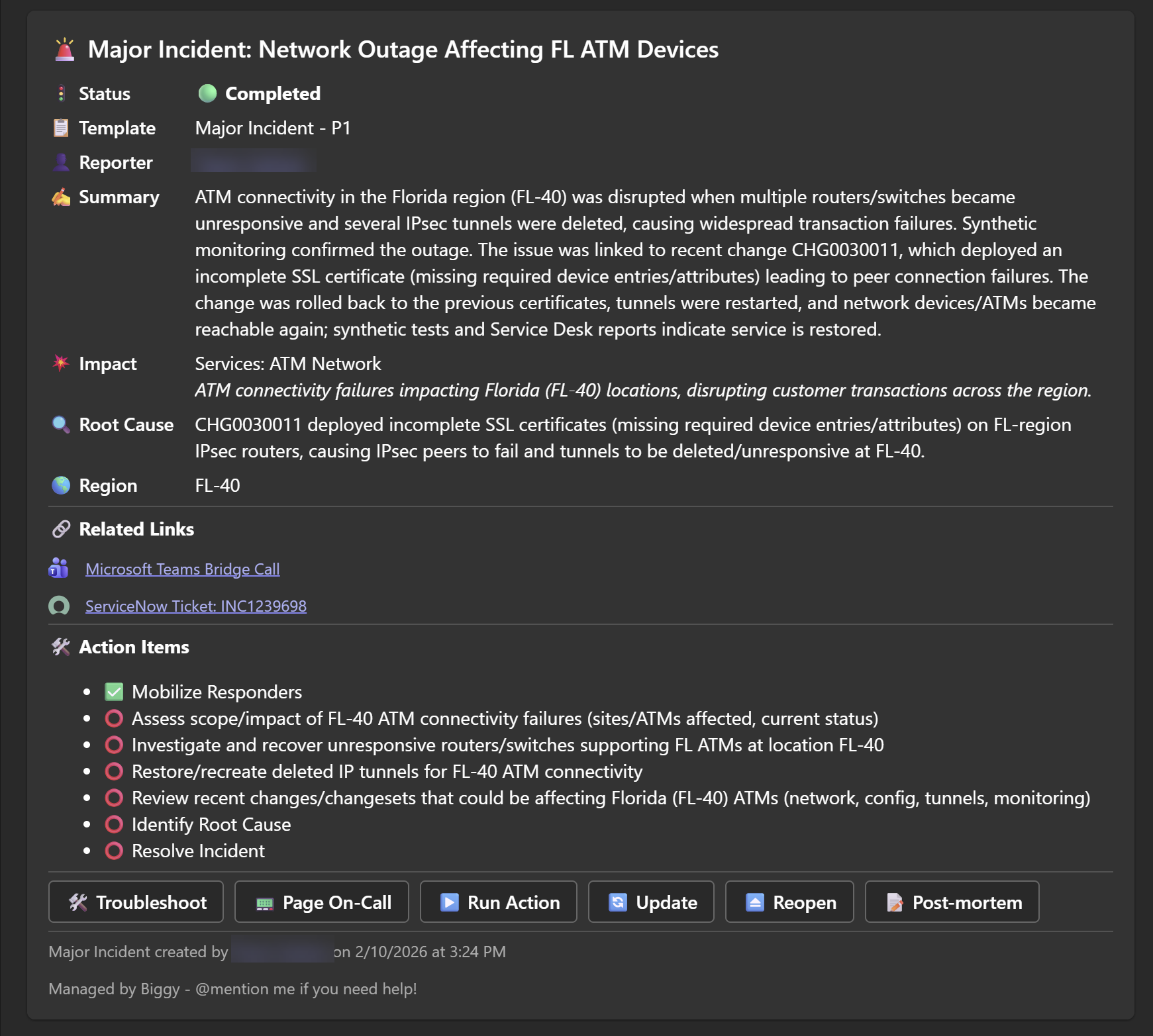
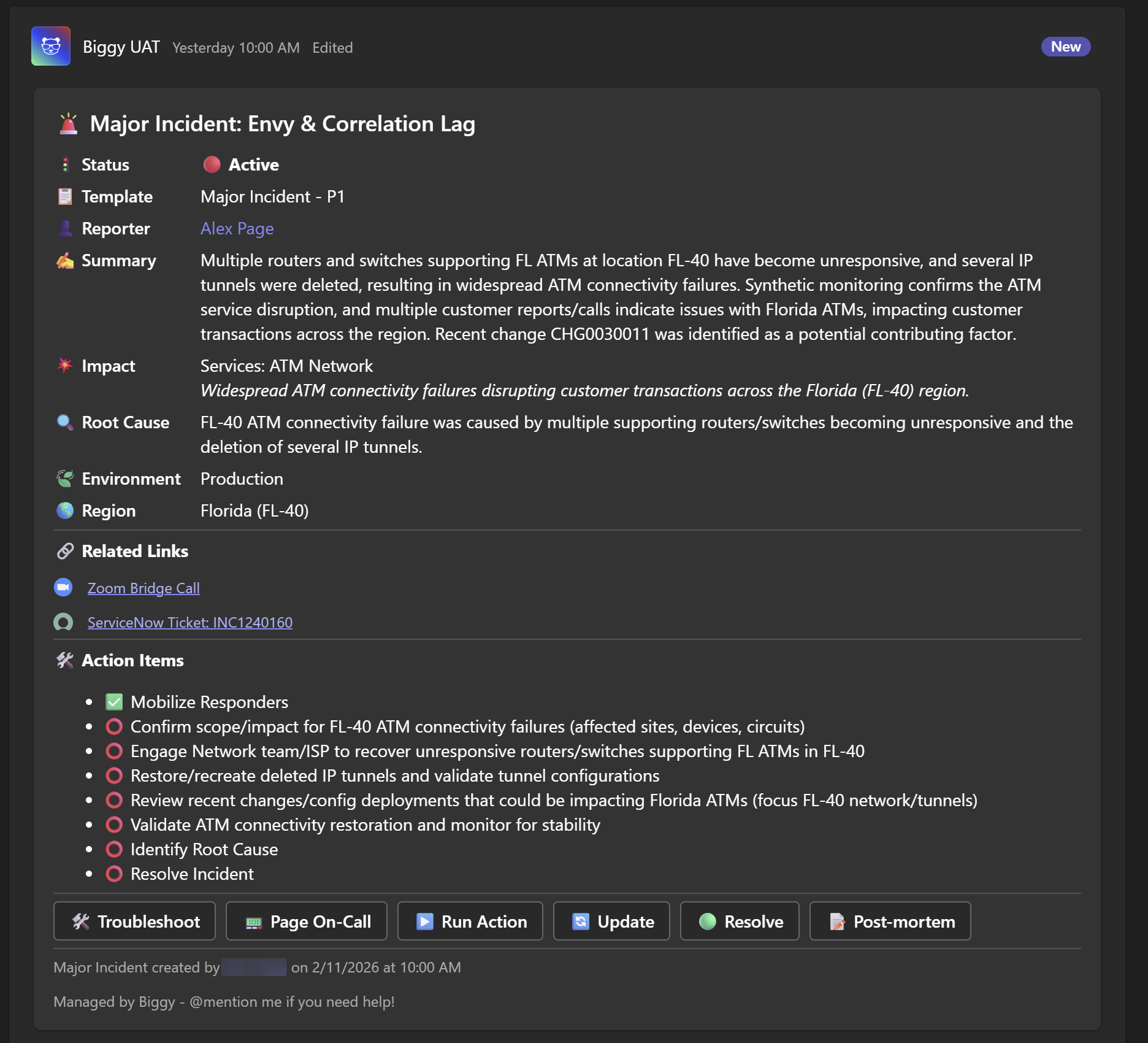
If your MIM template has Include Banner Message selected, AI Incident Assistant will post a pinned message in the channel containing the following information, and keep it updated as the incident progresses:
Incident name
Incident status
MIM template used
Incident reporter
Incident information and summary
Related links
Action items
MIM Actions and Troubleshooting
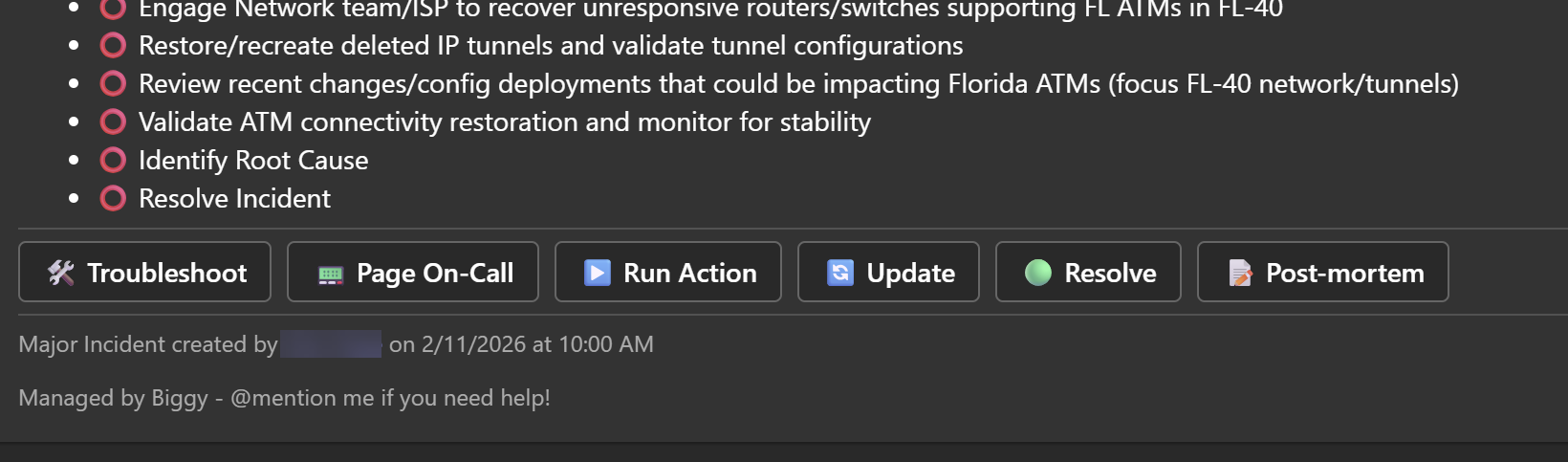
At the bottom of the incident banner, available actions are listed. Actions vary depending on what was configured in the Managed Incident Channel action plan.
AI Incident Assistant will keep your team up to date following the automated actions that were set in your selected MIM template. If your MIM template requires human approval for an action, it will need to be approved before the action is executed. See Approve Actions for more information.
You can also run a one-off update action by clicking Run Action. To refresh the incident banner information, click Update.
To run the Troubleshoot Active Issue action plan, click Troubleshoot. AI Incident Assistant will use the banner message for context and respond with its findings in a reply thread on the incident banner.
At any time, you can also ask AI Incident Assistant a direct question in the incident channel by typing @Biggy in MS Teams or /Biggy in Slack and entering your query. AI Incident Assistant will respond to your query with a threaded message.
If the Spotter Agent was enabled in the MIM Template, AI Incident Assistant will actively listen to the channel, and when an intent to perform an action is detected, it will identify potential risks and recommend proper execution steps in a threaded message.
Approve Actions
If action types in your MIM Template require human approval, you'll receive a direct message from AI Incident Assistant with information about the action.
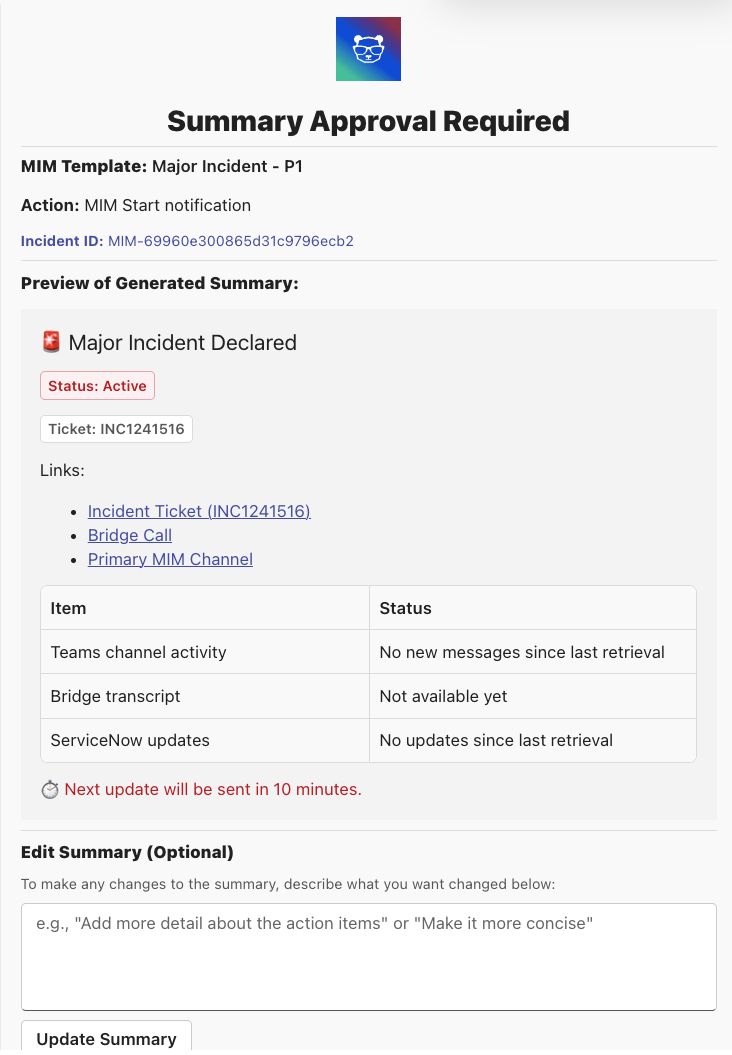
At the top of the approval window, the following basic information about the action is displayed:
MIM template used
Action name
Incident ID
Below the basic information, a preview of the action AI Incident Assistant will post is provided. If anything needs to be edited, enter instructions in the text box and click Update.
Below the instructions, the destinations where the action will be posted are displayed.
Once the action preview looks good, click Approve to run the action.
Resolve a Major Incident
When the major incident has been resolved, click the Resolve button in the incident banner to close it. A pop-up box will appear to confirm you'd like to resolve the incident. Click Approve Resolve to complete the action.
Resolve incidents in the web app
You can also resolve major incidents from the web app in the MIM Executions Dashboard.
At incident resolution, any actions scheduled to run at resolution will be triggered.
If you find that issues are still occurring, you can click Reopen in the incident banner to reopen the incident.
Create an Incident Post-Mortem Report
To create an incident post-mortem report, go to the incident banner and click Post-Mortem.
In the Generate Post-Mortem report window, populate the following information to create a report:
Field | Description |
|---|---|
Channel | Select a Teams channel from the drop-down menu. AI Incident Assistant will use this channel to generate context for the report. |
For How Long? | Select the time period that AI Incident Assistant should examine to create the report. You can select a Specific Time Range or the Entire Channel. |
Dates and Times | If you selected Specific Time Range, enter a Start Date, Start Time, End Date, and End Time. |
Incident Record ID | Enter an incident record that AI Incident Assistant will examine for context. |
Click Submit. AI Incident Assistant will post a message with a link to the report that can be viewed in the web app.
See the Incident Post-Mortems documentation for more information about viewing reports.
Next Steps
Configure custom MIM Templates to automate your major incident management process.
Get a holistic view of your major incidents in the MIM Executions Dashboard.
View analytics on your MIM processes in the MIM Executions analytics page.