Swarm Settings (IA)
The Swarm Settings page is where you tune how autonomous Swarm Investigations reason, adjudicate, and which agents and tools they can use. The settings you configure here apply to every swarm your organization runs, whether it starts from a swarm-enabled MIM Template or as a standalone investigation.
Use this page to shape agent behavior with plain-language guidance, control which built-in and custom agents can participate, connect additional Model Context Protocol (MCP) tools, and decide whether the swarm posts its findings back to ServiceNow.
The Swarm Settings page is available in the web app at Manage > AI Capabilities > Swarm Settings.
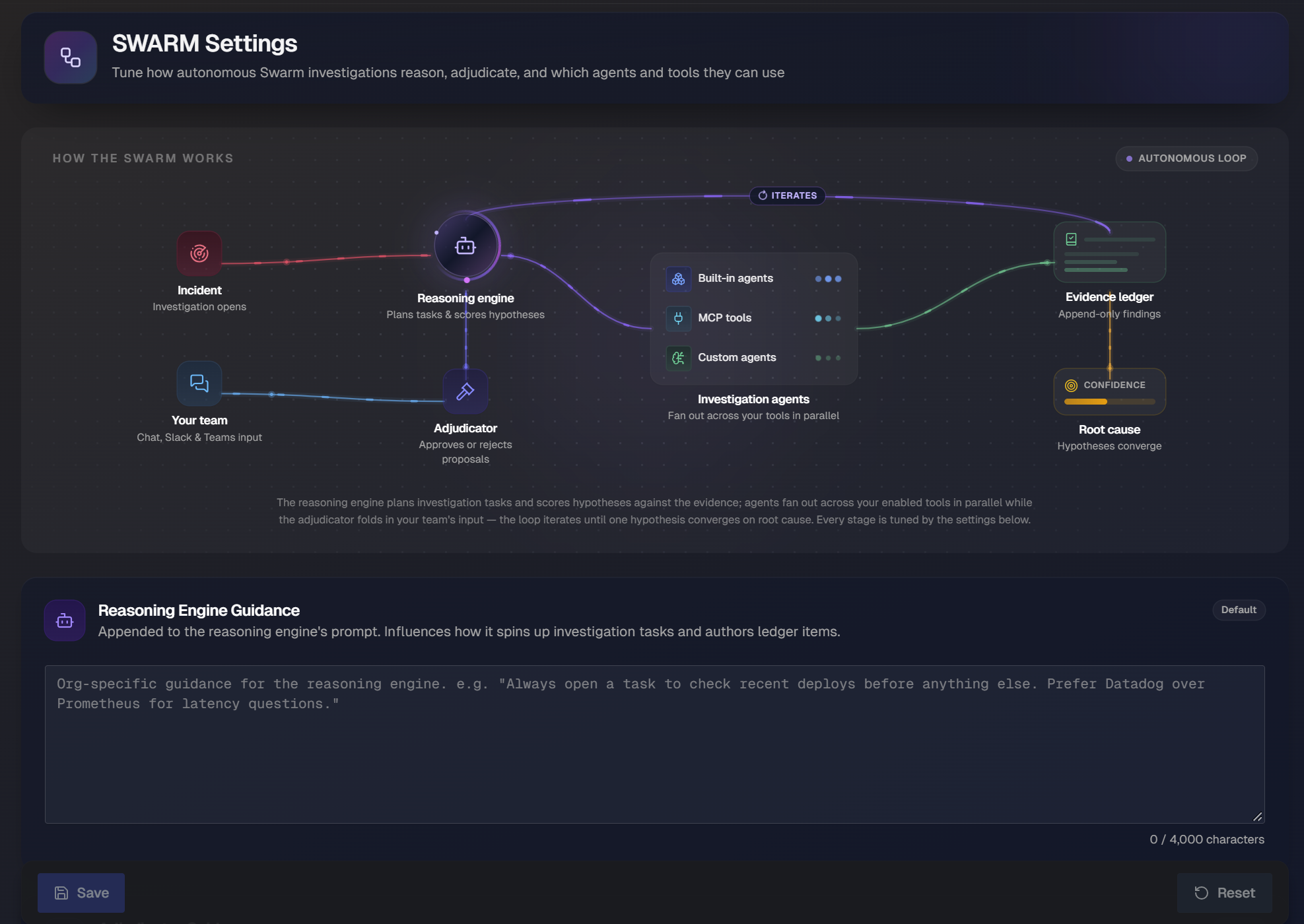
At the top of the page, the How the Swarm Works panel shows the investigation pipeline at a glance. The reasoning engine plans investigation tasks and scores hypotheses against the evidence, agents fan out across your enabled tools in parallel, and the adjudicator adds in your team's input. The loop iterates until one hypothesis converges on a root cause. Every stage of this pipeline is tuned by the settings on this page.
Guidance
Guidance prompts let you append org-specific instructions to the prompts that drive each stage of an investigation. Each guidance field is optional and accepts up to 4,000 characters.
When a field contains no custom text, it displays a Default badge indicating the swarm is using its standard behavior for that stage.
The following guidance fields are available:
Guidance field | What it influences |
|---|---|
Reasoning Engine Guidance | Appended to the reasoning engine's prompt. Influences how it spins up investigation tasks and authors ledger items. |
Adjudicator Guidance | Appended to the adjudicator's prompt. Influences how it decides whether a proposal is accepted or rejected. |
Investigation Summary Guidance | Appended to the final summary prompt. Influences how the snapshot summary, root cause, and resolution are written when an investigation concludes. |
Suspect Changes Guidance | Appended to the summary prompt's Suspect Changes section. Influences which changes are called out as suspect and how their evidence is framed. |
Suggested Mitigations Guidance | Appended to the summary prompt's Suggested Mitigations section. Influences which next actions the swarm recommends after investigating. |
Pulse Guidance | Appended to the pulse agent's prompt. Influences the live TLDR, critical observations, and investigation focus shown while a swarm runs. |
Hypothesis Guidance | Appended to the hypothesis manager's prompts. Influences how leads are deduplicated, graduated into hypotheses, and how evidence is assessed. |
To add guidance, click into a field and enter your instructions in plain text, then save your changes. Each field includes an example prompt to show the level of detail that works well.
Write specific, durable guidance
Guidance applies to every investigation, so favor instructions that hold true across incidents.
Name the tools, tags, or business services you want the swarm to prioritize, and describe the outcome you want rather than a single incident.
For example, "Prefer rollbacks over restarts" is more reusable than a note about one deployment.
Change correlation
Configure how the swarm scans ServiceNow change records for suspect changes and keeps the Suspect Changes register up to date while an investigation is live.
The guidance prompts steer how candidates are ranked; these settings decide how many are kept, how far back to look, and how often to refresh.
Configure the following fields:
Field | Description |
|---|---|
Suspect changes to list | Number of ranked changes the swarm register keeps. Choose from 1-10 changes. Default is 5. |
Change lookback | How far back the ServiceNow change scan looks. Choose from 1-2,160 hours. 72 hours is the default. |
Refresh every | How often the register is rescanned when the swarm is live. Choose from 0-1,440 minutes. Default is 30 minutes. |
Dependency-chain lookback | How far back the CI dependency chain scan looks for changes. Choose from 24-2,160 hours. Default is 504 hours. |
Excluded change states | Enter ServiceNow change states to be dropped before ranking. |
The scan uses the same ServiceNow change correlation as MIM's Change Correlation action: a full change scan over the lookback window plus CI triangulation against the leads the swarm is pursuing, ranked once per refresh with the Suspect Changes guidance above. Responders can rule a change out from the investigation page; later scans keep that decision.
Built-in Agents
Built-in agents are the standard investigation agents the swarm may use. The counter at the top of the section shows how many are currently enabled.
Toggle an agent on to allow the swarm to use it, or off to exclude it. A disabled agent is excluded from investigations even when its integration is configured. This lets you keep an integration connected for other purposes while keeping it out of swarm investigations.
Connected (MCP) Tools
Connected tools are Model Context Protocol (MCP) servers that the swarm may query during investigations for context retrieval, observability, and other data. The counter shows how many swarm-eligible servers are connected.
When no swarm-eligible MCP servers are connected, the section shows an empty state prompting you to connect a context-retrieval or observability MCP server to give the swarm more tools to investigate with. To add one, click Browse integrations and connect an MCP server.
Custom Agents
Custom Agents are agents you have built that the swarm may delegate to. Every enabled custom agent participates by default. Use the toggle on each agent to turn it on or off, and keep it out of investigations when needed. The counter shows how many are enabled.
Each custom agent appears as a card with its name, a short description, and the date it was last updated. Cards also display labels that summarize the agent's configuration:
Private: The agent can search files uploaded specifically to its own private context.
Org context: The agent can use organizational context during investigations.
Integration count: The number of integrations the agent is approved to call.
Sub-agent count: The number of sub-agents the agent can delegate specialist work to.
ITSM Work Notes
Enable ITSM Work Notes to post swarm investigation updates as work notes on the ServiceNow ticket linked to the major incident. This applies only to swarms attached to a major incident that has a ServiceNow ticket.
To turn the feature on, toggle Post work notes to ServiceNow on. Toggle it off to stop the swarm from posting work notes.
Best Root Cause Updates
Share the swarm's current best root cause with the major incident's channel while it investigates. Applies only to swarms attached to a major incident.
Enable the Post the swarm's best root cause to the MIM channel toggle to post to the major incident's Slack or Microsoft Teams channel when the swarm's best root cause headline changes or its standing rises, at most once every 15 minutes.
Save or reset your changes
Your changes are not applied until you save them.
To apply your changes across your organization, click Save.
To discard unsaved changes, click Reset.