Manage Incident Tag Views
To effectively triage incidents and reduce your MTTR, you need to see the information most critical to your team. With Incident Tag Views, you can customize the tags that appear in the Incident Details pane so that the information most relevant is always available at a glance.
Incident Tag Views are based on environments, so you can create separate views for different teams working in BigPanda. All users who have access to an environment will see the same customized view within the incident details.
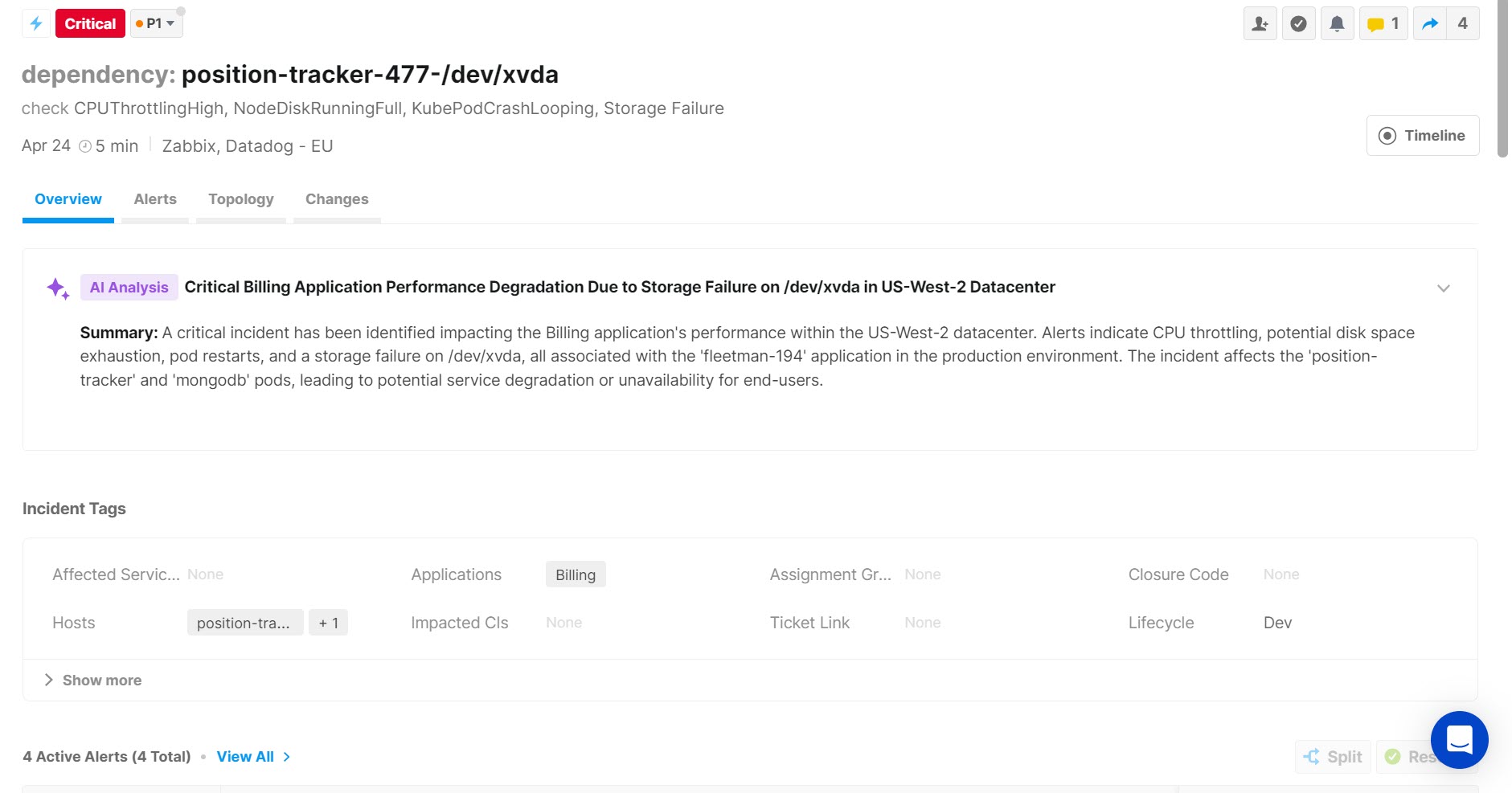
Incident tags in the Incident Details Pane
Incident tag views manage the tags visible in the Incident Details pane. To adjust the tags visible in the Incident Feed see Manage Incident Feed Views. To adjust the tags visible in the Alert Details view, see Manage Alert Views.
Key Features
Configure the order that tags appear in the incident details table.
Create separate incident tag views for specific environments.
Customize a default view that automatically applies when environments do not have an individual view configured.
Relevant Permissions
Roles with the following permission can interact with the Incident Tag Views page in BigPanda Settings:
Permission Name | Description |
|---|---|
Incident Tags View | View, create, edit, or delete incident tag views. |
Permission access levels can be adjusted by selecting either View or Full Access. To learn more about how BigPanda's permissions work, see the Roles Management guide.
Search and Filter Incident Tag Views
By default, the incident tag views list is sorted alphabetically by the name of the view. Search and filter the list to make managing incident tag views easier.
Enter a term into the search bar to look for incident tag views with specific names and properties.
Beneath the search bar, the filter dropdowns allow you to refine the incident tag views list further. Select options from the dropdown lists to filter by Environment, Tag name, or view Status. To remove your filter settings, click Clear.
Default Incident Tag View
The default incident tag view appears at the top of the list with a star icon.
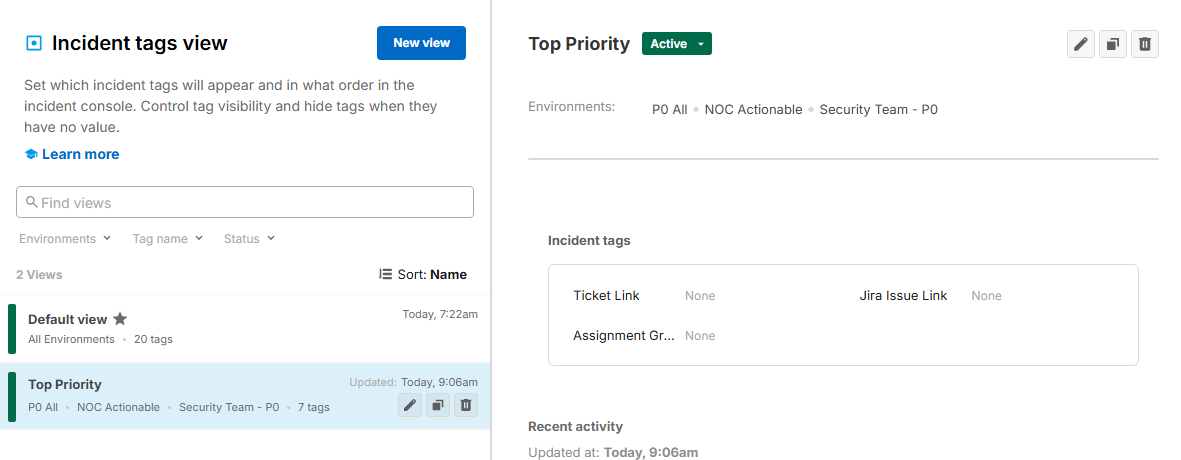
This view applies to all environments that do not have a specific incident tag view assigned. The default incident tag view cannot be deleted or deactivated.
You can edit the incident tags that appear in the default incident tag view. The incident tag view name and selected environments cannot be edited.
If the displayed tags in the default view have been customized, you can revert to the system defaults by clicking Reset defaults. Make additional edits, or click Update view to save the default view.
Create an Incident Tag View
Incident tag views can be created in the BigPanda UI within the Settings page.
Incident tags view
To create a new incident tag view:
Navigate to Settings > Incident Tags View.
Select the New View button.
In the Create a new view screen, populate the following fields:
Field Name
Description
View Name
Enter a name for the incident tag view.
Environments
From the drop-down menu, select one or more environments that should use this view.
An environment can only have one incident tag view applied at a time. If an environment is currently in use in a different active incident tag view, it cannot be selected.
Incident tag Customization
Select which incident tags to display in the incident details. Drag and drop tags in the list to change the display order.
Hover over a tag and click Hide if null if the incident tag should only appear in the details section when a value has been populated for it. Hidden tags are not available for manual editing and should not be used with fields commonly updated manually in console.
(Optional) Select the Refresh button to see a preview of the incident feed view.
Select Create View to save.
Duplicate existing view
You don't have to start from scratch for each incident view. Copy and iterate on any existing incident tag view using the Duplicate button.
Incident Tag View Preview
From the Incident Tag View creation screen, you can see a preview of how the incident details will look in the UI before saving.
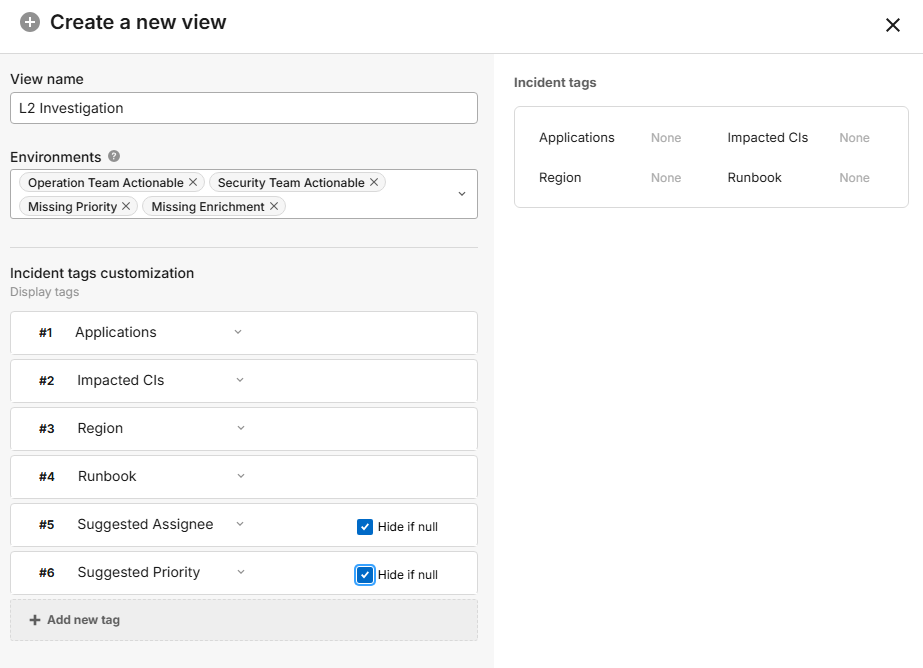
Incident tag view editor and preview
AI tags do not appear in preview
AI tags may not appear in the preview for incident tag views, but will be included in the UI for incident details for environments leveraging the Incident Tag view.
Manage Incident Tag Views
Incident tag views can be edited, activated, deactivated, or deleted from the Incident tag views screen.
To manage your incident tag views:
Navigate to Settings > Incident Tags Views.
Select the incident tag view you wish to edit, activate/deactivate, or delete.
Use any of the following options to modify the incident tag view:
Option
Description
Edit
a. In the incident tag view list or details pane, click the Pencil icon.
b. In the Incident tag views editor, adjust the properties to fit your needs.
If the view you are editing is the Default view, the name and environments fields cannot be edited.
c. Click Update to apply the changes.
Activate or Deactivate
Deactivating an incident tag view stops BigPanda from using that view, but still preserves it if you would like to enable it in the future. The default incident feed view cannot be deactivated. All environments tied to the inactive view will apply the default view unless they are added to a new custom view.
Using the toggle button, select Active or Deactivate.
Delete
Delete an incident tag view when you are sure that it is no longer useful for your workflow. A deleted incident tag view cannot be recovered. The default incident tag view cannot be deleted. All environments tied to the deleted view will apply the default view unless they are added to a new custom view.
a. In the incident tag view list , click the Trash icon.
b. Click Delete to confirm, or Cancel to return to the previous page.
Next Steps
Learn to navigate The Incident Console in BigPanda.
Learn how to use The Incident Feed.
Triage Incidents to effectively determine priority, assignee, and more.