External Observability (IA)
Monitor external events that may affect your operations with External Observability.
External Observability plots active events on an interactive map so you can see where events are happening. Track cloud and SaaS outages, power outages, severe weather, and natural disasters for the regions your organization operates in.
The page is available in the web app at Operate > Incidents > External Observability.
For a full list of the providers, regions, and event types that are checked, see the External Observability Sources documentation.
Key Features
See the number of active, recent, and currently visible external events at a glance.
Search events by title, service, source, or location.
Turn map layers on and off to show markers, affected areas, clusters, heatmaps, and more.
Event summary
At the top right of the page, summary tiles show the current event counts:
Tile | Description |
|---|---|
Active events | Number of external events that are currently active. |
Recent events | Number of external events that are no longer active, with activity that occurred within the past 48 hours |
Visible | Number of events currently displayed in the map view, based on your filters and the visible area of the map. |
Below the tiles, the Last updated timestamp shows when the event data was last refreshed, in both relative and local time.
Filter events
Use the Filters panel on the left side of the page to narrow the events shown on both the map and in the event list.
The Filters panel includes the following options:
Search: Enter a keyword to search event titles, services, sources, and locations.
Active only: Turn on to show only events that are currently active.
Planned maintenance: Turn on to include planned maintenance events from providers.
Alert types: Select one or more alert types to show only events of those types. Each alert type displays the number of matching events. See Alert Types for more information.
Severity: Select one or more severity levels to show only events of those severities. Events are assigned one of four severity levels: Critical, High, Medium, or Low. Each severity level displays the number of matching events.
To clear all filters and return to the default view, at the top right of the Filters panel, click Reset.
Filter application
Filters apply to both the map and the event list.
Alert types
Each alert type has its own color. Event markers on the map use the same color as their alert type, so you can identify event types at a glance.
Alert type | Color | Description |
|---|---|---|
Power | Yellow | Power outages reported by utility providers. See Power Outages. |
Weather | Turquoise | Severe weather alerts. See Severe Weather. |
Cloud | Blue | Issues with Infrastructure-as-a-Service (IaaS) and Platform-as-a-Service (PaaS) providers. See Cloud Platforms. |
SaaS | Purple | Issues with SaaS products. See SaaS Products. |
Disaster | Red | Natural disasters, such as earthquakes, tsunamis, tropical cyclones, volcanic eruptions, and flooding. See Natural Disasters. |
Internet | Orange | Outages and disruptions with internet service providers and communication service providers. See Internet Outages and Disruptions. |
Emergency | Magenta | Non-natural emergencies, evacuations, wildfire emergencies, and official emergency alerts. See Other Emergencies. |
Event list
The event list appears below the Filters panel. Use the tabs at the top of the list to choose which events to display:
Global events: Includes global, non-geolocated, and near-Earth events.
All events: All events that match your current filters.
Each tab shows the number of events it contains.
Each event in the list includes:
Title: The provider or source name, followed by a summary of the event. For example,
Zapier: Connection errors affecting Salesforce....Location tag: Shows Global for events that affect a broad area, the specific locale, or Unlocated for events without location data.
Alert type: The type of event, such as SaaS or Power.
Severity: The severity level of the event.
Updated: How long ago the event was last updated, followed by the local time of the update.
Location: The area affected by the event.
Select any event in the list to view additional details about it. Selecting an event will zoom the map to its location, if applicable.
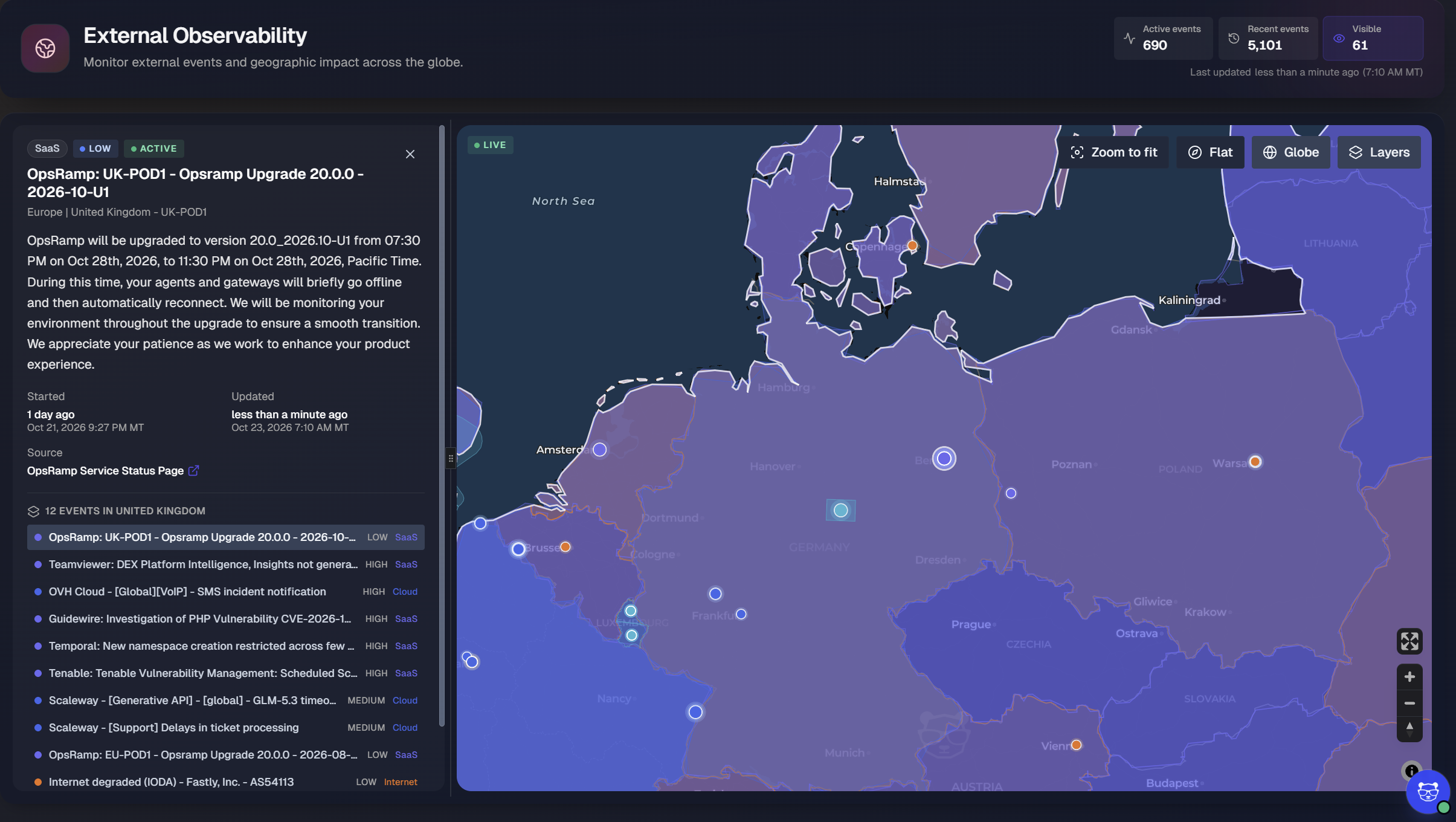
Map
The map shows the location of each external event. Event markers are color-coded by alert type. Additional markers may be shown on the map depending on the selected layers.
Click and drag to move the map. Scroll to zoom in and out.
At the bottom right of the map, use the following controls:
Full screen: Expands the map to fill the screen.
Zoom in and Zoom out: Increases or decreases the map zoom level.
Reset orientation: Returns the map to a north-up orientation.
Change the map view
At the top right of the map, use the view controls to change how the map is displayed:
Control | Description |
|---|---|
Zoom to fit | Adjusts the zoom level so that all visible events fit in the map view. |
Flat | Displays the map as a flat, two-dimensional projection. |
Globe | Displays the map as a three-dimensional globe. |
Layers | Opens the Layers panel, where you can turn map layers on and off. |
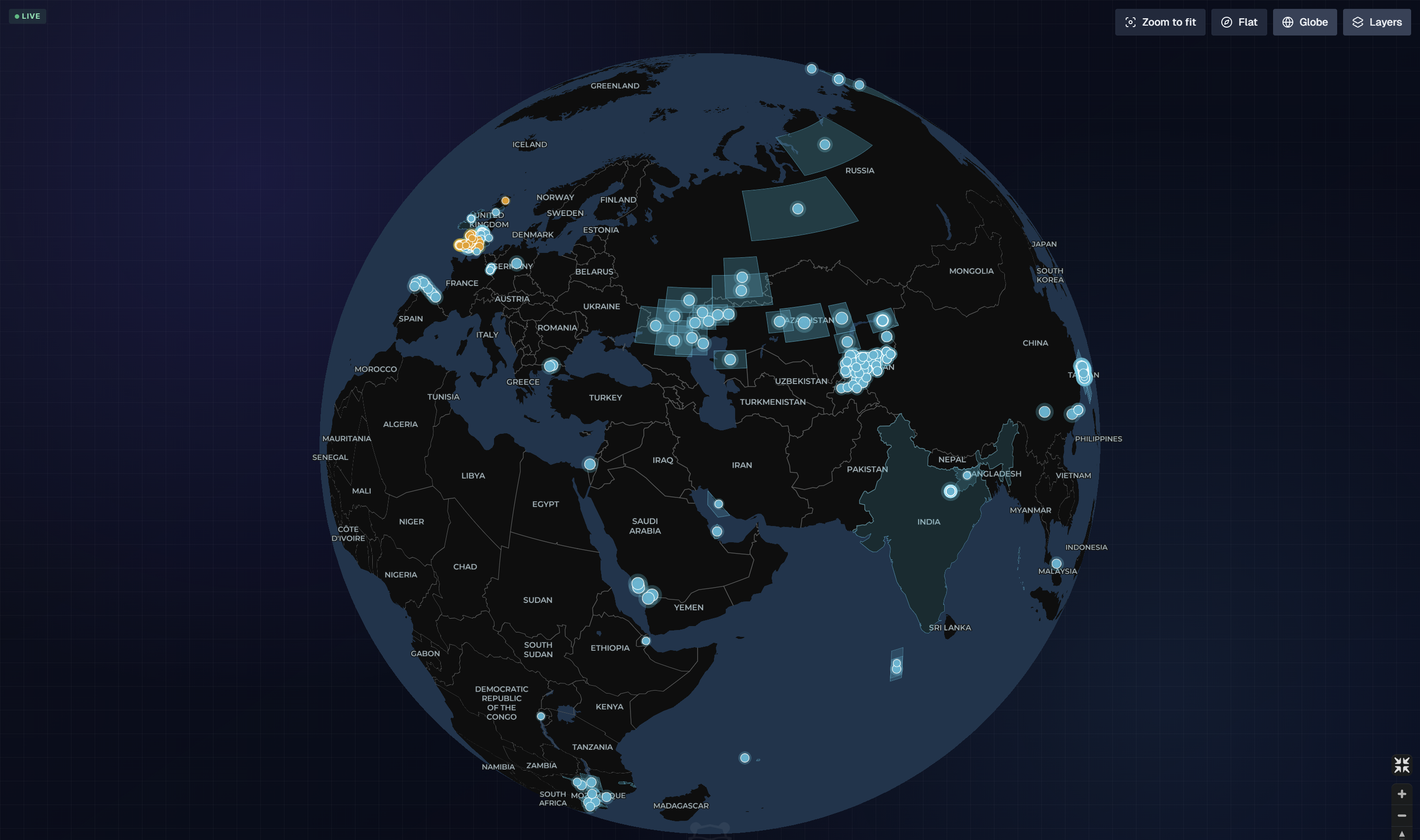
Globe view
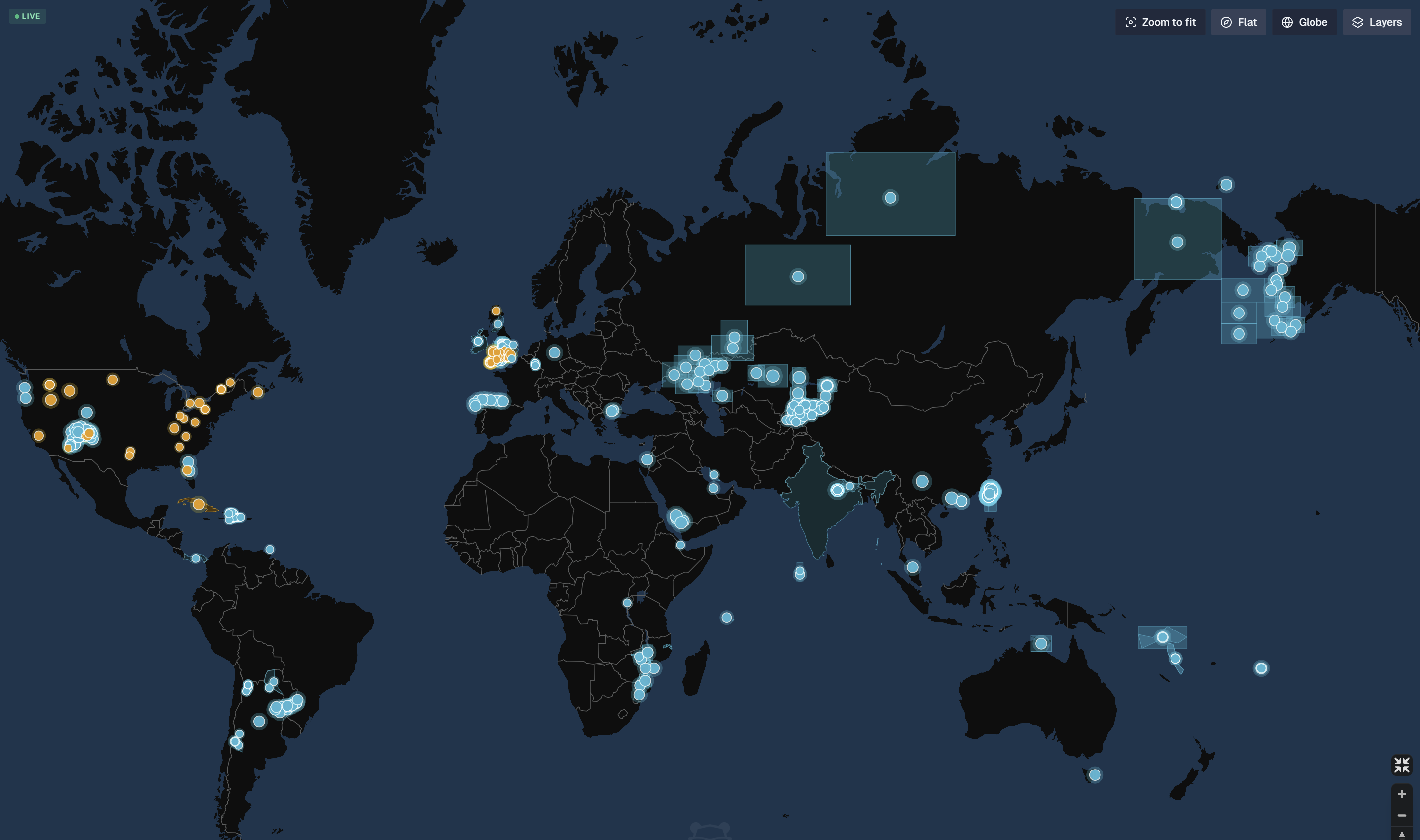
Flat view
Map layers
To show or hide map layers, at the top right of the map, click Layers, then click a layer to turn it on or off. Active layers are highlighted.
The following layers are available:
Layer | Description |
|---|---|
Markers | Shows each event as a marker on the map. |
Bounds | Shows a rectangular impact area for an event. |
Polygons | Shows the affected area of an event as a shaded shape. |
Clusters | Groups nearby event markers into a single cluster. |
Heatmap | Shows the density of events across the map. |
Details | Displays tropical cyclone tracks, forecast zones, and earthquake map bands. |
Cables | Shows the routes of undersea cables. |
Night | Shades the areas of the world that are currently in darkness. |
Zones | Shows time zone and international date boundaries. |
Stats | Shows event statistics on the map, including the number of areas and events. |
By default, the Markers, Bounds, Polygons, and Details layers are enabled.
Open the External Observability page
In the left navigation pane, go to Operate > Incidents > External Observability.
The page header shows the event summary. Below the header, the Filters panel and event list appear on the left side of the page, and the map appears on the right.
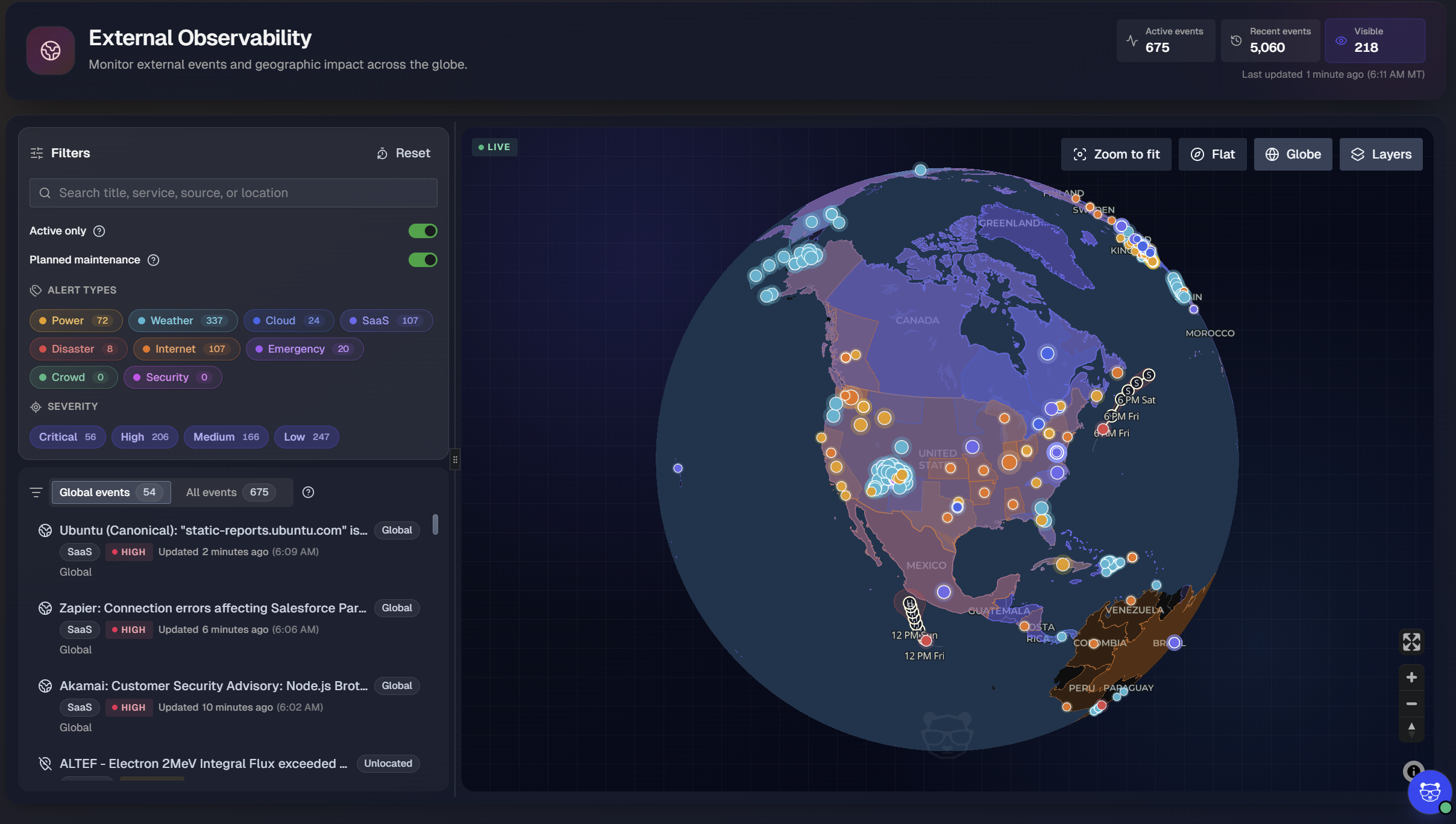
Event summary
At the top right of the page, summary tiles show the current event counts:
Tile | Description |
|---|---|
Active events | Number of external events that are currently active. |
Recent events | Number of external events that are no longer active, with activity that occurred within the past 48 hours |
Visible | Number of events currently displayed in the map view, based on your filters and the visible area of the map. |
Below the tiles, the Last updated timestamp shows when the event data was last refreshed, in both relative and local time.
Filter events
Use the Filters panel on the left side of the page to narrow the events shown on both the map and in the event list.
The Filters panel includes the following options:
Search: Enter a keyword to search event titles, services, sources, and locations.
Active only: Turn on to show only events that are currently active.
Planned maintenance: Turn on to include planned maintenance events from providers.
Alert types: Select one or more alert types to show only events of those types. Each alert type displays the number of matching events. See Alert Types for more information.
Severity: Select one or more severity levels to show only events of those severities. Events are assigned one of four severity levels: Critical, High, Medium, or Low. Each severity level displays the number of matching events.
To clear all filters and return to the default view, at the top right of the Filters panel, click Reset.
Filter application
Filters apply to both the map and the event list.
Alert types
Each alert type has its own color. Event markers on the map use the same color as their alert type, so you can identify event types at a glance.
Alert type | Color | Description |
|---|---|---|
Power | Yellow | Power outages reported by utility providers. See Power Outages. |
Weather | Turquoise | Severe weather alerts. See Severe Weather. |
Cloud | Blue | Issues with Infrastructure-as-a-Service (IaaS) and Platform-as-a-Service (PaaS) providers. See Cloud Platforms. |
SaaS | Purple | Issues with SaaS products. See SaaS Products. |
Disaster | Red | Natural disasters, such as earthquakes, tsunamis, tropical cyclones, volcanic eruptions, and flooding. See Natural Disasters. |
Internet | Orange | Outages and disruptions with internet service providers and communication service providers. See Internet Outages and Disruptions. |
Emergency | Magenta | Non-natural emergencies, evacuations, wildfire emergencies, and official emergency alerts. See Other Emergencies. |
Event list
The event list appears below the Filters panel. Use the tabs at the top of the list to choose which events to display:
Global events: Includes global, non-geolocated, and near-Earth events.
All events: All events that match your current filters.
Each tab shows the number of events it contains.
Each event in the list includes:
Title: The provider or source name, followed by a summary of the event. For example,
Zapier: Connection errors affecting Salesforce....Location tag: Shows Global for events that affect a broad area, the specific locale, or Unlocated for events without location data.
Alert type: The type of event, such as SaaS or Power.
Severity: The severity level of the event.
Updated: How long ago the event was last updated, followed by the local time of the update.
Location: The area affected by the event.
Select any event in the list to view additional details about it. Selecting an event will zoom the map to its location, if applicable.
Map
The map shows the location of each external event. Event markers are color-coded by alert type. Additional markers may be shown on the map depending on the selected layers.
Click and drag to move the map. Scroll to zoom in and out.
At the bottom right of the map, use the following controls:
Full screen: Expands the map to fill the screen.
Zoom in and Zoom out: Increases or decreases the map zoom level.
Reset orientation: Returns the map to a north-up orientation.
Change the map view
At the top right of the map, use the view controls to change how the map is displayed:
Control | Description |
|---|---|
Zoom to fit | Adjusts the zoom level so that all visible events fit in the map view. |
Flat | Displays the map as a flat, two-dimensional projection. |
Globe | Displays the map as a three-dimensional globe. |
Layers | Opens the Layers panel, where you can turn map layers on and off. |
Globe view
Flat view
Map layers
To show or hide map layers, at the top right of the map, click Layers, then click a layer to turn it on or off. Active layers are highlighted.
The following layers are available:
Layer | Description |
|---|---|
Markers | Shows each event as a marker on the map. |
Bounds | Shows a rectangular impact area for an event. |
Polygons | Shows the affected area of an event as a shaded shape. |
Clusters | Groups nearby event markers into a single cluster. |
Heatmap | Shows the density of events across the map. |
Details | Displays tropical cyclone tracks, forecast zones, and earthquake map bands. |
Cables | Shows the routes of undersea cables. |
Night | Shades the areas of the world that are currently in darkness. |
Zones | Shows time zone and international date boundaries. |
Stats | Shows event statistics on the map, including the number of areas and events. |
By default, the Markers, Bounds, Polygons, and Details layers are enabled.