Analytics Reports
Use the Reports tab to schedule recurring dashboard deliveries. Schedule reports send dashboard data to selected recipients without requiring them to open Analytics, even if they don't have a BigPanda account.
When you open the Reports tab, the page header shows the total number of scheduled reports. If you have not created a scheduled reports, the page displays a No scheduled reports yet message and prompts you to create one.
Create a scheduled report
Create a scheduled report to deliver a dashboard at recurring intervals. The New scheduled report wizard guides you through four steps: Artifact, Schedule, Recipients, and a final Review step.
In the upper-right corner of the Reports tab, click New report. If no reports exist, you can also click New report in the center of the page.
In the Report name field, enter a name for the report, for example,
Weekly NOC review.In the Dashboard field, search for and select the dashboard to deliver. Click Next.
Under Frequency, select Hourly, Daily, Weekly, or Custom. See Schedule frequency options for details. Click Next.
In the Recipients field, search by name or email address, and select each recipient. Click Next.
Edit the Email Subject and Body, then choose the Output Format (PDF, PNG, CSV, or XLSX).
Review all of the report details, and click Create Report.
Schedule frequency options
In the Schedule step, the Frequency setting determines how often the report is delivered and which timing fields appear.
Frequency | Delivers the report | Timing fields |
|---|---|---|
Hourly | Every hour. | Timezone. |
Daily | Once each day. | Hour and timezone. |
Weekly | Once each week, on the selected day. | Day, hour, and time zone. |
Custom | According to the cron expression you define. | Cron expression and timezone. |
Manage reports
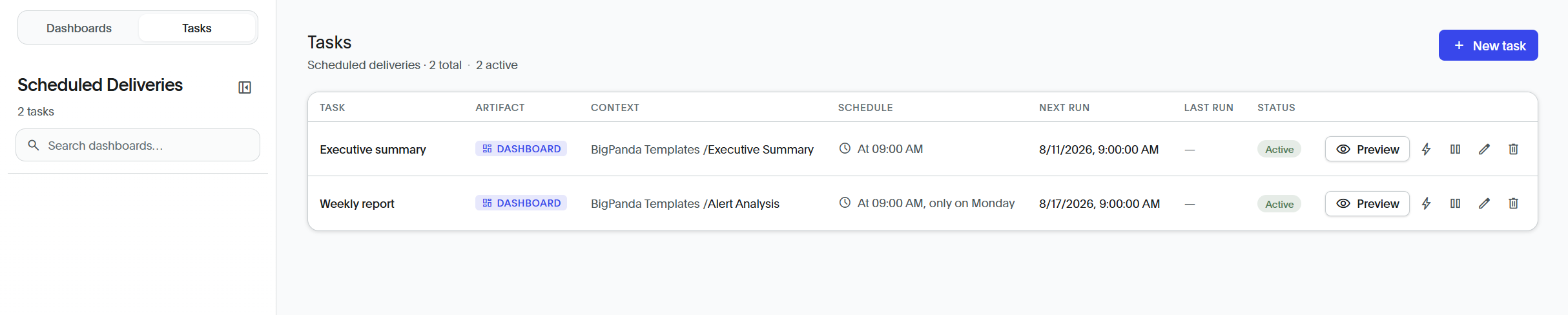
All active and paused reports appear in the Tasks tab. The following details about each report is available:
Field | Description |
|---|---|
Task | Report name |
Artifact | The type of artifact sent in the report. (For example, Dashboard) |
Context | The dashboard sent in the report |
Schedule | The frequency at which the report will be sent |
Next Run | When the next report will be sent |
Last Run | The last time the report was sent |
Status | Whether the report is Active or Paused. |
Preview | View a preview of the report that will be sent. |
Actions | The following actions can be taken on a report:
|