Zabbix
Supported Versions | Type | Authentication Type |
|---|---|---|
5.x, 6.x, 7.x | Webhook | Org Bearer Token |
Zabbix is an open-source solution for network and application monitoring. Install this integration to correlate noisy trigger events from Zabbix into actionable incidents in BigPanda.
The BigPanda Zabbix integration is delivered as a Zabbix webhook media type. Once installed, Zabbix sends trigger events to BigPanda whenever a problem is detected, updated, or recovered. BigPanda then normalizes, deduplicates, and correlates those events into incidents.
Key Features
Keeps you up to date on the state of triggers by correlating Zabbix events for each trigger into easy-to-track alerts.
Correlates trigger events in the
PROBLEMstate into actionable incidents in BigPanda.Maps Zabbix event tags, host attributes, and severity data directly onto the BigPanda alert for filtering, enrichment, and correlation.
Automatically resolves BigPanda alerts when the Zabbix trigger recovers.
Open Integration Manager
The Open Integration Manager is available for use with this integration. For more information, see the Open Integration Manager documentation.
Payload size
Alert payloads must be 6MB or smaller. Larger payloads will fail to process with BigPanda. We recommend reviewing your configurations to ensure that only actionable, useful information is being sent to BigPanda.
Webhook version
This Zabbix integration brings the normalization and customization options of the Open Integration Manager to your Zabbix alerts.
If you previously installed the agent-based BigPanda Zabbix integration, you can upgrade at any time to this integration.
See the Agent-based Zabbix Integration documentation for details on troubleshooting an agent-based Zabbix integration.
Zabbix Data Model
BigPanda normalizes alert data from Zabbix into tags. You can use tag values to filter the incident feed and to define filter conditions for environments.
During alert correlation, BigPanda assigns correlated events an incident_identifier. By default, the incident_identifier for Zabbix alerts is the trigger_id.
The incident_identifier is critical to the alert correlation process and defines deduplication and resolution rules. Primary and secondary properties are also important to the correlation process and may impact which alerts are correlated together.
Zabbix Standard Tags
The v7 webhook sends the following standard properties on every alert. Any Zabbix event tags set on the trigger are also passed through as BigPanda alert tags in addition to the fields below.
Tag | Description | Attributes |
|---|---|---|
| Visible name of the Zabbix host that the trigger belongs to. | |
| Technical host identifier ( | |
| Name of the Zabbix event, derived from | |
| Trigger name and expression in the form | |
| ID of the Zabbix trigger that generated the event. | |
| ID of the specific Zabbix event. | |
| Severity label reported by Zabbix (for example, | |
| Numeric severity value from | |
| Current event status, for example | |
| Lowercased recovery status used by BigPanda to determine the alert state. | |
| Zabbix recovery status for the event. | |
| Tags included on the recovery event. | |
| Indicates whether the event is an update (for example, a manual acknowledgment or severity change). | |
| Numeric event value from | |
| Operational data configured on the trigger. | |
| Event acknowledgment status ( | |
| Description field from the Zabbix host record. | |
| DNS name configured on the Zabbix host. | |
| IP address configured on the Zabbix host. | |
| Name of the Zabbix host group associated with the trigger. Sent as an array so BigPanda can map it to the service field. | |
| Raw list of Zabbix event tags as reported by | |
| Message body as rendered by the Zabbix action template. | |
| Subject line as rendered by the Zabbix action template. | |
| Base URL of the Zabbix frontend, as configured on the media type. | |
| Direct link back to the Zabbix event page for the trigger and event. | |
Event tag key/value pairs | Any Zabbix event tags defined on the trigger are flattened into BigPanda alert tags using the Zabbix tag name as the key. | Tag names that conflict with BigPanda reserved keys may be remapped. |
BigPanda automatically translates Zabbix event statuses into BigPanda alert statuses using the event_status field.
Zabbix | BigPanda Status |
|---|---|
| Critical |
, | Ok |
| Inherited from the current problem state |
Zabbix reports severity both as a numeric nSeverity tag and as a human-readable severity label. BigPanda preserves both values so you can use whichever is most convenient for your correlation, enrichment, or routing rules.
Zabbix | Zabbix |
|---|---|
0 | Not classified |
1 | Information |
2 | Warning |
3 | Average |
4 | High |
5 | Disaster |
For finer control, use alert enrichment to map the numeric nSeverity tag onto a custom BigPanda severity field.
Best Practices
For best performance with the Zabbix integration, we recommend:
Verify outbound connectivity - From the Zabbix server, confirm HTTPS (port 443) connectivity to
https://integrations.bigpanda.iobefore configuring the media type.Use a dedicated service user - Create a dedicated Zabbix user (for example,
bigpanda) for the webhook media type, so event delivery is not affected by individual user account changes.Scope host-group permissions intentionally - Grant the BigPanda user read access only to the host groups you want to monitor in BigPanda. Events from host groups the user cannot see are never sent.
Standardize event tags - Use consistent Zabbix event tag keys (for example,
service,env,owner) across trigger templates. BigPanda passes these through as alert tags, and standard keys make it easier to build environments, filters, and correlation patterns.Test with a non-production trigger first - Enable the BigPanda trigger action on a low-severity trigger, confirm events appear in BigPanda, and then expand the action scope.
Keep the webhook script unmodified - The media type script is updated with each release. Modifying it locally prevents future upgrades from applying cleanly. Use BigPanda-side alert enrichment or the Open Integration Manager to customize payloads instead.
Monitor media type failures - In Zabbix, add an internal monitoring item for the BigPanda integration so you are alerted when the BigPanda media type stops delivering notifications.
Install the Integration
Install the integration by following these steps:
Prerequisites
Configure Zabbix Permissions
Connecting BigPanda with Zabbix requires a new Zabbix user with read access to all the host groups that you want to monitor in BigPanda. During configuration, you can choose the level of access for this user: Zabbix Super Admin or Zabbix Admin. The user is created automatically with the user name Bigpanda in a new user group called BigPanda Service.
Granting the user Zabbix Super Admin permissions is the easiest way to ensure BigPanda has the required access. If granting this level of access is not an option, you can choose Zabbix Admin. The user will be given permissions to all existing host groups at the time of the configuration and you must manually grant permissions to any host groups added after the initial configuration. You can view and change the type of user in Zabbix at any time.
Before You Start
Obtain access to the Zabbix UI with a Zabbix Super Admin user.
Grant BigPanda Access to Host Groups in Zabbix
If the Bigpanda user has Zabbix Super Admin permissions, then BigPanda has access to relevant data for all host groups in Zabbix without additional configuration.
If the Bigpanda user has Zabbix Admin permissions, then any access to host groups must be explicitly granted in Zabbix by configuring permissions for the BigPanda Service user group. To manually grant BigPanda access to host groups in Zabbix:
In Zabbix, go to Administration > Users > BigPanda Service > Permissions. The Zabbix permissions for the BigPanda Service user group are displayed.
Under Composing Permissions > Read only, click Add and then select the host groups.
Host groups that appear under Calculated Permissions > Deny are not accessible to the BigPanda user, so events for these host groups will not be sent to BigPanda. If you want to send events for these host groups to BigPanda, add them to the Read-Only permissions, as described in step 2, and they will be automatically removed from the Deny list.
At the bottom of the screen, click Update.
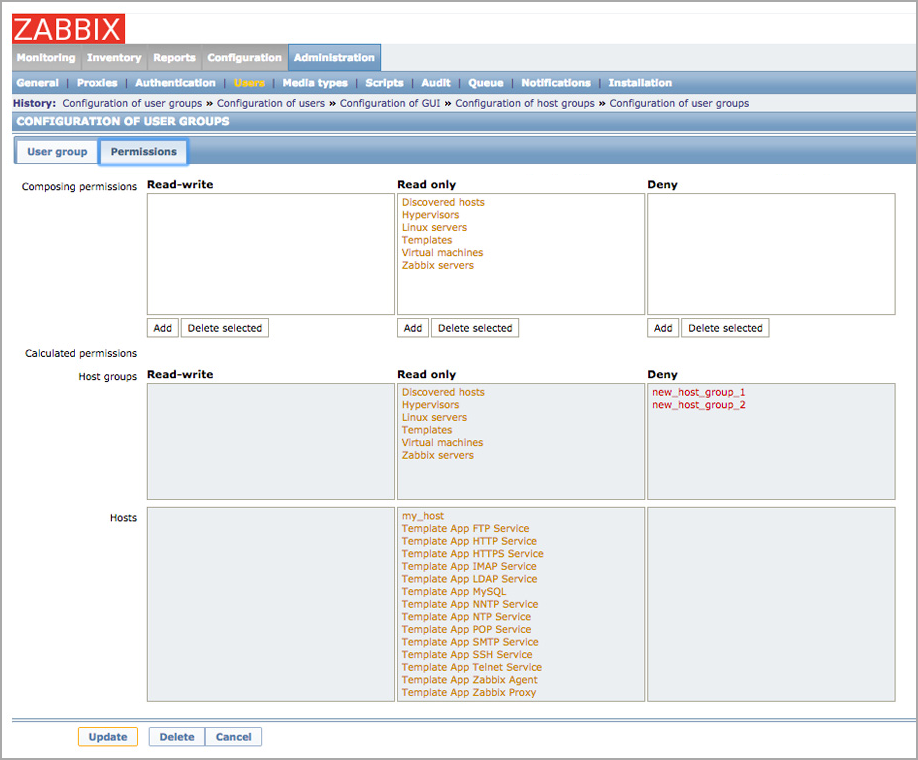
Zabbix Host Groups
Change the BigPanda Access Level in Zabbix
In Zabbix, go to Administration > Users.
Under Members, click the Bigpanda user.
Click Permissions.
In the User type field, select Zabbix Super Admin or Zabbix Admin to change the access level.
At the bottom of the screen, click Update.
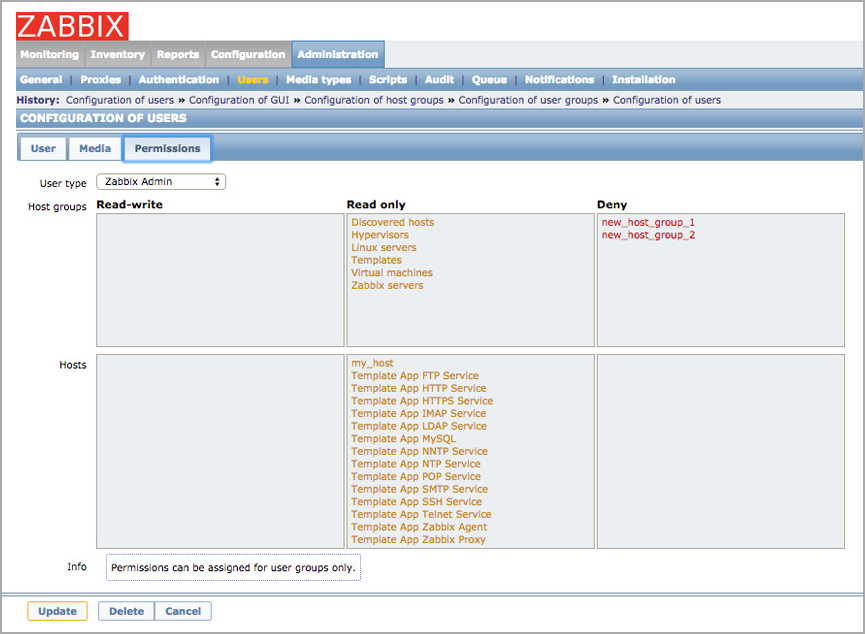 |
Zabbix Access Levels
Configure BigPanda Webhook
Navigate to Administration > Media Types in the Zabbix Dashboard.
In the top right corner, click the import button and provide the JSON file saved above.
Once saved, a BigPanda media type will be available in the list of Media Types.
Click the BigPanda media type to update the following parameters with the provided values below:
BP_endpoint:
https://integrations.bigpanda.io/oim/zabbix/alertsBP_token:
<Your Org Bearer Token>BP_app_key:
<Your App Key>
Note: We recommend not modifying the script within this media type because it's used to send the event to the BigPanda API
Assigning the webhook media to a user is required. We recommend creating a dedicated BigPanda user. Navigate to Administration > Users and in the top right corner, click the Create User button. Supply a username, assign it to a group, and generate a password.
Within the Media tab, click add. For type, select the BigPanda media type.
Note: If the webhook does not use a Send to field, enter any combination of supported characters to bypass validation requirements
Grant this user at least read permissions to all hosts for which it should send the alerts.
A Trigger Action must be created next. Navigate to Configuration > Actions > Trigger Actions. On the top right, click Create Action.
Provide a name for the Action. Under Operations, add the created user above to the [Initial] Opertations, Recovery Operations, and Update Operations in the Send to users field.
Include the BigPanda media type in the Send Only to section.
Alerts should appear in your BigPanda Console as they trigger.
Troubleshoot the Zabbix Integration
Problem: Events are not arriving in BigPanda
Symptoms
Zabbix raises a trigger in the PROBLEM state, but no corresponding alert appears in the BigPanda incident feed.
Possible causes
The BigPanda media type parameters (
BP_endpoint,BP_token,BP_app_key) are incorrect.The BigPanda notification user is not included in the trigger action.
The BigPanda notification user does not have read access to the host group that raised the trigger.
The Zabbix server cannot reach
https://integrations.bigpanda.ioon port 443.
Solutions
Confirm that the BigPanda media type parameters match the credentials from the BigPanda integration details panel.
Confirm that the BigPanda notification user is assigned to the trigger action for Operations, Recovery operations, and Update operations.
Verify that the user has read access to the host group for the affected host.
From the Zabbix server, test outbound connectivity to the BigPanda endpoint:
curl -v https://integrations.bigpanda.io/oim/zabbix/alerts
Problem: Alerts arrive but do not resolve automatically
Symptoms
Zabbix trigger events create alerts in BigPanda, but the alerts remain in the Critical state even after the Zabbix trigger has recovered.
Possible causes
Recovery operations are not enabled on the trigger action.
The trigger is disabled in Zabbix while an alert is open.
Solutions
Open the trigger action and confirm the Recovery operations section includes the BigPanda notification user and media type.
If a trigger has been disabled, manually resolve the associated BigPanda incident.
Contact BigPanda support about the Zabbix integration
When contacting BigPanda support, please provide the following information:
A copy of your BigPanda media type configuration with credentials redacted.
A sample payload sent to BigPanda. You can capture this from the Zabbix media type debug log.
(Recommended) Versions of the following:
Zabbix
Zabbix frontend OS and architecture
Uninstall the Integration
Deleting an integration requires that you remove the integration in both the integrated system and BigPanda. We recommend that you first uninstall the integration on the integrated system to prevent traffic from being sent and rejected by BigPanda, since the app key will not exist once you delete the integration in BigPanda.
Caution during replacement
When replacing an existing integration with a new tool or system, we recommend configuring the new integration first to ensure no data is lost.
Deactivate Inbound Integration
If you want to stop sending data to BigPanda but don’t want to delete your integration, you can temporarily deactivate it.
To deactivate an inbound integration:
In BigPanda, navigate to the Integrations tab and select the desired integration from the list. This will open integration details on the right side of the window.
At the top of the integration details, click the Active/Inactive toggle next to the application name to change the status of the integration.
In the integrations list, inactive integrations will be marked with a gray bar.
Alert resolution for inactive integrations
Any active alerts belonging to an inactive integration must be manually resolved or they will stay in the system until the auto-resolve window is reached.
Stop Sending Data to BigPanda
Within the integrated system, disable any settings that send data to BigPanda.
Each system requires specific changes to disable the integration with BigPanda. For example, you must delete the topic in CloudWatch, and you must disable the alert channel in New Relic. To determine the changes for your integrated system, reference the relevant documentation or contact BigPanda support.
Manually resolve any open alerts sent from the integration to remove the associated incidents from your incident feed. These incidents will not automatically resolve without an ok status from the original sending integration.
Delete the integration in BigPanda
Take the following steps to delete the integration from BigPanda:
In BigPanda, navigate to the Integrations tab and select the desired integration from the list.
In the integration details on the right of the page, click the trash icon, then confirm you want to delete the integration. The integration will be removed immediately.
️Automatic alert resolution for deleted integrations
All active alerts from the integration will be resolved after deletion.
Data removal
This procedure does not remove any data from the integrated system.
Disable Zabbix Triggers
Triggers that are disabled in Zabbix are not monitored by BigPanda. If a trigger is disabled when an alert is open, the alert will not close automatically and the BigPanda incident will remain open. In this case, you must manually resolve the BigPanda incident.
We recommend that Zabbix administrators check that all alerts are resolved in BigPanda before disabling the related trigger.