Open Integration Manager Preprocessing Functions
Before being ingested into BigPanda, the Open Integration Manager performs preprocessing functions on some complex integrations. Preprocessing functions are essential components of OIM that transform, delete, create, or update incoming data before it reaches OIM. This allows the data to be mapped appropriately to tags in BigPanda. You can view these functions in the Integration Manager tab within OIM.
Preprocessing rules let you reshape source data so it maps cleanly to BigPanda tags. For example, you can extract a percentage from an alert description into a new tag, normalize tag names, parse key:value strings, or clean up source fields after they have been used.
View Preprocessing Functions
Preprocessing functions are visible within the Integration Manager tab in OIM integrations. To view preprocessing functions used on the integration, click the Settings cog icon.
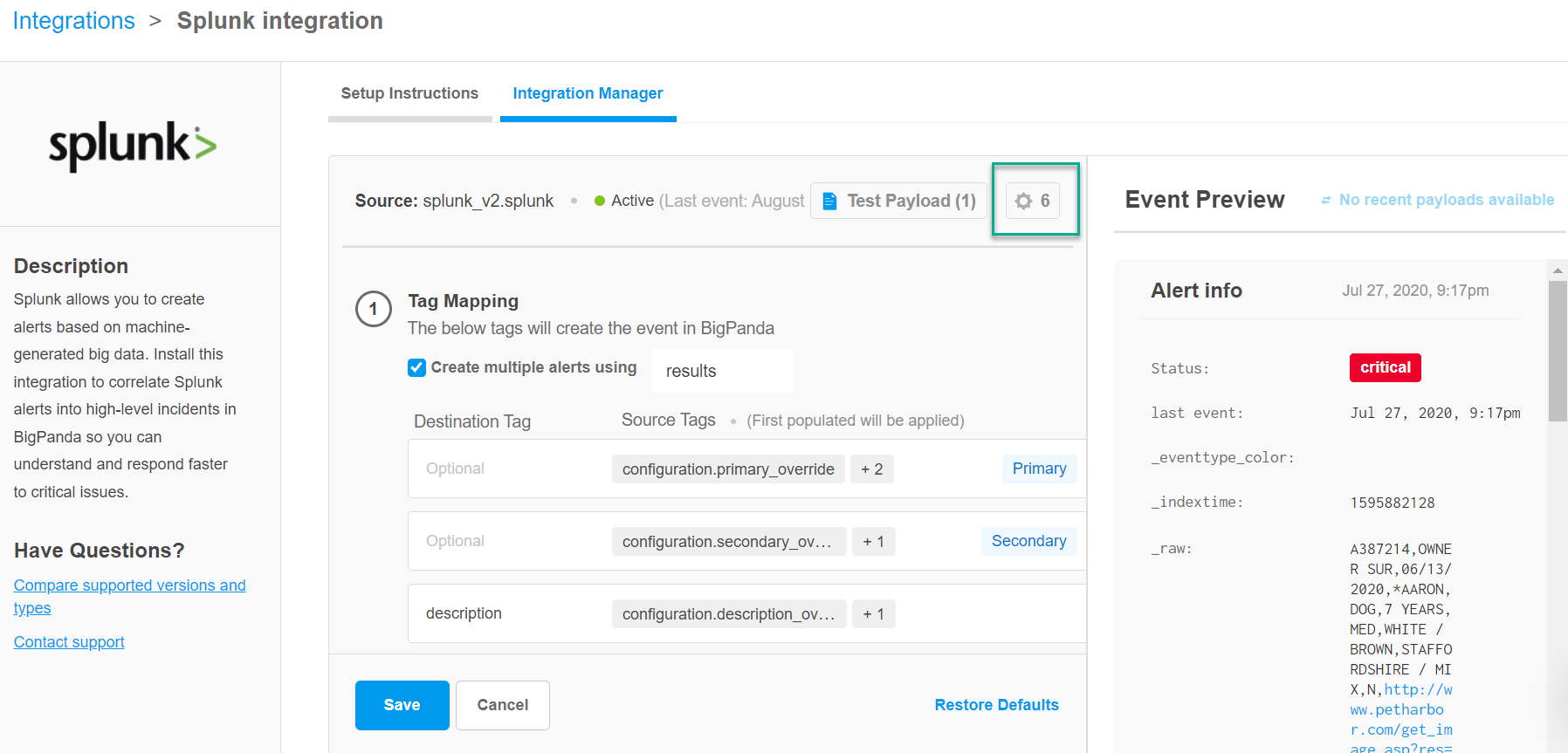
No preprocessing functions
If there are no preprocessing functions performed on the integration, the Settings cog icon will be greyed out and display the number zero next to it.
The Preprocessing Functions window shows all global and custom functions applied for the integration. Click the arrow on the preprocessing function box to expand details about the function. The following information is available:
Function name
Description
Source tags
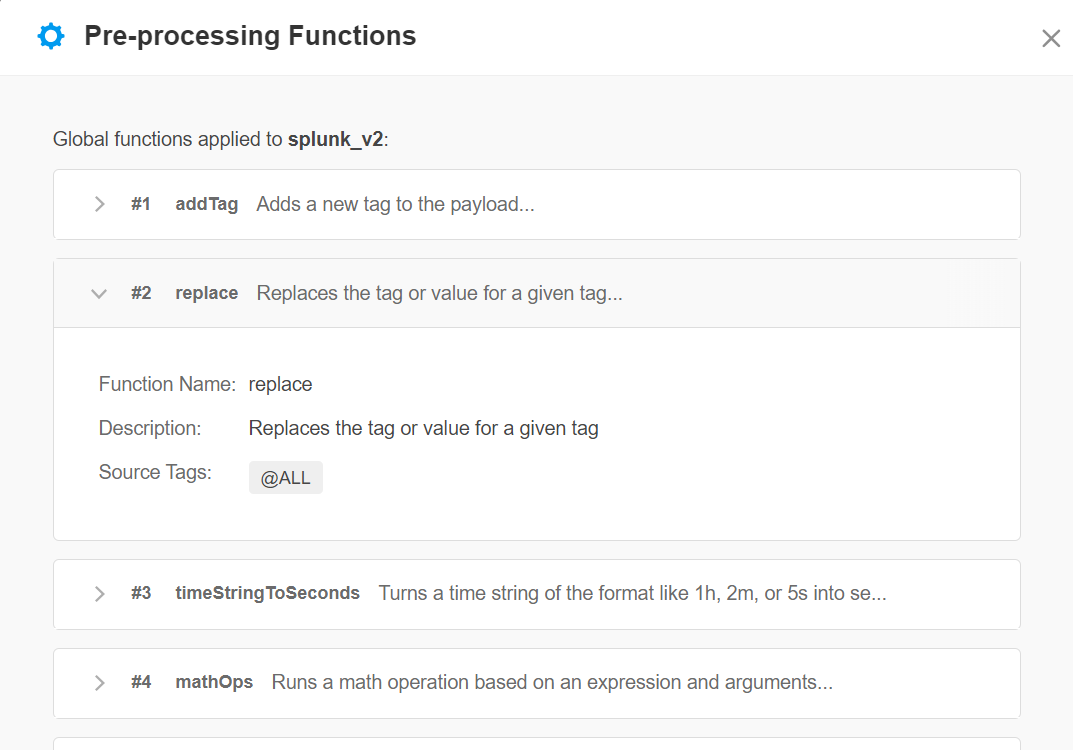
On the right side of the screen, a sample payload preview is available.
Manage Preprocessing Functions
The Preprocessor editor is a visual tool for building and editing preprocessing pipelines on Open Integration Manager (OIM) integrations. Use it to add, reorder, and remove preprocessing rules that transform incoming alert payloads before they reach the BigPanda enrichment engine, all without writing JSON or coordinating back-end changes with your BigPanda account team.
Key features
Full-screen, three-panel editor: sample payload on the left, preprocessing rules in the middle, transformation output on the right
Side-by-side view of read-only System functions applied by BigPanda for the integration type, and editable Custom functions
A library of supported preprocessing functions, including
regexExtraction,deleteTag,addTag,replace,valueMap,mathOps,keyValuePairParser,stringToObject, and moreThree output views: a color-coded Diff View of the original vs. transformed payload, a Step-by-Step breakdown of every rule's contribution, and the Raw Output of the final transformed JSON
Live preview that re-runs automatically as you edit, so you can validate output before saving
Support for JSON and XML payloads, with a Parse action that converts XML to JSON for editing
Before you start
Make sure you have admin or integration management permissions in BigPanda.
Have a representative sample event payload available. You can paste a test payload directly into the Integration Manager or use the Recent Payloads view to pull a real event the integration has received.
View preprocessors
To view preprocessing functions used on an integration:
In BigPanda, navigate to the Integrations tab.
Select the integration from the list to open its details.
Click Review Instructions, then select the Integration Manager tab.
Click the Settings cog icon to open the Configure Preprocessors modal.
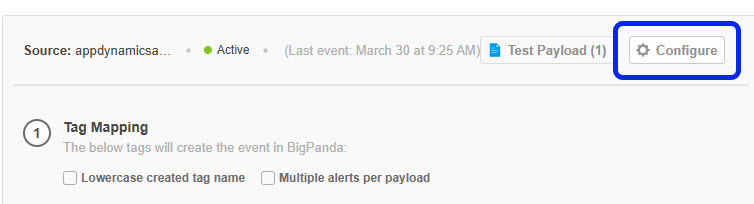
The Preprocessing Functions window shows all global and custom functions applied for the integration.
Global vs. Custom preprocessors
Integrations may have preprocessors applied out of the box based on the type of integrated tool. Additional custom preprocessors can be added to integrations to adjust the event payload before it triggers Open Integration Manager normalization.
During event processing, global preprocessors always affect a payload before custom preprocessors.
Click the arrow on the preprocessing function box to expand details about the function.
The following information is available:
Function name
Description
Source tags
On the right side of the screen, a sample payload preview is available.
Rule count badge
The Settings cog shows a badge with the total number of rules applied to this integration, including system functions and any custom rules you have added.
If there are no preprocessing functions performed on the integration, the settings cog will display the number zero next to it.
Configure preprocessors
Preprocessors are configured within the Integration Manager tab on any OIM integration.
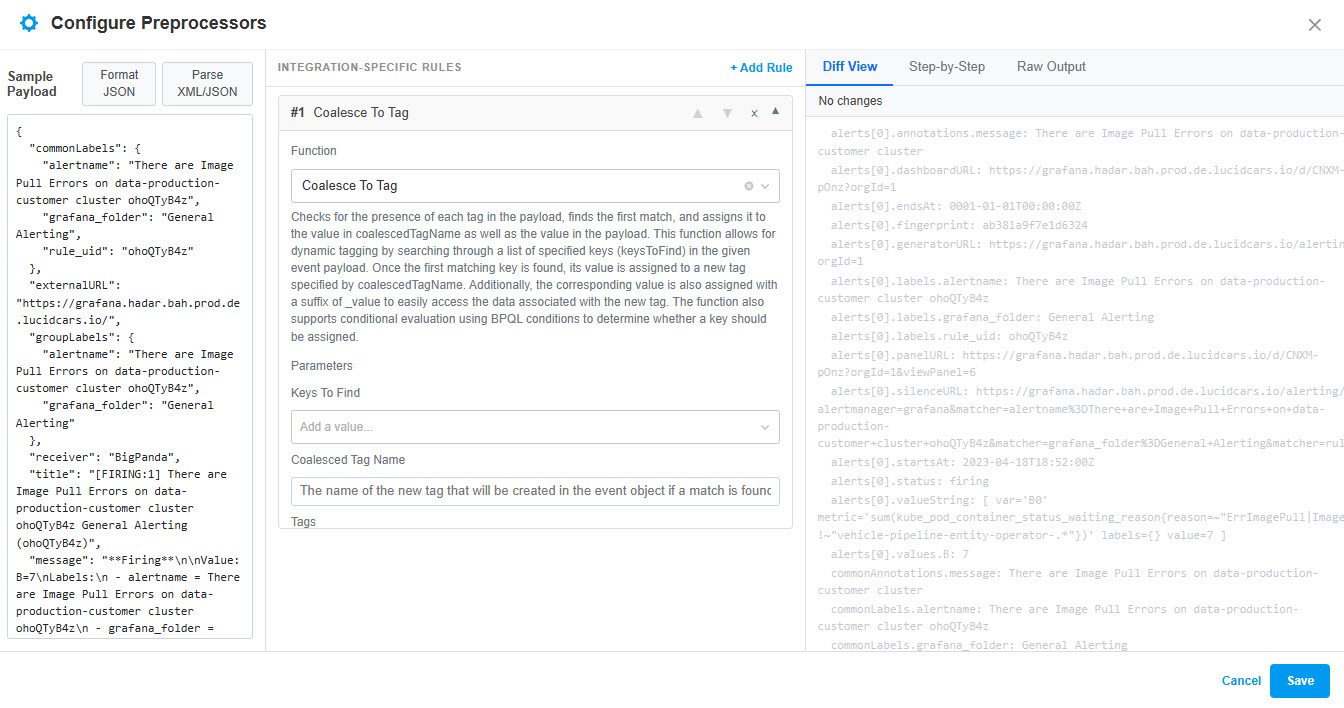
The Configure Preprocessors modal opens full-screen with three panels:
Left Payload panel - the sample payload that all preview output is calculated against. Accepts JSON or XML.
Center Rules panel - lists rules in execution order, split into two sections:
System functions - read-only global preprocessing that BigPanda applies for the integration type. You cannot edit these rules, but you can see what they do.
Custom functions - the rules you add, edit, and reorder. Save commits these to the integration's configuration.
Right Output panel - the result of running the full pipeline (system + custom) against the sample payload, with three tabs you can switch between:
Diff View - keys added by the pipeline are highlighted in green, removed keys in red, modified values in orange, and unchanged keys in neutral grey.
Step-by-Step - one card per rule showing the payload state before and after the rule runs, useful as a visual debugger when a rule produces unexpected output.
Raw Output - the final transformed JSON that BigPanda will ingest.
Saving in the modal commits both your draft rules and any payload changes. Clicking Cancel discards the draft.
Build a preprocessing pipeline
Pipelines consist of one or more rules that run in order. Each rule applies a single preprocessing function, such as adding a tag, extracting a value with a regular expression, or deleting a source field.
Load a sample payload
Before adding rules, give the editor a payload to preview against. The Payload panel is the same payload state as the Test Payload window in the Integration Manager, so you can edit a payload in either place and the other will reflect the change.
In the Payload panel, paste a sample JSON or XML payload directly into the textarea, or use Test Payload > Recent Payloads View in the Integration Manager to pull a real event the integration has received.
If the payload is XML, click Parse to convert it to JSON.
Click Format JSON to clean up indentation. The validation status line below the textarea flags any syntax errors in red.
The Output panel re-runs automatically (with a short debounce) every time you change the payload or edit a rule, so you can see the effect of each change without leaving the modal.
Generate sample payload
To create a sample payload from a description, use Test Payload > Provide more information in the Integration Manager before opening the preprocessing editor.
Preview mismatch
Generating a preview bypasses some downstream processes. If a preview does not match what you see in production, verify the result by sending a real test event through the integration.
Multi-event payloads
If you paste a payload whose top-level value is a JSON array ([{...}, {...}]), the editor shows an informational note that preprocessing will be applied to each item. Make sure the integration's array_source setting is configured for multi-event payloads.
Add a custom rule
In the Custom functions section of the Rules panel, click Add Rule.
In the new rule card, choose a preprocessing function from the function dropdown. See the Available preprocessing functions table for the full list of supported functions and what they do.
Configure the rule on the card:
Source tags - the tag or tags this rule operates on. Type a tag name and press the Enter or comma key to add it as a chip. Click the × on any chip to remove it. Use
@ALLto apply the rule to every tag in the payload.Parameters - the function-specific fields, for example a regular expression for
regexExtractionor a replacement value forreplace. Each parameter is a labeled input with a tooltip describing what it does. For functions that accept arbitrary key-value mappings (such asvalueMapandmathOps), the card provides a dynamic add-row editor where you enter your own keys and values.
The rule appears in the Custom functions list as soon as you choose its function and configure its required parameters. The Output panel updates automatically to show the result.
Reorder, edit, and remove rules
Custom rules execute in the order they appear in the Custom functions list, from top to bottom. System functions always run first, followed by your custom rules. The output of each rule becomes the input to the next.
Reorder - on each rule card, click the up or down arrow buttons to move the rule one position. The arrows are disabled at the top and bottom of the list.
Edit - change the function from the dropdown or update any parameter directly on the card. Changes are reflected in the Output panel as you edit.
Remove - click the trash icon on the rule card to delete it.
The Output panel recalculates after every change so you can verify the new flow before saving.
Inspect the pipeline step by step
To trace exactly what each rule does to the payload, switch the Output panel to the Step-by-Step tab. Each rule appears as a collapsible card showing:
The rule name and execution order
The payload state before the rule runs (the previous step's output, or the original payload for the first step)
The payload state after the rule runs, with new and changed tags highlighted
Use the Step-by-Step tab as a visual debugger when a rule produces unexpected output, when a downstream rule depends on tags created upstream, or when you are chaining several functions together.
Save and apply the pipeline
When the Output panel matches what you want, click Save at the bottom of the modal. Saving:
Commits the custom rules to the integration's configuration so they apply to live events received by this integration.
Persists any payload edits you made in the Payload panel, so the next time you open the editor the same sample is loaded.
Click Cancel to discard the draft. Cancelling does not change the saved configuration; the next time you open the modal it re-loads from the last saved version.
Test before publishing changes
If the integration is already receiving live traffic, we recommend validating the new pipeline against several recent payloads before saving. Use the Recent Payloads view in the Integration Manager to cycle through real events.
Example: Extract a value and clean up the source tag
A common pattern is to use regexExtraction to pull a value out of a free-form description field, then deleteTag to remove the original field once it has served its purpose. This keeps the resulting alert focused on the data that matters.
The walkthrough below extracts an overload percentage from an alert description and exposes it as a new overload_percentage tag.
Sample payload:
{
  "host": "edge-router-17",
  "status": "critical",
  "description": "Interface utilization exceeded threshold: 92% overload on port Zi0/1"
}
Extract the percentage
In the Custom functions section, click Add Rule.
In the function dropdown, select regexExtraction.
In Source tags, type
descriptionand press Enter to add it as a chip.Set Regex to
(?<=:\s)(\d+)(?=%).Set Result Tag Name to
overload_percentage.
The Diff View in the Output panel highlights a new tag overload_percentage: "92" in green alongside the original description.
Remove the source tag
Click Add Rule again and select deleteTag.
In Source tags, add
description.Set Pattern to
descriptionand Match Type tokey.
In the Step-by-Step tab, Output panel: the first card shows overload_percentage being added; the second card shows the description removal. The Raw Output tab shows the final payload, containing only host, status, and overload_percentage.
Click Save to apply the pipeline. New events received by the integration will be transformed the same way before they reach BigPanda.
Available Preprocessing Functions
Global Preprocessors
These preprocessing functions are used out of the box for all Open Integration Manager integrations of the related type:
Function name | Description | Integrations |
|---|---|---|
dateToString | Converts a date string or epoch string into a formatted date string. | |
valueMap | Translates values based on a setstatic map. | |
duplicate | Duplicates the selected tags in the payload, adding with a prefix. | |
split | Splits a string into an array of items. | |
addTag | Adds a new tag to the payload. | |
keyValuePairParser | Parses an array of strings into separate tags containing each value to create a key value entry in the object. | |
sanitizeMarkdown | Converts markdown to regular text. | |
replace | Replaces the tag or value for a given tag. | |
mathOps | Runs a math operation made up of an expression and arguments. | |
timeStringToSeconds | Turns a time string such as 1h or 2m into seconds. | |
decodeURI | Decodes URI encoded strings. | |
regexExtraction | Uses a regular expression to extract a value from a tag into a new tag name. | |
coalesceToTag | Checks for the presence of each tag in the payload, finds the first match containing a value, and assigns it to the value in | |
deleteTag | Deletes a tag in the payload. | |
findAndMoveItemUp | Finds an object in an array and moves it up one level as a single object. Item object is passed into the expression. | |
cloudwatch_processDimensions | Loops through the dimensions array in a CloudWatch alert and sets specific properties for the object and dimensions key. | |
cloudwatch_processMetrics | Loops through the metrics array in a CloudWatch alert and expression, operator and check property. | |
cloudwatch_processSubscriptionConfirmation | Processes the CloudWatch subscription confirmation type. The message does not result in an alert and does not go to OIM. | |
stringToObject | Parses a string and converts it to a JSON object. |
Custom Preprocessors
These preprocessing functions are available to be added to Open Integration Manager integrations:
Function name | Description |
|---|---|
| Adds a new tag to the payload with a static value. |
| Converts a nested object into an array of keys or values. |
| Checks a list of tags in order and assigns the first non-empty value to a new tag. |
| Converts a date string or epoch value into a formatted ISO 8601 date string. |
| Decodes URI-encoded strings. |
| Removes a tag from the payload by matching on tag name or value. |
| Duplicates a tag, adding a |
| Searches a nested array for a matching item and promotes it to a top-level tag. |
| Combines the values of multiple tags into a single tag using a delimiter. |
| Parses an array of |
| Runs a math expression against tag values. Supports the math.js function library. |
| Uses a regular expression to extract a value from a tag into a new tag. |
| Replaces characters or patterns within tag names or values. Supports |
| Strips markdown formatting from a tag value. |
| Shortens the URL to fit character limits. |
| Splits a delimited string into an array of items. |
| Parses a JSON string into a structured object so nested fields are addressable. |
| Converts tag values to upper or lower case. |
| Converts a duration string such as |
| Translates tag values using a static lookup table, with a fallback for unmatched values. |
| Converts an array of key-value objects into individual tags. |
Troubleshooting
Symptom | Likely cause | Solution |
|---|---|---|
The Output panel shows "Invalid JSON" | The Payload panel contains malformed JSON, or an XML payload that has not been parsed yet. | Click Format JSON to surface the error position, or click Parse if the payload is XML. |
A new tag does not appear in the Diff View | The rule references a source tag that does not exist in the sample payload, or the regular expression does not match. | Verify the Source tags chips on the rule card. Switch to the Step-by-Step tab to see exactly which step fails to produce output. |
A downstream rule shows no input | An earlier rule deleted or renamed the tag the downstream rule depends on. | Use the up/down arrows on the rule cards so that deletions and renames run after every rule that needs the original tag. System functions always run before custom rules. |
returns the entire string | The pattern is missing positive lookbehind | Wrap the parts of the pattern that should not be captured in lookbehind and lookahead groups. |
The Save button is disabled | A custom rule is missing a required parameter, or the function dropdown has no value. | Scroll the Custom functions list to find the rule card flagged with a validation message and complete the missing fields. |
The pipeline saves but live events are unchanged | The integration is receiving traffic from a cached configuration, or events are being sent to a different app key. | Confirm the integration's app key in the Integration Manager and resend a test event. The Output panel uses the same configuration as live ingestion. |
An array-root payload shows unexpected output | The integration's | Set |
Next steps
Learn how to map source tags to BigPanda tags after preprocessing in the Open Integration Manager documentation.
Review tag naming requirements for downstream BigPanda processing in the Tag Naming Requirements documentation.
For API-level configuration, see the OIM Preprocessing API reference.
Available Preprocessing Functions
Global Preprocessors
These preprocessing functions are used out of the box for all Open Integration Manager integrations of the related type:
Function name | Description | Integrations |
|---|---|---|
dateToString | Converts a date string or epoch string into a formatted date string. | |
valueMap | Translates values based on a setstatic map. | |
duplicate | Duplicates the selected tags in the payload, adding with a prefix. | |
split | Splits a string into an array of items. | |
addTag | Adds a new tag to the payload. | |
keyValuePairParser | Parses an array of strings into separate tags containing each value to create a key value entry in the object. | |
sanitizeMarkdown | Converts markdown to regular text. | |
replace | Replaces the tag or value for a given tag. | |
mathOps | Runs a math operation made up of an expression and arguments. | |
timeStringToSeconds | Turns a time string such as 1h or 2m into seconds. | |
decodeURI | Decodes URI encoded strings. | |
regexExtraction | Uses a regular expression to extract a value from a tag into a new tag name. | |
coalesceToTag | Checks for the presence of each tag in the payload, finds the first match containing a value, and assigns it to the value in | |
deleteTag | Deletes a tag in the payload. | |
findAndMoveItemUp | Finds an object in an array and moves it up one level as a single object. Item object is passed into the expression. | |
cloudwatch_processDimensions | Loops through the dimensions array in a CloudWatch alert and sets specific properties for the object and dimensions key. | |
cloudwatch_processMetrics | Loops through the metrics array in a CloudWatch alert and expression, operator and check property. | |
cloudwatch_processSubscriptionConfirmation | Processes the CloudWatch subscription confirmation type. The message does not result in an alert and does not go to OIM. | |
stringToObject | Parses a string and converts it to a JSON object. |
Custom Preprocessors
These preprocessing functions are available to be added to Open Integration Manager integrations:
Function name | Description |
|---|---|
| Adds a new tag to the payload with a static value. |
| Converts a nested object into an array of keys or values. |
| Checks a list of tags in order and assigns the first non-empty value to a new tag. |
| Converts a date string or epoch value into a formatted ISO 8601 date string. |
| Decodes URI-encoded strings. |
| Removes a tag from the payload by matching on tag name or value. |
| Duplicates a tag, adding a |
| Searches a nested array for a matching item and promotes it to a top-level tag. |
| Combines the values of multiple tags into a single tag using a delimiter. |
| Parses an array of |
| Runs a math expression against tag values. Supports the math.js function library. |
| Uses a regular expression to extract a value from a tag into a new tag. |
| Replaces characters or patterns within tag names or values. Supports |
| Strips markdown formatting from a tag value. |
| Shortens the URL to fit character limits. |
| Splits a delimited string into an array of items. |
| Parses a JSON string into a structured object so nested fields are addressable. |
| Converts tag values to upper or lower case. |
| Converts a duration string such as |
| Translates tag values using a static lookup table, with a fallback for unmatched values. |
| Converts an array of key-value objects into individual tags. |