On-Call Overview
The On-Call Overview is the home page for Biggy's built-in on-call and incident-paging capabilities.
It combines your on-call configuration, a live AI-generated summary of current paging activity, active coverage, and recent engagements on a single page. Assess the on-call status at a glance and open any area that needs attention.
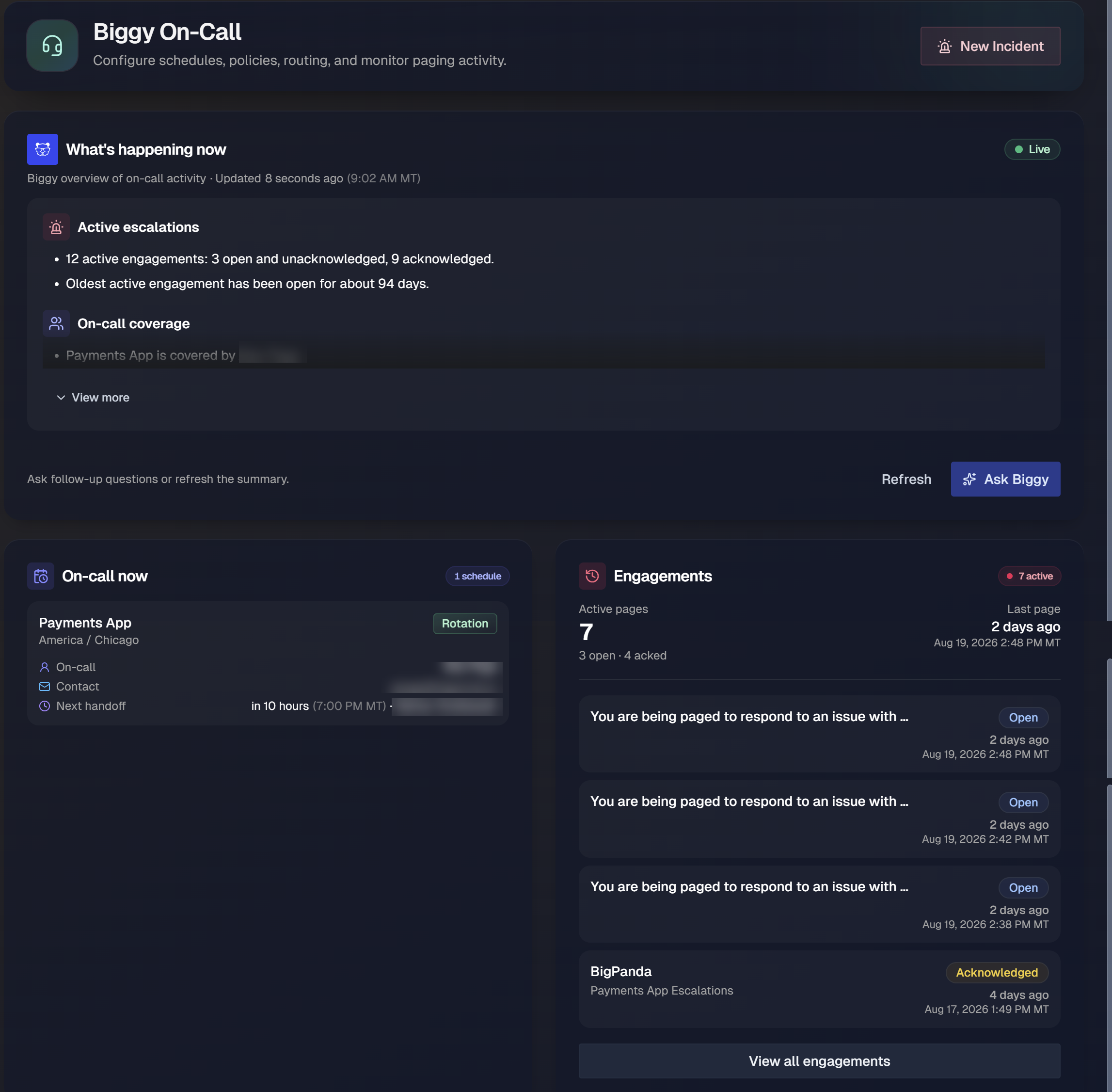
The Overview page is located in the web app at Operate > On-Call > Overview.
Key features
What's happening now: Read a live, AI-generated summary of current on-call posture, including active escalations, coverage, recent pages, upcoming handoffs, and risk signals.
On-call now: See who is currently on call for each schedule, how to reach them, and when the next handoff occurs.
Engagements: Track recent pages and their status, from open through acknowledged and resolved.
New incident: Open an incident and page teams, services, or specific responders in a single action.
Configuration summary
At the top of the Overview page, a row of tiles summarizes your On-Call setup. Each tile shows a count and opens details when selected.
Tile | Opens |
|---|---|
Schedules | On-call rotations and the shifts that define coverage, including overrides. |
Policies | Escalation policies that determine who is paged, in what order, and how long to wait before escalating. |
Teams | The teams that group responders so schedules, policies, and routing can target a whole team. |
Routing | Rules that send incoming alerts to the right escalation path based on service or alert content. |
Templates | Reusable paging message templates, with per-channel variants. |
What's happening now
The What's happening now panel gives you a plain-language, AI-generated summary of your current on-call activity. A Live indicator and an Updated timestamp show how current the summary is.
The summary is organized into categories:
Active escalations: Open and unacknowledged engagements, how many remain active and acknowledged, and how long the oldest active engagement has been open.
On-call coverage: Which responders are covering each schedule, and whether any coverage gaps, missing participants, or active overrides exist.
Recent pages: Recently created engagements, and which earlier engagements are still active.
Upcoming handoffs: When each schedule hands off next, and who is scheduled as the next responder.
Risk signals: Readiness conditions that could reduce reachability, such as responders without notification rules, or responders missing the phone number or channel consent a page would need.
Select View more to expand the full summary, or View less to collapse it.
Live updates
The summary refreshes automatically to reflect your current on-call activity.
On-call now
The On-call now section shows current schedule coverage for each active schedule. A badge indicates how many schedules are summarized.
For each schedule, the section displays:
Schedule: The schedule name and its timezone.
Rotation: How coverage rotates between participants.
On-call: The responder who is currently on call.
Contact: The current responder's contact details.
Next handoff: How long until the next handoff, the local handoff time, and the responder taking over.
Select a schedule to open its detail page, where you can view the full timeline, preview upcoming coverage, and add overrides. See the Settings documentation for information about managing schedules.
View a schedule
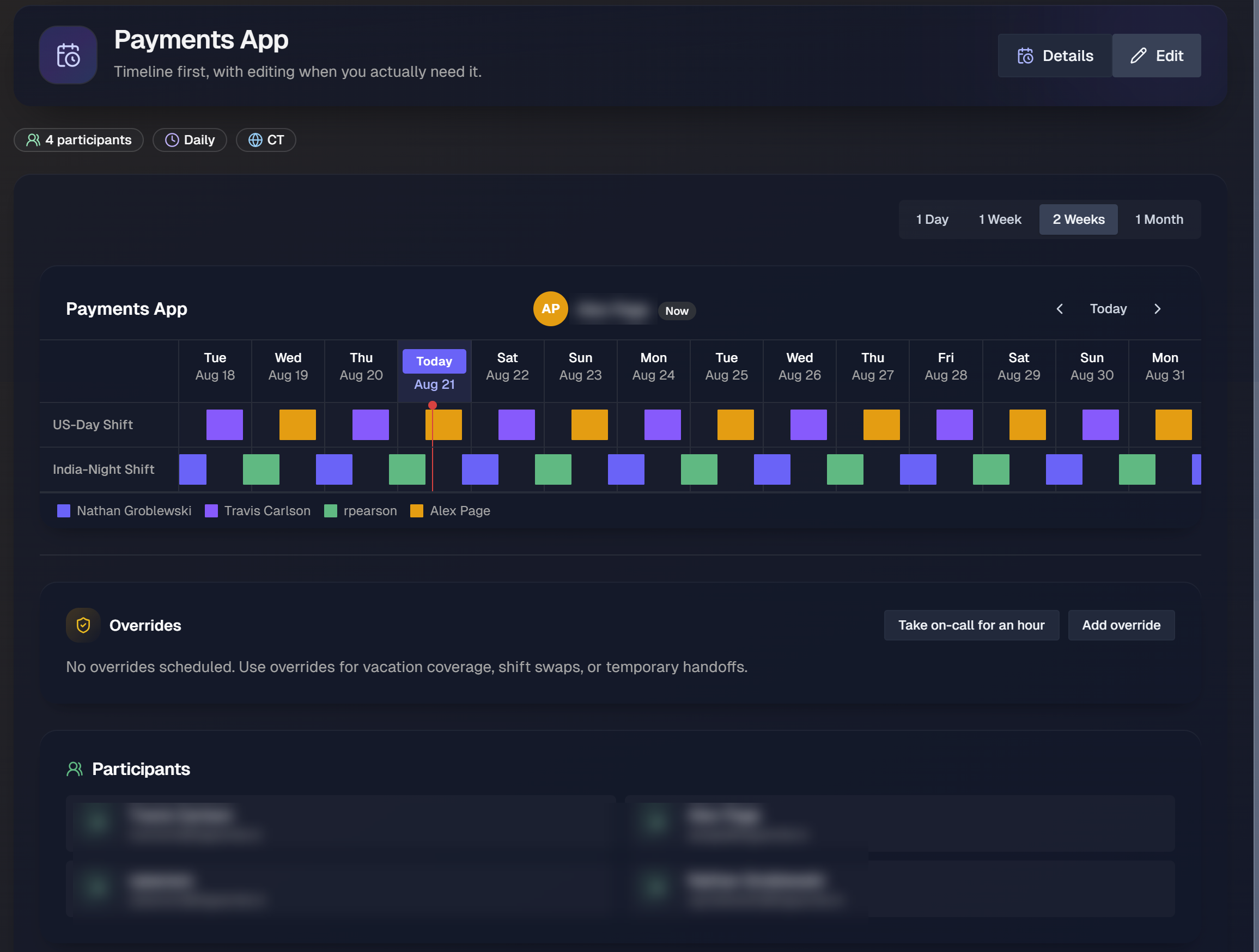
Selecting a schedule from the On-call now section opens the schedule detail page. The header shows the schedule name, the number of participants, the handoff cadence, and the timezone. To view configuration for the schedule, click Details. Modify schedule configuration by selecting Edit.
Timeline
The timeline shows each shift across the selected date range. Use the range control to switch between 1 Day, 1 Week, 2 Weeks, and 1 Month. Use the arrows or Today to move through time. A marker highlights the current day and the current on-call responder who is on call now.
Expand By user to see a color-coded legend that maps each color in the timeline to a participant.
Schedule details
Select Details to open the Schedule details panel. This panel shows:
Timezone: The timezone used for the schedule.
Handoff: How often coverage hands off, for example daily.
Overrides: The number of overrides currently scheduled.
The Coverage Preview lists who is currently on call and upcoming responders under Next up with the shift start time and responder.
Add an override
Overrides temporarily reassign coverage. Use an override for vacation coverage, shift swaps, or temporary handoffs.
To add an override:
On the schedule detail page, select Add override.
(Optional) In the Add overrides panel, describe the override in plain language, for example
Cover Alex from Feb 12 9am to Feb 14 6pm, then select Generate to have Biggy draft it.Choose a Start and End date and time, then select a Replacement responder.
To schedule more than one override, select Add another override.
Select Save overrides.
To cover the schedule yourself for a short period, select Take on-call for an hour, which assigns you as the responder for the next hour.
Overrides
Use overrides for planned time off or a one-time swap, and Take on-call for an hour for an immediate, short-term handoff.
Engagements
Biggy On-Call organizes paging activity into incidents and engagements:
An incident groups every page related to one problem and has its own lifecycle: resolve, cancel, or reopen.
An engagement is a single page wave sent to one or more targets. One acknowledgment covers the whole engagement, no matter how many people it reached.
The Engagements card summarizes recent engagements. A badge shows how many are currently active.
At the top of the card:
Active pages: The total number of active pages, with a breakdown of how many are open and how many are acknowledged.
Last page: When the most recent page was sent.
Below the summary, each engagement in the list shows the incident or source that triggered it, the target it paged, a status, and when it was created:
Open: The page has been sent but not yet acknowledged.
Acknowledged: A responder has acknowledged the page, which stops escalation.
Resolved: The underlying incident has been resolved.
Select View all engagements to open the full engagements list.
Create an incident
An incident groups all pages related to a single problem and has its own lifecycle: resolve, cancel, or reopen.
To open an incident and page responders from the Overview page, select New Incident in the upper-right corner.
To create an incident:
Give the incident a title and a priority.
Send one or more pages to teams, services, or specific responders in a single submit. Each team or service follows its own routing and escalation policy.
(Optional) Use Call all to reach everyone a team or service policy can cover in one wave, with no escalation delay, which is useful for major incidents.
Preview the recipients for each target before sending.
Apply a message template to reuse standard paging content.
You can also create an incident without paging when you only need a coordination record, and page an existing incident later from its detail page.
Next Steps
Manage On Call Incidents in the web app.
View your pages, preferences, and shifts in My On Call.
Analyze response behavior, escalation effectiveness, team load, and delivery reliability in On Call Analytics.
Configure services, teams, schedules, policies, routing, and people for your on-call program in On Call Settings.