My Skills
My Skills is where you create and manage personal skills for Biggy. Personal skills are private instructions that only you can use, so Biggy applies them in your own chats and nowhere else. Experiment freely, and when a skill works well, propose it to your organization so an admin can review and promote it for everyone.
My Skills is available in the web app at Manage > AI Capabilities > My Skills.
Private skills
A personal skill applies only to your own chats. No one else in your organization sees or uses it until you propose it and an admin promotes it. This makes My Skills a safe place to draft, test, and refine an idea before sharing it.
Key Features
Create private skill drafts that apply only to your own Biggy chats.
Co-author a skill with Biggy, which can investigate with your connected tools and apply edits to the form for you.
Propose a finished skill to your organization for an admin to review and promote.
Create a personal skill
On the My Skills page, click New personal skill.
In the Create a personal skill page, enter a Name. The name can be up to 50 characters. Choose something short and descriptive, for example
Generate RCA.Click Create & edit.
Biggy creates a private draft and opens it in the skill editor. New skills start as a disabled draft that only you can see.
Build a skill
The skill editor has two panes. On the left, a form defines what the skill is and when Biggy uses it. On the right, you can co-author the skill with Biggy.
At the top of the editor you can rename the skill, see who last edited it and the current version, and access the Propose to org and History actions. Use the Back to My Skills link to return to your list of skills.
Complete the skill details
The Skill details section defines how Biggy recognizes the skill and decides when to use it.
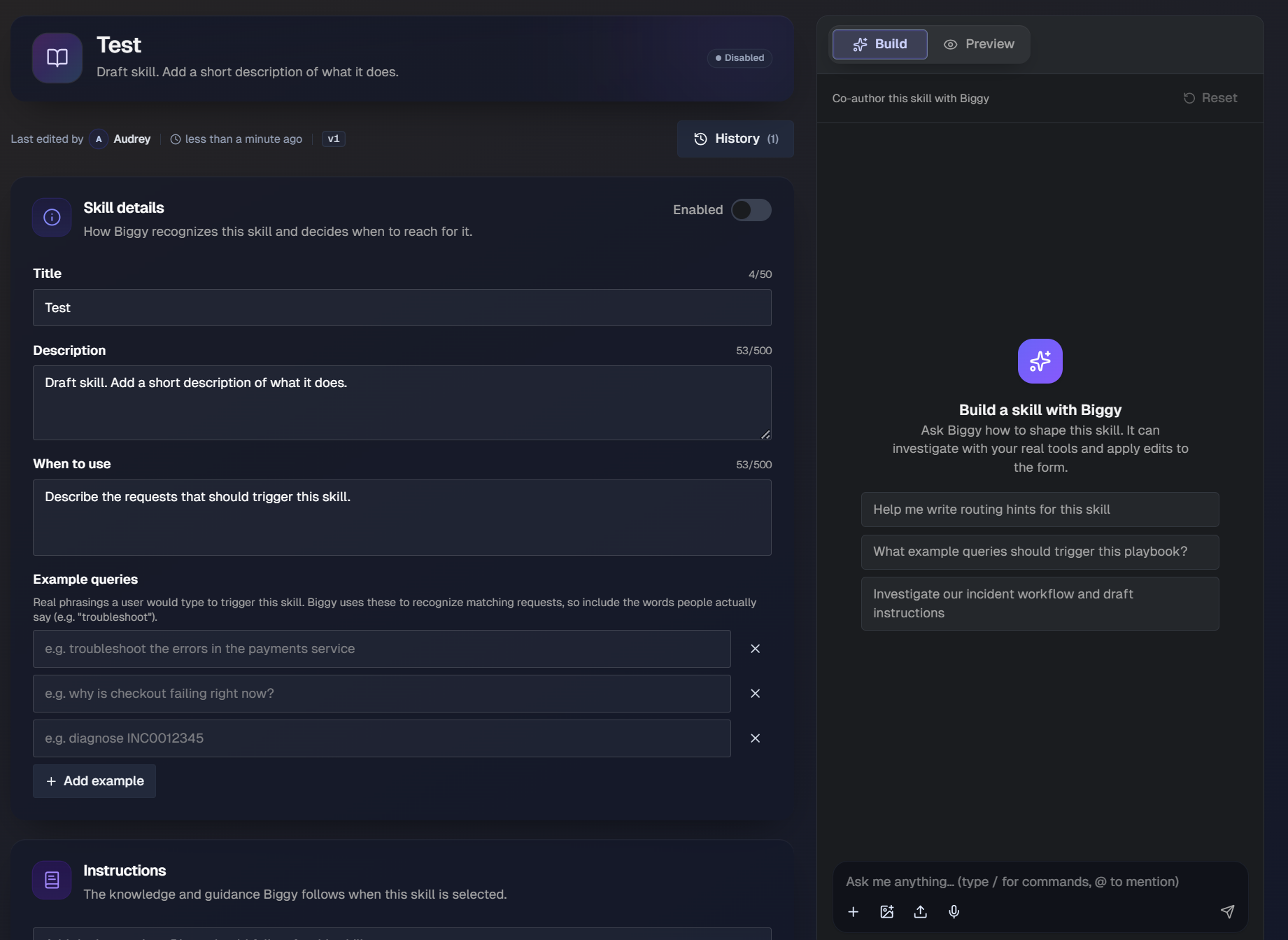
Complete the following fields:
Title: The name of the skill. This can be up to 50 characters.
Description: A short summary of what the skill does, up to 500 characters.
When to use: A description of the requests that should trigger this skill, up to 500 characters.
Example queries: Real phrasings a user would type to trigger the skill. Biggy uses these to recognize matching requests, so include the words people actually say. For example,
troubleshoot the errors in the payments serviceorwhy is checkout failing right now?. Select Add example to add more phrasings.
To make the skill available to Biggy, turn on the Enabled toggle at the top of the Skill details section.
Add instructions
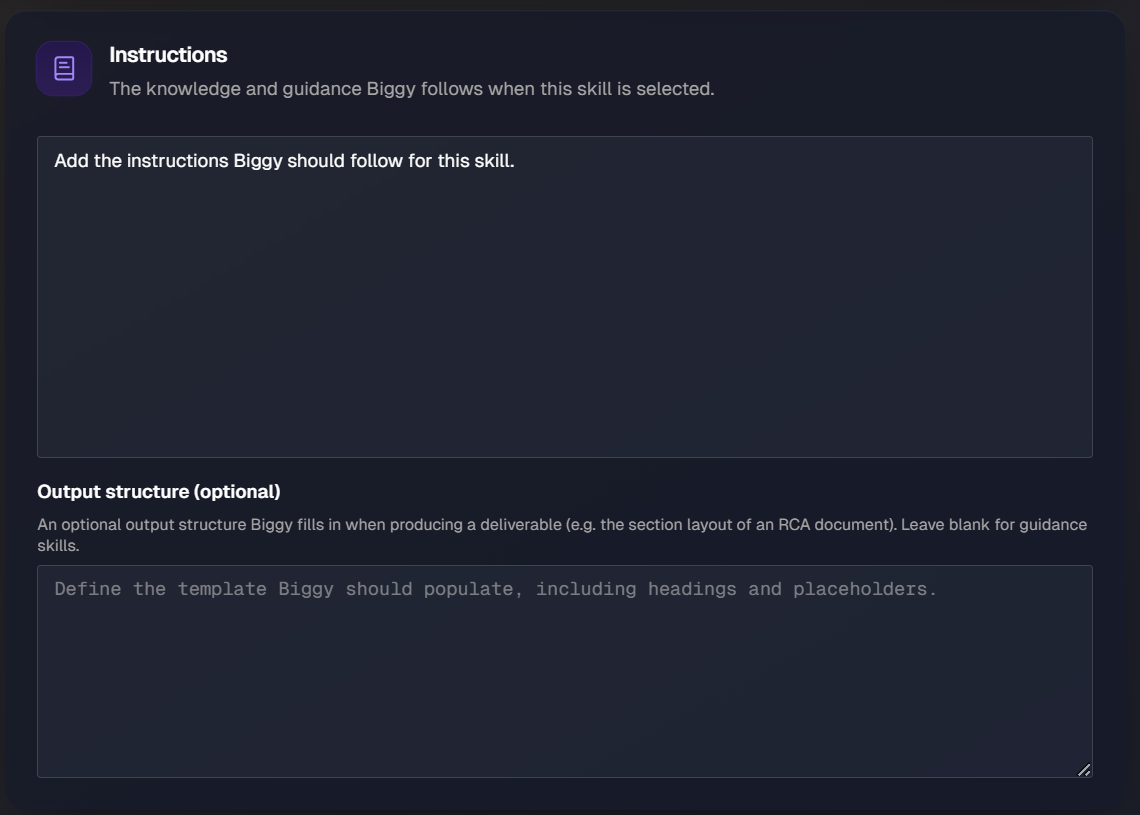
In the Instructions section, enter the knowledge and guidance Biggy follows when this skill is selected. This is where you describe how the task should be handled, what to include, and any rules Biggy should apply.
Define an output structure
The Output structure section is optional. Use it when a skill produces a deliverable and you want Biggy to follow a specific layout, such as the section layout of a root cause analysis (RCA) document. Define the template Biggy should populate, including headings and placeholders.
Leave this section blank for guidance skills that do not produce a formatted deliverable.
Reference your tools and other skills
The References section lets you connect a skill to integrations, capabilities, and other skills, so Biggy can use them to complete the task. Referenced items are highlighted in the list.
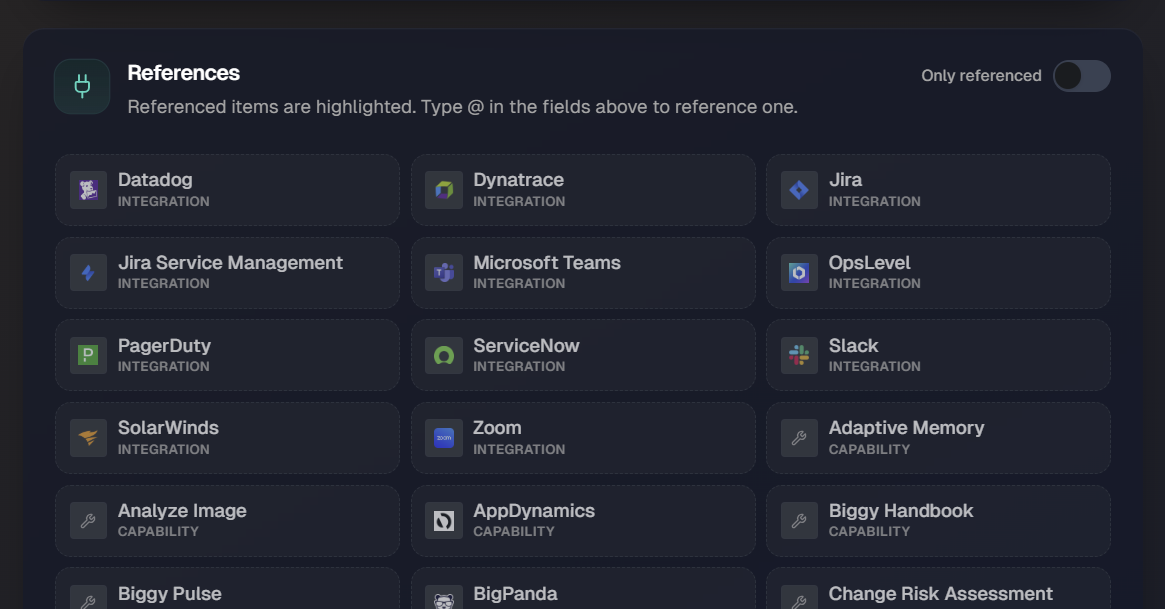
To add a reference, type @ in the Instructions or Output structure fields and select the item you want to reference. Turn on the Only referenced toggle to show only the items you have already referenced.
Add tags
Tags are optional labels for organizing and analyzing skills. Tags have no effect on how a skill is run.
Built-in tags: Select from the standard tags, such as Reporting, Investigation, Analytics, Artifact Generation, Knowledge Retrieval, and Automation.
Your organization's tags: To create a custom tag that you can reuse across skills, enter a tag name in the field and select Add.
Co-author a skill with Biggy
The skill editor includes a co-authoring panel that lets Biggy help you build a skill. Biggy can investigate with your real tools and apply edits directly to the skill form.
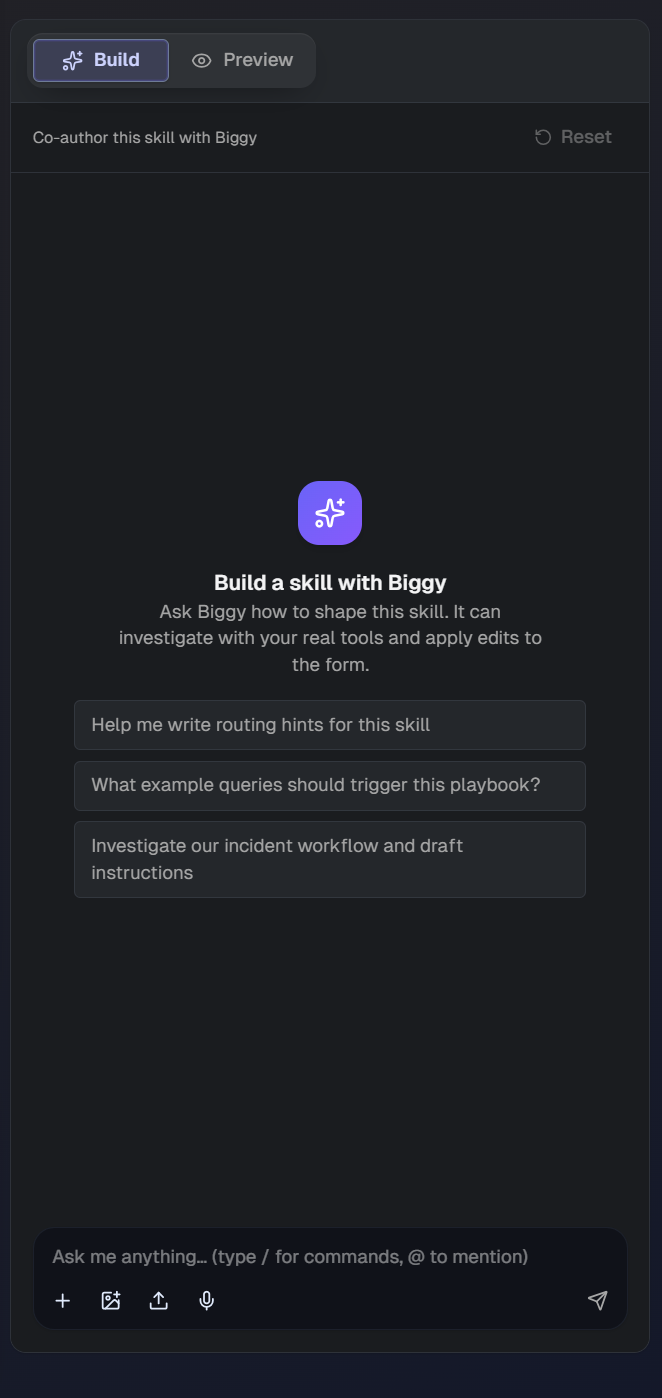
At the top of the panel, switch between two views:
Build: Work with Biggy to shape the skill. Ask Biggy how to structure the skill, and it can apply edits to the fields for you.
Preview: Preview the skill.
To co-author a skill:
In the skill editor, make sure the Build view is selected.
In the message field at the bottom of the panel, describe what you want. For example, ask Biggy to write routing hints, suggest example queries, or investigate a workflow and draft instructions.
Review the edits Biggy proposes and adjust as needed.
To start over, select Reset to clear the co-authoring conversation.
Enable and save a skill
Each skill has an enabled toggle in the Skill details section. New skills start disabled, which means Biggy does not use them yet. Turn the toggle on to enable the skill in your chats.
When you finish editing, click Save skill at the bottom of the form to save your changes.
View version history
Every time you save, Biggy records a version of the skill. To review past versions, click History at the top of the editor.
The Version history panel lists the saved versions for the skill. Each entry shows who saved it, when, and which fields changed, for example the Title and Description. The most recent version is labeled Current.
Propose a skill to your organization
When a skill works well in your own chats, you can propose it so the whole organization can benefit.
In the skill editor, click Propose to org.
In the Propose to your organization page, optionally add a note in the Anything the reviewer should know? field to give the reviewer context, for example
This works well for pod crash-loop triage.Click Propose to org.
An org admin can then review, test, and promote the skill so the whole organization can use it. Promoted skills appear in the Organization Skills area, which you can reach from the Organization Skills link on the My Skills page.
Delete a personal skill
You can delete a personal skill you no longer need. When a skill is removed, Biggy shows a confirmation that the skill was deleted.