Install the Latest Developer Store App
Controlled Rollout Recommended
Your ServiceNow instance will be customized to the unique needs and processes of your organization. When working through the upgrade process, please utilize the standard servicenow Update-Set practice that applies to your organization. We always recommend you apply your BigPanda ServiceNow update sets in a Developement environment and promote them to QA and Production using the standard ServiceNow retrieval processes. We do not recommend applying an update set directly to production as it cannot be vetted out in the lower environments. As you simulate a production rollout by promoting your code from Dev to a QA or Staging environment, take note of the specific changes required for your instance. If unsure, contact your ServiceNow architect to learn about your organization's code promotion process and policy.
Install the BigPanda app version 2.10.2 from the ServiceNow Developer Portal.
If installing the BigPanda ServiceNow integration for the first time, use the download button to retrieve the latest full version.
If upgrading from 2.9.1, 2.9.2, or 2.10.2 use the patch files linked in the developer portal.
If upgrading any other version, use the download button to retrieve the latest full version.
Conflicting Updates
During the Preview Set step, if you made any updates that conflict with BigPanda’s updates, they can be fixed or consolidated.
Merge Conflicts
During the ServiceNow upgrade process, individual components of the BigPanda ServiceNow Application will be presented as update conflicts if there is an existing version of that component in the app.
To resolve merge conflicts, keep a list of all customizations to compare to the Merge Conflicts table.
Installation Steps
Navigate to System Update Sets > Retrieved Update Sets.
Under Related Links, select Import Update Set from XML.
Under Preview Set, select Fix any errors.
Once imported, the application should now be available from the Navigation Pane and Scope.
(Optional) Exclude Properties from Update Sets
If you want to exclude certain system properties in one instance from overwriting values in another, you’ll need to set those properties to private in ServiceNow. Here’s how:
Type
sys_properties.listinto the search bar to find the desired property.Select and open the property.
Select the checkbox marked Private at the bottom of the screen.
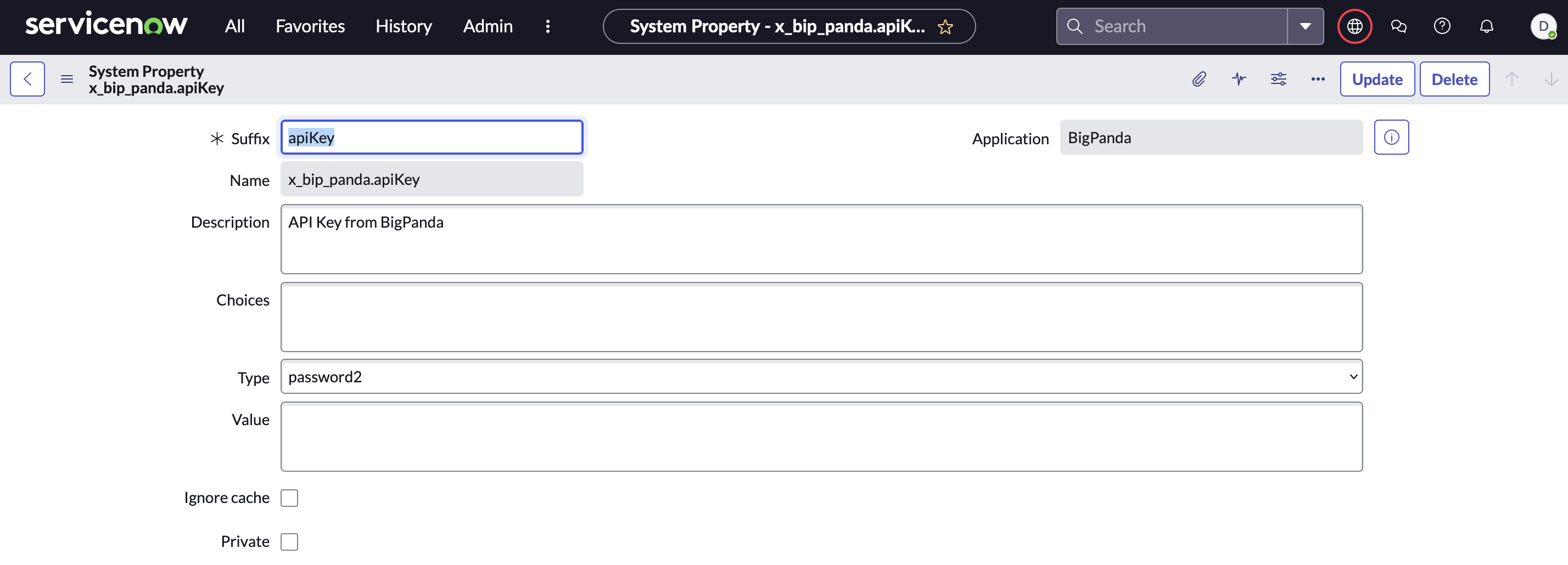
ServiceNow System Property
This will prevent these properties from being exported when cloning or downloading an Update Set.
Recommended Private Properties
We recommend making the following properties private:
x_bip_panda.apiKey
x_bip_panda.bearerToken
x_bip_panda.changesAppKey
x_bip_panda.incidentsAppKey