Indexing Settings
The Biggy Indexing Settings allow you to control which content is automatically indexed and searchable by your users.
Indexing Settings are available in the web app at Manage > Knowledge & Data > Indexing Settings.
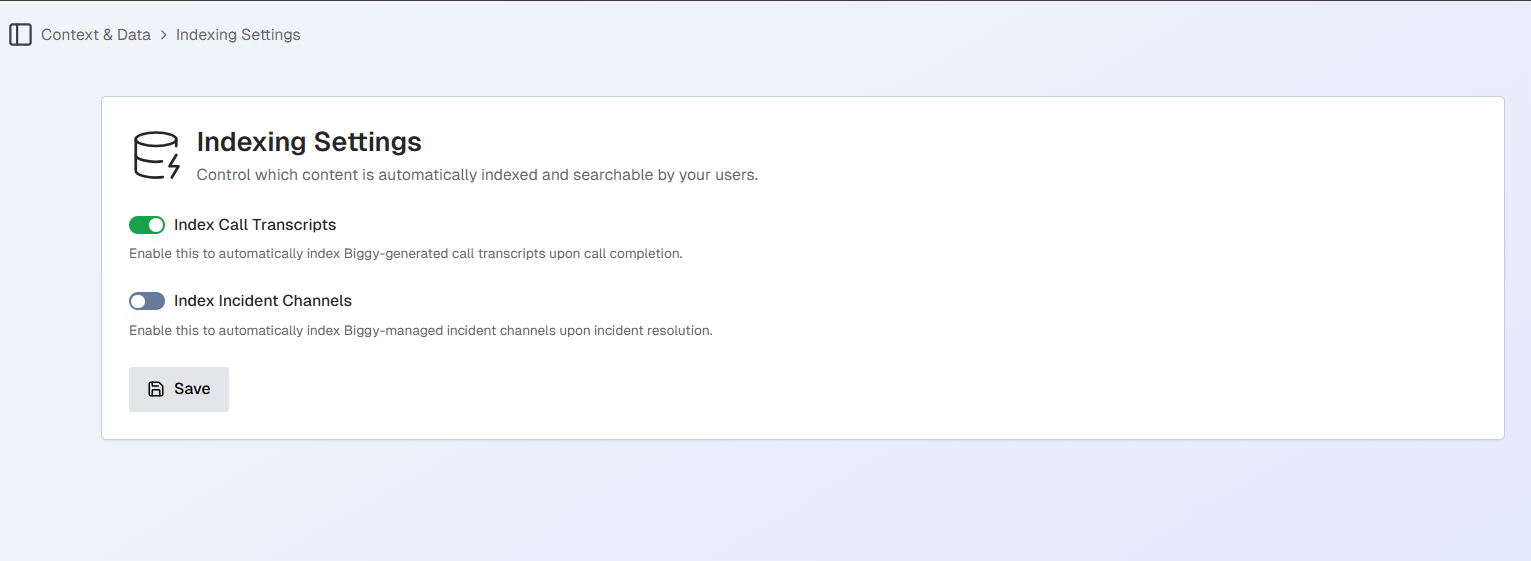
The Indexing Settings page is divided into three tabs:
General
Chat Indexing
Web Indexing
General
The following general indexing settings are available:
Setting | Description |
|---|---|
Index Call Transcripts | Automatically distill and index completed meeting transcripts into Biggy's long-term knowledge, making them searchable and reusable. Note: This is separate from the Meeting Transcript Retention settings. |
Index Incident Channels | Automatically index Biggy managed incident channels upon incident resolution. |
Index Major Incidents | Automatically index completed Major Incidents including incident details, action outputs, communication context, and resolution outcomes into Biggy's long-term knowledge. |
Meeting Transcript Retention | Controls how long raw meeting transcripts from your meeting provider are retained. This impacts how long users can run queries and generate content, such as summaries, that directly use the raw transcripts. The maximum retention period is 30 days. The minimum is 3 hours. Note: This is separate from the Index Call Transcripts setting, which stores summarized interpretations of transcripts as long-term knowledge for Biggy to use during context retrieval. |
Chat Indexing
Use Chat Indexing to capture and index Slack and Teams conversations into searchable knowledge for AI-powered retrieval.
Toggle Chat Message Indexing on to enable this feature.
After enabling, click +Add Channels to add Slack or Teams channels for indexing. Select one or more channels from the list, or use the Search bar to find a specific channel.
Select How far back to index the selected channel(s) from the drop-down menu.
Web Indexing
Use Web Indexing to index publicly accessible pages such as documentation sites into Biggy's searchable knowledge.
Click + Add Web Source to add a new public URL. Populate the following information in the Add Web Source window:
URL - Public URL link.
Label (Optional) - Description of the URL.
Crawl Mode - Select Single to index only the URL included. Select Recursive to crawl the URL provided, and its subpages. If you select Recursive, choose the Max number of pages to crawl.
Sync Frequency - Select how often the web crawler should sync. You can select Manual, or choose a specific time frame. If you choose a time frame, use the Auto-sync toggle to determine whether the re-crawl will occur automatically on the selected schedule.