Biggy Agent in the ADR console
Chat with Biggy right in the ADR single-pane of glass. Ask questions, investigate incidents, and take action through conversational natural language directly in the ADR console.
This feature is available to organizations with both AI Detection and Response and AI Incident Assistant.
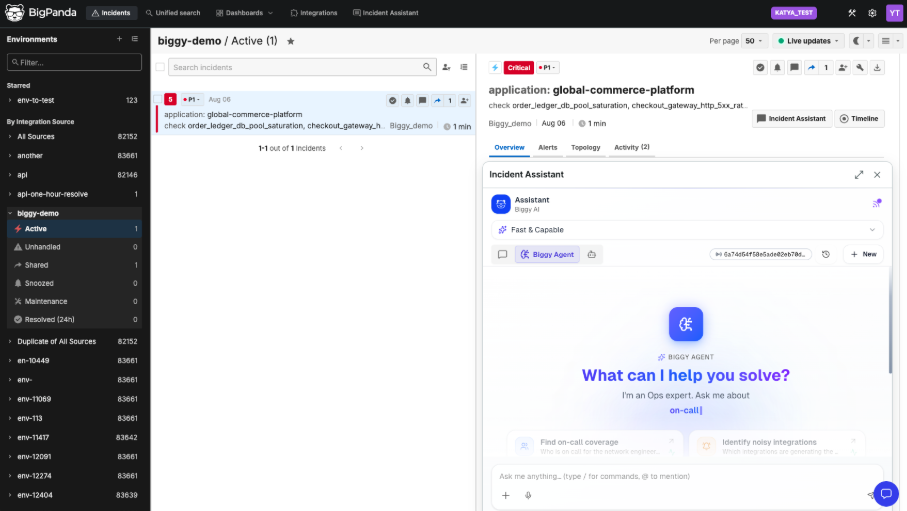
Incident Assistant in the ADR console
Key Features
AI Incident Assistant in the console offers the same capabilities available in the web app, Slack, and Microsoft Teams. Available actions may vary based on your organization's configuration, but may include:
Troubleshoot an incident: Get an explanation of a current incident, links to similar past incidents, and suggested remediation steps.
Generate summaries: Create incident summaries, executive summaries, after action reviews, and channel summaries.
Create a root cause analysis: Produce a client-facing root cause analysis based on ITSM records, incident details, and historical data.
Check external observability: Look for third-party outages, cloud provider issues, or other external events that may be affecting your operations.
Retrieve an on call schedule: Find out who is on call for a service or team before you escalate.
For a full list of what your team can do with the AI Incident Assistant, see the Manage Incidents with AI Incident Assistant documentation.
Permission and Access
The AI Incident Assistant matches your permissions and access across the Incident Assistant web app and the ADR console. See the Roles and Permissions documentation for details on configuring roles and permissions in BigPanda.
The Biggy Agent will only appear in the ADR Console for users who have been granted access:
Their role has been granted Incident Assistant access in the Incident Operator section.
The user has access to the Biggy Agent through an AI Incident Assistant role.
Chat with the AI Incident Assistant in the ADR console
The AI Incident Assistant lets you triage and investigate incidents and operations questions using natural, conversational language.
Open a chat from the Incident Assistant tab or through an individual incident in the Incident Feed.
From the Incident Assistant Tab
Open the incident assistant from the top navigation bar to open a chat that is non-dependent on an incident.
In the top navigation, click the Incident Assistant tab.
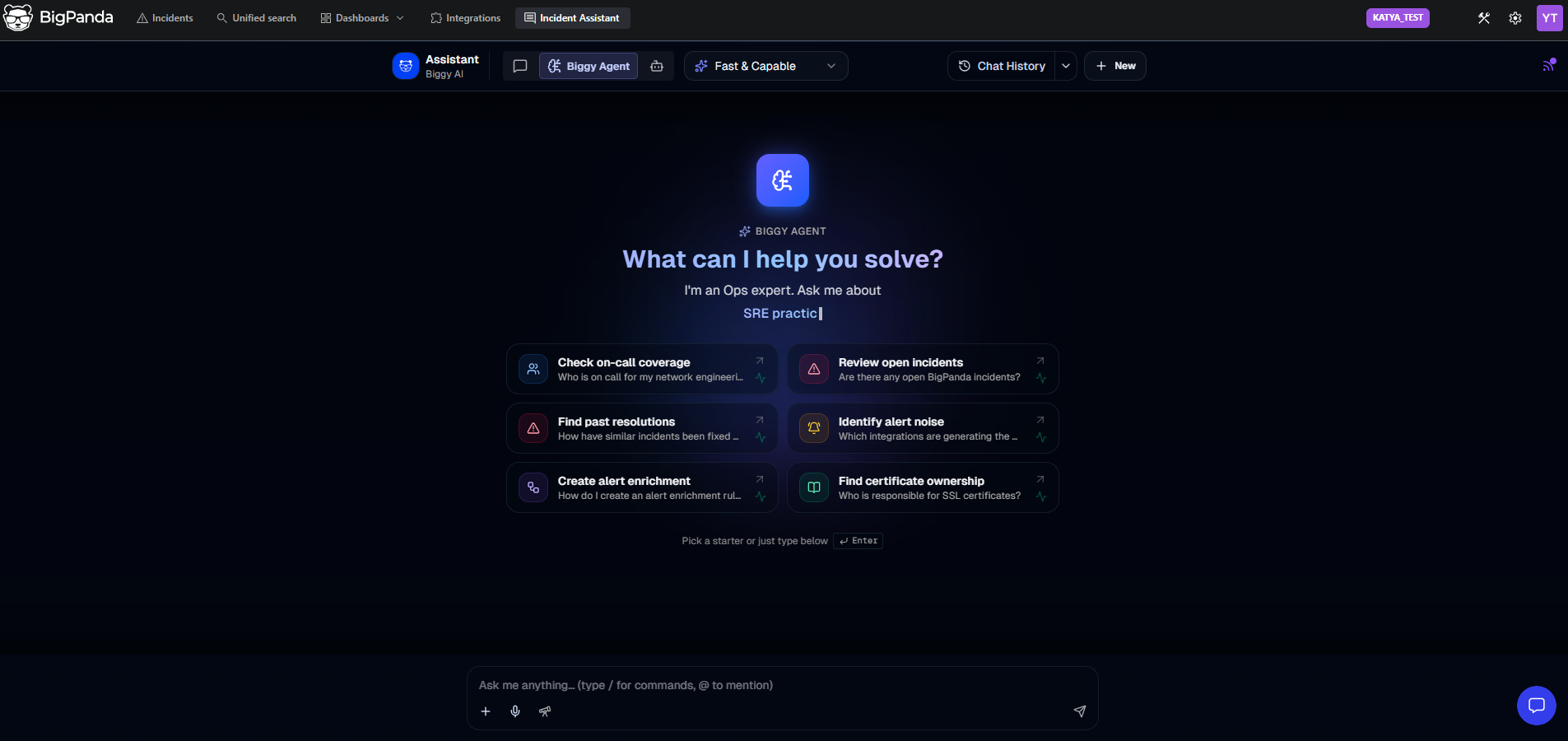
The Incident Assistant tab
The assistant opens as a full-page chat experience with a set of prompts to help you get started. Click on quick actions or type a question in the chat box to begin working with Incident Assistant.
From an incident
Open the incident assistant from an incident's top overview to open a chat that is automatically connected to a specific incident's context.
In the Incident Feed, select an incident. In the Incident Details pane, at the top right of the Overview click Incident Assistant.
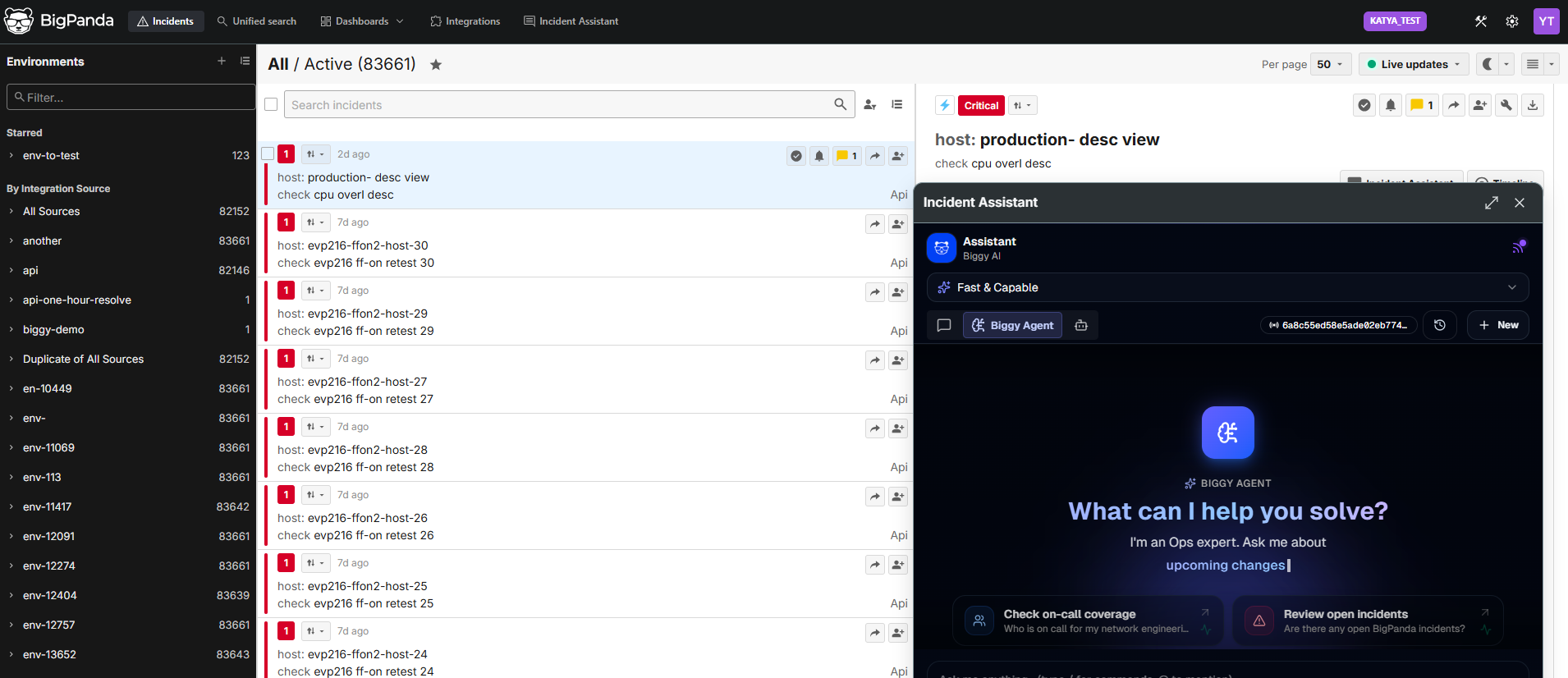
The Incident Assistant chat in the Incident Feed
The assistant opens in a panel alongside the incident, so you can keep the incident in view while you ask questions. Click the edge of the panel to freely resize the panel to fit your screen or workflow, or click the maximize icon to automatically fit the chat to your screen. Click the X button to close the chat panel.
Manage active Incident Assistant chat settings
At the top of the chat tab or panel, manage the active Incident Assistant chat settings:
Toggle chat mode: Choose to work with Incident Assistant in Basic Chat, Biggy Agent, or Custom Agent mode.
Select a response style: Define how much reasoning the Incident Assistant should make when considering queries.
View chat history: The Chat History panel will open, listing conversations grouped by time period.
Add a new chat preset: Saved queries allow you to quickly replicate a frequently used query.
View the Biggy Activity feed: Open a list of recent notifications and items that may need your attention, including status pages, major incident management, and new updates.
Learn more about chat options in the Web App documentation.
Manage the AI Incident Assistant console configuration
AI Incident Assistant settings are configured within the Incident Assistant web app.
Restrict environment access
Granular environment permissions must be applied in both the ADR console and the Incident Assistant configuration.
Configure environment access per role in the ADR Role Management, Environment Permissions section.
Enforce that role access with Biggy in the Incident Assistant BigPanda EM section. Under BigPanda Agent Access, toggle on Enforce Scoped User Access.
Next steps
Learn about the full set of AI Incident Assistant capabilities available in chat.
Learn how to navigate the AI Incident Assistant web app.
Find out more about the other available functionality of AI Incident Assistant.