Add the L1 Agent to ServiceNow
The BigPanda L1 Agent embeds directly into your ServiceNow incident forms, providing AI-powered triage recommendations and incident analysis without leaving the ServiceNow interface. When a user opens an incident, the agent displays:
AI Analysis: automated summary, root cause analysis, and reasoning generated by the AI Detection and Response (ADR) AI Incident Analysis (AIA) system.
Triage Recommendation: a suggested assignment group with an Apply button that sets the assignment group tag on the corresponding BigPanda L1 Agent incident.
Use the L1 Agent in ServiceNow
View AI analysis and triage recommendations
When you open an incident, the BigPanda Agent tab automatically displays:
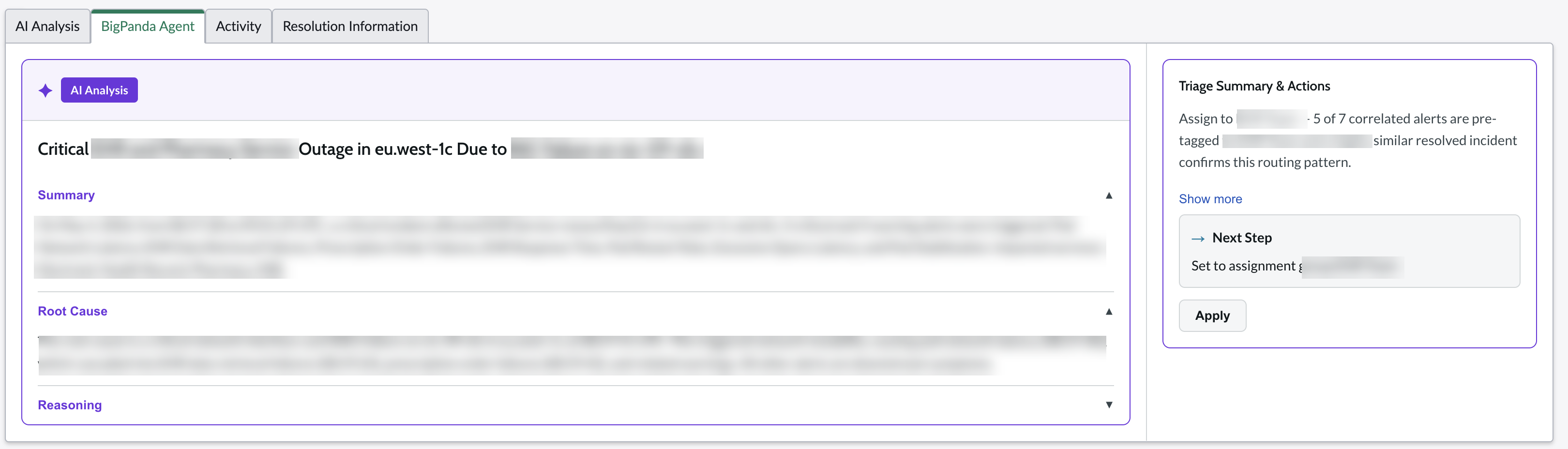
AI Analysis: a summary of the incident, potential root cause, and supporting reasoning based on correlated alerts and historical patterns.
Triage Summary: the recommended assignment group together with the reasoning behind the recommendation.
The analysis is generated automatically by BigPanda's L1 Agent automation. No manual action is required to trigger it.
If the panel displays No matching incident found, the ServiceNow incident has not yet been correlated with a BigPanda incident. Verify that the ServiceNow integration is sending incidents to BigPanda.
If the panel displays No triage summary available, the AI analysis has not finished running yet. Refresh the incident form after a few moments.
Apply a recommendation
When the agent recommends an assignment group:
Review the reasoning displayed alongside the recommendation.
Click Apply to set the assignment group on the BigPanda incident. The button changes to Applying..., then Applied once the update completes.
The Apply action sets the assignment group tag on the corresponding incident in BigPanda. Depending on your integration configuration, this may also update the corresponding field in ServiceNow.
Install the L1 Agent to ServiceNow
This guide walks through installing the agent in your ServiceNow instance and connecting it to your BigPanda organization.
Prerequisites
Before you begin, confirm that you have:
Admin access to your ServiceNow instance.
Access to the
opensslcommand line utility, or another cryptographically secure random generator.A BigPanda organization with L1 Agent enabled.
Confirmation from your BigPanda account team that the server-side onboarding for your organization is complete.
Install the Update Set
In ServiceNow, navigate to System Update Sets > Retrieved Update Sets (
sys_remote_update_set_list.do).Under Related Links, select Import Update Set from XML and upload the BigPanda-L1Agent-v*.xml downloaded file.
Open the imported update set and click Preview Update Set. Review the preview for any conflicts with your existing incident form customizations. If errors appear, select Fix any errors.
Click Commit Update Set.
Configure the JWT signing key
The L1 Agent uses a shared secret to securely authenticate requests between ServiceNow and BigPanda.
Using a tool such as OpenSSL, generate a 256-bit HMAC shared secret (or use the one provided by BigPanda during onboarding):
openssl rand -hex 32
Save this value: you will need it in the next step and must also provide it to your BigPanda account team for server-side configuration.
Change the Application Scope to the BigPanda L1 application
In the navigator, navigate to System OAuth > JWT Keys (
jwt_keystore_aliases.do) and open bigpanda_signing_keyPaste the secret into the Signing Key field
Click Update
Do not share token
This secret is the trust anchor between your ServiceNow instance and BigPanda. Treat it like a password. Do not share it outside of the ServiceNow administrator and your BigPanda account team. Never commit the secret to version control or send it over email or chat.
Add the BigPanda Agent tab to the Incident form
The Agent tab can be added using the Form Layout option, or through the new ServiceNow Form Builder.
With Form Layout
To add the Agent tab through the Form Layout:
Change the Application Scope to Global.
Open any Incident record.
Right-click the form header, then select Configure > Form Layout.
Under the dropdown in Form View > Section, select New.
Create a new section named
BigPanda Agent.In Form Layout > Available, scroll to find the new
BigPanda Agentlayout and add it to the Selected section.Save the form layout.
With Form Builder
To add the Agent tab through the Form Builder:
Change the Application Scope to Global.
Access the Form Builder for the Incident table.
Click Add section.
Name the new section
BigPanda Agent.Click the center + icon, then select the Formatters tab.
Select the BigPanda Agent formatter.
Save the form.
Verify configuration
After your BigPanda account team confirms that the server-side setup is complete:
Open an incident in ServiceNow that has been processed by BigPanda.
Navigate to the BigPanda Agent tab.
Confirm that the embedded panel renders and that AI analysis and a triage recommendation appear for the incident.
If the tab shows an authentication error, verify that:
The JWT signing secret matches in both ServiceNow and the BigPanda configuration (no extra whitespace or truncation).
The ServiceNow instance URL was provided correctly, including
https://and with no trailing slash.The update set was committed successfully and the BigPanda Agent formatter is added to the Incident form.
L1 Agent security considerations
The L1 Agent is built on standard, well-understood ServiceNow and web-security primitives rather than custom cryptography. Requests are authorized with a short-lived JSON Web Token (JWT). Secret material stays in ServiceNow's encrypted credential store, and tokens are minted using the platform-level sn_auth.GlideJWTAPI framework.
Every request between ServiceNow and BigPanda carries a JSON Web Token (JWT):
Signed by ServiceNow: When a user views an incident, ServiceNow builds a JWT containing the incident ID, the user's identity, and a short expiration, then signs it with the shared HMAC secret (HS256). The token contains no passwords or API keys.
Verified by BigPanda: BigPanda checks the signature with the same secret. Any token with a bad signature, expired timestamp, or incorrect
audclaim is rejected.Identifies the organization: BigPanda uses the ServiceNow instance URL to look up the secret to use for verification. A successful verification confirms the request came from your instance. The trust boundary is enforced by the key exchange, not by an embedded organization ID.
Data flow
Data | Direction | Details |
|---|---|---|
JWT token | ServiceNow > BigPanda | Contains the incident sys_id, user identity, and instance URL. Short-lived. No passwords or API keys. |
AI analysis | BigPanda > ServiceNow | Rendered inside the iframe. Includes the incident summary, root cause hints, and triage recommendation. |
Apply action | ServiceNow > BigPanda | Sets an assignment group tag on the incident. Re-authenticated on every request. |
Architectural considerations
BigPanda API keys never reach the browser or ServiceNow; they remain on BigPanda's servers. JWT signing secrets stay on each side after the one-time setup and are not transmitted during normal operation. Administrators cannot retrieve the stored secret. The signing secret that verifies a request also determines which organization's data the server can return, so other organizations' data is unreachable.
To protect your ServiceNow instance:
Use a unique secret per ServiceNow instance. Do not reuse it across instances or organizations.
Generate the secret with
openssl rand -hex 32or another cryptographically secure random number generator.Never commit the secret to version control or send it over email or chat.
You can rotate the secret periodically by generating a new value, updating ServiceNow as described in Step 3, and sharing the new value with your BigPanda team. The previous secret stops working as soon as either side is updated.
The JWT signing algorithm is pinned to HS256 (HMAC-SHA256). Tokens using none, RS256, ES256, or any other value are rejected. This prevents algorithm-confusion attacks. Every interaction is validated server-side to ensure the token is fresh and valid. The Apply action only accepts updates against a fixed allowlist of tag IDs, so tampering with browser state cannot bypass these checks.
FAQs
Can multiple ServiceNow instances connect to the same BigPanda organization? Yes. Each instance needs its own JWT signing secret configured in both ServiceNow and BigPanda.
Does the agent work with ServiceNow's scoped applications? Yes. The BigPanda L1 application is installed as a scoped app (x_bip_l1). The incident form integration uses a formatter that works in both Global and scoped contexts.
What happens if the agent cannot find the incident in BigPanda? The tab displays No matching incident found, which means the ServiceNow incident has not been correlated with a BigPanda incident yet. Confirm that the ServiceNow integration is sending incidents to BigPanda.
What happens if the AI analysis has not run yet? The tab displays No triage summary available. Analysis is generated asynchronously, so refreshing the incident after a few moments typically resolves this.
How quickly does the integration become active after setup? Within approximately five minutes of your BigPanda team completing the server-side configuration.
Can I restrict which ServiceNow users see the agent tab? Yes. The update set installs two roles, x_bip_l1.user and x_bip_l1.viewer. Use ServiceNow's standard role-based access controls to restrict visibility of the BigPanda Agent tab to specific users or groups.