View Incidents in the AI Incident Assistant Web App
The AI Incident Assistant web app gives your incident responders a single place to see major incidents as they occur, review what happened during an incident, and how it was handled. From the web app, you can monitor every Major Incident Management (MIM) execution from kickoff through resolution and open detailed Incident Post-Mortem reports that AI Incident Assistant generated during or after an incident.
Use the web app to debrief after a major incident, hand off context to another team, resolve an active major incident, or share a clean, exportable report with leadership and stakeholders.
Key Features
Centralized post-incident view - Review every incident report generated by Biggy in a single dashboard, instead of searching through chat channels for context.
Exportable reports - Download any incident post-mortem as a PDF or HTML file to share with leadership, customers, or auditors.
Live major incident tracking - Watch MIM executions in real time, monitor scheduled actions, and resolve or reopen incidents directly from the web app.
Full incident history - Browse both current and past major incidents to understand patterns, recognize contributors, and track the impact of Biggy on your organization.
View MIM Executions
The MIM Executions Dashboard is your live view into every major incident your team is running. From here, you can monitor incidents that are currently in progress, review past incidents, and get a full picture of how Biggy is supporting your organization during critical events.
Each MIM execution is created from a MIM Template, which defines the actions, notifications, and stakeholder updates that run during a major incident.
To open a MIM execution in the web app, go to Dashboards > MIM Executions and select the major incident you want to review.
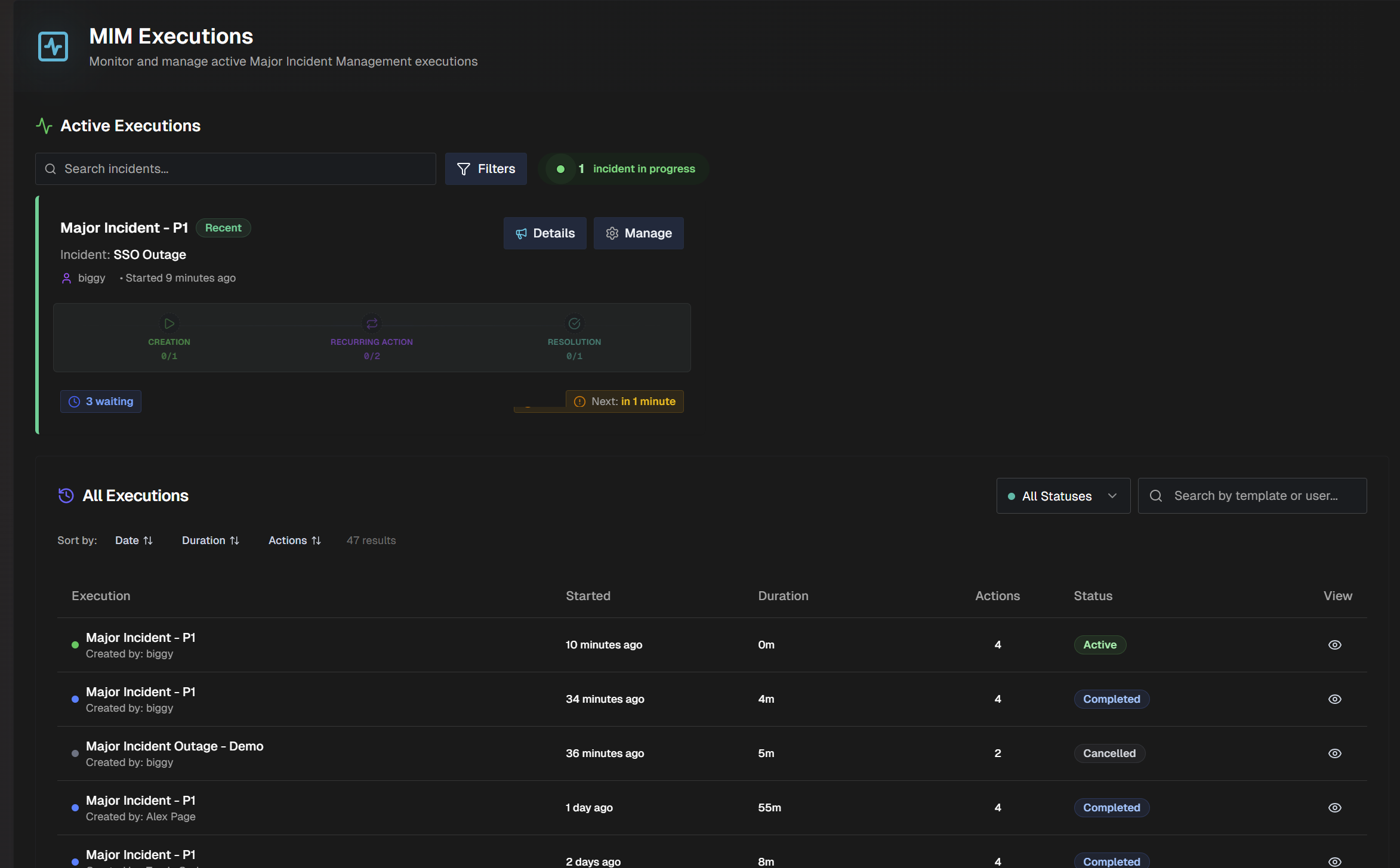
Use the MIM Executions dashboard to:
Track active MIM executions and the scheduled actions tied to each template.
Review historical major incidents to identify trends and improve your response over time.
Resolve a major incident directly from the web app. When you resolve an incident, any scheduled actions are automatically triggered.
Reopen a major incident from the incident banner if issues return after resolution.
View Incident Post-Mortems
The Incident Post-Mortems dashboard brings together all reports generated by AI Incident Assistant using the Generate Incident Report or Managed Incident Channel. Use it to review how a specific incident unfolded, surface follow-up work, and share a polished write-up with the rest of your organization.
To open a report in the web app, go to Dashboards > Incident Post-Mortems and select the incident you want to review.
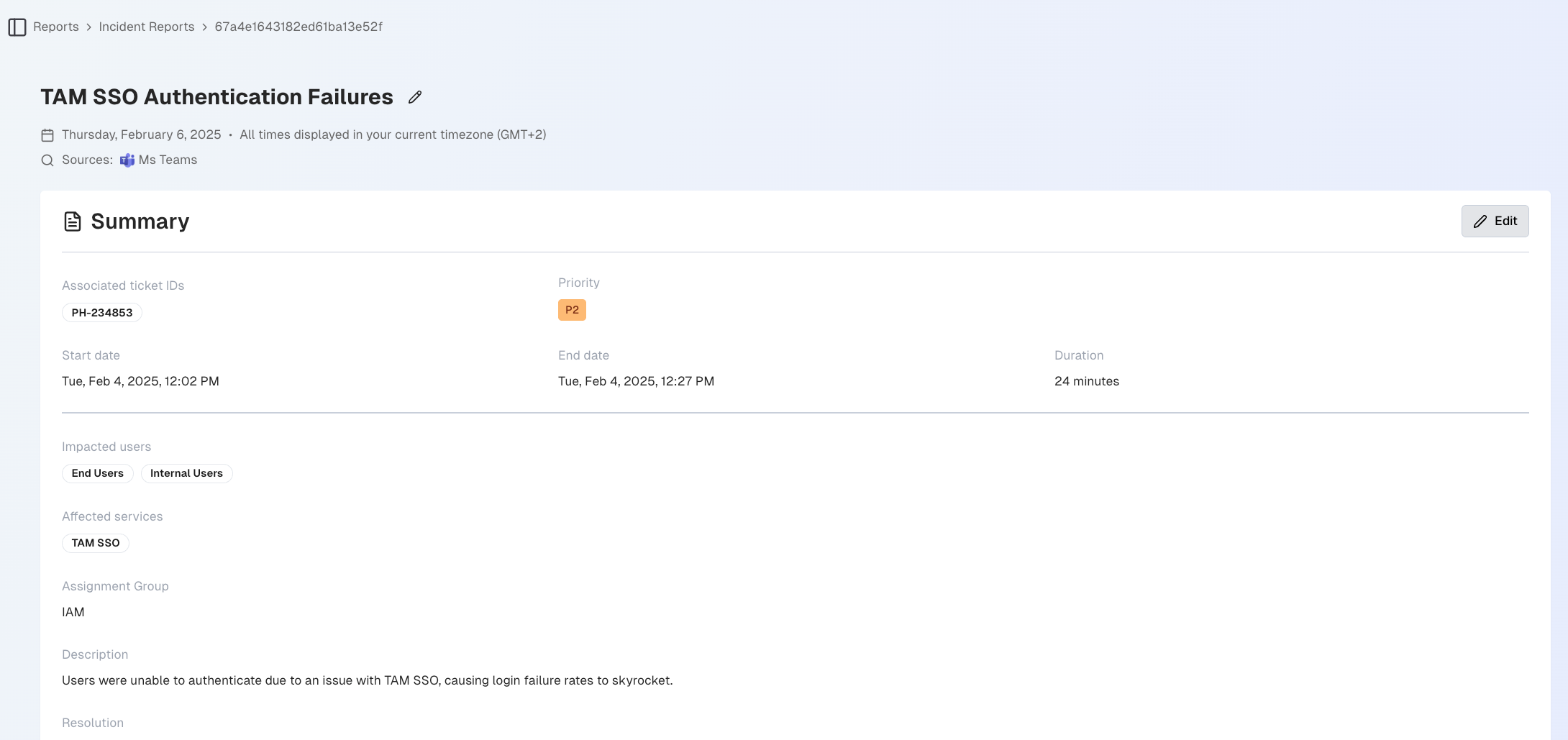
Each post-mortem report is divided into five sections:
Summary - High-level incident details, including impact, key timestamps, and root cause information.
Timeline - All major incident events in chronological order. The timeline also shows the incident duration and the time it took to detect, assign, diagnose, recover, and resolve.
Action Items - Follow-up work pulled from the incident channel. Identified Follow-up Action Items were called out by a participant in the channel, and Suggested Follow-up Action Items were recommended by AI Incident Assistant.
Participants - Responders who took part in the incident. Contributors may be tagged with a Top Contributor or Key Contributor badge based on their role in managing the incident’s impact and recovery.
Event Log - A comprehensive list of every activity that took place in the incident channel. Click any event in the log to open the conversation in Slack.
Action plans
Incident post-mortems are generated automatically by the Generate Incident Report and Managed Incident Channel Action Plans. If a recent incident does not appear in the dashboard, confirm that one of these action plans ran during the incident.