Remediation and Automation Integrations
Biggy Remediation and Automation integrations run approved jobs, playbooks, and pipelines to fix what Biggy finds, with every write gated behind approval.
The following Remediation and Automation integrations are available:
Ansible
Beta integration
This integration is currently in beta release status.
Beta integrations are still being tested. Core connectivity is stable, but the integration may receive updates based on user feedback.
The Biggy Ansible integration lets Biggy suggest and launch approved remediation runs through Ansible Automation Platform (AAP) or AWX.
Biggy reads the job templates you select, adds them to an automation catalog, and uses that catalog to suggest remediation during investigations. A run starts only after a person with approval rights approves it. Ansible reports job status back to Biggy through a webhook, so runs update without polling.
Biggy connects to Ansible using two separate tokens: a read token to browse job templates and an execute token to launch approved runs. Using separate users keeps read-only questions from ever carrying run rights. To connect Ansible read-only, leave the execute token empty.
Requirements
To use the integration, you need:
Ansible Automation Platform or AWX. The Ansible API connection type works with AWX and every AAP release.
To use the Read-only MCP server connection type: Ansible Automation Platform 2.5 or later with the platform gateway.
If the Ansible certificate was not issued by a public certificate authority, the private CA certificate chain in PEM format.
If the Ansible instance is not reachable from the internet, a relay client assigned on the Relay Clients page.
Required permissions
Grant the Ansible users the following roles on each job template Biggy may use:
Read user: Read on the job templates. Biggy uses this user's token to browse templates. With the Read-only MCP server connection type, inventories and job history.
Execute user: Execute on the job templates. Biggy uses this user's token only to launch approved runs.
In Biggy, assign the Approve runs permission to each person who may approve runs.
Configure the Ansible integration
To configure the integration:
In Ansible, create a token for the
readuser and a token for theexecuteuser. Copy both tokens.In Ansible, add the label
biggyto each job template you want in the automation catalog. If you plan to use your own catalog label, add that label instead.In the web app, go to Integrations > Manage Integrations > Ansible and click + New instance.
Populate the following fields in the General and Connection sections:
Field
Description
Instance Name
A human-readable name to identify this instance in the list. (For example,
Production Ansible)Routing Instructions (Optional)
Describe what this instance covers so Biggy can route queries to it. (For example,
EU production accounts) Routing instructions are recommended, and required for multiple instances.Connection type
Choose how Biggy reads from Ansible. The read token works for both connection types.
Ansible API: Biggy reads job templates and launches approved runs through the Ansible REST API. Works with AWX and every AAP release.
Read-only MCP server: Biggy uses the read token to browse templates, inventories, and job history through the AAP MCP server. Runs still go through the Ansible API. Requires Ansible Automation Platform 2.5 or later with the platform gateway.
Instance URL
The base URL of your AAP or AWX instance. (For example,
https://aap.example.com)Read token
The token for the Ansible user who can view job templates. Biggy encrypts this value at rest and masks it in the form.
Execute token (Optional)
The token for the Ansible user who can launch job templates. Leave this field empty to connect read-only. Without an execute token, Biggy cannot run automation on this instance.
CA bundle (PEM) (Optional)
If your Ansible instance uses a private certificate authority, paste the certificate chain (PEM).
Skip TLS verification
Enable this toggle to accept any certificate from this instance. We recommend providing a CA bundle instead.
On-premises instance
Enable this toggle when the Ansible instance is only reachable from inside your network. Requests then route through a relay client assigned on the Relay Clients page.
After entering the connection details, click Verify Connection to confirm that the connection to Ansible is established. Biggy also detects whether the instance runs AAP or AWX.
In the Remediation settings section, populate the following fields to control who may approve a run, how long an approval waits, and the guardrails Biggy applies before launching:
Field
Description
Platform
The Ansible platform for this instance. Leave this field on Use detected to use the platform Biggy detected when you clicked Verify Connection.
Catalog label
The Ansible label that marks job templates for Biggy. Only job templates carrying this label in Ansible appear in the Biggy automation catalog.
The default value is
biggy.Who can approve
Select who may approve runs on this instance.
Approval window (minutes)
How long a run waits for approval. A run that nobody approves within this window expires. Enter a value from 5 to 1,440. The default value is
60.Requester check
Select how Biggy checks the person who requests a run. The default value is Require the requester to have Execute in Ansible.
Biggy matches people to Ansible users by email, so make sure each approver's Ansible user has the same email address as their Biggy login.
Max hosts without an explicit limit
The largest inventory Biggy launches without a host limit. A template with an inventory larger than this number requires a host limit before Biggy will launch it. The default value is
25.Max hosts per run (Optional)
A hard ceiling on every launch, even with an explicit host limit. Leave this field empty for no ceiling.
Check mode first by default
Enable this toggle to start new runs in Ansible check mode, so approvers see what would change before anything does. You can override this setting for individual templates in the automation catalog.
Click Manage automation catalog to import and configure the job templates Biggy may use. For more information, see Manage the automation catalog.
In the Webhook section, set up the webhook that tells Biggy when a job finishes. For more information, see Set up the Ansible webhook.
Click Save instance.
Set up the Ansible webhook
Ansible uses a webhook notification to tell Biggy when a job starts, succeeds, or fails. Biggy ignores webhook calls until you generate a webhook secret.
To set up the webhook:
In the Webhook section of the instance page, click Generate secret and copy the secret.
Next to the Webhook URL field, click Copy to copy the URL.
In Ansible, create a notification template of type Webhook that posts to the webhook URL.
In the notification template, add the custom header
X-Biggy-Webhook-Tokenwith the webhook secret as its value.Attach the notification template to each labeled job template for the start, success, and failure events.
Signing requests through a proxy
If a proxy in front of Biggy can sign requests, the proxy can send the header X-Biggy-Signature: sha256=<hmac_sha256_of_raw_body> instead of X-Biggy-Webhook-Token. Compute the HMAC-SHA256 value over the raw request body using the webhook secret.
Manage the automation catalog
The automation catalog lists the job templates Biggy may suggest or run on this instance. Biggy imports only job templates that carry the catalog label, and new templates arrive turned off.
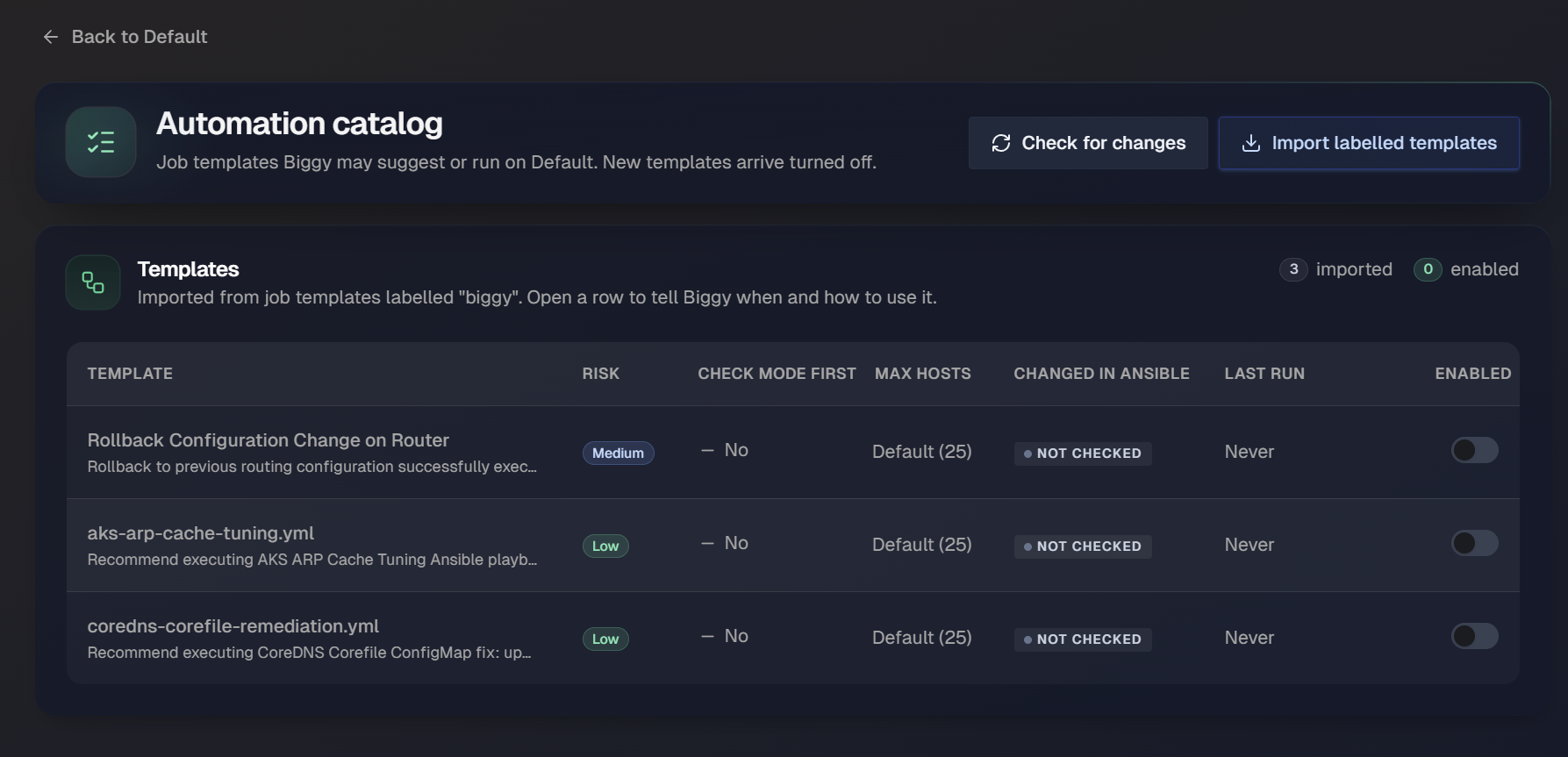
To manage the automation catalog:
On the instance page in the Remediation Settings section, click Manage automation catalog.
In the Automation catalog page, click Import labelled templates to import the job templates that carry the catalog label.
To check whether imported templates have changed in Ansible, click Check for changes. The Changed in Ansible column shows the result for each template.
Click a template row to open its settings, then populate the following fields:
Field
Description
When to use
Describe when Biggy should suggest this template. Biggy reads this text to decide when to suggest the template. (For example,
If the recent configuration change is confirmed as the cause of the outage.)Risk
Select the risk level of the template. The risk level sets how much approval a run needs.
Give up watching after (minutes)
Incident Assistant stops following a job that runs longer than this time. The default value is
120.Check mode first
Enable this toggle to start runs in Ansible check mode, so the approver sees what would change before anything does.
Reversible
Enable this toggle if the change can be undone by running the template again or by a known rollback.
Max hosts (Optional)
The maximum number of hosts for this template. Leave this field empty to use the instance default.
Tags (Optional)
Enter comma-separated tags to help Biggy group related templates. (For example,
web, nginx, restart)Inputs
Decide who supplies each survey or prompted input when Incident Assistant launches this template.
Click Save.
In the Automation catalog page, click the Enabled toggle for each template Biggy may suggest or run.