Primary alert configuration
Adjust primary alert criteria to better meet the needs of your organization. Primary alert criteria applies globally to an organization.
Limited availability
This feature has limited availability. If you are interested in enabling this functionality for your organization, contact your BigPanda account team.
Primary Alert Criteria
When multiple alerts are correlated into a single incident, a single alert is chosen as a primary alert. This alert is used in downstream automations and collaboration tools using Dynamic Variables, and it can be added as an incident tag. Every incident must have a primary alert.
Primary alert criteria is made up of selection criteria and filter conditions.
Selection criteria selects a single alert from all correlated alerts in the incident. Selection criteria will apply the first criteria, then the fallback. Only alerts that match all filter conditions will be selected as potential primary alerts.
For example: Latest start time AND Highest severity AND (filter)prod = test will first filter out any alerts that do not have the prod tag = test. Next, it will identify the alert with the latest start time. If there are multiple alerts with the same start time, it will then select the alert with the highest severity from that subset.
By default, the primary alert is the alert with the:
Highest severity
Earliest time correlated into the incident
Not in maintenance
View primary alert criteria
You can view and edit primary alert criteria via the General Settings page.
Click the Settings Gear. On the left navigation, under Administration, select General Settings.
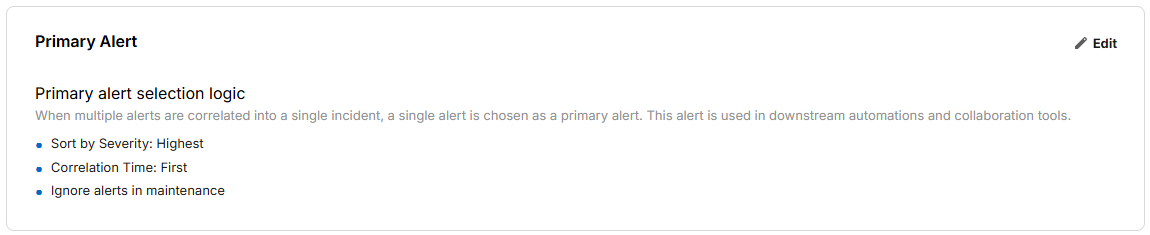
Primary Alert details
Update primary alert criteria
Click Edit to adjust primary alert criteria.
Primary alert may change
As new alerts are correlated with an incident, the primary alert may change.
All incidents must have a primary alert
Every incident must have a primary alert. If the primary alert criteria does not match any alerts in the incident, the system will use the default primary alert logic.
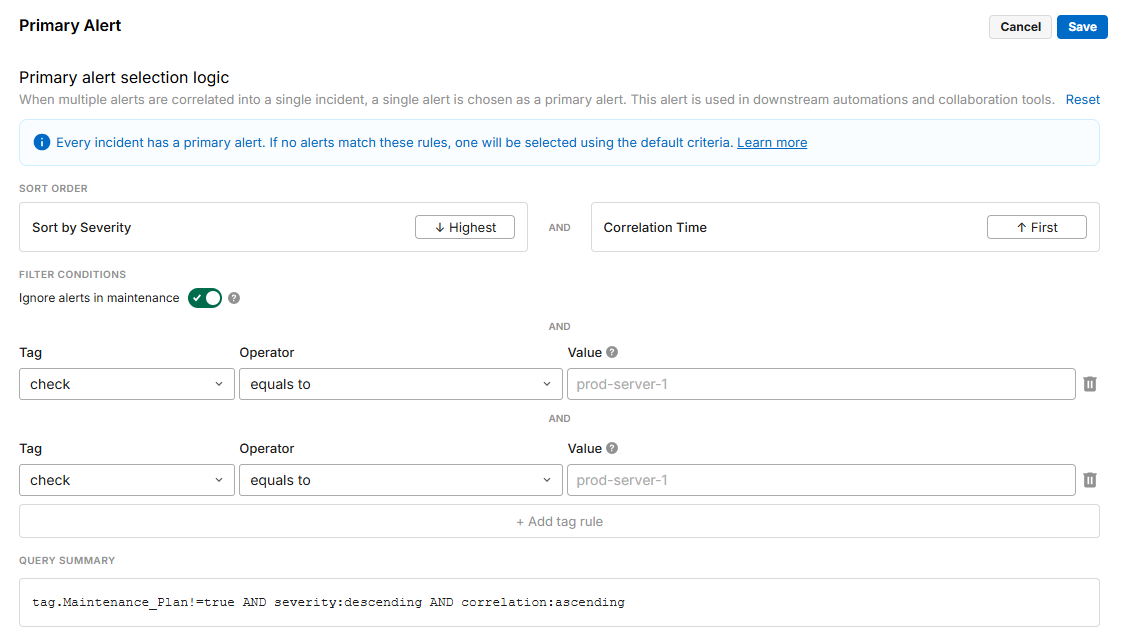
Primary alert selection criteria
Sort order: Choose whether the alert with the highest or lowest severity will be selected, and whether the secondary sort is based on the earliest or latest time the alert was correlated into the incident.
Filter conditions: Add filters to limit which alerts will be evaluated as potential primary alerts.
Exclude alerts currently in maintenance: When toggled on, alerts marked for maintenance will be excluded from consideration as primary alerts.
Alerts that were initially marked for maintenance may be considered after leaving maintenance, depending on the post-maintenance behavior settings.
Tags: Add additional filters to only consider alerts that meet specific tag conditions. Multiple tag filters can be added.
Tag name: Select the name of the tag from the list.
Operator: Select
equals toif there is a single value that should always be matched. SelectIs one ofto add multiple values that can be matched.Value: Enter the value that primary alerts must match to. For
Is one oflists, enter values in order of importance, as first match rules apply.
Additive logic
All primary alert criteria applies to all incidents. If an alert matches one tag filter, but not another, that alert will be excluded.
Selection logic will populate at the bottom of the editor to summarize the full logic.
Click Save to apply the new selection criteria to all future incidents, Reset to return the criteria to default settings, or Cancel to discard changes.