On-Call migration
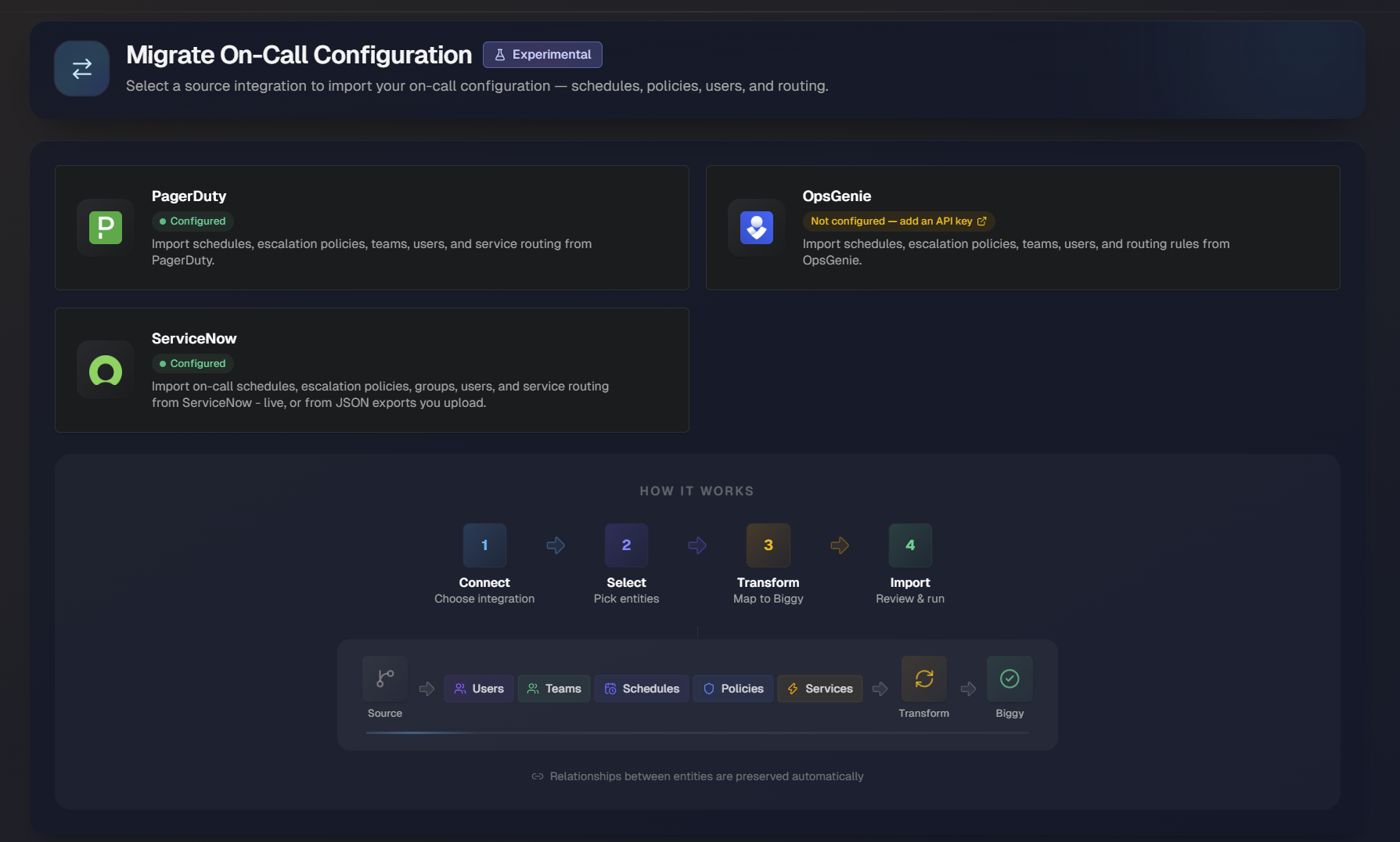
Move your existing on-call setup from PagerDuty, OpsGenie, or ServiceNow into Biggy On-Call. Use the Migrate page to import users, teams, schedules, escalation policies, services, and routing, and keep the relationships between them intact.
The migration process is the same for each source integration. Migrate everything at once with a full migration, or bring over a single service, team, schedule, or policy. After an import, use scheduled syncs to keep Biggy up to date, or run a dual-run comparison to confirm that both tools page the same people.
Experimental
On-Call migration is an experimental feature. Functionality and page layout may change before general availability.
Key Features
Import on-call configuration from PagerDuty, OpsGenie, or ServiceNow with one consistent process.
Migrate a full configuration, or single services with its complete chain of escalation policies, schedules, responders, and routing.
Preserve relationships between users, teams, schedules, policies, and services automatically.
Watch migration progress live, or navigate away while the migration continues in the background.
Update users, teams, schedules, or escalation policies daily with scheduled syncs.
Compare who would be paged in the source tool and in Biggy at the same point in time.
Supported source integrations
On-Call migration supports three source integrations.
Source | What it imports |
|---|---|
PagerDuty | Schedules, escalation policies, teams, users, and service routing. |
OpsGenie | Schedules, escalation policies, teams, users, and routing rules. |
ServiceNow | On-call schedules, escalation policies, groups, users, and service routing. Import from a live ServiceNow instance, or upload JSON exports. |
Each source tile on the Migrate On-Call Configuration page shows its connection status.
A source must show the Configured status before you can migrate from it. If a source shows Not configured — add an API key, click the link on the tile to add an API key for that integration.
How migration works
Every migration follows the same four stages, regardless of the source integration:
Connect: Choose the source integration.
Select: Pick the entities to migrate.
Transform: Biggy maps the source entities to the Biggy data model.
Import: Review the migration and run it.
Relationships are preserved
Biggy keeps the relationships between entities automatically. For example, a migrated escalation policy still points to the same schedules and responders it used in the source tool.
Migrate a single service, team, schedule, or policy
Migrate one entity at a time to move your configuration in stages, or to test a migration before running it in full.
On the Migrate from page for the source integration, select the tab for the entity type: Services, Teams, Schedules, or Policies.
In the search field, enter at least two characters, then press Enter or click Search.
Select the entity from the results and click Migrate.
Run a full migration
A full migration imports all selected entity types from the source integration in a single run. To run a full migration:
In the left navigation pane, under On-Call, click Migrate.
On the Migrate On-Call Configuration page, click the tile for the source integration. The Migrate from page opens.
On the top right of the page, click Full Migration.
In the Full Migration modal, under Entity types, select the entity types to migrate. To clear every optional entity type, click Deselect all.
To create Biggy services for source services that don't have a match yet, select Auto-create services.
Click Review.
Review the migration summary and start the migration.
Monitor migration progress
When a migration starts, a progress panel appears at the top of the Migrate from page. Keep the page open to watch live progress. If you navigate away, the migration continues in the background and the panel reappears when you return.
The progress panel shows:
Status and duration: The migration status, for example Running, and how long the migration has been running.
Overall progress: A progress bar with the percentage complete.
Entity type status: The status of each entity type, for example Done, Waiting, In progress, or Failed.
Errors: A summary of failed phases with the error returned by the source integration. For example
PagerDuty request failed: 404 Not Found.
If an entity type fails, the migration continues with the remaining entity types.
To stop a running migration, on the top right of the progress panel, click Cancel.
View previous migrations
The Previous migrations section lists full, scheduled, and single-entity migrations for the source integration, with the newest first. In progress and finished runs are kept for 30 days.
Each run shows:
Status: For example, Completed.
Migration type: For example, Full Migration.
Start time and duration: When the run started and how long it took.
Results: The number of entities created, updated, and skipped, plus the number of warnings and errors.
To follow a run's progress or review its summary and warnings, on the right side of the run, click View details.
Set up scheduled syncs
Scheduled syncs re-import users, teams, schedules, or escalation policies from the source integration every day at a set time. Use scheduled syncs to keep Biggy aligned with changes your team continues to make in the source tool during the transition.
Scheduled sync limits
Each source integration supports up to two scheduled syncs, each set to a different time. Services and routing are never part of a scheduled sync. To update services or routing, run a new migration.
On the Migrate from page for the source integration, scroll to the Scheduled syncs section.
Click Add scheduled sync.
In the What to sync section, select the entity types to sync.
Select the Time and Time zone of when the sync should occur.
Enable Add new users to create a Biggy account for every user in the on-call source who has none (matched by email).
Click Save schedule.
Each scheduled sync run appears in the Previous migrations section.
Run a dual-run comparison
The Dual-Run Comparison checks who would be paged in the source tool and in Biggy On-Call at a specific point in time, so you can identify overlaps and differences. The comparison uses the identity map from the latest completed migration. It's read-only and doesn't change either tool.
On the Migrate from page for the source integration, scroll to the Dual-Run Comparison section.
(Optional) Under Compare at, pick a date and time. If you leave the date empty, the comparison uses the current time.
From the Timezone drop-down menu, select the time zone for the comparison. The default is UTC.
Click Run comparison.
The results show a summary of match counts, the compared timestamp in UTC, and the migration job that supplied the identity map. Results are grouped by escalation plan and notification rules. Each row shows the source entity, its Biggy counterpart, and a result status. Expand a row to see the details.
Result status | Meaning |
|---|---|
Match | Both tools page the same responders. |
Partial match | Some responders match, and some differ. |
Mismatch | The tools page different responders. |
Unresolvable | Biggy couldn't resolve who would be paged for this entity. |
To download the results, click Export JSON.