On-Call Incidents
The Incidents page is where you open, track, and resolve on-call incidents. Pages you sent from the incidents workflow are grouped under an incident, so responses to the same problem share a timeline.
The page has two tabs, Incidents and Engagements. Click New Incident to open an incident and page responders in one step.
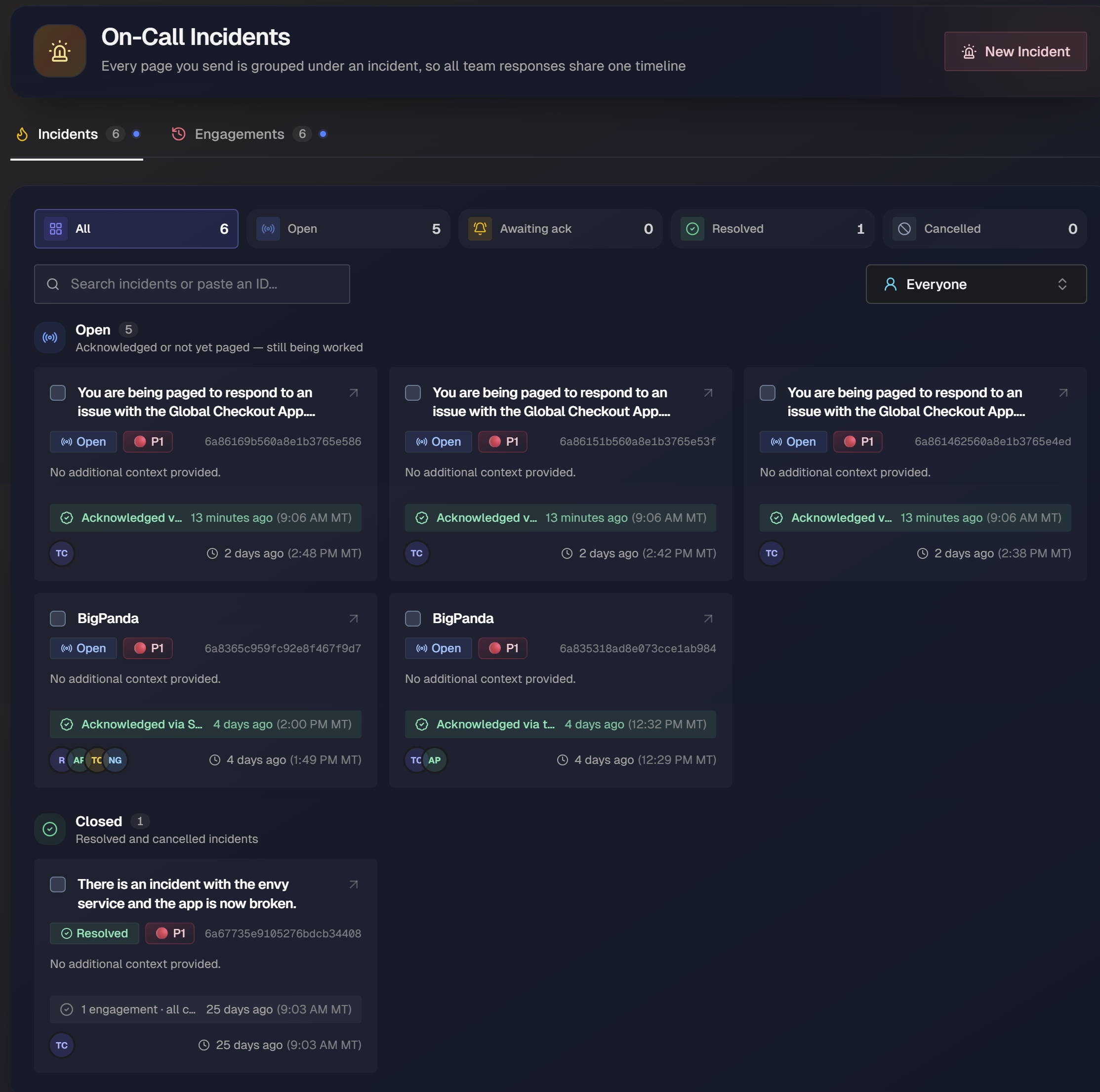
The page is located in the web app at Operate > On-Call > Incidents.
To view incidents you need the Escalations Incidents (View) permission. To create incidents and drive their lifecycle, you need Escalation Incidents (Edit).
Key features
One timeline per incident: All pages for a problem are grouped under a single incident, so all team responses share one chronological timeline.
Two views: Track coordination on the Incidents tab and individual pages on the Engagements tab.
Filter and search: Narrow either tab by status and responder, or paste an ID to jump straight to a record.
Page from one form: Open an incident and page teams, services, or specific responders, each on its own escalation path.
Manage the incident lifecycle: Acknowledge, resolve, cancel, and reopen incidents individually or in bulk. Track each page wave through its escalation path and delivery attempts.
Incidents and engagements
Pages are categorized in two methods:
An incident is the coordination root. It groups all pages related to a single problem and has its own lifecycle: resolve, cancel, or reopen.
An engagement is a single page sent to one or more targets. One acknowledgment covers the entire engagement, regardless of how many people it reached.
Every incident and engagement has a copyable ID that matches its URL, so records are easy to reference and search.
Incidents tab
The Incidents tab is a triage board. Open incidents are listed first so you can focus on what still needs work.
At the top of the tab, status filters show a count for each incident state. Select a filter to narrow the list.
All: Every incident.
Open: Incidents that are acknowledged or not yet paged, and still being worked.
Awaiting ack: Incidents that have not yet been acknowledged.
Resolved: Incidents that have been resolved.
Cancelled: Incidents that were canceled.
Below the filters, use the search field to search incidents or paste an ID. Use the responder menu to show incidents for everyone or for a specific responder.
Incidents are grouped into Open, for incidents that are acknowledged or not yet paged and still being worked, and Closed, for resolved and canceled incidents.
Each incident card shows the source, status, priority, incident ID, any additional context, acknowledgment method and time, responders involved, and when the incident was opened. Select a card to open its detail page.
Acknowledge or resolve in bulk
To act on several incidents at once:
On the Incidents tab, select the checkbox on each incident to action, or select Select all to select every incident in the list.
Select Acknowledge or Resolve to act on the selection.
To start over, select Clear.
The Acknowledge and Resolve buttons show how many of the selected incidents the action will apply to.
Engagements tab
The Engagements tab is the org-wide page history: a searchable history of pages, their recipients, delivery attempts, and acknowledgments. Status filters at the top show a count for each state. You can search engagements, paste an ID, or filter by responder.
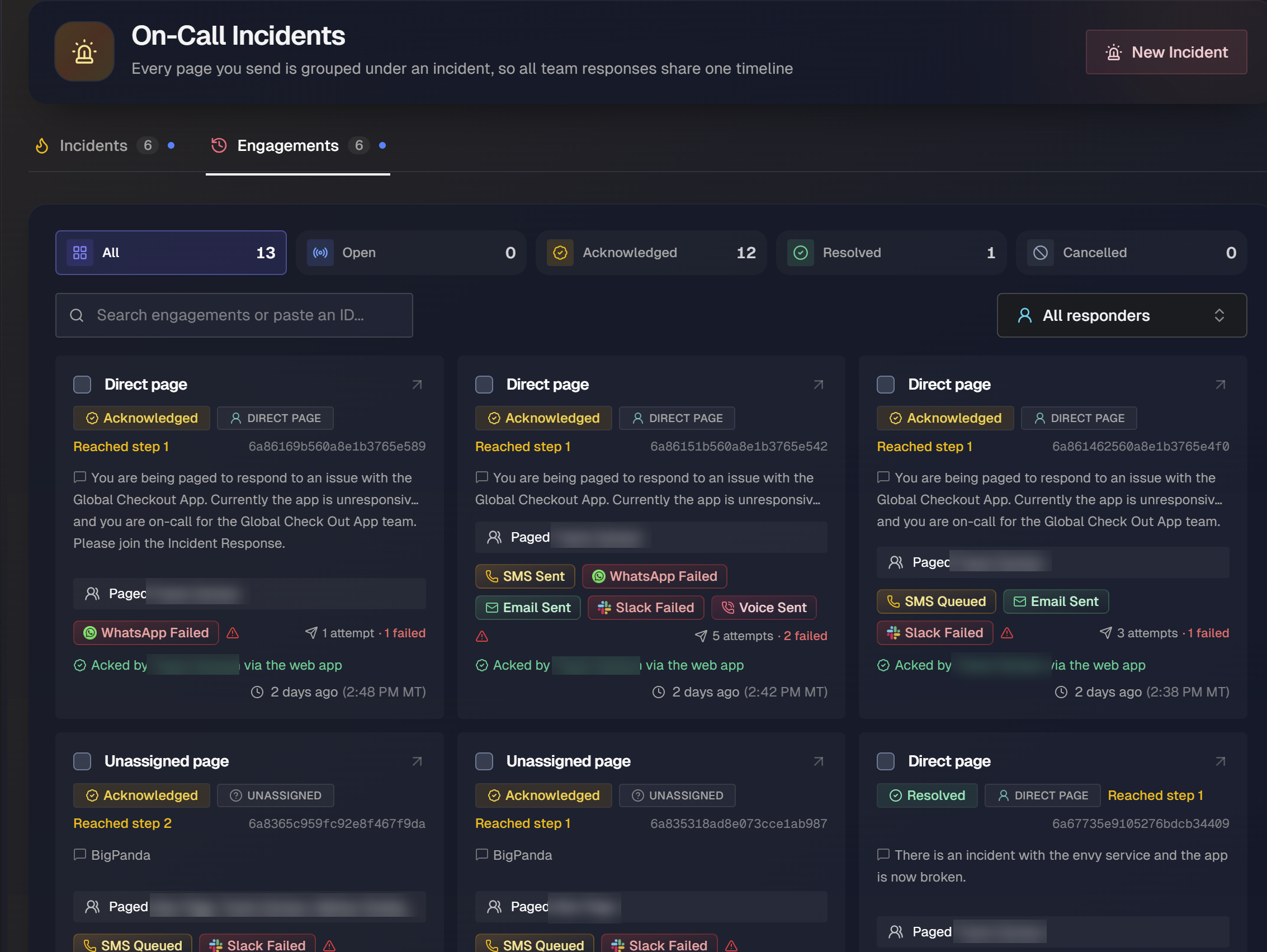
Each engagement card shows:
Type and assignment: Whether the page was a direct page, a team page, or an unassigned page.
Status: The engagement's current state, such as acknowledged or resolved.
Reached step: The escalation step the page reached.
Targets: Who the page was sent to.
Delivery: A per-channel delivery state for each attempt, plus a count of attempts and failures.
Acknowledgment: Who acknowledged the page and how, with a timestamp.
Biggy On-Call delivers pages across email, SMS, WhatsApp, Slack, Microsoft Teams, and voice.
Each attempt shows its channel and a delivery state such as Queued, Sent, Delivered, or Failed. Select an engagement to see its delivery attempts and full event timeline. Engagements are grouped under their incident.
To acknowledge or resolve several engagements at once, select each engagement or Select all, then select Acknowledge, Resolve, or Clear.
Open an incident and page responders
Select New Incident to open a new incident, describe what is happening, and page every party that should respond.
To open an incident and page responders:
Select New Incident.
In the Message for responders field, describe what is happening, the impact, and what you need from responders. (Optional) To start from standard content, select a template under Load a message template first. This message becomes the incident description and reaches each page's responders unless a page customizes it.
Enter an Incident title and set a Priority.
Under Who should respond?, configure the first page. For its target, select one of the following:
Teams: Page one or more teams. Each team follows its own escalation policy and one acknowledgment covers the page.
Services: Use service routing to find the right escalation policy.
Responders: Contact specific people directly.
To skip escalation delays and reach everyone at once for a major incident, turn on Call all.
To send different content for this page, turn on Custom message for this page, or attach a template. Otherwise, the page sends the shared message configured for the incident.
To page another party on a separate incident and timeline, select Add another page. Each page is a separate engagement and requires its own acknowledgment.
Under Incident Options, select options that apply to every page in this incident. The following options are available:
Incident bridge: Every page shows the selected bridge as Join Bridge Now, ahead of any service's standing bridge. Select the Join link, Dial-in number, and Chat channel.
Notify channels: Select additional channels to post specific incident activities.
Review the Incident summary panel on the right, then select Create incident & send page. To open the incident without paging anyone, select Create without paging.
Pages are sent immediately
When you click Create incident & send page, the incident opens, and its pages are sent immediately. To create the incident without notifying responders, click Create without paging.
Incident detail page
The incident detail page is the action-hub for a single incident. The header shows the incident title, status, priority, any additional context, the copyable ID, the lifecycle source, and when the incident was opened.
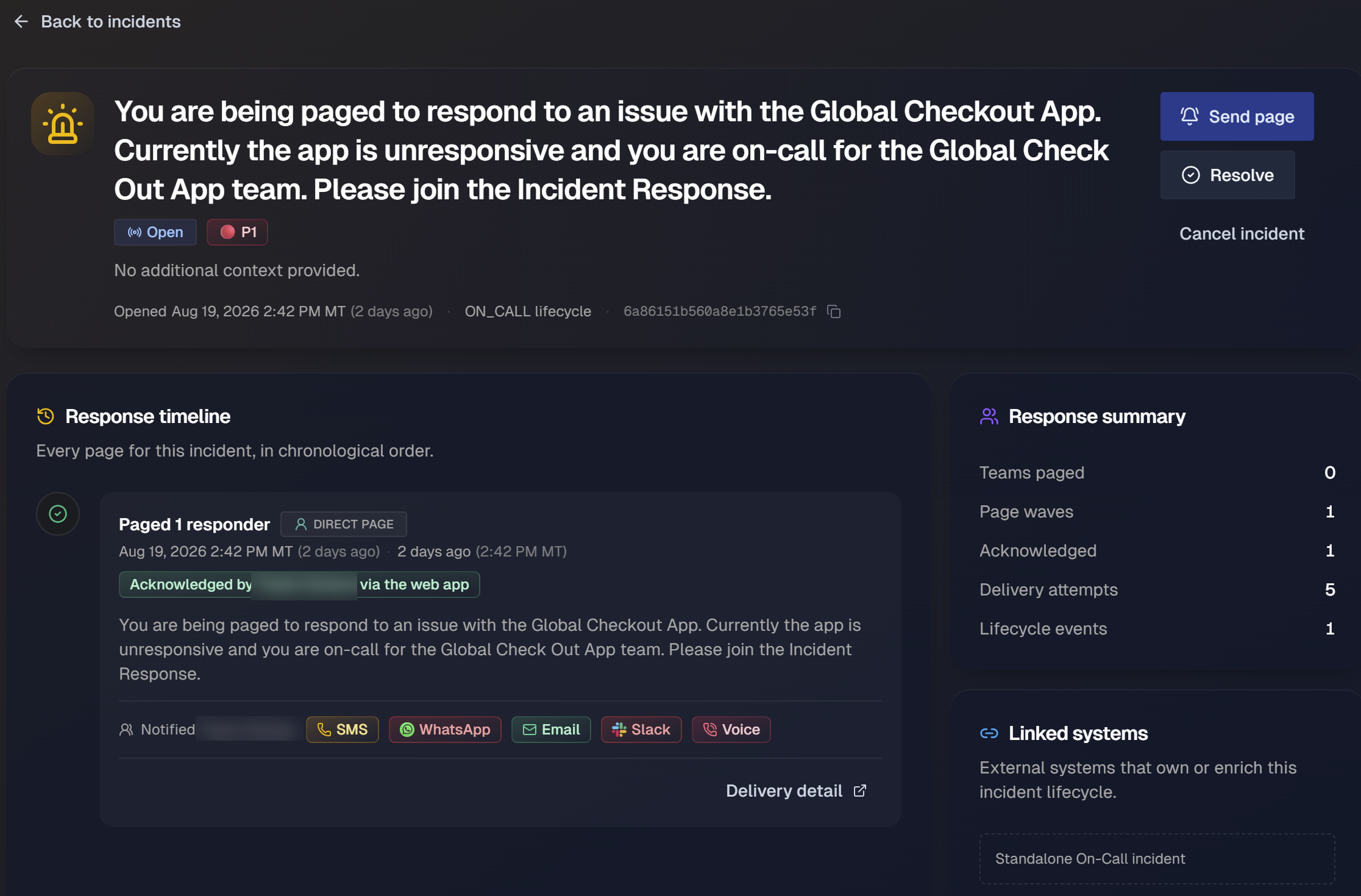
From the header:
Send page: Add another page to the incident.
Resolve: Resolve the incident. Resolving also closes the incident's open pages.
Cancel incident: Close the incident without resolving it. Canceling also closes its open pages.
Reopen: Reopen a resolved incident.
The Response timeline lists every page for the incident in chronological order. Each page wave shows its target, assignment, the acknowledgment method and time, the message that was sent, and the escalation ladder: including which steps fired, who was notified, and on which channels.
Steps that were never needed because someone acknowledged first are marked, and the timeline notes when escalation stopped because the engagement was acknowledged. Select Delivery detail to open the engagement and inspect its attempts.
The Response summary lists totals for the incident: teams paged, page waves, acknowledgments, delivery attempts, and lifecycle events. The Linked systems section lists any external systems that own or enrich the incident lifecycle. An incident with no linked system is shown as a standalone On-Call incident.
One acknowledgment stops escalation
A single acknowledgment covers an entire page wave and stops its escalation. Later steps are skipped once any recipient responds.
Send another page
To page an additional party on the same incident and timeline:
On the incident detail page, select Send page.
In the Page responders panel, under Who to page, select a Team, a Service, or specific Responders.
Select the target, for example the teams to page.
To reach everyone at once, skipping escalation delays, turn on Call all.
To reuse standard content, select a Notification template, then edit the Responder message.
Select Send page.
Each team you page escalates on its own policy, but one acknowledgment from any of them covers the page. To require a separate acknowledgment per team, send a page for each team.
Engagement detail page
The engagement detail page shows details about a single page wave. The header shows the page type, status, assignment, current escalation step, the copyable ID, and Acknowledge and Resolve actions. Select View incident to open the incident the engagement belongs to.
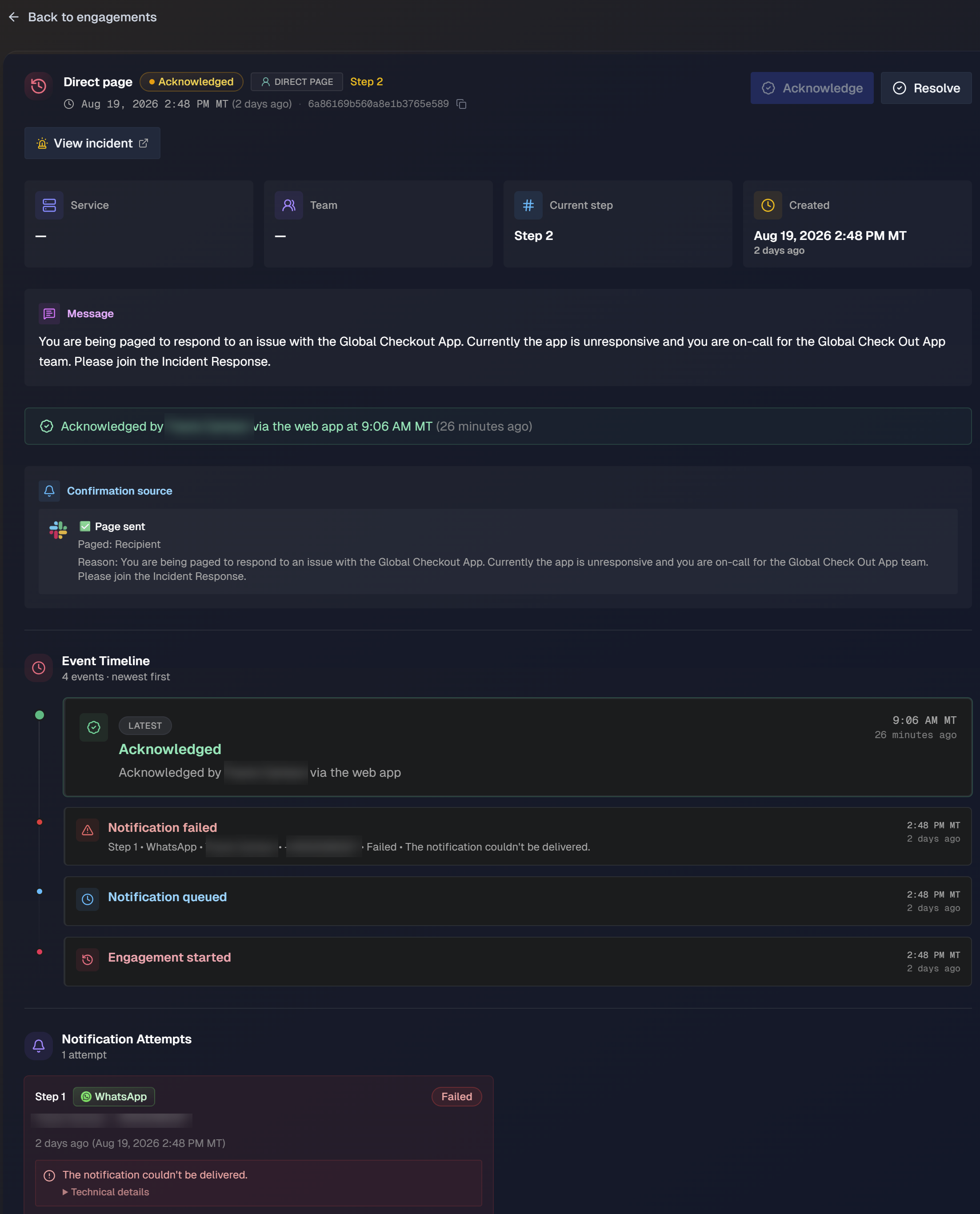
The page displays the service, the team, the current step, and when the engagement was created, followed by the message that was sent. Once acknowledged, the page shows who acknowledged it and how.
Event Timeline: Every lifecycle event, newest first, such as when the engagement started, when notifications were queued, when a notification failed, and when the engagement was acknowledged. A failed event names the step, channel, recipient, and reason.
Notification Attempts: Each attempt by step and channel, with the recipient, the delivery state, and a timestamp. Expand the technical details for a failed attempt to see why delivery failed.