New User Management page
Limited release
The new User Management page is currently available in a limited release.
The User management page is the central place to invite teammates, assign roles, and manage active sessions across your BigPanda organization. From a single view, you can see everyone in your organization, review the roles assigned to each person, and open an individual profile to inspect their activity.
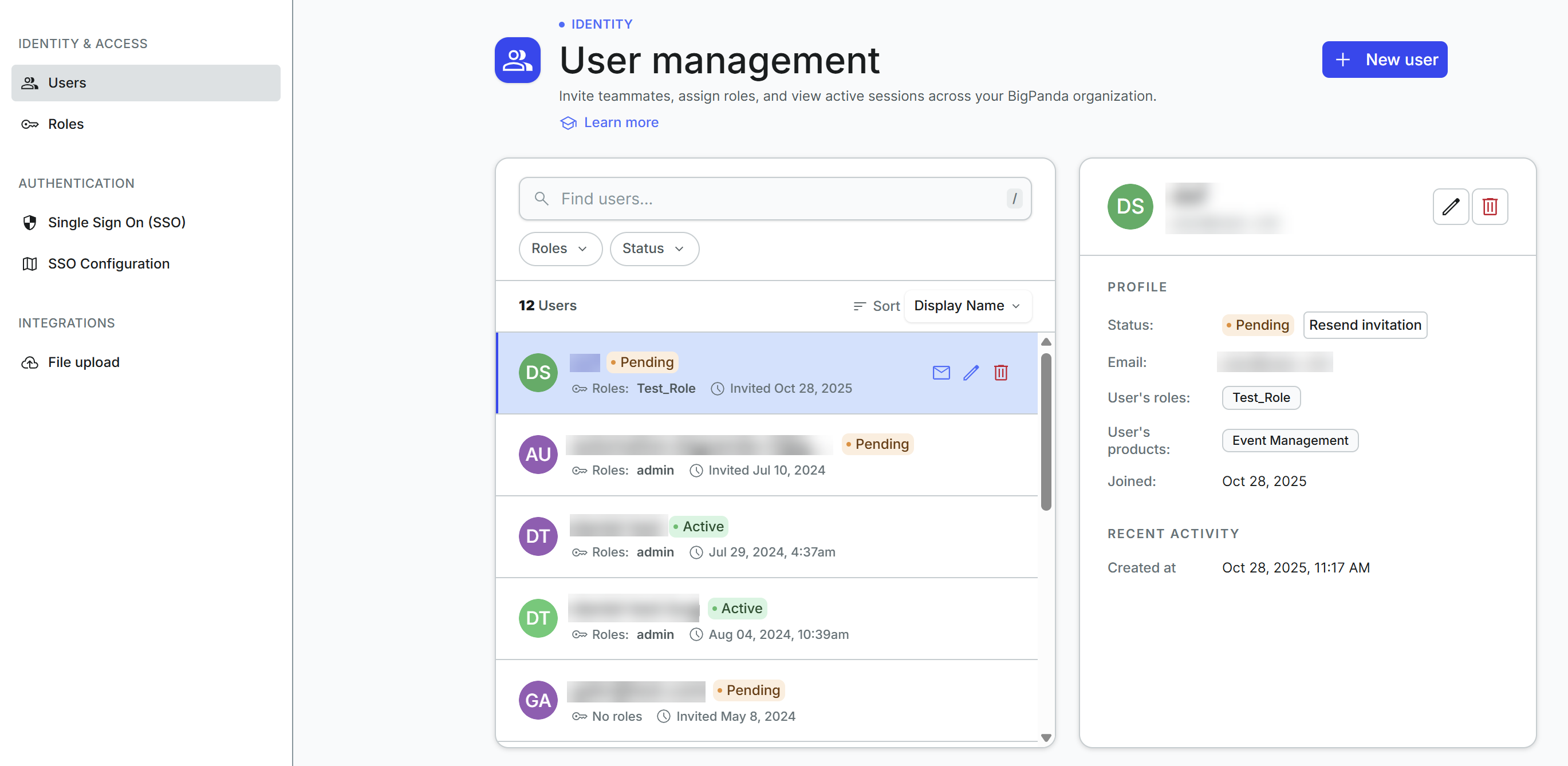
Access the User Management page by clicking your Profile and navigating to Administration > Users.
Relevant Permissions
Roles with the following permissions can access the list of users in the BigPanda Settings:
Role Name | Description |
|---|---|
User Management | View, add, edit and delete Users in BigPanda Settings and the SCIM Users API. |
Permission access levels can be adjusted by selecting either View or Full Access. To learn more about how BigPanda's permissions work, see the Roles Management guide.
Key Features
View every user in your organization, along with their status and assigned roles.
Search, filter, and sort the user list to quickly find a specific person.
Open a user to view their profile, roles, and recent activity.
Invite new teammates to your organization.
Access user management
To open the User management page:
In the top-right corner of any BigPanda page, click your profile icon or name.
Select Administration.
Select Users.
Manage user accounts
On the User Management page, administrators can manage all user accounts in your BigPanda organization. You can invite new users, resend invitations, assign roles, and add or adjust important user information such as email addresses and phone numbers.
Find and filter users
The user list displays everyone in your organization. The total number of users appears above the list.
Use the following controls to narrow the list:
Find users: Enter a name in the search field to filter the list as you type.
Roles: Filter the list to users who have a specific role assigned.
Product: Filter the list to users with access to a specific product.
Status: Filter the list by user status, such as Active or Pending.
To change the order of the list, use the Sort drop-down menu. By default, the list is sorted by Display Name, but you can also sort by Created or Last Seen date.
Each row in the list shows:
Status: Whether the account is currently active, shown with a colored indicator.
Display name: The name shown for the user across BigPanda.
Date: A timestamp for when the account as last active.
Roles: The roles assigned to the user.
View user details
Click any user in the list to open their details in the panel on the right-hand side of the page.
The details panel shows the following information:
Name
Email address
Status (Active or Pending)
User's roles
User's products
Joined date
Last seen date
Account creation date
Invite a new user
To invite someone to your organization:
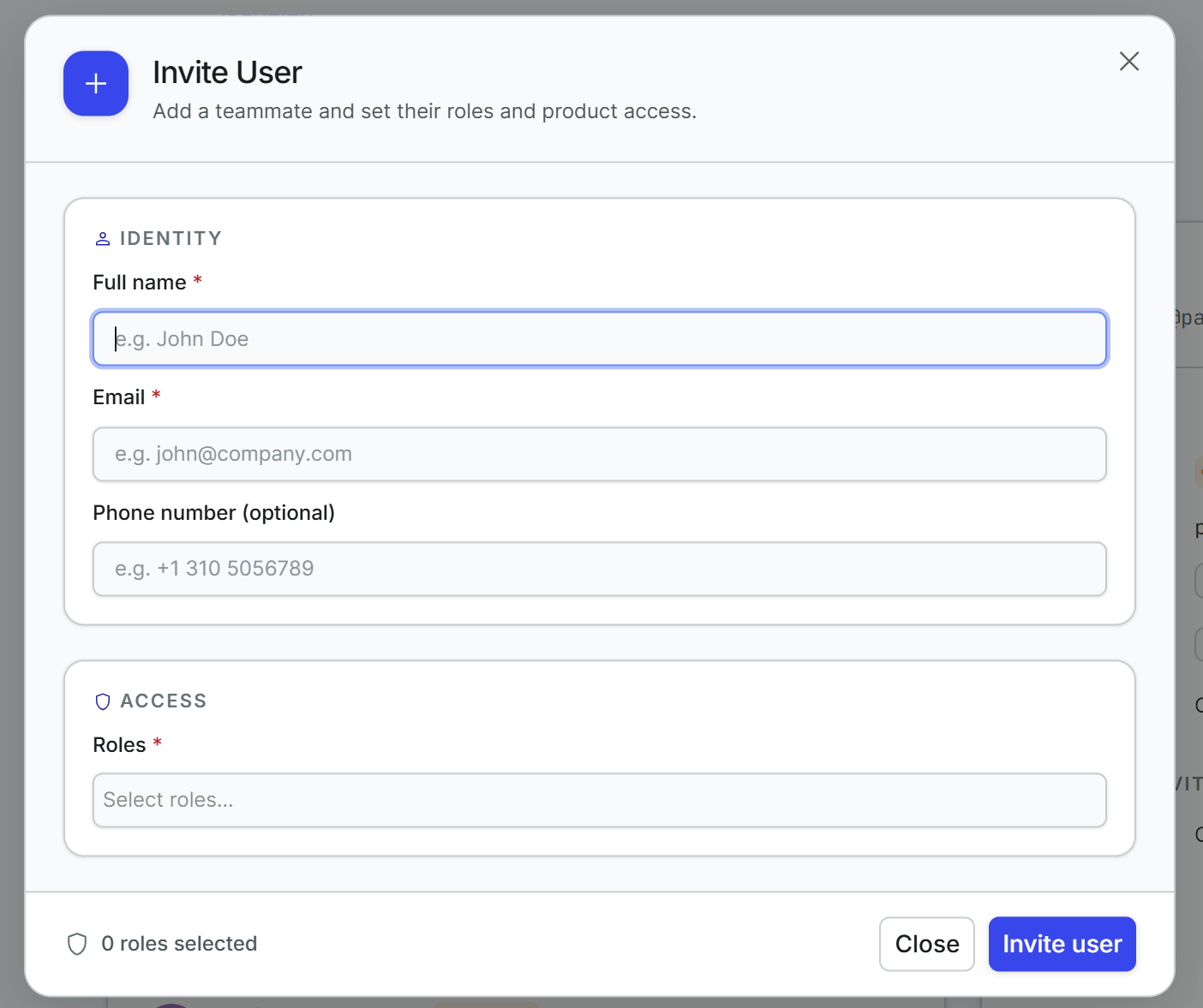
On the User Management page, click + New User.
Populate the following information:
Field
Description
Full Name
Name as it appears for the user in BigPanda. For example, when leaving a comment or manually sharing an incident.
Email
Address where any emails from BigPanda are sent, including the invitation to join your BigPanda organization and any shared incidents. This field is not currently editable. Contact BigPanda support if you need to make changes to a user's email address.
Roles
Access level and permissions that the user has in BigPanda. For more information on the available roles, see Roles and Resource Permissions.
Phone
(Optional) Phone number for incidents shared via SMS. Note that phone numbers must use the format
+10987654321.Click Invite User. An invitation is sent to the user at the email address you specified. The recipient must click the link and either set a password and security image (if users log in directly to BigPanda) or log in through your SSO provider (if SSO is enabled).
Active period
Invitation links remain active for 12 hours.
Pending users
A new user appears as pending until they accept the email invitation and set up the required information.
Resend an invitation
For a pending user, click the Resend Invitation icon to send another invitation to the email address listed in the user's account. The recipient must click the link to set a password and security image.
Edit user details
You can update user information and assign roles to existing users. Select the user and click the Edit icon. You can then modify the existing information or add new information.
Field | Description |
|---|---|
Full Name | Name as it appears for the user in BigPanda. For example, when leaving a comment or manually sharing an incident. |
Address where any emails from BigPanda are sent, including the invitation to join your BigPanda organization and any shared incidents. This field is not currently editable. Contact BigPanda support if you need to make changes to a user's email address. | |
Roles | Access level and permissions that the user has in BigPanda. For more information on the available roles, see Roles and Resource Permissions. |
Phone | (Optional) Phone number for incidents shared via SMS. Note that phone numbers must use the format |
Delete a user
You can delete users from your BigPanda account by locating the user and clicking the Delete icon.
Deleting a user deactivates their user account. A deleted user cannot log in to BigPanda; however, the user's activity history (ie: commenting on an incident or sharing an incident with another user) is preserved.
In an organization with SSO Just-in-Time enabled, a user deleted from BigPanda is not recreated when the user logs in with their SSO - they must be manually reactivated by an administrator.
Activate Deleted Users
Only active users can log in to your BigPanda organization. You can remove access for users by deleting their accounts. You can also activate a previously deleted account.
In the User Management page, click Invite a User.
Enter the details of the user you want to activate including email address, and click Invite User.
A tooltip will appear, click Reactivate.
Reactivation Prompt
Resend invitations
If you activated an account for a user who never completed the sign-up process, you may need to resend the invitation for the user to gain access to your BigPanda account.