Integration Studio
Integration Studio lets you build custom outbound integration workflows that send incident data from BigPanda to your external tools. Instead of manually configuring webhooks and writing JSON payloads, you describe what you want the integration to do and Integration Studio generates a structured workflow that you can visually edit, test, and deploy.
Use Integration Studio when you need to send incident data to external systems such as ticketing platforms, collaboration tools, or custom webhooks, especially when your workflow requires conditional logic, data transformation, or authentication.
Key Features
AI-assisted workflow generation from plain-language descriptions, with a visual drag-and-drop editor.
Conditional routing and per-item loops based on incident attributes, notification types, and arrays such as alerts.
Data transformation using templates and dynamic variables.
Built-in OAuth authentication and organization-wide Secure Parameters, so credentials never sit in the workflow.
External ID tracking and JSON import/export for linking records and versioning configurations.
Node types
Integration Studio includes multiple node types. Each node requires specific inputs and can publish outputs as workflow variables that downstream nodes can reference.
Actions
Action nodes trigger messages and requests to external tools such as OAuth providers, logging, and the notification destination.
HTTP Request

HTTP Request
Sends an HTTP request to an external endpoint. This is the node that talks to the external system.
Configuration
Field | Description |
|---|---|
Name | A descriptive name for the node. |
Method | The HTTP method. One of |
URL | The target endpoint. |
Headers | Request headers as a JSON-formatted string. |
Body | The request body. May reference workflow variables. |
Template Transformation | When enabled, the URL, headers, and body are processed as templates before the request is sent, so you can inject variables from earlier nodes. |
Output Mapping | The node publishes the response in a specific mapped format so downstream nodes can read it. Identify the requirements of downstream nodes to match outputs to the input or form fields. |
Outputs
The node publishes the response so downstream nodes can read it:
response.body: the response body.response.statusCode: the HTTP status code.
Map either to a named variable (for example createResponse) for later use.
Requests time out after 60 seconds. If a request fails with a server error, Integration Studio retries it up to two more times, so a failing endpoint takes at most three minutes before the node reports an error.
When a request fails, the error message includes the URL the request was sent to after template rendering. Use it to confirm that variables in the URL field resolved to the endpoint you expected.
Keep endpoints responsive
A slow endpoint delays every share routed through the workflow, not just the one being processed. If your endpoint may be slow, prefer an approach that returns quickly and does its work asynchronously.
OAuth

OAuth
Obtains a bearer token from an OAuth 2.0 provider so downstream HTTP requests can authenticate.
Configuration
Field | Description |
|---|---|
Name | A descriptive name for the node. |
Client ID | Your OAuth client identifier. |
Client Secret | Your OAuth client secret. |
Token URL | The endpoint that issues the token. |
Outputs | The node publishes the response in a specific mapped format so downstream nodes can read it. Identify the requirements of downstream nodes to match outputs to the input or form fields. |
Outputs
Map response fields to named variables. Typical mappings:
access_token:{{response.access_token}}token_type:{{response.token_type}}
A downstream HTTP Request node can then reference {{access_token}} in its Authorization header.
Logger
Writes a message to the workflow execution log. Use a Logger node to record what a workflow did at a given point, so you can confirm which path executed and what values were in play.
Confirm which branch of a flow control node was taken
Record the value of a variable partway through a workflow
Capture the response from an HTTP request node for later review
Configuration
Field | Description |
Message | The text to write to the log. Supports template variables, so you can include values from the share payload or from earlier node outputs. |
Level | The severity of the entry. Log levels do not change behavior, but are used for filtering. One of:
|
Example message:
Incident {{incident.id}} routed to the Jira create endpointBest practice: log individual fields
If you log a large object, such as a full HTTP response body, the stored entry may be cut short. Log the specific fields you need instead.
Logger nodes do not send data outside BigPanda and do not affect the workflow's execution path. A Logger node always succeeds and passes control to the next node. The level you choose does not change how the workflow runs and an error level does not stop execution.
Logger + Test Mode
During a test run, Logger nodes write test results to the canvas instead of the execution log. Place a Logger node where you want visibility into an intermediate value, then read its output directly in the per-node results.
Logic
Logic nodes add deterministic rules based on specific payload variables.
Flow Control

Flow Control
Routes workflow execution based on the value of a single source variable, similar to a switch statement.
Configuration
Field | Description |
|---|---|
Name | A descriptive name for the node. |
Variable Path | The variable or JSON path to evaluate (for example, |
Match Values | A list of |
Common uses
Route by event type (for example,
incident#newvs.incident#updated).Branch on severity, environment, or tag values.
Skip processing entirely for certain event types by leaving the outgoing line unwired.
For Each

For Each
Runs a sequence of nodes once for each element of an array, such as every alert in an incident. Use it when a downstream system requires one call per item rather than per incident.
Configuration
Field | Description |
|---|---|
Name | A descriptive name for the node. |
Source array | The variable that holds the array to loop over (for example, |
Item variable name | The name of each element is available inside the loop (for example, |
Connections
A For Each node has two outgoing connection points, and an optional error path:
Bottom: connects to the first node of the loop body. The body runs once per element.
Right: connects to the node that runs after every iteration has finished.
Error path: added from the node's three dots menu. Runs if any iteration fails, or if the source array does not resolve to an array.
Execution behavior
The item variable is available to every node in the loop body, and is replaced with the next element on each iteration.
If the array is empty, the body is skipped, and the workflow continues from the right connection.
If the source variable does not exist or resolves to a value that is not an array, the node fails and routes to its error path. The failure message names the path and the type it resolved to. Without an error path wired, the workflow stops.
If a node inside the body fails, the loop stops at that iteration and routes to the For Each node's error path.
Example
To post one Slack message per alert:
Add a For Each node with Source array
{{incident.alerts}}and Item variable namecurrentAlert.From the bottom connection, add a Transform node whose template references
{{currentAlert.description}}and{{currentAlert.status}}.Connect the Transform node to an HTTP Request node that posts the payload.
From the right connection of the For Each node, connect the node that should run after all alerts are sent, or leave it unwired to end the workflow.
Loop size affects share time
Each iteration runs to completion before the next one starts, so a For Each node over 200 alerts makes 200 sequential external calls. Every share routed through the workflow waits for the loop to finish. Filter the array upstream, or point the loop at a fast endpoint.
Data
Data nodes act on the payload directly, transforming the format or adding information such as a persistent ID.
Transform

Transform
Reshapes data into the format a downstream node needs, using Handlebars-style templates.
Block Helpers
Templates support standard Handlebars block helpers, including {{#if}}, {{#unless}}, {{else}}, and {{#each}}. Use {{#each incident.alerts}} inside a single Transform node to build one payload that lists every alert; use a For Each node when each element needs its own external call.
Configuration
Field | Description |
|---|---|
Name | A descriptive name for the node. |
Template String | A template string that produces the transformed output. References any workflow variable using |
Outputs | The node publishes the response in a specific mapped format so downstream nodes can read it. Identify the requirements of downstream nodes to match outputs to the input or form fields. |
Outputs
The transform node publishes named outputs that downstream nodes can reference. Typical output mappings include:
body: the rendered template body, for use as an HTTP request body.headers: a stringified JSON object of request headers.url: a derived target URL.method: a derived HTTP method.
You can also give an output any custom name (for example, webhook_payload) and reference it later as {{webhook_payload}}.
Example template
{
  "event_type": "{{metadata.event_type}}",
  "incident_id": "{{incident.id}}",
  "status": "{{incident.status}}"
}
Save ID

Save ID
Stores an identifier returned by the external system as the external ID on the BigPanda incident. This is what enables the "create on first share, update on later shares" pattern that most ITSM integrations need.
Configuration
Field | Description |
|---|---|
Name | A descriptive name for the node. |
External ID | The variable containing the ID to save (for example, |
Unlock Shares | When enabled, the share and unlock behavior is applied after the ID is saved. This option is only available if share locking is enabled for your organization. If it is not, the checkbox is disabled and the setting has no effect. |
After a Save ID node runs, the saved ID is available on later shares for the same incident. For example, in update workflows that need to PUT to /issue/{saved_id}.
Unlock only applies if share locking is enabled
If share locking is not enabled for your organization, shares are never locked in the first place, so this setting would have nothing to unlock. Contact BigPanda Support if you need share locking enabled. If it is enabled for your organization later, revisit your Save ID nodes and set this option again; it is not applied retroactively.
Create a workflow
Integration studio workflows are created through a new integration. To view, create, or manage workflows, navigate to the Integrations tab in the BigPanda single pane console.
Before you start
Make sure you have admin or integration management permissions in BigPanda.
Identify the external system you want to connect to, including its API endpoint, authentication method, and expected payload format.
Set up an auto-share rule if you want incidents to be sent to your integration automatically.
Relevant Permissions
Roles with the following permissions can access the BigPanda Integrations tab and Integration configuration:
Role Name | Description |
|---|---|
Integrations | Manage BigPanda Integrations in the BigPanda Integrations tab. |
Alert Enrichment | View and use the Alert Enrichments UI and API. |
Permission access levels can be adjusted by selecting either View or Full Access. To learn more about how BigPanda's permissions work, see the Roles Management documentation.
Add a new integration
Go to Integrations and click Add Integration.
Search for Integration Studio and select it.
Enter a name for your integration and generate an app key.
Click Continue to open the Workflow Designer.
(Optional) Generate a workflow with a prompt
In the Workflow Designer, you can describe what you want the integration to do in plain language.
Example prompts:
Create an integration that checks if an incident is new. If it is new, transform the payload and send it to my webhook endpoint. Save the external ID from the response. If the incident is an update, include the external ID in the update payload and send it to a different endpoint.
Create an integration that evaluates metadata.firstTime and transforms the payload to a NEW payload and sends to the ticketing api. The ID will be at responsebody.ext_id and needs to be saved. If it is not metadata.firstTime then we need to send an UPDATE payload that includes the externalId to ticketing update api
Using incident.id, make a GET request to an internal lookup API to fetch the team assigned to this incident. Then build a notification payload containing organizationName, incident.id, incident.status, incident.severity, the team name from the lookup response, and links.landingPage, and POST it to the notification endpoint. Save the returned notification ID from the response as the external id
After you enter your description and click Continue, Integration Studio generates a workflow based on your prompt. The generated workflow appears as a visual node graph that you can review and modify.
The generated workflow includes a start node, so it is ready to test without further setup.
You can also skip the prompt and start from a blank canvas, adding nodes manually from the node palette.
Prompt tips
Include specific details in your prompt for better results. Mention target tools, event types you want to handle, field mappings, and any routing logic. The more specific your prompt, the closer the generated workflow will be to your final configuration.
Edit the workflow in the Workflow Designer
The Workflow Designer displays your integration as a series of connected nodes. Each node represents a step that runs when a share is sent.
You can:
Add, remove, or reorder nodes on the canvas.
Click any node to open its configuration in the side panel.
Adjust routing rules and error-handling paths.
Wire connections between nodes by dragging lines on the canvas.
Switch between the visual editor and the code view to inspect the raw JSON configuration.
Set which node the workflow starts from.
Save and activate
When your workflow is ready, click Save and set the workflow status:
Active: The workflow runs when incidents are shared to this integration.
Inactive: The workflow is saved but does not run. Use this while you are still building or testing.
Status can be toggled at any time without re-saving the workflow body.
Setup Required Flag
AI-generated nodes are auto-populated with default parameters. If a node is missing a required field or all fields are the default AI-generated parameters, the node will have the Setup Required flag. To remove the flag, change any parameter and click Apply Changes.
Manage a Workflow
General workflow settings are managed from the Integrations tab. Select the Integration Studio integration to open the integration details in the right pane.
Workflow configuration options
Option | Description |
|---|---|
Name | A human-readable name for the integration. Shown on the Integrations list. |
App key | Generated when you create the integration. Used internally to route shares to this workflow. |
Status |
|
Description | (Optional) Note for your team about what the workflow does. |
The Workflow Designer
The Workflow Designer is the visual canvas where you build and edit workflow processes, nodes, parameters, and individual value settings.
Node library
In the left panel, the node library lists available Node Types and currently used Node Variables.
Drag a node from the library onto the canvas to add it to your workflow.
Click a variable to see details of exact variable fields.
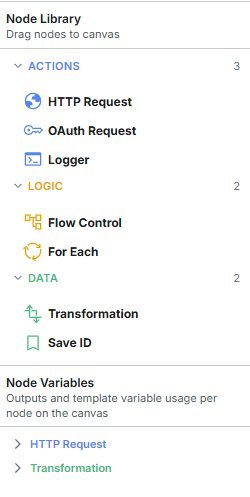
Node library
Use the panel control in the toolbar to collapse the left sidebar and give the canvas the full width of the page. When the sidebar is open, the Node Variables section can be shown or hidden on its own; the node library and integration details stay available.
The sidebar layout is kept for this browser between sessions.
Workflow canvas
In the center of the page is the workflow canvas where nodes are arranged and connected.
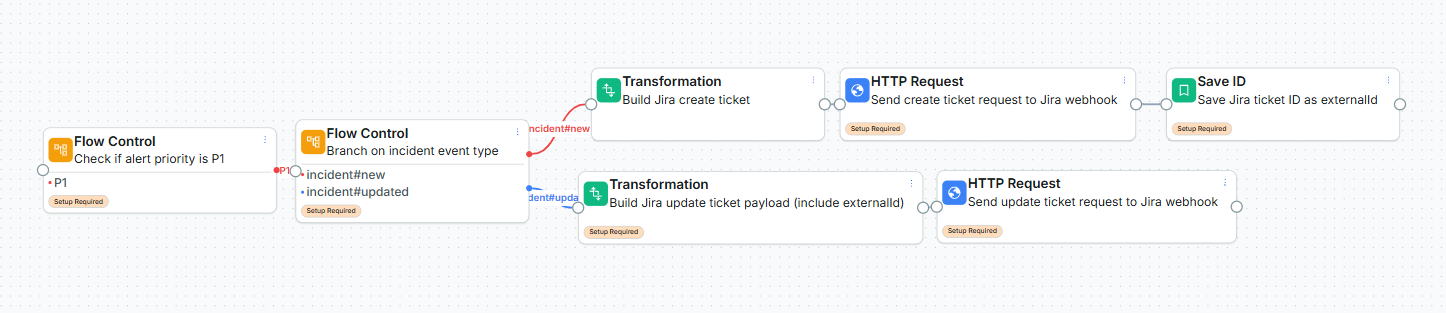
Workflow Canvas
Each node is shown as a card with its type icon and configured name.
A normal node has a single outgoing connection point; Flow Control nodes display one outgoing line per route option.
Drag from a node's outgoing anchor to another node's input to wire them together.
Delete a node directly from the canvas. Connections to and from the deleted node are removed automatically. The start node can't be removed until another node is set as the start.
Wiring
The side panel defines only the source and the option values. Each option appears as an outgoing line on the canvas; drag each line to the target node it should route to. If no option matches and no default is wired, the workflow stops.
Per-node configuration
Selecting a node on the canvas opens its configuration in the side panel. The side panel shows only the fields relevant to the selected node type — for example, OAuth credentials for an OAuth node, or the source variable and route options for a Flow Control node. See the Node Types section for details on required and optional fields per node type.
Click the three dots icon on any node to select Add error path, Set as start, or Remove node.
Error paths
An error path adds a new connection point to the bottom of the node. Drag a line from that point to the node that should run when this node fails. If a node fails and has no error path wired, the workflow stops at that node.
When a node fails and routes to an error path, Integration Studio writes a last_error variable before the error path runs. Every node on the error path, and every node after it, can reference the failure details in templates.
Variable | Description | Set by |
|---|---|---|
| The failure message. | Any node type |
| The HTTP status code returned by the failed request. | HTTP Request nodes |
| The response body returned by the failed request. | HTTP Request nodes |
last_error is only present on an error path. It is not set when a node succeeds, and it is not set when a failing node has no error path wired.
Example Transform template on an error path:
{
  "text": "Ticket creation failed for incident {{incident.id}}: {{last_error.statusCode}} {{last_error.message}}"
}
Start node
Every workflow runs from a single start node. Shares and test runs begin at the start node and follow its connections. Nodes that are not connected to the start node stay on the canvas but do not run.
The start node shows a Start badge. It is also the only node without an incoming connection point on its left side, because nothing runs before it.
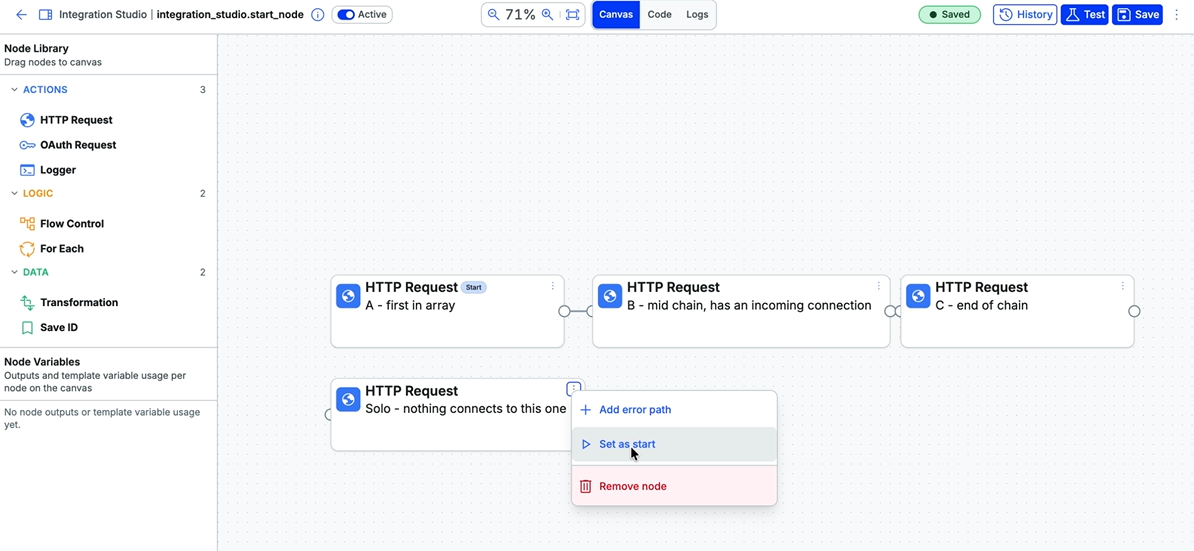
Change the start node
Change the start node
On the canvas, click the three dots icon on the node that should run first.
Select Set as start.
Click Save.
The Start badge moves to the selected node as soon as you select Set as start. The status chip changes to Unsaved changes. A workflow has only one start node, so the badge leaves the previous start node.
Save before testing
Test mode runs the last saved start node. If you change the start node and run a test before saving, the test starts from the previous start node.
Start nodes in new and existing workflows
New workflows: The first node added to an empty canvas becomes the start node. Change it at any time.
Existing workflows: Workflows created before this change open with their first node as the start and run exactly as before. Opening one doesn't mark the workflow as changed.
Parameters panel
The Parameters panel lists every variable available to your templates from the share payload, including:
Incident metadata (for example,
metadata.event_type,metadata.firstTime).Incident fields (for example,
incident.id,incident.status,incident.description).Alert tags exposed on the share.
Outputs from earlier nodes that have been mapped to named variables.
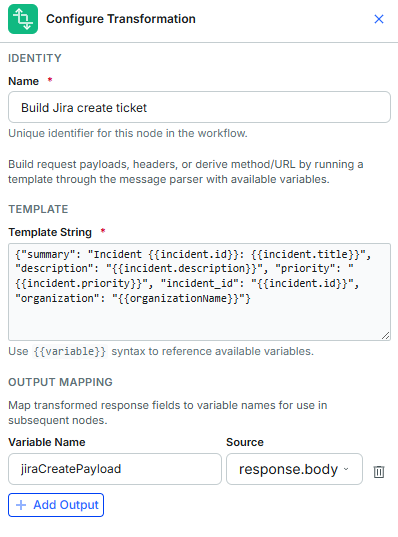
Node Parameters
Use the panel while editing node templates to discover available keys and avoid typos. Each entry shows the variable's JSON path and an example value where one is available.
Apply node changes
Changes you make in a node's side panel are held as a draft until you apply them. Applying a draft updates the node on the canvas; it does not save the workflow.
There are two steps to keep a change:
Click Apply Changes in the node panel to commit your edits to the node on the canvas.
Click Save to update the workflow.
Apply node changes before saving
Saving does not apply drafted node changes.
If you have unapplied edits in a node panel and click Save, those edits are not included. Apply your node changes first, then save the workflow.
Saving applies immediately
Clicking Save writes the configuration to the active workflow. If the workflow status is Active, the next share runs the saved version. Use test mode to check applied node changes before you save. Start node changes take effect in test mode only after saving.
Navigation through the BigPanda top bar or the browser's Back button does not trigger the prompt, so save before you leave the page by those routes.
The toolbar shows when a node has unapplied edits, so you can tell at a glance whether anything is outstanding.
If you try to move away from a node with an unapplied draft, Integration Studio prompts you before your edits are lost. This happens when you select another node, close the node panel, or leave the Integration Studio. You can then:
Apply changes: Commit the draft, then continue. This option is unavailable while the draft has a validation error.
Discard: Continue and lose the draft.
Cancel: Stay on the node and keep editing.
Switching between the visual editor and code view does not prompt you. Your draft is preserved and appears in the code view.
Code view
Toggle the code view to inspect the workflow as raw JSON. Edits made in the code view are reflected in the canvas, and the same JSON is used when you export or import a configuration.
The start_node key holds the ID of the start node, for example "start_node": "<node_id>". The key updates as soon as the start node changes on the canvas, before you save.
Test mode
Test mode runs your workflow against a real incident and shows you what each node did. Use it to validate a workflow before you set it to Active, and to diagnose a workflow that is not producing the output you expect.
Test runs do not save any state. Share IDs are not stored, and the incident you test against is not marked as shared.
Test runs make real external calls
HTTP request nodes in your workflow send real requests to the endpoints you configured. If your workflow creates tickets or posts messages, a test run creates a real ticket or posts a real message. Point your workflow at a sandbox endpoint before testing, or expect the external record to be created.
In the Workflow Designer toolbar, click Test.
Select the incident to test against.
If your organization has more than one environment, select the environment to filter the incident list.
Select the notification type to simulate. Options are:
incident#new,incident#updated,manual(a share triggered from the incident),incident#reopen,incident#closed,incident#commented,incident#snoozed,incident#become-flapping,incident-tag#upserted, andincident-tag#removed.Review the warning about real external calls.
Click Run in test mode.
The workflow runs immediately and the canvas displays the results when it finishes.
Test mode starts from the start node in the saved configuration. Save the workflow after changing the start node, then run the test.
Environment selection
If your organization has only one environment, the environment selector does not appear and that environment is used automatically. Because the environment determines how {{metadata.environment.id}} and {{metadata.environment.name}} resolve, a test run in a single-environment organization still resolves these variables correctly.
Test mode limits
Test mode exercises the full workflow logic but deliberately skips anything that would change stored state.
External IDs captured by a Save ID node are not saved to the incident.
The test run does not count as a share, and the incident's share history is unchanged.
Logger node output is returned in the results rather than written to the execution log.
The workflow's Active or Inactive status is unchanged. You can test an inactive workflow.
Test results
After a test run, each node on the canvas displays a status badge showing whether it succeeded or failed. Expand a node to see the detail of what it did.
Each node result includes:
Status: Whether the node succeeded or returned an error.
Input variables: The data the node received.
Output variables: The data the node produced and passed to later nodes.
Duration: How long the node took to execute, in milliseconds.
Error message: The reason for the failure, shown only when the node returned an error.
Results stay on the canvas until you dismiss them or run another test.
Test run logger nodes
Logger nodes write to the test results rather than to the execution log. Add a Logger node where you want visibility into an intermediate value, then read its output in the test results.
Import and export configurations
Workflow configurations can be exported and imported as JSON files.
Export: Download the current workflow configuration for version control or for sharing with your team.
Import: Upload a JSON configuration to create or update a workflow.
Import replaces current workflow
Import can be used on a canvas that already has nodes, but it will replace the existing configuration before it proceeds.
The replaced configuration is stored as a version entry when you save, so a rollback recovers it. Export the current configuration first to keep a copy outside version history.
Import validation
Imported configurations are validated against the supported node types and structure. If the configuration contains errors, Integration Studio surfaces them so you can correct the file before saving.
An imported file keeps its start node. If the file's start node refers to a node that doesn't exist in the file, the import is rejected with an explanation.
{
  "id": "node_http_example",
  "type": "http-request",
  "name": "Create Jira issue",
  "inputs": [
    { "name": "method", "value": "POST" },
    { "name": "url", "value": "https://your-domain.atlassian.net/rest/api/3/issue" },
    { "name": "headers", "value": "{\"Authorization\":\"Bearer {{access_token}}\",\"Content-Type\":\"application/json\"}" },
    { "name": "body", "value": "{{webhook_payload}}" },
    { "name": "performRequestTransformation", "value": "true" }
  ],
  "outputs": [
    { "name": "createResponse", "value": "response.body" },
    { "name": "httpStatusCode", "value": "response.statusCode" }
  ],
  "next_node": "node_save_id",
  "error_node": "node_error"
}
Configuration history and rollback
Integration Studio keeps a short history of your workflow configuration so you can restore a previous version if a change does not work as expected. Each time you save a workflow, the configuration as it existed before the save is stored as a version entry.
Integration Studio retains the two most recent previous versions. Older versions are discarded as new ones are added.
View version history
The History panel lists the previous versions available for the current integration. To open it, click History in the Workflow Designer toolbar.
Each entry shows:
Version: The sequential version number.
Updated by: The user who saved that configuration.
Updated at: The date and time of the save.
If you have not yet saved the workflow more than once, the History panel shows an empty state.
Roll back to a previous version
Rolling back replaces the current workflow configuration with the contents of an earlier version. The title, workflow nodes, and active status are all restored from the version you select.
In the History panel, find the version you want to restore.
Click Rollback for that entry.
Confirm the rollback when prompted.
The canvas reloads and displays the restored workflow. The History panel refreshes to show the updated version list.
Rollback is reversible
Rolling back does not delete your history. The configuration you were using before the rollback is saved as a new version entry, so you can roll back again to return to it. Because only two previous versions are retained, rolling back twice in a row discards the oldest entry.
Version retention
A new version entry is created every time you save the workflow.
Only the two most recent previous versions are kept.
A rollback also creates a version entry, which counts toward the two-version limit.
Workflows created before this feature was released have no version history until you save them again.
Export version before major changes
Version history holds only two entries and is not a substitute for version control. Before you make significant changes to a workflow, export the configuration as JSON so you have a copy you control.
Workflow execution logs
The Logs view shows entries written by Logger nodes when incidents are shared to an active workflow. Use it to confirm what a workflow did in production, and to diagnose a workflow that ran but produced the wrong result.
Only Logger nodes write to the execution log. If your workflow contains no Logger nodes, the Logs view is empty even when the workflow is running normally.
Add logger nodes before you need them
Execution logs are only as useful as the Logger nodes in your workflow. Place a Logger node after each branch of a flow control node, and after any HTTP request whose response matters, so there is a record to read when something goes wrong later.
Open Logs view
In the Integration Studio, open the Logs view for the current integration.
View logs
Each row is one Logger node execution.
Column | Description |
|---|---|
Timestamp | When the entry was written. |
Level | The level set on the Logger node: info, warn, or error. |
Message | The resolved message text, with template variables replaced by their values. |
Node name | The Logger node that wrote the entry. |
Incident | The incident that was shared to the workflow. |
Notification type | The share trigger that started the run, such as incident#new. |
Run ID | Identifies a single workflow execution. Every entry written during the same run shares one run ID. |
Filter and sort logs
You can filter the log by:
Incident: Show only entries for a specific incident.
Notification type: Show only runs started by a particular share trigger.
Time range: Limit entries to a start and end time.
Run ID: Show every entry from a single workflow execution.
Sort the table by clicking a column heading. A footer below the table shows how many entries match the current filters.
Click a run ID or notification type value in a row to filter the table by that value. Use Clear to remove all filters. If a Logger entry was written on an error path, the failure details appear under the message text.
If the log fails to load, click Retry.
Trace 1 ID at a time
Filtering by run ID is the fastest way to understand a single share. It returns every Logger entry from that one execution in order, so you can follow the path the workflow actually took rather than piecing it together from timestamps.
Log limits
Test runs do not write to the execution log. During a test run, Logger node output appears in the per-node results on the canvas instead.
Use test mode while building a workflow, and the Logs view after the workflow is active and processing real shares.
Execution log entries expire automatically. Review logs regularly to identify issues before they become critical.
Example workflow
A common Integration Studio pattern handles the first share for an incident differently from later updates:
Share arrives
    ↓
[OAuth] ──► Gets bearer token from the external system
    ↓
[Flow Control] ──► Checks metadata.firstTime
    ├── true  → [Transform: build create payload]
    │            → [HTTP Request: POST /issue]
    │            → [Save ID: store returned issue key]
    │
    └── false → [Transform: build update payload referencing the saved ID]
                 → [HTTP Request: PUT /issue/{saved_id}]
OAuth obtains a bearer token from the external system.
Flow Control checks
metadata.firstTimeto determine whether this is the first share for the incident.Transform (new path) builds the creation payload.
HTTP Request (new path) sends the creation request.
Save ID captures the external ID from the response and saves it on the BigPanda incident.
Transform (update path) builds an update payload that includes the saved external ID.
HTTP Request (update path) sends the update to the external system.
Troubleshooting
Symptom | Likely cause | Resolution |
|---|---|---|
Workflow does not execute when an incident is shared | Workflow status is set to Inactive | Open the workflow and set the status to Active. |
Workflow runs but no share is reaching the integration | No AutoShare rule is sending incidents to this integration | Create or update an AutoShare rule targeting the integration's app key. |
Transform node produces unexpected output | Template references a missing or misspelled variable | Use the Parameters panel to confirm the variable path. Verify Handlebars syntax in the template. |
HTTP request returns an authentication error | OAuth node is missing or misconfigured, or the token is not being referenced in the request headers | Verify the OAuth node's Client ID, Client Secret, Grant Type, and Token URL. Confirm the HTTP Request node's headers reference |
HTTP request body contains literal | Perform Request Transformation is disabled on the HTTP Request node | Enable Perform Request Transformation so templates in the URL, headers, and body are rendered before the request is sent. |
An HTTP request node reports an error after a long delay. | The endpoint did not respond within 60 seconds, and the request was retried. | Verify the endpoint is reachable and responsive. A failing endpoint takes up to three minutes across all attempts. |
External ID is not saved | Save ID node references an incorrect variable | Confirm the External ID field matches the output variable from the preceding HTTP Request or Transform node (for example, |
Node edits disappeared after saving the workflow. | The edits were still an unapplied draft in the node panel when you saved. | Click Apply Changes in the node panel before clicking Save. |
The Apply changes option is unavailable in the prompt. | The draft has a validation error. | Cancel, correct the invalid field, then apply. Alternatively, discard the draft. |
The Unlock shares checkbox is disabled. | Share locking is not enabled for your organization. | Contact BigPanda Support if you need share locking enabled. Until then the setting has no effect. |
Update path overwrites the wrong record | Save ID node did not run on the first share, so the workflow re-creates instead of updating | Verify the create path includes a Save ID node and that the first share routed down the create path. |
A Save ID node reports success, but the external ID is not on the incident. | Test runs do not persist state. | This is expected behavior. Activate the workflow and share an incident to it to confirm the external ID is saved. |
Shares through a workflow are delayed or backing up. | An HTTP request node is calling a slow endpoint, delaying every share through the workflow. | Check the endpoint's response time. Consider an endpoint that responds quickly and completes its work asynchronously. |
The History panel is empty. | The workflow has been saved only once, so there is no previous version to restore. | Save the workflow again after making a change. The prior configuration is then stored as a version entry. |
An older version you expected to see is missing. | Only the two most recent previous versions are retained. | Export configurations as JSON before major changes so you retain copies beyond the two-version limit. |
The Logs view is empty even though the workflow is running. | The workflow contains no Logger nodes, so nothing is being written. | Add a Logger node at the points you want visibility into, then save and wait for the next share. |
A Logger message contains empty values, or is cut off. | The template references a variable not available at that point, or the message exceeded the length limit. | Check the Parameters panel for available variable names. Log individual fields rather than whole objects. |
Imported configuration fails validation | JSON contains unsupported node types or missing required fields | Review the validation errors surfaced during import and correct the JSON before re-uploading. |
The workflow stopped running after a rollback. | The restored version had its status set to Inactive. | Open the workflow and set the status to Active. The active status is part of the saved snapshot. |
A test run created a real ticket or message in the external system. | HTTP request nodes make real external calls during a test run. | This is expected behavior. Point the workflow at a sandbox endpoint while testing, then switch to the production endpoint before activating. |
{{metadata.environment.id}} is empty in a test run. | The environment was not passed with the test request. | Select an environment in the test mode panel before running. If your organization has one environment, it is applied automatically. |
Error path nodes run, but | The template is on the success path, or the failing node has no error path wired. | Confirm the Transform or Logger node referencing |
| The node that failed is not an HTTP Request node. | Only HTTP Request nodes set |
| The tag ID is misspelled, or the tag is not present on the incident. | Check the tag ID in the Parameters panel. Tag IDs are case sensitive. |
An HTTP request failed and you are not sure which endpoint it called. | Variables in the URL field resolved to an unexpected value. | Read the resolved URL in the node's error message in the test results or execution log. |
A For Each node fails with a message that the source did not resolve to an array. | The Source array path is wrong, or the field is not an array on this incident. | Check the path in the Parameters panel. Wire an error path with a Logger node to record the resolved type. |
Nodes after a For Each node run, but the loop body never runs. | The array is empty for this incident, or the body is wired to the right connection instead of the bottom one. | Confirm the body node is connected from the bottom connection point. Test against an incident with more than one alert. |
A share takes minutes to complete after adding a For Each node. | The loop makes one external call per element and each iteration waits for the previous one. | Reduce the array upstream with a Transform or Flow Control node, or aggregate alerts into one request with |
| The reference is in a field that is not processed as a template, or Template Transformation is disabled on the HTTP Request node. | Enable Template Transformation and confirm the field supports variables. |
| The incident has no assignee. | Wrap the reference in |
Set as start is missing from a node's menu. | The node is already the start, or another node connects into it. | Remove the incoming connection, then select Set as start. |
Remove node is greyed out. | The node is the start node. | Set another node as the start, then remove this node. |
A test run starts from the previous start node. | The start node change wasn't saved. | Click Save, then run the test again. |
Some nodes never run. | The start node doesn't connect to them. | Connect the nodes to the path that leads from the start node, or set a different start node. |
Import fails with a start node error. | The file's start node refers to a node that isn't in the file. | Correct the |
Next steps
Set up automatic sharing rules to trigger your Integration Studio workflow.
Learn about configurating and normalizing incident data to use in your workflow templates.
View incident data fields available as Dynamic Variables.