File upload
File upload gives you a self-service way to bring large files into BigPanda without setting up a pull connector or providing external credentials.
Upload files such as JSON, CSV, JSONL, PDF, .MD and images directly into your organization's UDC storage, and make them available to downstream features for processing. Files upload straight from your browser to your organization's private storage, so you can onboard ad-hoc data in minutes.
Key Features
Upload large files, up to 10 GiB each and 5 files per batch, directly from your browser.
Onboard data without configuring a pull connector, a cron schedule, or external credentials.
Store files directly in your organization's private UDC storage.
Track the status and storage location of every upload in one place.
Access the File upload page
The File upload page lives in the Administration area of BigPanda.
In the top-right corner of the BigPanda console, click your user avatar.
In the menu, select Administration.
In the Administration area, under Integrations, select File upload.
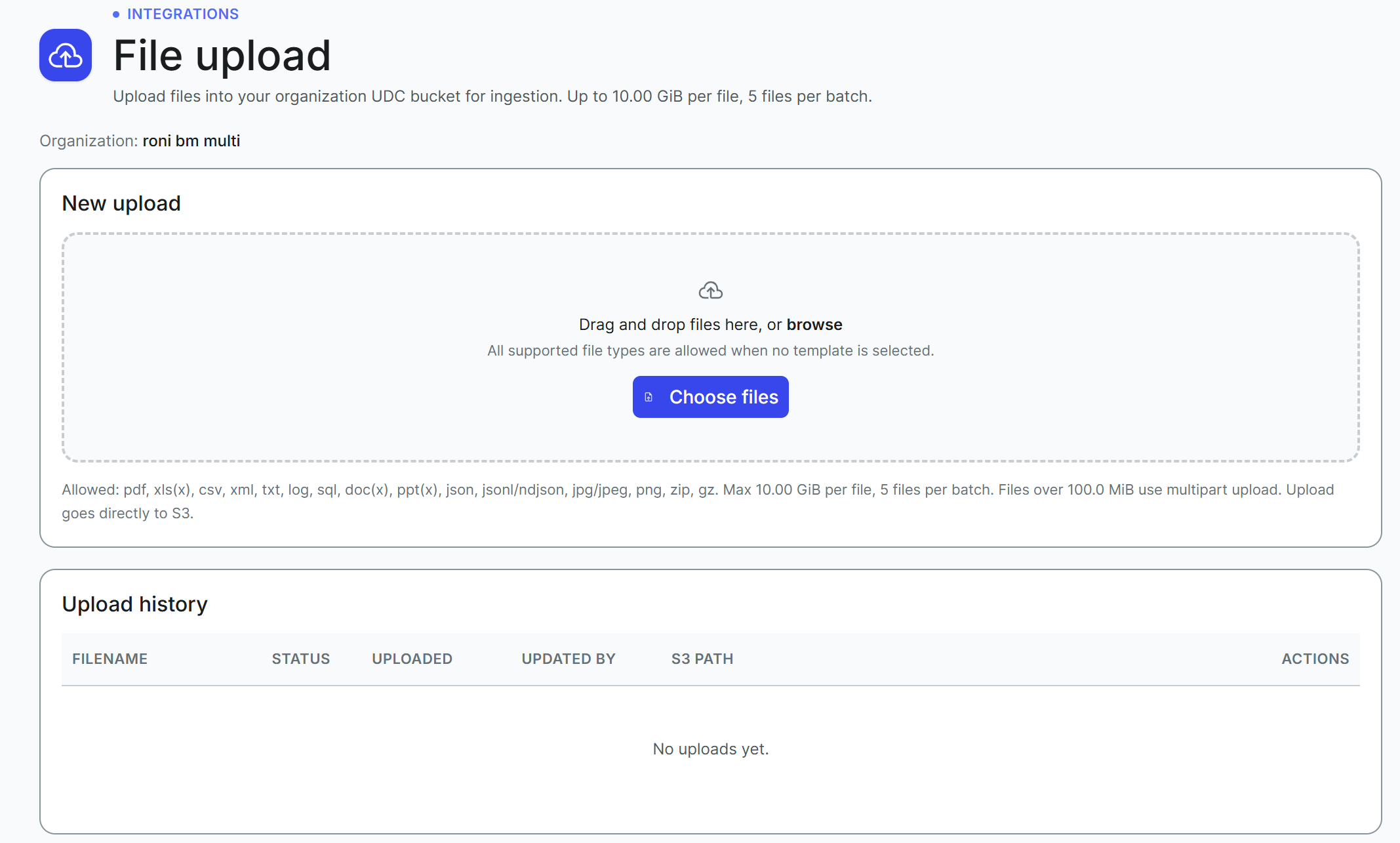
The File upload page opens and displays the target Organization for your uploads near the top of the page.
Choose and upload files
In the New upload section, drag your files onto the drop zone, or click Choose files to browse your computer.
File requirements
pdf, xls(x), csv, xml, txt, log, sql, doc(x), ppt(x), json, jsonl/ndjson, jpg/jpeg, png, zip, gz, and md file types are supported.
The maximum file size is 10.00 GiB per file, 5 files per batch. Files over 100.0 MiB use multipart upload.
Select up to 5 files, then confirm your selection.
The upload begins automatically. As each file is processed, the page displays its progress, moving through
Preparing <file_name>...,Verifying upload..., andUpload complete.
When the upload finishes, the page shows an Upload complete confirmation with the full storage path of the file, and an Upload more button appears so that you can start another batch.
Review upload history
The Upload history section lists your organization's uploads and their current state. Each row includes the following:
Filename: The name of the uploaded file.
Status: The current state of the upload, such as
Completed.Uploaded: The date and time the file was uploaded.
Updated by: The user who performed the upload.
S3 path: The full storage path where the file is saved.
Actions: Controls to copy the file's storage path and to download the file.
Use the copy and download actions in the Actions column to retrieve a file's storage path or to download the original file.