Email Templates (IA)
Email Templates are reusable HTML layouts that Biggy can apply when sending emails. Scheduled workflow reports, shared responses, and agent updates all render in the template you choose, so every message your organization sends maintains a consistent, on-brand look.
You can find Email Templates in the web app at Operate > AI Capabilities > Email Templates.
Key features
Build branded email layouts once and reuse them across multiple email destinations.
Design a template by hand or describe it in plain language and let Biggy write the HTML for you.
Import an existing email from a screenshot or from pasted HTML to reconstruct it as a reusable template.
Preview any template with realistic sample data before you send it.
View your email templates
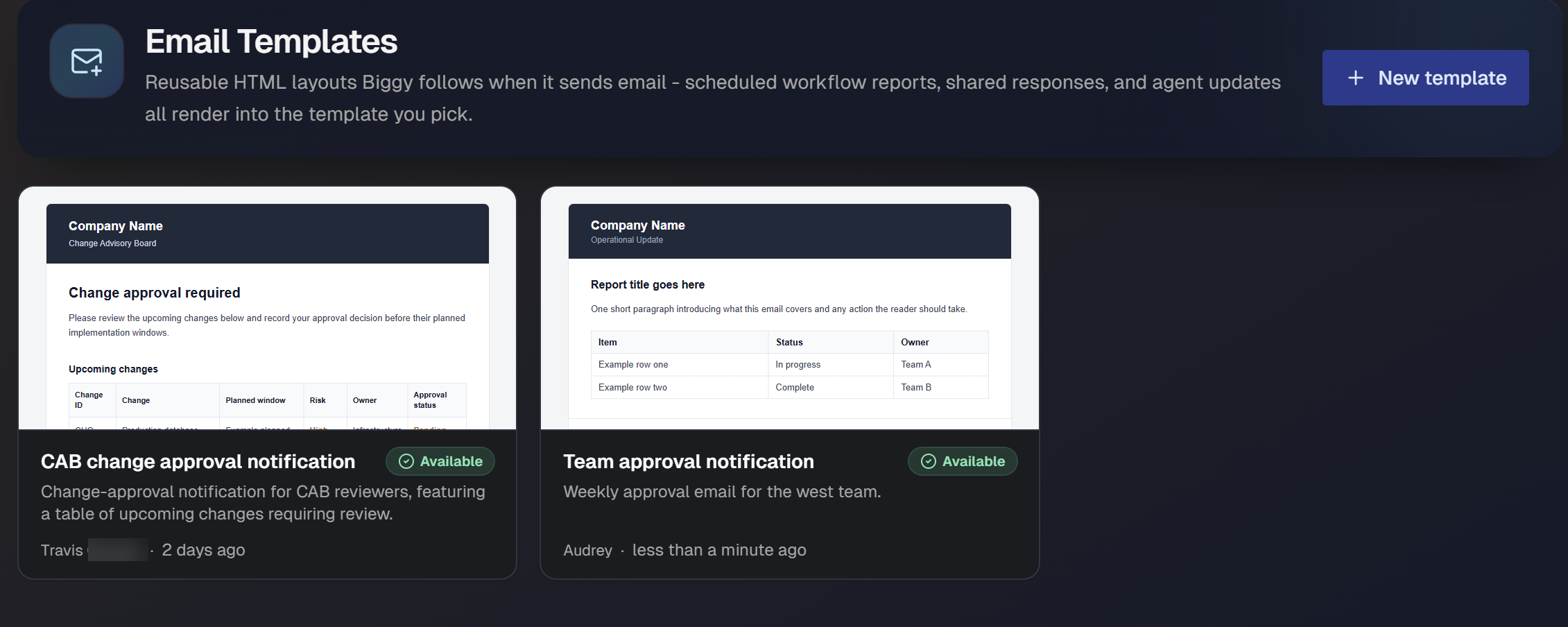
The Email Templates page lists every template your organization has created. Each template appears as a card that shows:
Preview: A thumbnail of the rendered layout.
Name: The name the template shows under in destination pickers.
Status: An Available badge when the template can be selected on an email destination.
Description: A short summary of what the template is for.
Details: The name of the person who created the template and how long ago it was last updated.
To start a new template, click New template in the top-right corner of the page. To edit an existing template, click any template in the list.
Create a template
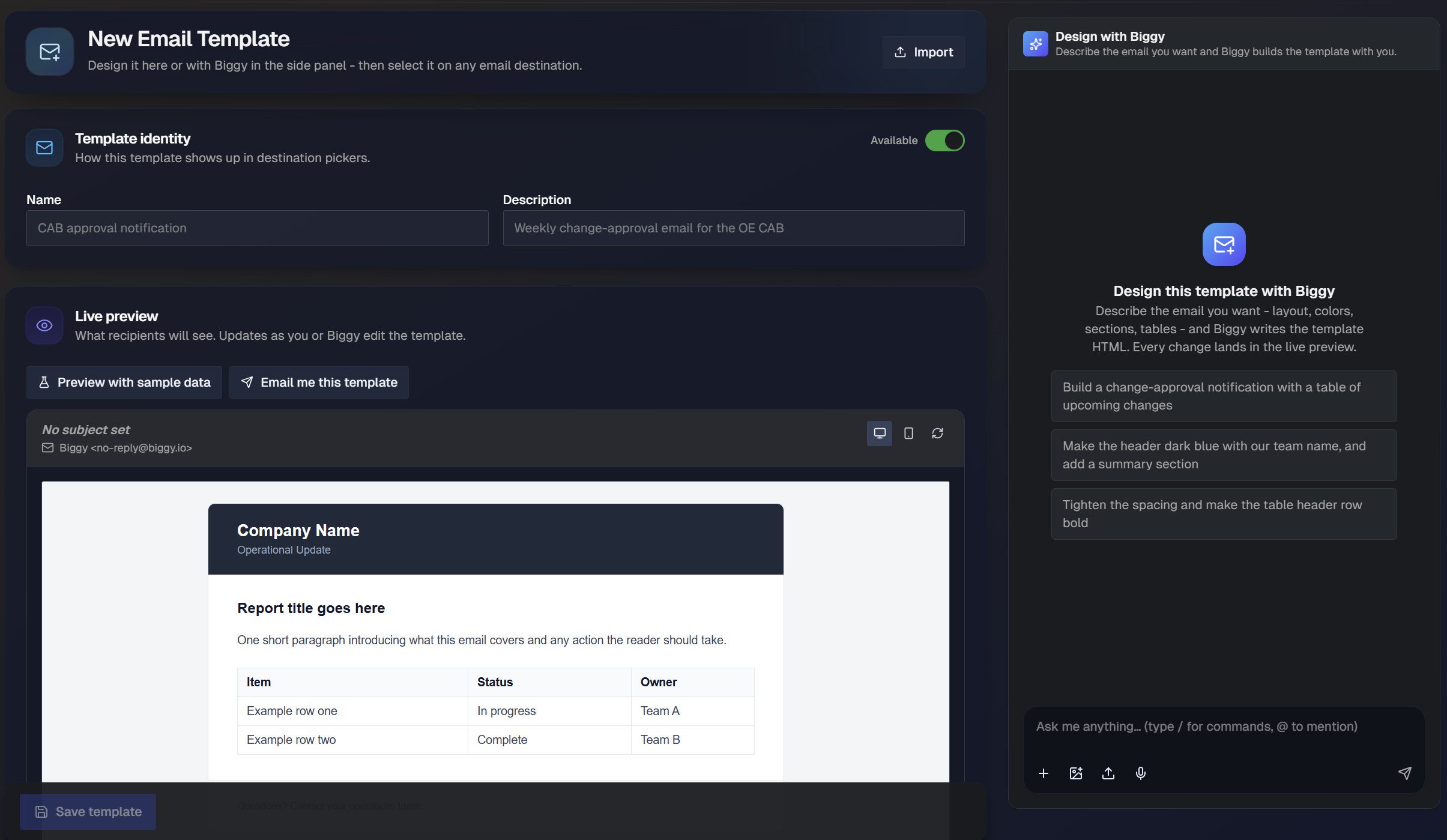
Click New template to open the New Email Template page. Here you design the layout, set how the template appears to your team, and preview the result before saving.
Set the template identity
The Template identity section controls how the template shows up in destination pickers.
In the Name field, enter a name for the template, for example
CAB approval notification.In the Description field, enter a short summary of what the template is used for.
Use the Available toggle to control whether the template can be selected as an email destination.
Design the template with Biggy
The Design with Biggy panel on the right side of the page lets you build the template using natural language. Describe the layout, colors, sections, and tables you need, and Biggy writes the template HTML. Every change lands in the live preview so you can see the result as you go.
To design with Biggy:
In the Ask me anything field at the bottom of the panel, describe the email you want. For example, enter
Build a change-approval notification with a table of upcoming changes.Review the result in the live preview.
Refine the template with follow-up requests, for example
Make the header dark blue with our team name, and add a summary sectionorTighten the spacing and make the table header row bold.
As Biggy works, it updates the template fields directly, including the name, description, subject, and HTML. You can keep the conversation going until the layout matches what you want.
Preview the template
The Live preview section shows what recipients will see. The preview updates automatically as you or Biggy edit the template.
Use the device icons above the preview to switch between desktop width and mobile width. Click the refresh icon to reload the preview.
You have two ways to check the template before you save it:
Preview with sample data: Biggy creates a realistic sample report and renders it through the template so you can see how real content flows into the layout.
Email me this template: Send a copy of the template to yourself so you can check how it renders in real inboxes.
Adjust the sending behavior
Use the Sending behavior section to adjust the defaults and rules that apply when Biggy sends an email using this template. Definte the following fields:
Default subject: Enter a default subject line for the email. If you'd like to add a send date,
{{today}}and{{today:America/Los_Angeles}}formats are supported. The date is filled in by Biggy at send time (MM/DD/YYYY), never guessed. A subject configured during selection overrides this.Usage notes: Enter non-visual rules the email formatter must follow when filling this template with real content.
Edit the HTML source
To edit the layout directly, use the HTML source section at the bottom of the page. Expand the section to view and edit the raw HTML, and use the copy icon to copy the current source.
The HTML template has a limit of 30,000 characters, and the current count is displayed next to the section title.
Design and edit together
Changes you make in the HTML source and changes Biggy makes in the panel both update the same template, so you can switch between designing by hand and designing with Biggy at any point.
Import an existing email
If your team already sends an email with a style you want to reuse, you can import it and let Biggy reconstruct the layout as a reusable template. On the New Email Template page, click Import in the top-right corner to open the Import a template modal.
The modal offers two ways to import.
Import from a screenshot
In the Import a template modal, select the Screenshot tab.
Upload an email screenshot in PNG, JPEG, or WebP format. Images can be up to 8 MB.
Biggy reconstructs the layout as a template that you can then refine.
Crop before you upload
Crop the screenshot to just the email for best results. Extra surrounding content can affect how accurately Biggy reconstructs the layout.
Import from pasted HTML
In the Import a template modal, select the Paste HTML tab.
Paste the full email source into the text field. You can copy this from your email client's view-source option.
Click Use this HTML to reconstruct the layout as a template.
Save the template
When the template looks right, click Save template in the bottom-right corner of the page. If the template is set to available, it will appear in destination pickers.