Connect to Biggy
The Connect to Biggy page lets you use Biggy from the AI tools you already work in, including Claude Code, Cursor, ChatGPT, and many more. You connect as yourself, so the AI tool acts with your permissions in Biggy, and everything it does is recorded under your account.
AI clients must be enabled
If AI clients are not enabled for your organization, you can still read the setup steps, but tools are refused until an administrator turns the feature on.
An administrator can enable it on the AI clients page.
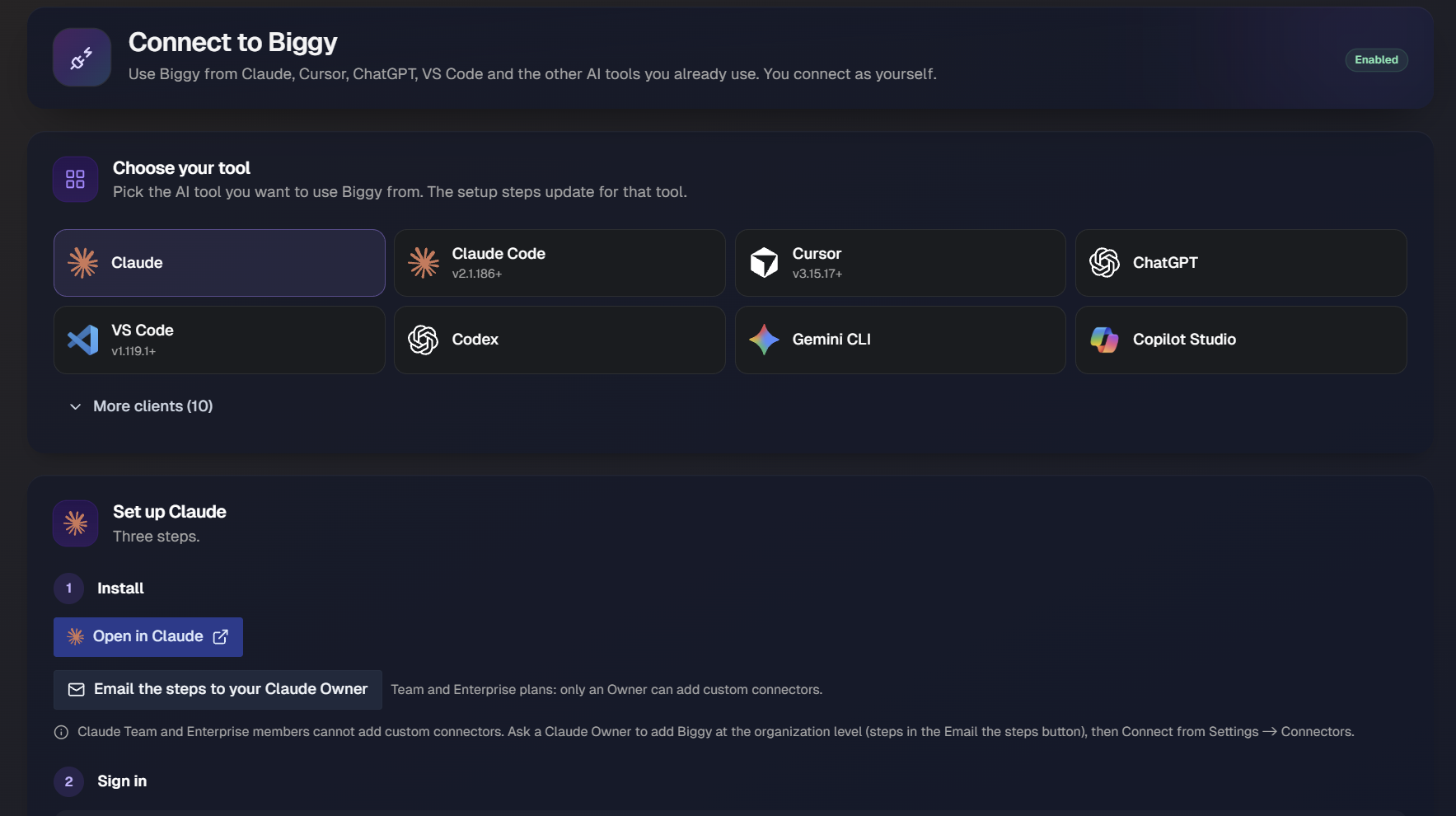
Access the Connect to Biggy page
You can open the Connect to Biggy page from three locations:
In the left navigation, go to Manage > AI Capabilities > Connect to Biggy.
Click your name in the bottom-left corner, then select Connect to Biggy.
Open Connect to Biggy from the link on the AI Clients page.
Choose your tool
At the top of the page, pick the AI tool you want to use.
The most common tools appear first. Click More clients to expand the full list.
The following options are available:
Claude
Claude Code
Cursor
ChatGPT
VS Code
Codex
Gemini CLI
Copilot Studio
Windsurf
Zed
Goose
Warp
Cline
Kiro / Amazon Q CLI
Perplexity
Le Chat
JetBrains IDEs
Other MCP Client
Set up an AI tool
Every tool follows the same three steps: install, sign in, and try it. The setup steps below the tool picker update for the tool you select.
Install: Add Biggy to the tool using a button, a terminal command, or a configuration file. When a config file is used, click Download config to save the snippet.
Sign in: Your tool opens the Biggy sign-in. You connect as yourself, with the same permissions as in Biggy. The exact prompt differs by tool and is described in each section below.
Try it: Send a sample prompt, then confirm the connection. The following prompt can be used as an example:
Ask Biggy what changed in the last 24 hours for the payments service.
All tools connect to the same MCP endpoint, https://mcp.biggy.io/mcp. For connection details and troubleshooting, a link to the tool's MCP documentation is located at the bottom of each tool's setup.
Some tools show an Advanced: use a personal key instead toggle. Turn it on to switch the snippets from OAuth sign-in to a personal key, which uses the /mcp/key endpoint. Once connected, your AI tool sees the same set of tools named ask_biggy, search_knowledge, and get_conversation, scoped to your role and what your organization has exposed.
Your connections
The Your connections section lists every AI tool currently allowed to act as you. Revoking a tool signs it out immediately.
When you have no connections yet, the section is empty.
What Biggy can do from here
Your AI tool sees the same Biggy you do. The What Biggy can do from here section shows what actions are available based on your role, and your organization.
Everything you do from a connected AI tool is recorded as you.