Canvases
A canvas is a working document that Biggy drafts and edits in a Biggy Chat conversation, such as an incident executive summary, a post-incident write-up, or a report.
Canvases is where you browse, share, and manage canvas documents across your organization. Every canvas stays linked to the conversation that produced it, so you can move between the document and the chat at any time.
The Canvases page is available in the web app at Operate > Reports > Canvases.
Key Features
Browse canvas documents across three scopes: the ones you own, the ones shared with you, and everything visible across your organization.
Format content with a rich-text toolbar and reorder sections with drag-and-drop blocks.
Share a canvas with your entire organization or with specific people and teams.
Jump back to the chat conversation that created a canvas.
Export a canvas as Markdown to copy or download.
Browse your canvases
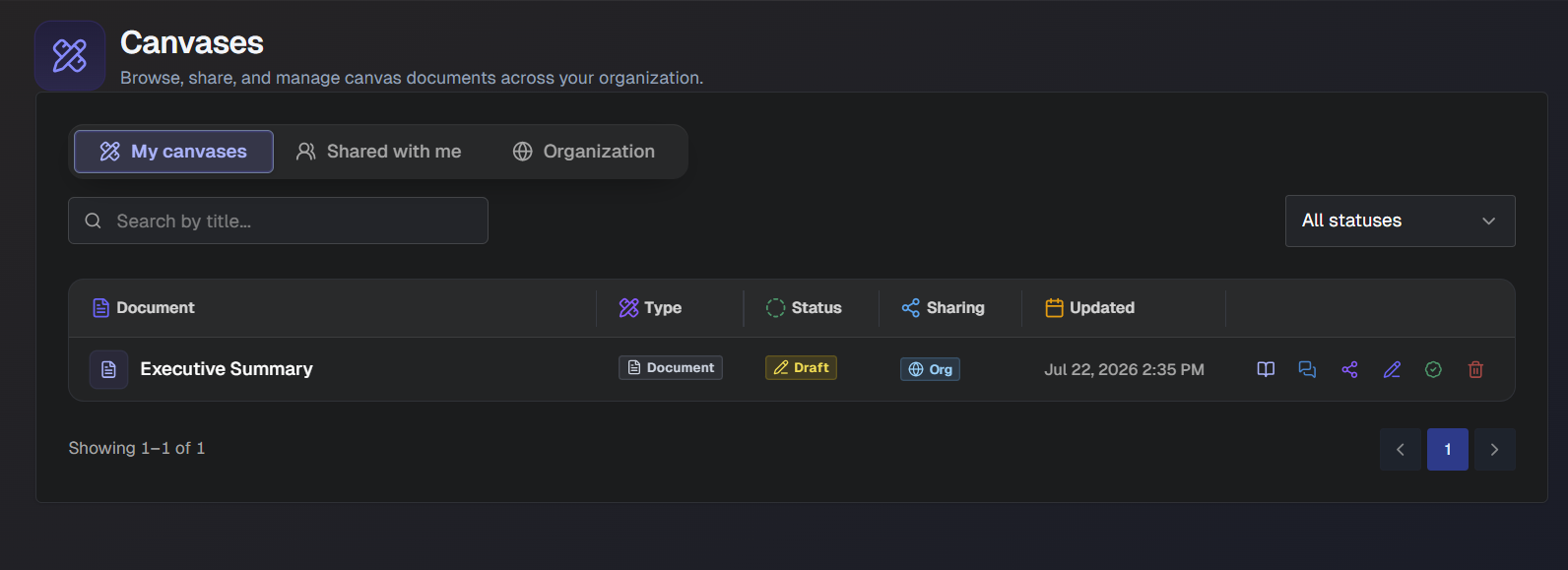
The Canvases page opens to a list of your canvas documents. Use the three tabs at the top of the page to change which documents you see:
My canvases: Canvas documents that you own.
Shared with me: Canvas documents that teammates share with you, directly or through your team. When nothing has been shared with you, the tab shows a "Nothing shared with you yet" message.
Organization: Canvas documents visible across your organization. This tab includes an Owner column that shows who created each document.
To find a specific document, enter its name in the Search by title box.
Use the All statuses drop-down menu on the right side of the page to show only canvases with a particular status.
The list includes these columns:
Document: The title of the canvas.
Type: The document type. Canvas documents are labeled Document.
Status: The current status. Possible statuses include Draft, In Review, Finalized, or Archived.
Sharing, Shared by, or Owner: Depending on the tab, this column shows who the canvas is shared with, who shared it with you, or who owns it. A canvas shared with everyone shows an Org label.
Updated: The date and time the canvas was last changed.
Canvas actions
Hover over a row in the canvas list to reveal the action icons at the end of it.
Action | What it does |
|---|---|
View & edit | Opens the canvas in the editor to read and change it. |
View in chat | Opens the Biggy Chat conversation associated with the canvas. |
Share | Opens the Share canvas dialog. |
Rename | Opens the Rename canvas dialog. |
Finalize | Marks the canvas as finalized. |
Delete | Removes the canvas. |
The available actions depend on the tab. On the Organization tab, only View and View in chat are available for documents you do not own.
View and edit a canvas
In the canvas list, hover over the canvas and select View & edit. The canvas opens in a panel on the right side of the screen.
Edit the content directly in the document. Changes save to the same document your chat uses.
To format text, select it and use the toolbar that appears above your selection. The toolbar includes a heading and paragraph selector, Bold, Italic, Underline, Strikethrough, left, center, and right alignment, and a link option.
To add or reorder content, hover over a block to reveal the add (+) and drag handles.
Select Save to keep your changes. An "Unsaved changes" indicator appears whenever you have edits that have not been saved.
The panel header also includes controls to save, view version history, send externally, export, and close the canvas.
Finalize a canvas
Finalize a canvas to show other users in your organization that it is complete.
In the canvas list, select the Finalize action for the canvas.
In the Finalize this canvas page, select Finalize. The canvas is marked as finalized.
Rename a canvas
In the canvas list, select the Rename action for the canvas.
In the Rename canvas page, enter a clear title.
Select Save.
Open a canvas in chat
Select the View in chat action for a canvas to open the conversation that created it. Because each canvas stays linked to its chat, you can continue working in Biggy Chat and see updates reflected in the document.
Export a canvas
From the canvas editor, open the export menu and choose one of the following:
Copy as markdown: Copies the canvas content as Markdown to your clipboard.
Download .md: Downloads the canvas as a
.mdfile.