Best Practices for Mapping Enrichment
Mapping enrichment allows you to upload a CSV to map tag values to an enrichment table. Incoming alert data will be compared to the values in query_tag columns. If a match is found, the related tag will be updated with a value from the result_tag column.
Mapping enrichment items are added automatically to existing tags upon the upload of a mapping enrichment table with matching result_tag column names. If a map contains a result_tag column name that does not match an existing tag, a new tag is automatically created for the enrichment item.
You can define a mapping enrichment with the Alert Enrichment API using these resources:
Enrichments object—defines the schema for your enrichment table. The schema determines how the information in each column of the table will be used in the enrichment process—as a query field, to match a value in the incoming alert, or as a result field, to enrich the alert.
Map endpoint—allows you to upload and maintain a mapping table that follows a given enrichments schema.
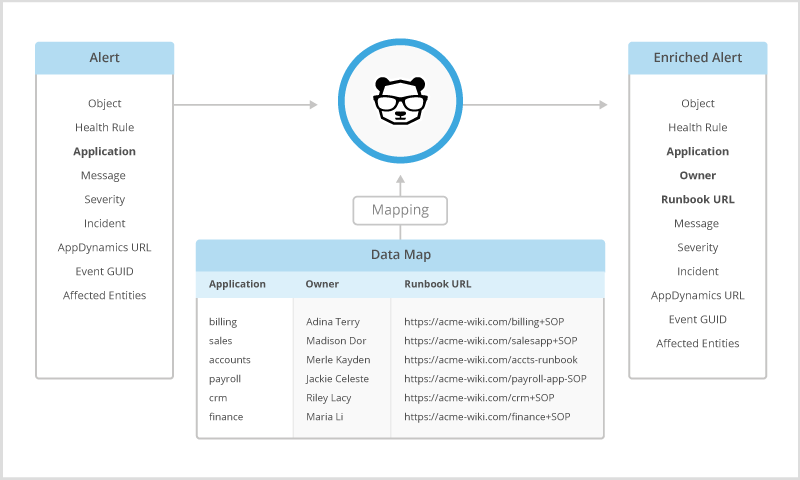
Mapping Schema and File
Each enrichment map is made up of a mapping schema, and a mapping file.
The mapping schema defines rules about how the system should interpret the mapping file. Mapping schemas determine:
The name and description of the enrichment map
A condition for when mapping rules should apply
Which columns function as lookup items
Result tag names
Override settings for result item values
The mapping file is the actual data that should populate alert item values. Mapping files are uploaded to BigPanda as a .csv. The map does not have to be fully populated on initial upload, but it must include headers for all columns. Map reuploads must match the existing schema, with the same column headers that were included in the initial upload.
Pipe characters in map values
BigPanda splits a cell on the pipe character (|) to produce a multi-value tag. There is currently no way to escape a literal pipe inside a value. Wrapping the value in triple quotes does not escape it; the value is still split into separate items. If a value contains a pipe, remove or substitute the character before you upload the map.
Dependencies
In certain cases of enrichment, you need to ensure that a specific tag or enrichment item runs before another because the enrichment items are dependent on each other.
Tags and enrichment items within BigPanda are executed in the order they appear in the BigPanda UI. Dependent tags or enrichment items should be below the source tag or item in the enrichment order.
In certain cases when creating dependencies the results may be different in each run. For instance, if the tag value is received in the original payload then the dependent tag uses this original value and not the value that would have been created during the enrichment process.
Map overrides ensure that tag values are normalized even across systems with disparate data models.
Step 1: Define The Mapping Structure
For a mapping enrichment, the Enrichments object defines how the information in each column of the table will be used in the enrichment process:
Query field—used to match a value in the incoming alert.
Result field—used to enrich the alert.
To define the mapping structure for a new enrichment:
Send a
POSTrequest to/resources/v2.0/alert-enrichments. Specify thetypeasmapping.For each column in your data table, specify the name and whether to use the values as aquery_tagor aresult_tag. The request creates a newEnrichmentsobject for this mapping enrichment schema.Token value
Be sure to replace
${token}with the corresponding value for your organization.Copy the
idvalue from the response body. You will use it to identify this schema when you upload and update the mapping data.
Step 2: Upload The Mapping Data
After you create an Enrichments object that defines its structure, you can upload the table of the mapping data. For example, suppose that the Billing and Sales applications both have owners and remediation procedures. You can upload a table with three rows—one row for the column names and one row for each application.
To upload the mapping data for an enrichment:
Send a
POSTrequest to/resources/v2.0/alert-enrichments/${mapschema_id}/map. Replace${mapschema_id}with the value you copied from the response body in Step 1 and${token}with the corresponding value for your organization. Send the request with the headerContent-Type: text/csv.Mapping data
The request body is the raw CSV file. It is not JSON and it is not a form upload. A charset on the header is optional. Any other content type, including
multipart/form-dataandapplication/octet-stream, is rejected with415 Unsupported Media Type.The first row must be the header row, and it must include every query tag and result tag title from the mapping enrichment. Every data row must have a value for every column. A file can be up to 512 MB, and a single row up to 4 MB.
Enriched tag for analytics
If your organization would like to accurately visualize enrichment rates in Unified Analytics, you must include 2 enrichment flag columns in the CSV:
An
enrichedorenrichmentcolumn with true/false rows, where true means alerts that match on that row should be considered enriched.A
<map name>column withenrichedorenrichmentin each row (whichever was the name of the previous column), to add the enriched quality to any alert matched on the map.
The request initiates an asynchronous job to upload the table and creates a Job object to track its progress.
An upload replaces the whole map
A
POSTreplaces the entire map. The rows in the file become the new map, and any row that is not in the file is removed. To change individual rows instead, see Step 3. Maintain the Mapping Data.The switch happens only after the whole file has been processed. Until the job finishes, and if the job fails, enrichment keeps using the previous map. If two rows have the same query tag values, only one of them is kept.
For example:
curl -X POST \
  -H "Authorization: Bearer ${token}" \
  -H "Content-Type: text/csv" \
  --data-binary @map.csv \
  https://api.bigpanda.io/resources/v2.0/alert-enrichments/${mapschema_id}/map
Sending the file
With curl, use
--data-binary, not-d. The-doption strips newlines, so the whole file arrives as a single row. In Postman, set the request body to binary, select the CSV file, and add theContent-Type: text/csvheader. The form-data option does not work.The payload must end with an empty new line. Make sure there are no spaces before the closing quotation marks on the last line.
Copy the
trigger_urivalue from the response body. You will use it to check the status of the upload.Send a
GETrequest to the${trigger_uri}to verify that the upload has completed successfully. Replace${trigger_uri}with the value you copied from the response body and${token}with the corresponding value for your organization. Poll untilstatusisdoneorfailed. The status values arepending,started,done, andfailed. A400on the upload itself means nothing was loaded; the response body lists up to 20 row errors.To read back the rows that were stored, send a
GETrequest to/resources/v2.0/alert-enrichments/${mapschema_id}/map?page=1&per_page=100. The response gives the total row count and the rows themselves. A cell holding a single value is returned as a string; a cell holding several values is returned as an array.(Recommended) Send test alerts to ensure that the mapping enrichment works as expected. For example, you can run the following command to send matching test alerts via the Alert API.
Resolve any test alerts, as necessary.
Step 3. Maintain the Mapping Data
As your team and infrastructure changes, you may need to update the values for your mapping enrichment. Depending on what changes you want to make, you can either completely replace the existing table, change only specific rows in the table, or create a new enrichment to change the structure.
To completely replace the existing table but keep the same structure, repeat Step 2. Upload the Mapping Data. The upload replaces the whole map, so the file must contain every row you want to keep.
To change only specific rows in the existing table:
Send a
PATCHrequest to/resources/v2.0/alert-enrichments/${mapschema_id}/mapwithContent-Type: application/jsonand a JSON array of operations. Replace${mapschema_id}with the value you copied from the response body in Step 1 and${token}with the corresponding value for your organization. The request initiates an asynchronous job and creates a Job object to track its progress.[ { "op": "upsert", "value": { "host": "server1", "owner": "team-a" } }, { "op": "delete", "value": { "host": "server2" } } ]Rows are matched on their query tag values, so every operation must include all query tag columns. Matching is not case sensitive when the map is case insensitive. A result value can be a string or an array of strings.
createAdds a new row. The request fails if a row with the same query tag values already exists.
updateChanges an existing row. Only the result columns named in
valuechange; the rest keep their values. The request fails if no row matches.upsertAdds the row, or replaces the matching row completely. Result columns that are not named in
valueare removed from the row.deleteRemoves the matching row. Only the query tag columns are needed. If no row matches, nothing happens and no error is returned.
All operations in one request are applied together. If one operation fails, the job fails and the map is left unchanged.
Copy the
trigger_urivalue from the response body. You will use it to check the status of the update.Send a
GETrequest to the${trigger_uri}to verify that the update has completed successfully. Replace${trigger_uri}with the value you copied from the response body and${token}with the corresponding value for your organization.(Recommended) Send test alerts to ensure that the mapping enrichment works as expected.
Resolve any test alerts, as necessary.
Fields a PATCH can change
After a mapping enrichment is created, a PATCH request to /resources/v2.0/alert-enrichments/${enrichment_id} changes only three fields: active, when (the condition), and note (the description). Any other field in the request body, including the name and the query and result tag definitions, is ignored without an error: the response is 200 and nothing changes. To change the map columns, create a new mapping enrichment.
To change the structure of your mapping data:
Deactivate the existing enrichment by sending a
PATCHrequest to/resources/v2.0/alert-enrichments/${enrichment_id}. Replace${enrichment_id}with the value you copied from the response body in Step 1 and${token}with the corresponding value for your organization. Setactivetofalse.Create a new mapping enrichment, starting from Step 1: Define The Mapping Structure.