Access Requests (IA and IP)
Access Requests shows you what your teammates are asking to use and lets you respond at the role level.
When someone requests access to an area, their request appears in a queue where you can grant it by adding the permission to a role they already have, by assigning a role that already includes it, or by declining it. Responding at the role level keeps permissions consistent across your organization, rather than granting one-off access to individuals.
To open the page, in the left navigation, go to Manage > Administration > Access Requests.
With Access Requests, you can:
See which items your teammates want to use and the permission level they need.
Read the justification each requester submitted.
Grant access by widening a role the requester already has.
Grant access by assigning a role that already includes the permission.
Decline a request with an optional note.
View access requests
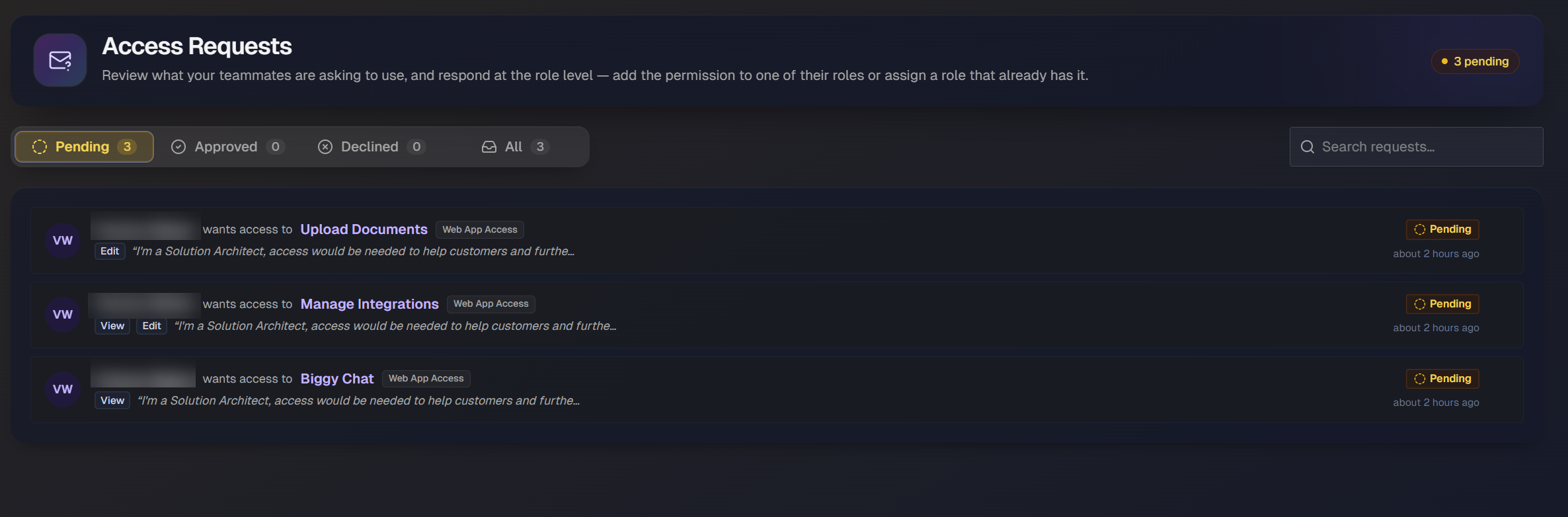
Each request appears as a card that shows the requester, the item they want to access, a scope tag such as Web App Access, the permission level they asked for (for example, View or Edit), and the note they submitted. A status badge marks each request as Pending, Approved, or Declined, along with how long ago it was submitted.
Use the tabs at the top of the page to filter requests by status:
Pending: Requests waiting for a response.
Approved: Requests you have granted.
Declined: Requests you have turned down.
All: Every request, regardless of status.
To find a specific request, type in the Search requests field.
Respond to a request
To respond to a request:
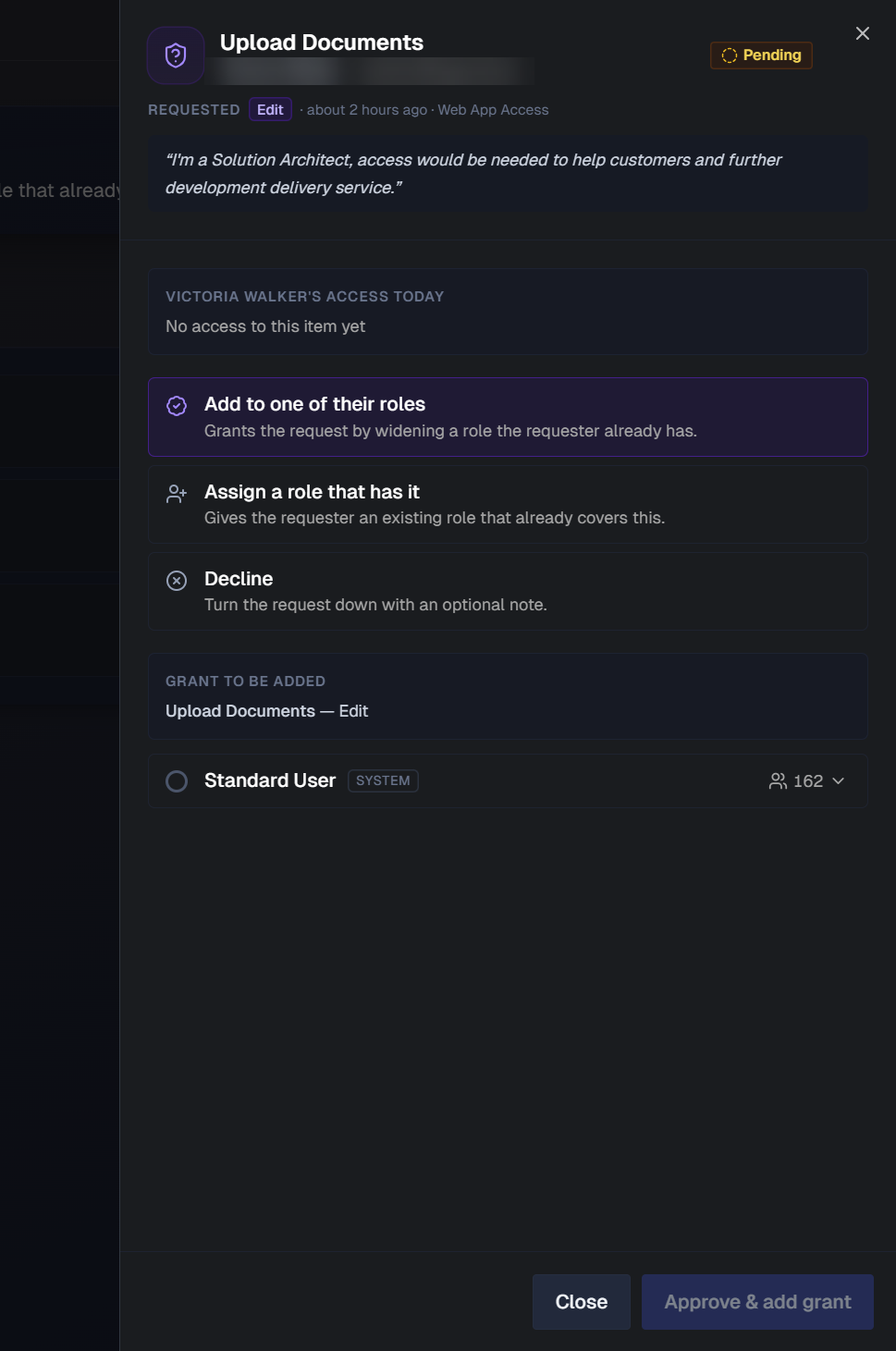
On the Access Requests page, select the request you want to respond to. The request detail panel opens on the right.
Review the requester's name, email, the requested item and permission level, the submitted note, and the requester's current access to the item.
Choose one of the following responses:
Add to one of their roles: Grants the request by widening a role the requester already has. When widening the role, all other users who have this role will also gain access.
Assign a role that has it: Gives the requester an existing role that already covers the request.
Decline: Turns the request down with an optional note.